Video Management: Create and manage video articles
Last updated: September 20, 2026
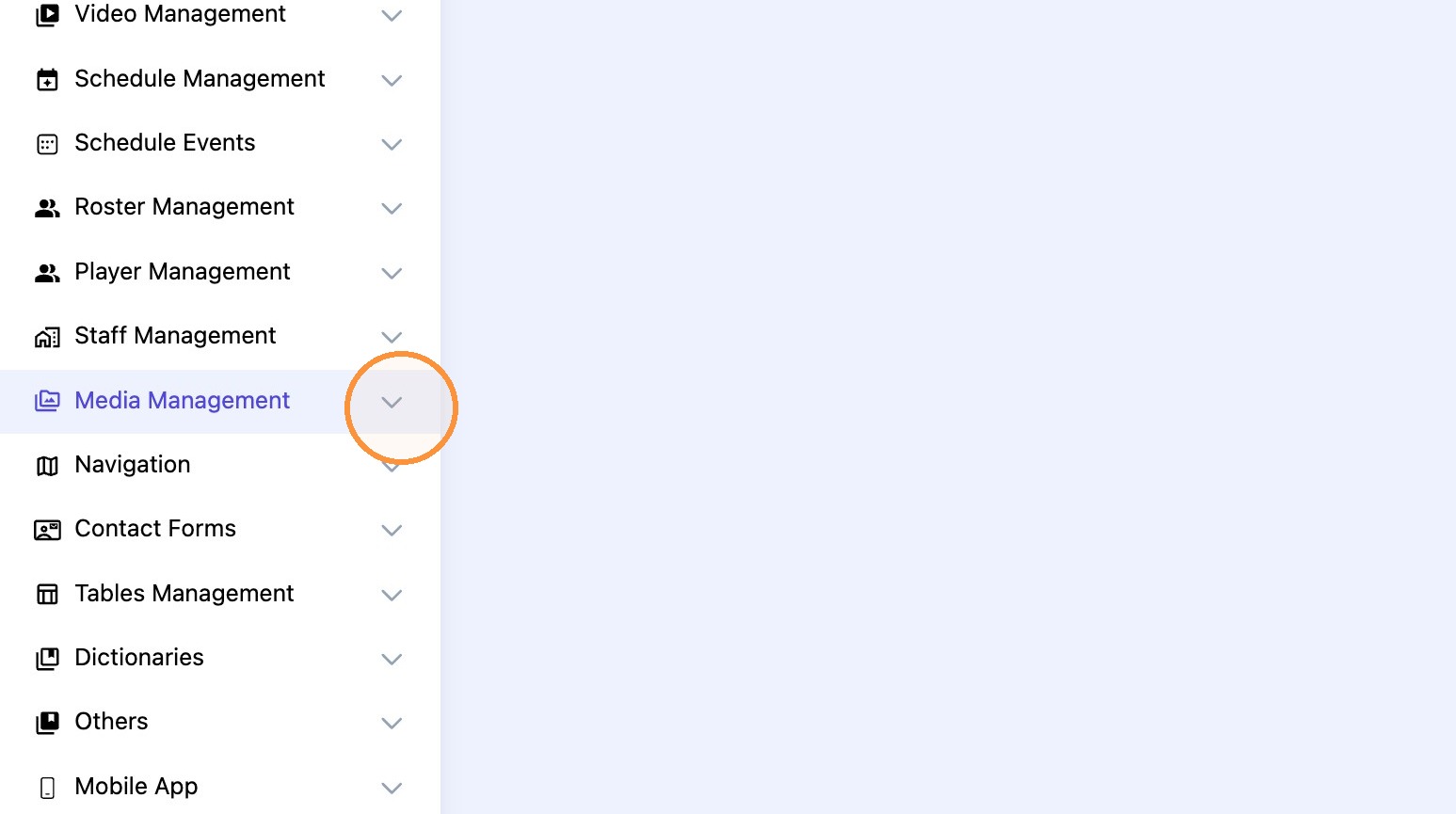
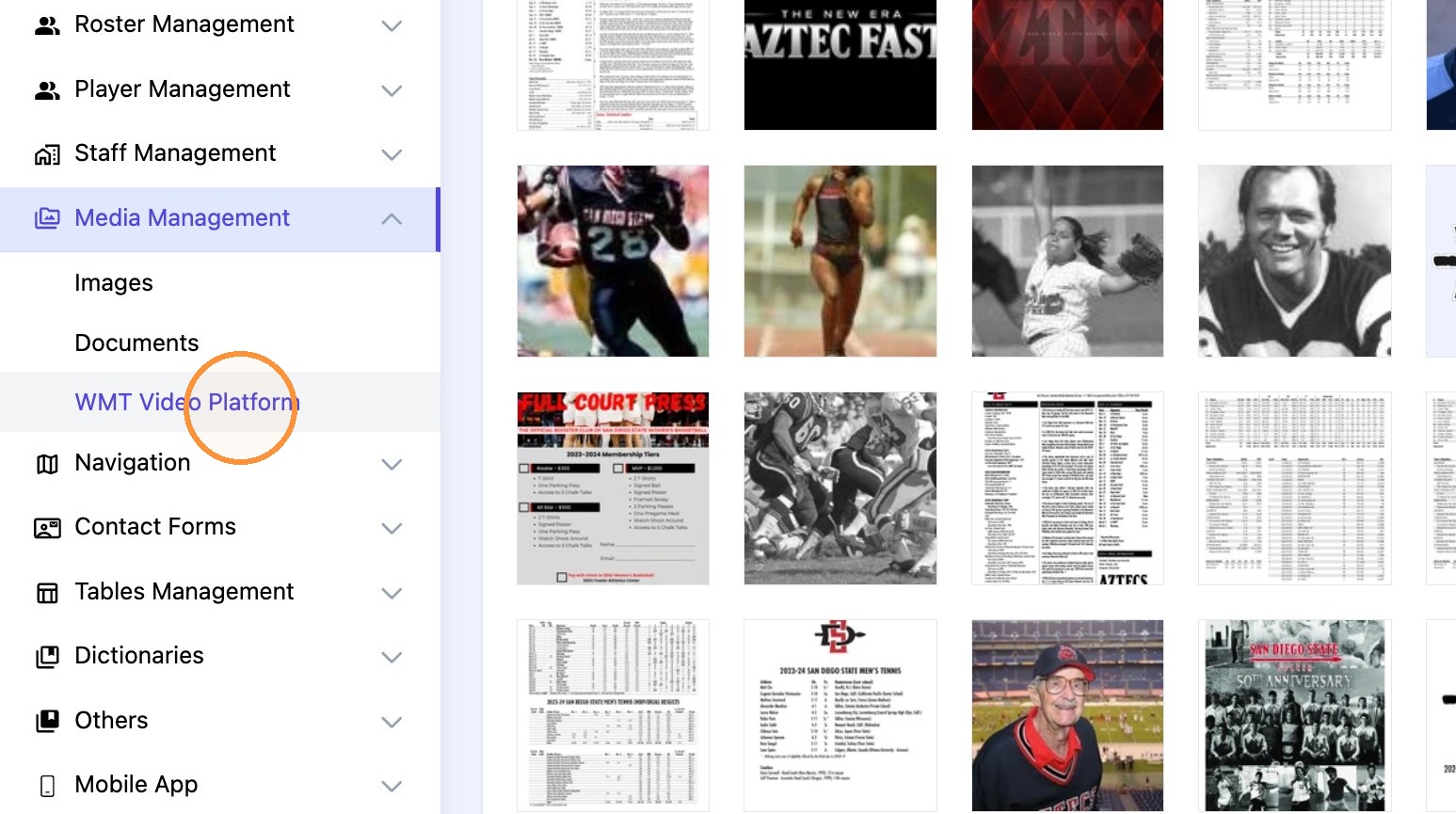
1. Navigate to the "WMT Video Platform" under the "Media Management" menu.
2. Click "Upload Media" to add video to CMS.
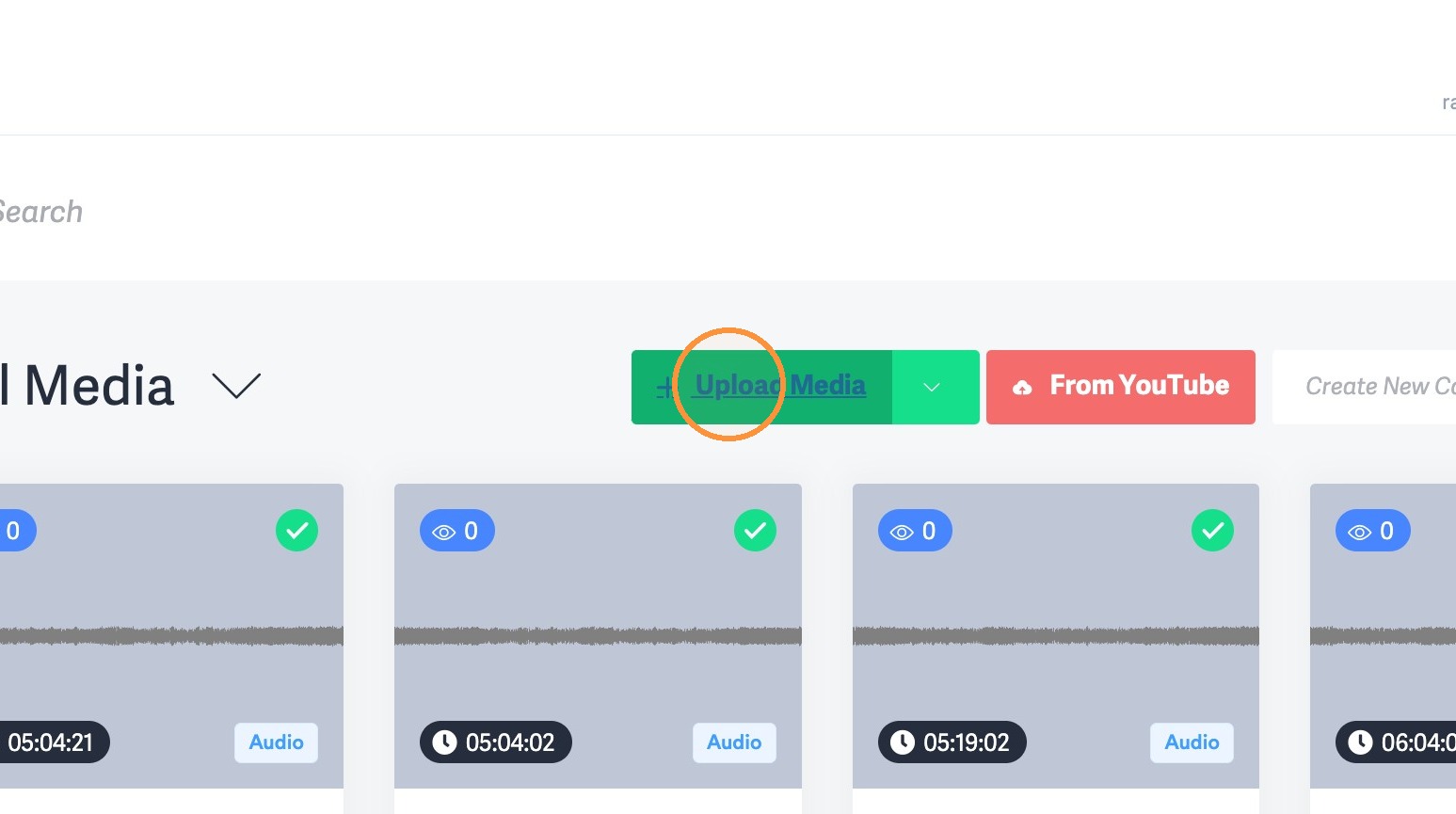
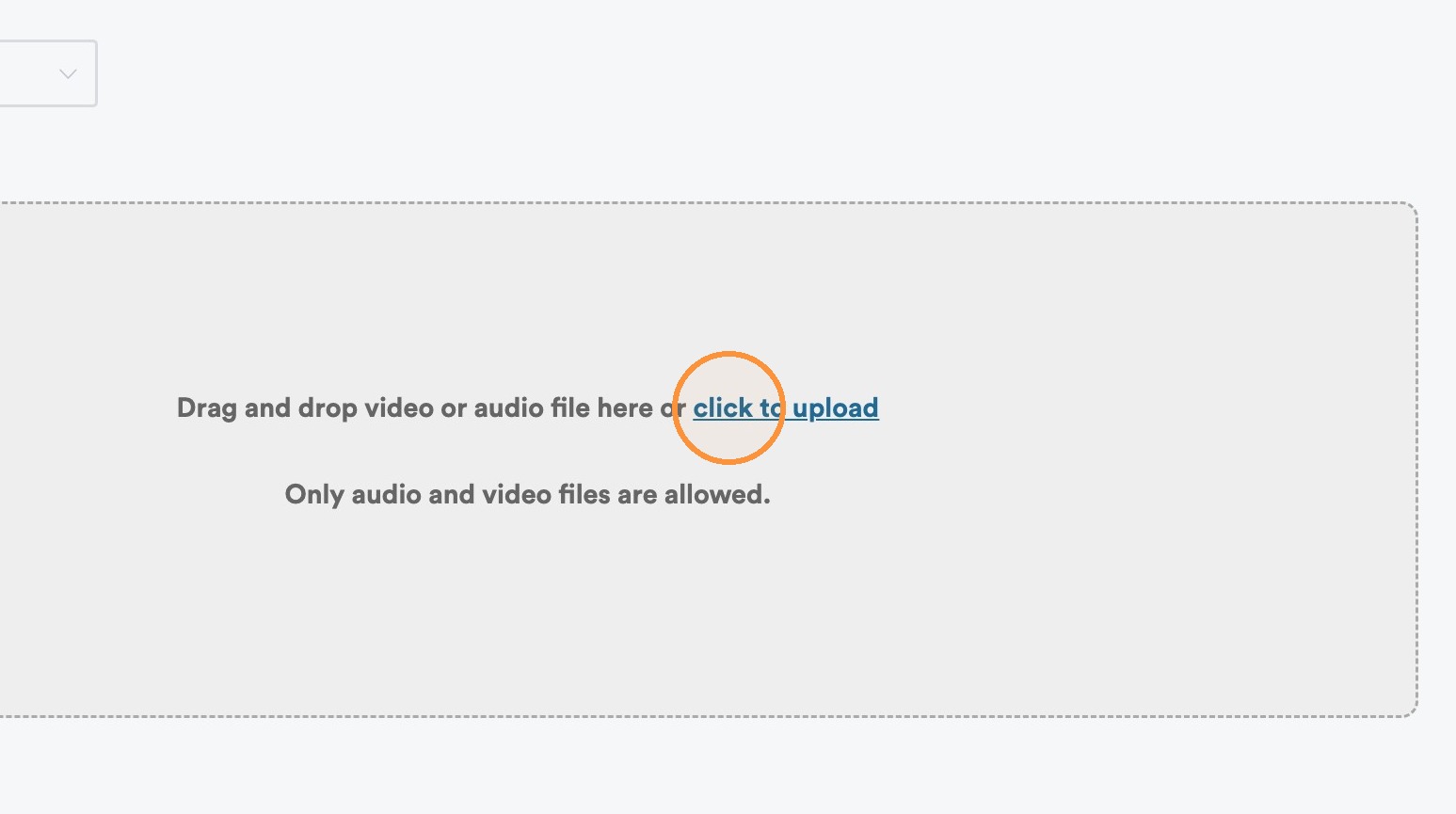
Tip: Tip! Leverage "category" dropdown to keep videos organized.
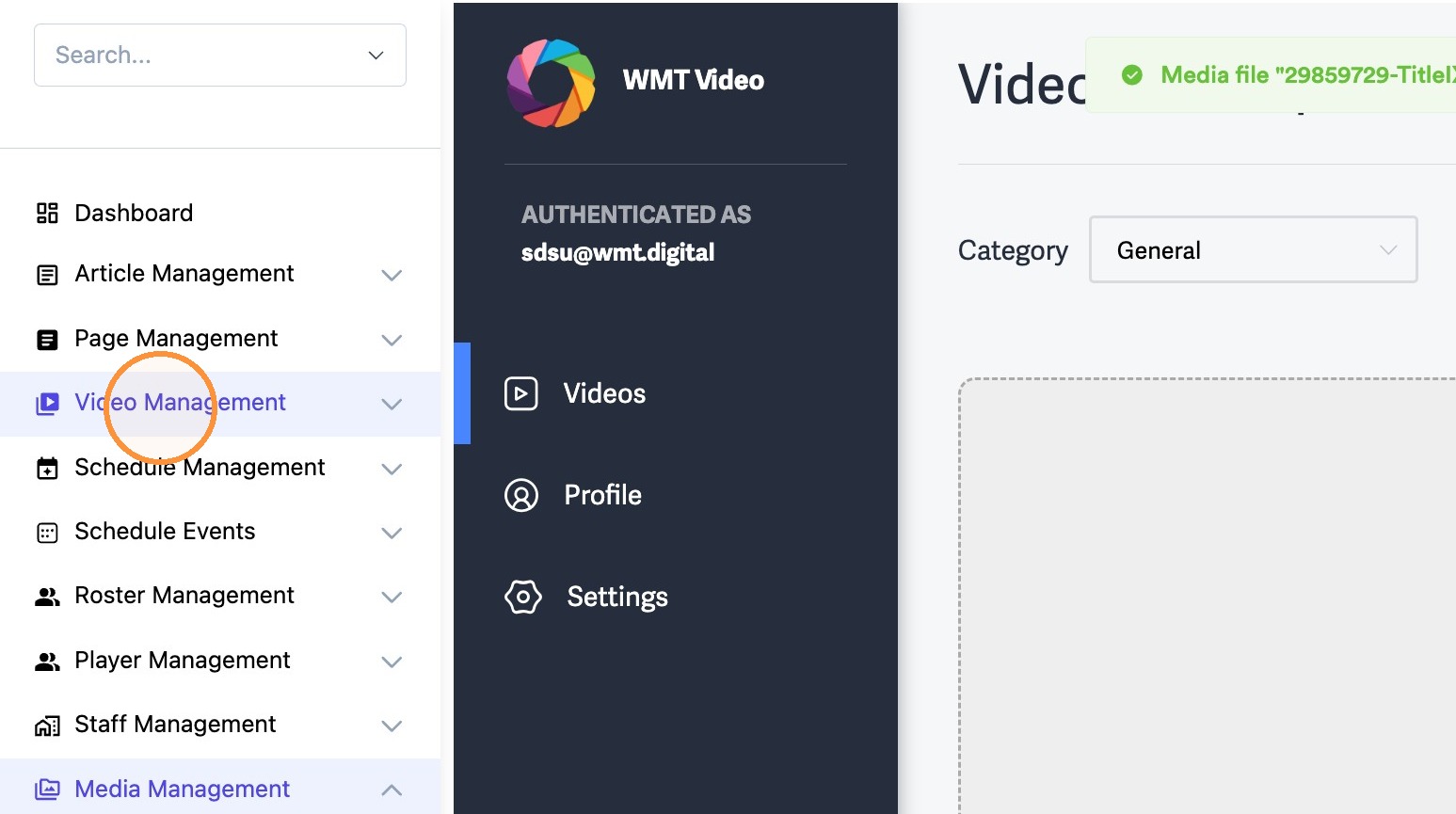
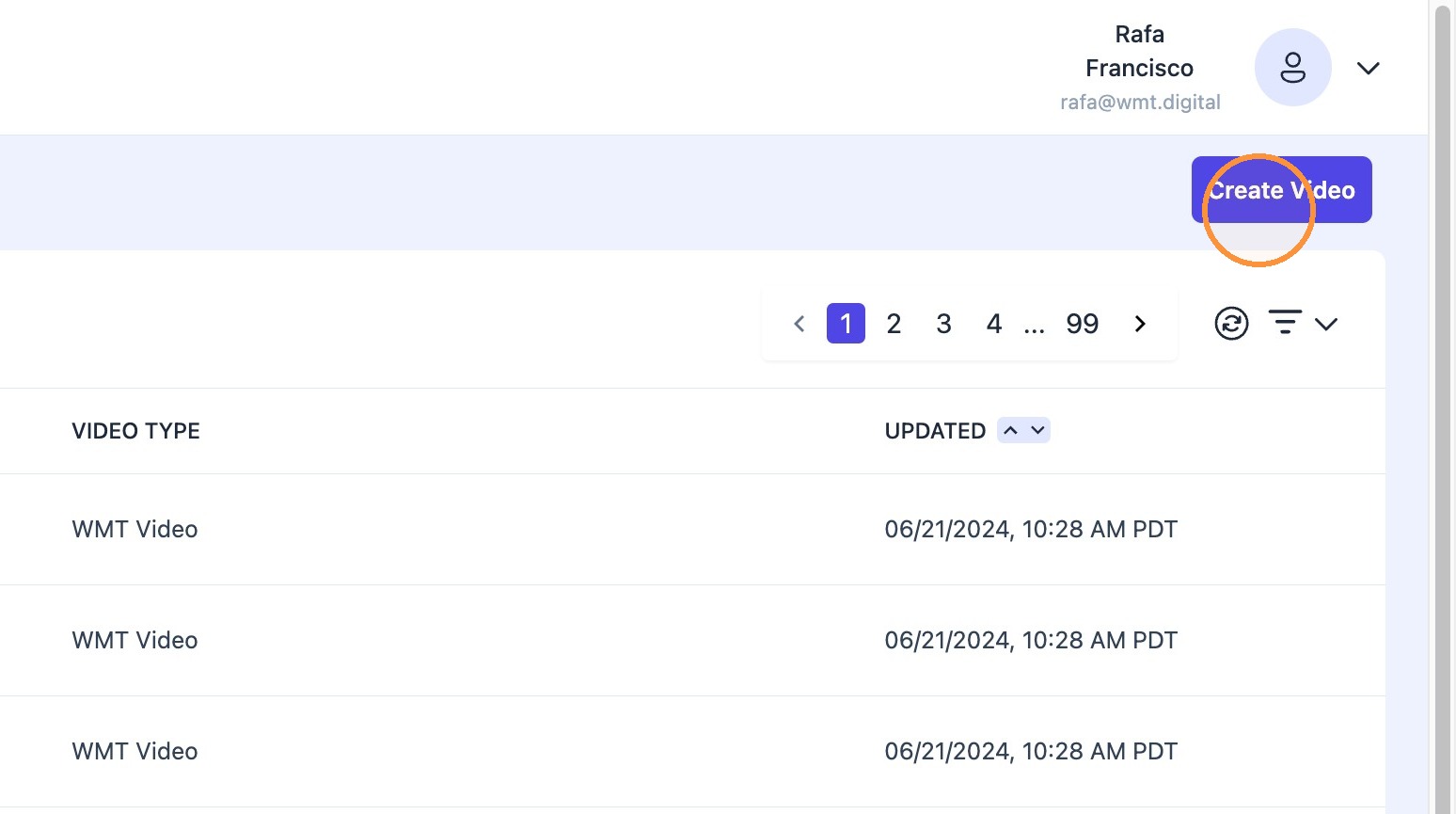
3. Navigate to "Video Management" menu and click on "Create Video" button.
4. Add the desired video title, description, and thumbnail.
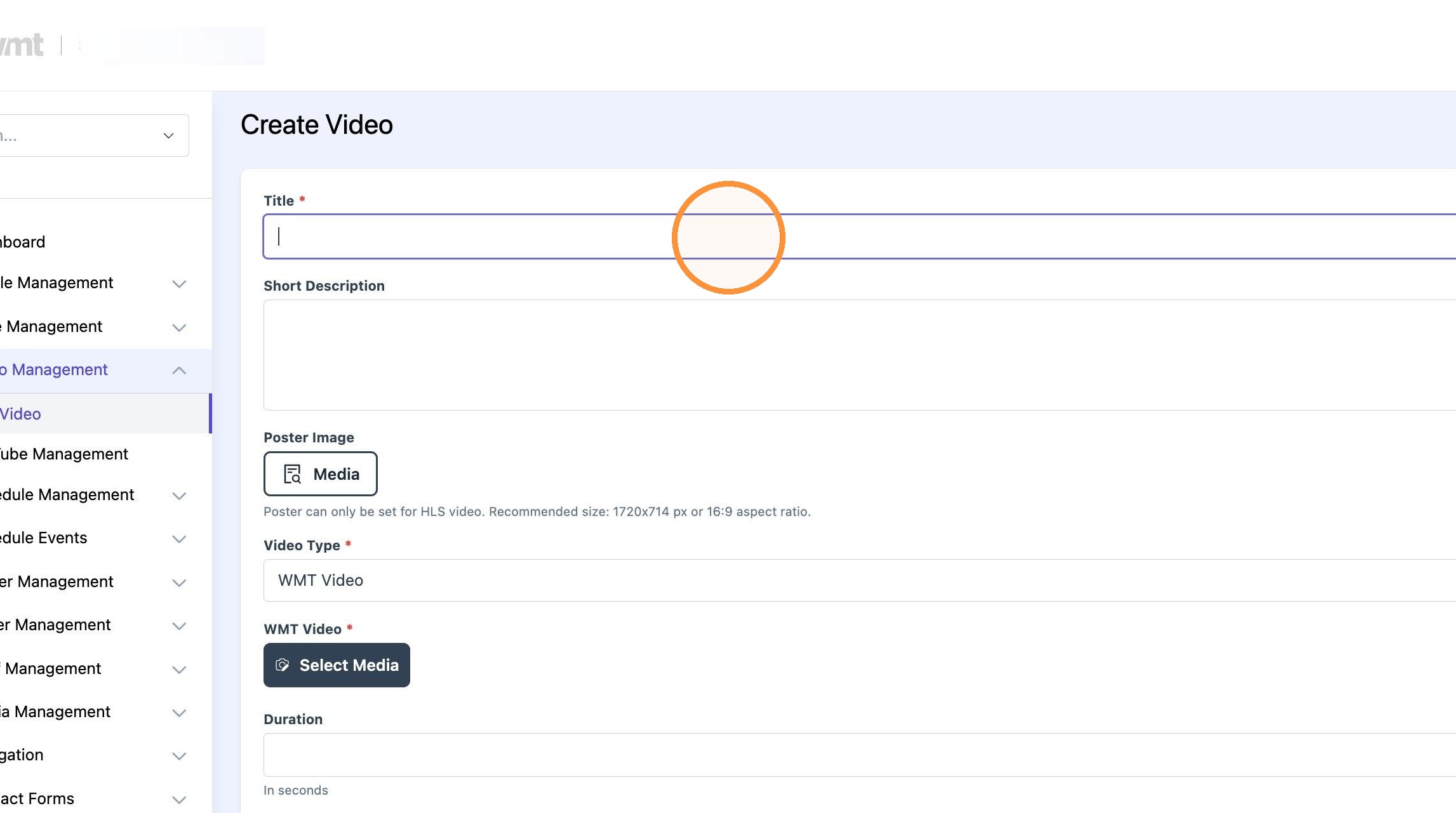
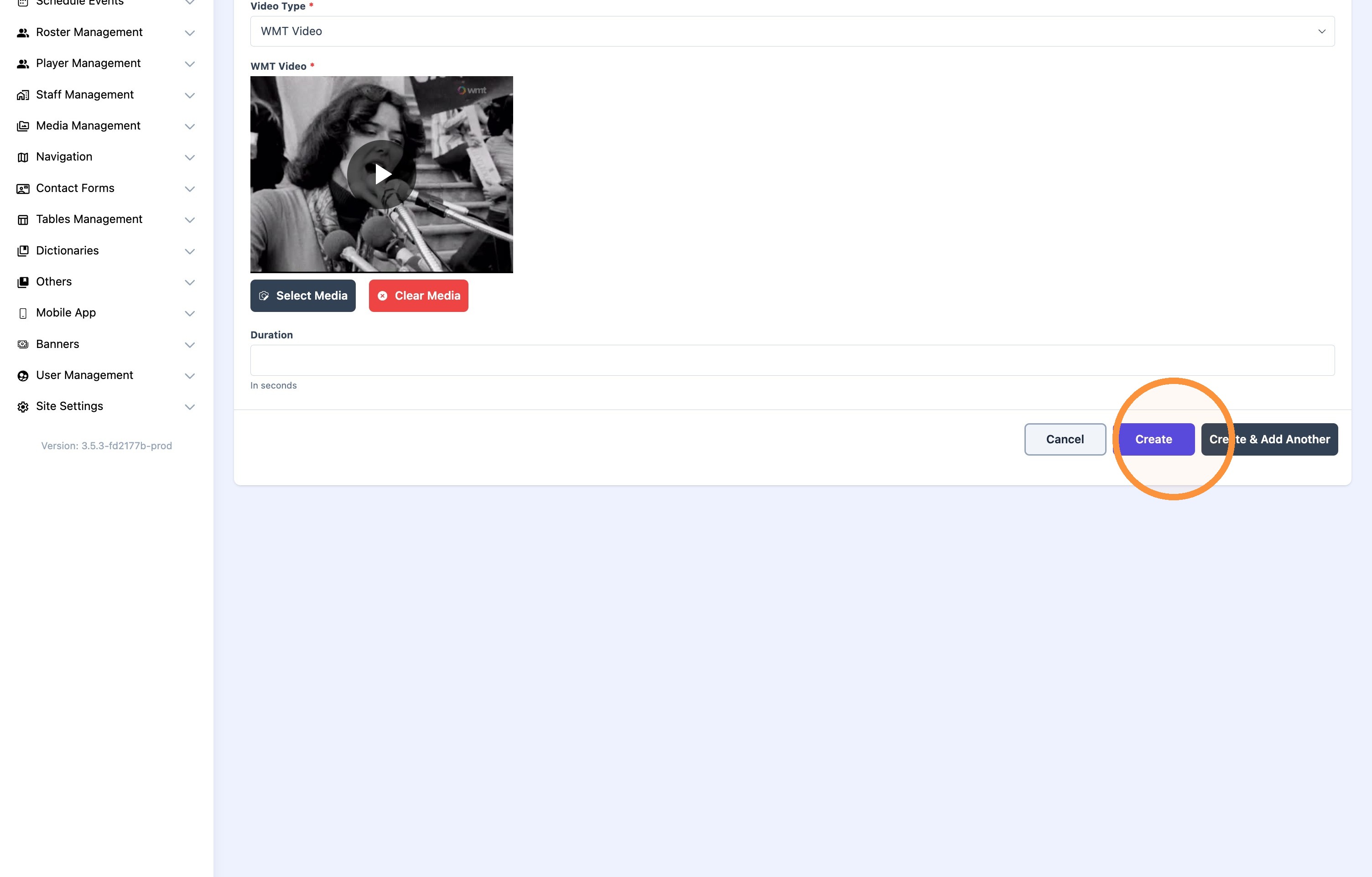
5. Click "Select Media" to select desired video.
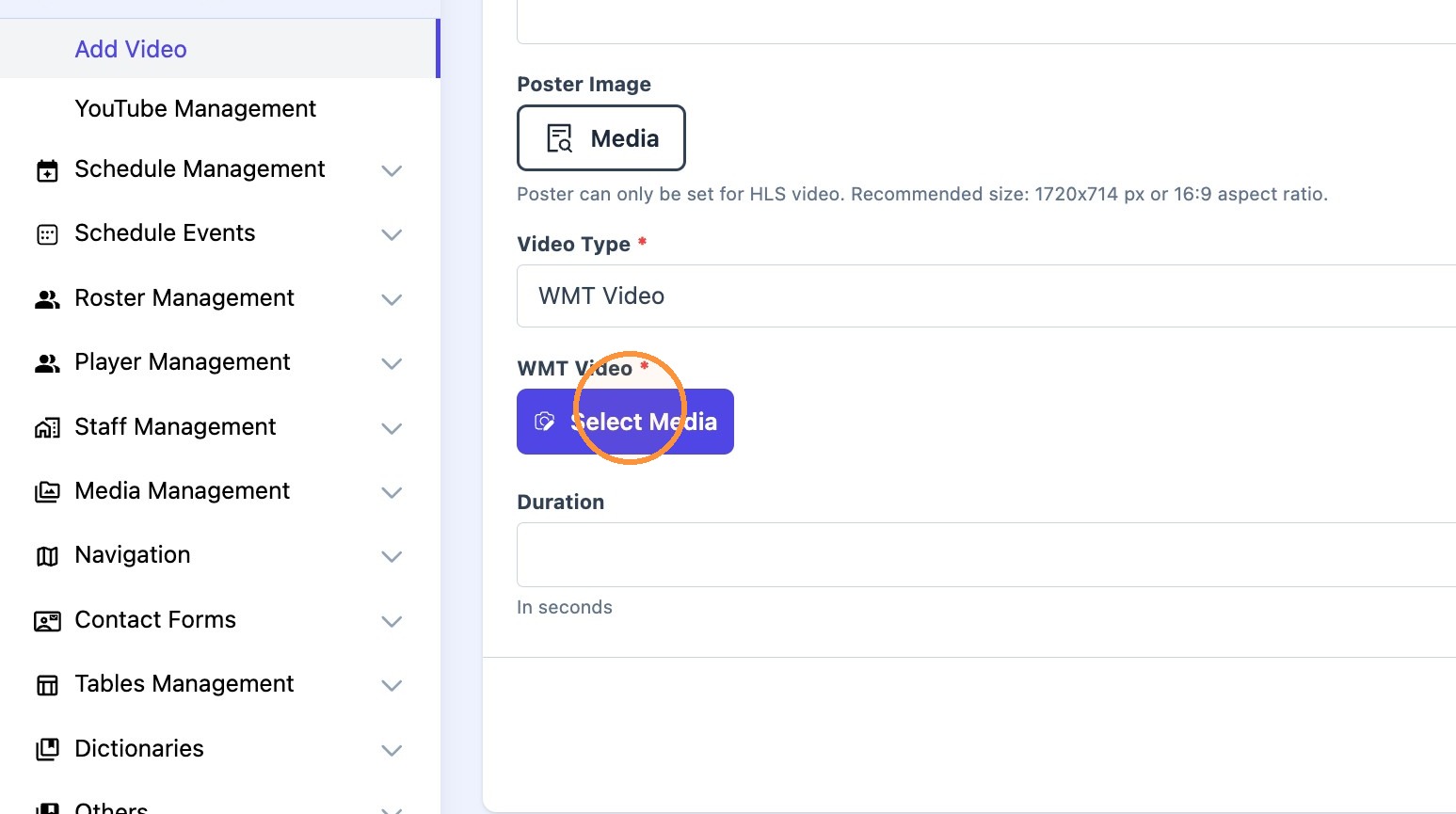

6. Click "Create" and move to the next step.
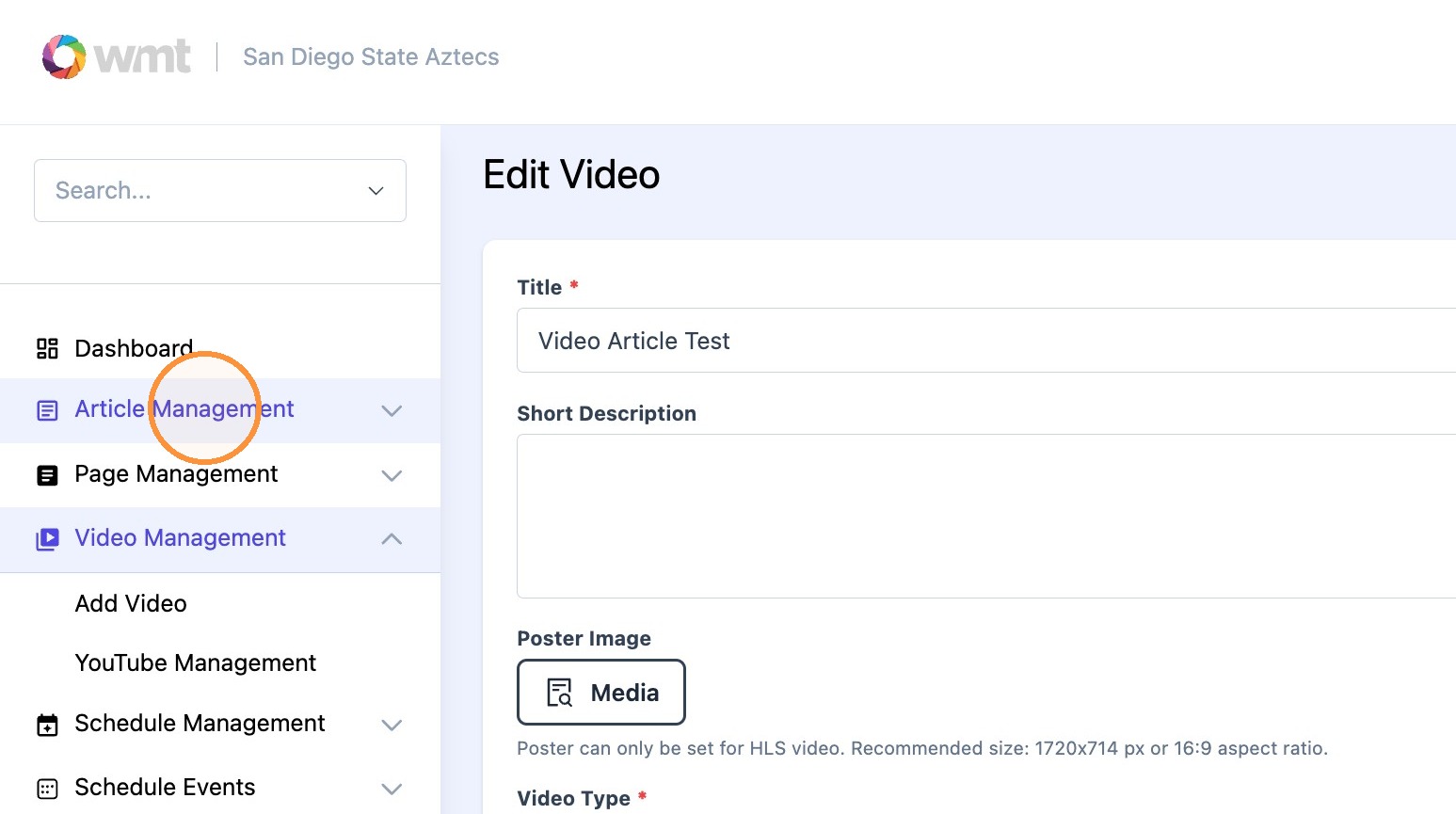
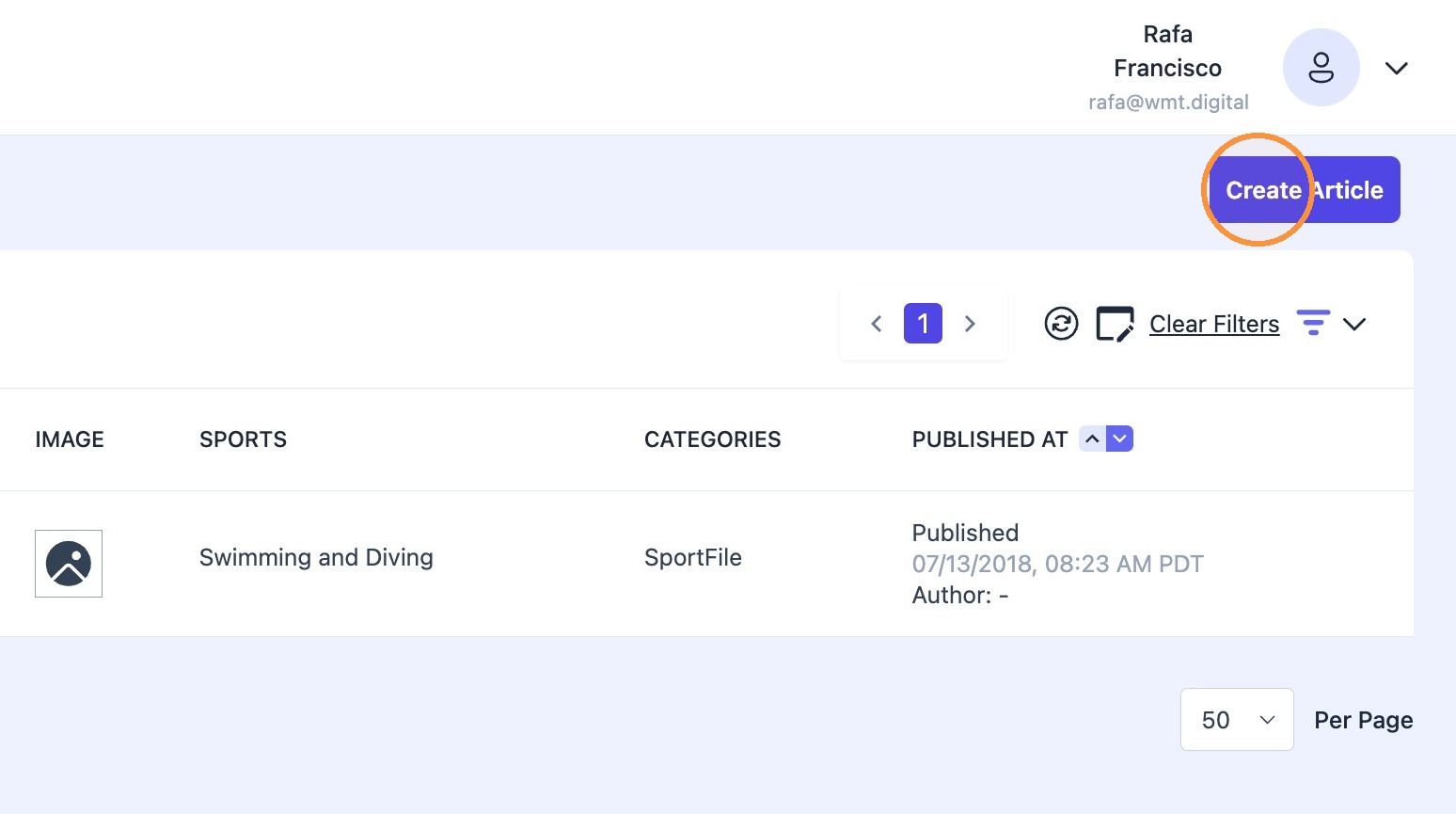
7. Navigate to "Article Management" menu. Click "Create Article."
8. Create video article title.
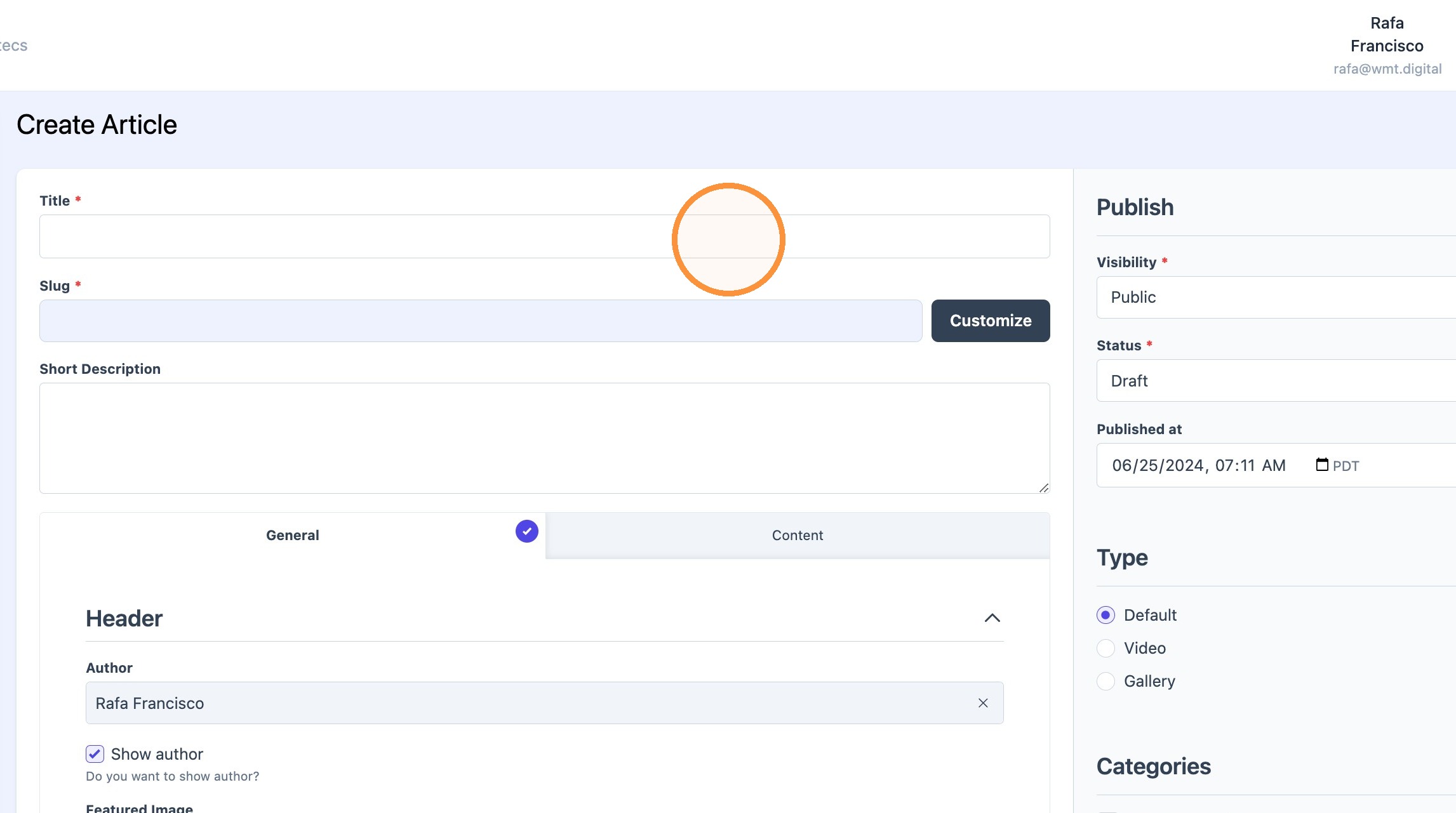
9. Set the article status to "public" and select "video" as the article type.
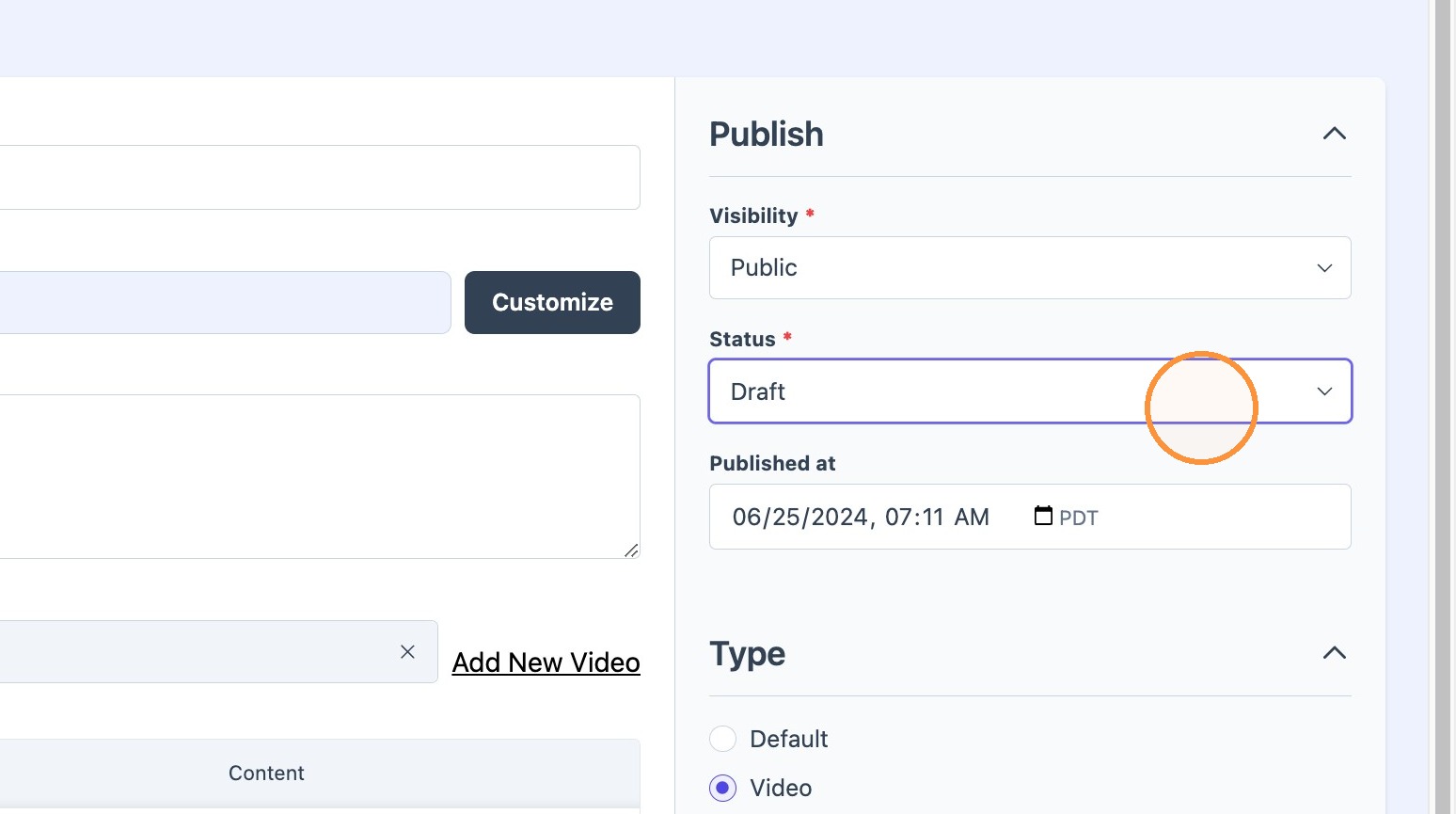
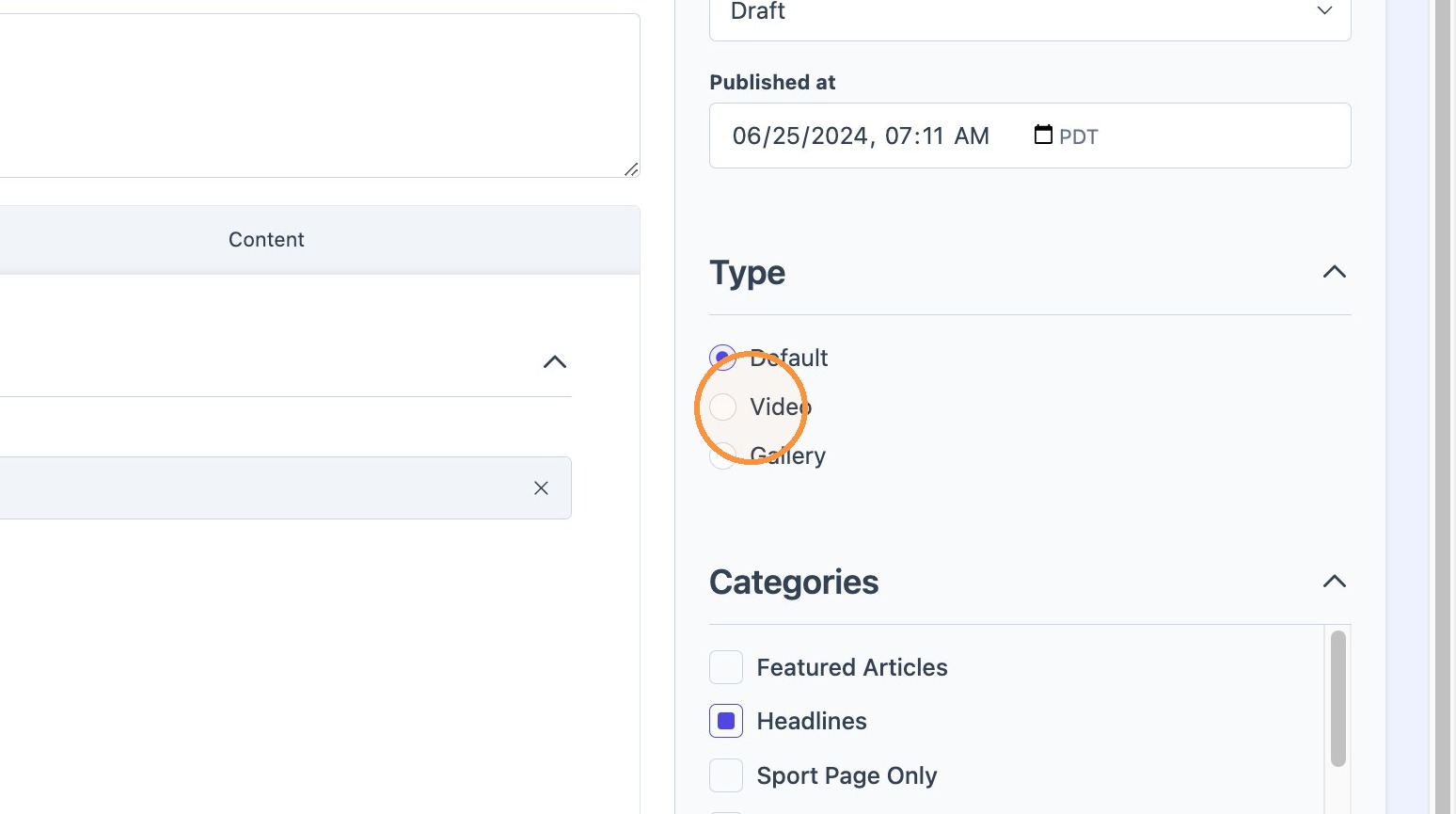
10. Select the desired video from the "Article Video" dropdown.
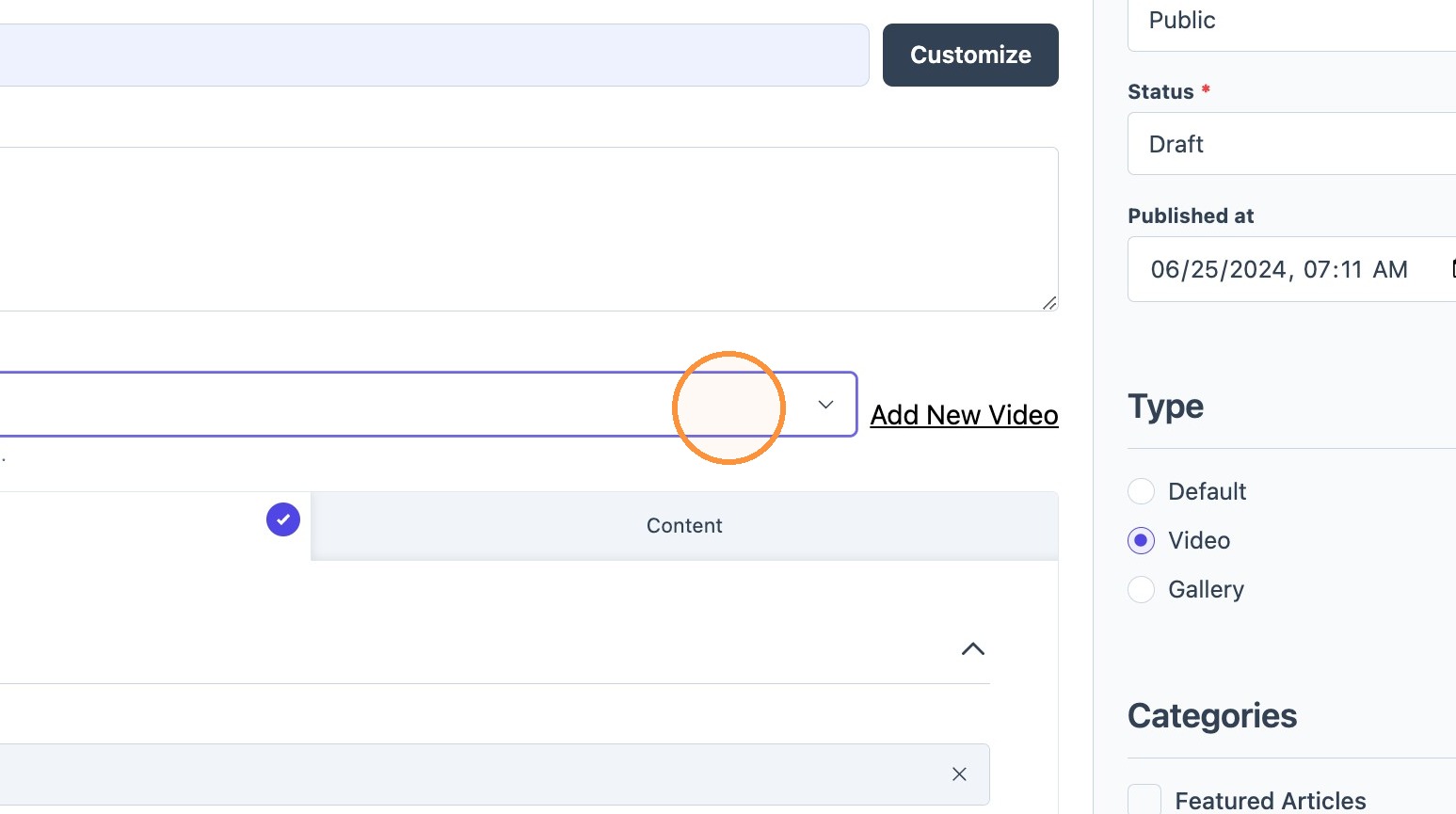

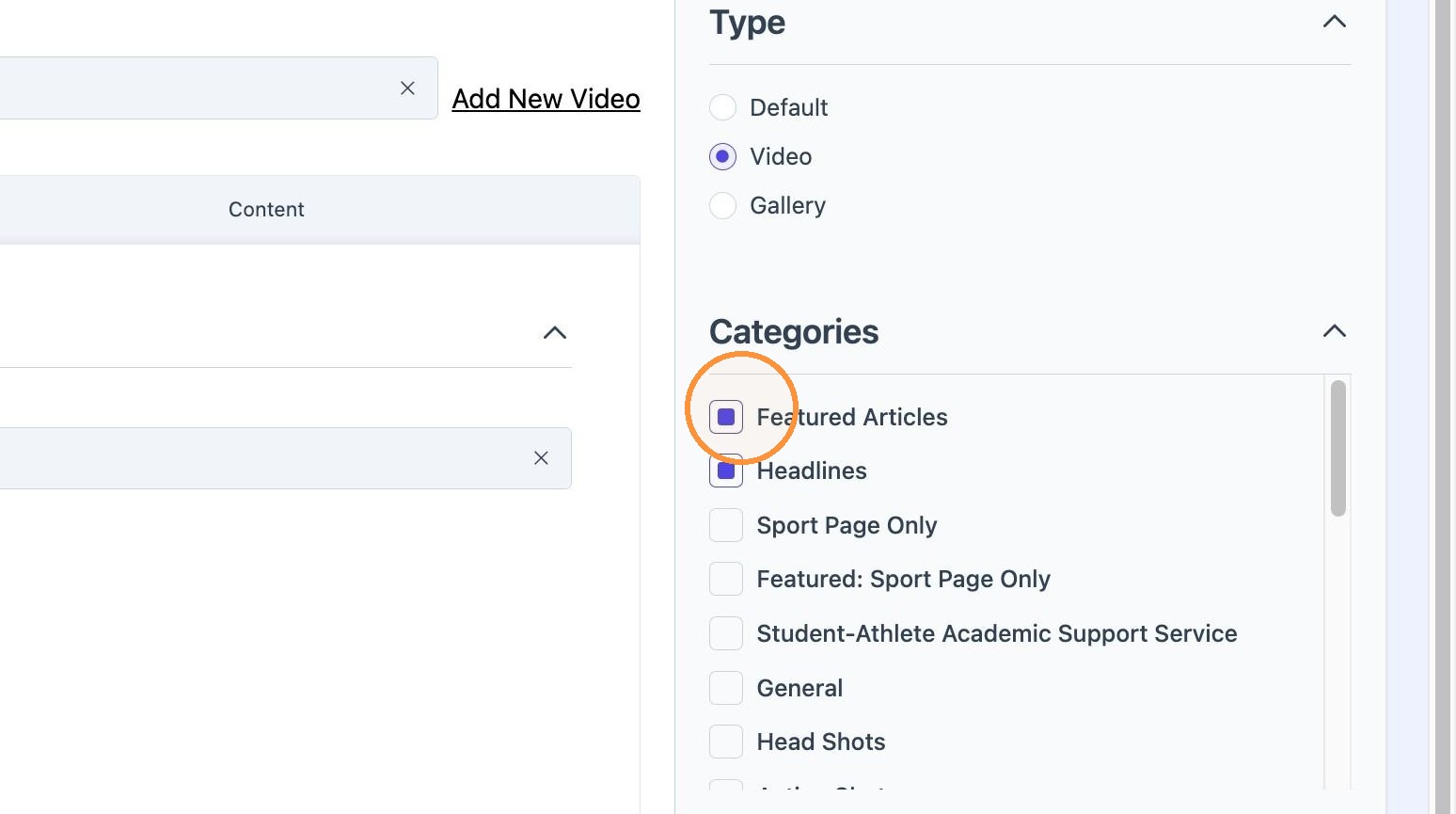
11. Select the desired "categories." Categories will dictate where videos will appear.
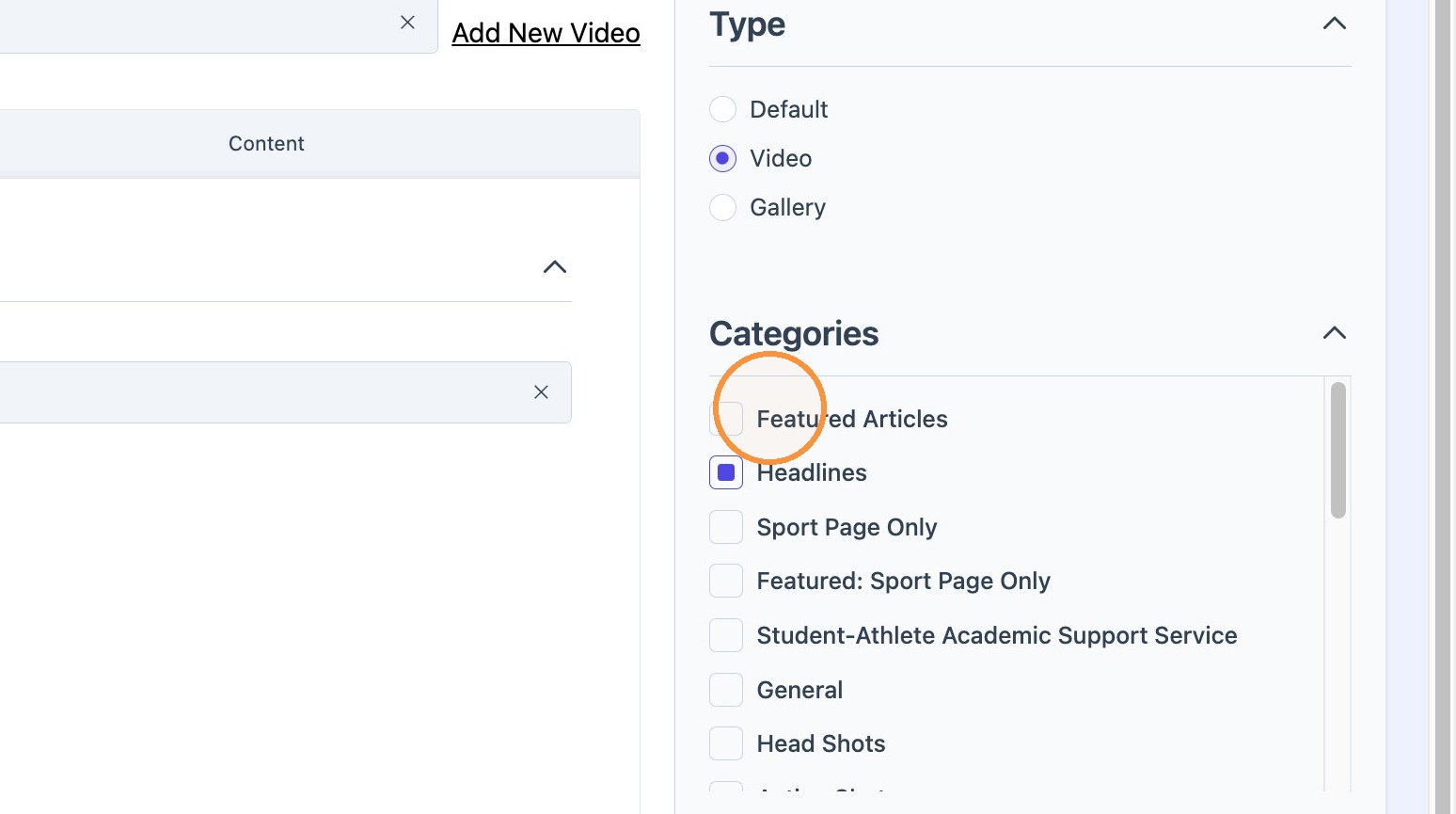
Click "Featured Articles."
Tip: Tip! The "featured article" content block and the "latest news" & "videos" sections act in a complementary way to ensure content is displayed prominently and avoid redundancy.
When a video article is tagged "featured and headlines," it will not show up in the main videos section since the video is already being featured on another content block. The same video will not appear in multiple places to reduce clutter and improve the user experience.
Once more articles are published as "featured," the video article will stop showing up in the Featured section and will appear in the "Videos" content block.
12. Click "Create" to finish the process.