How to add a 'Sponsors' section to the Footer
Last updated: September 20, 2026
This article explains how to add a 'Sponsors' section to the Footer
1. Go to 'Site Settings -> Footer'
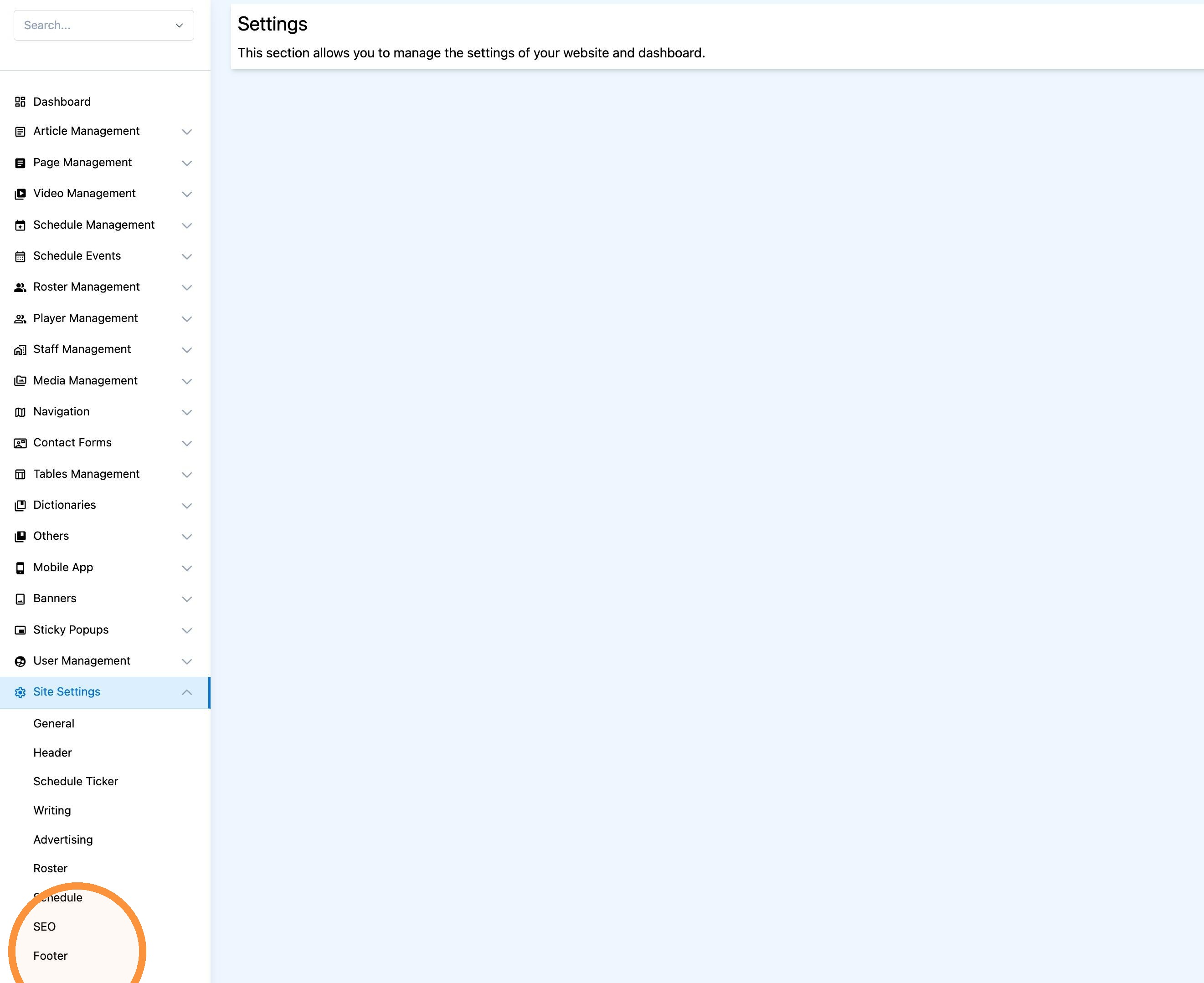
2. Add the Sponsors block and build the block.
Select 'Add Block', click 'Links', and add 'Sponsors'

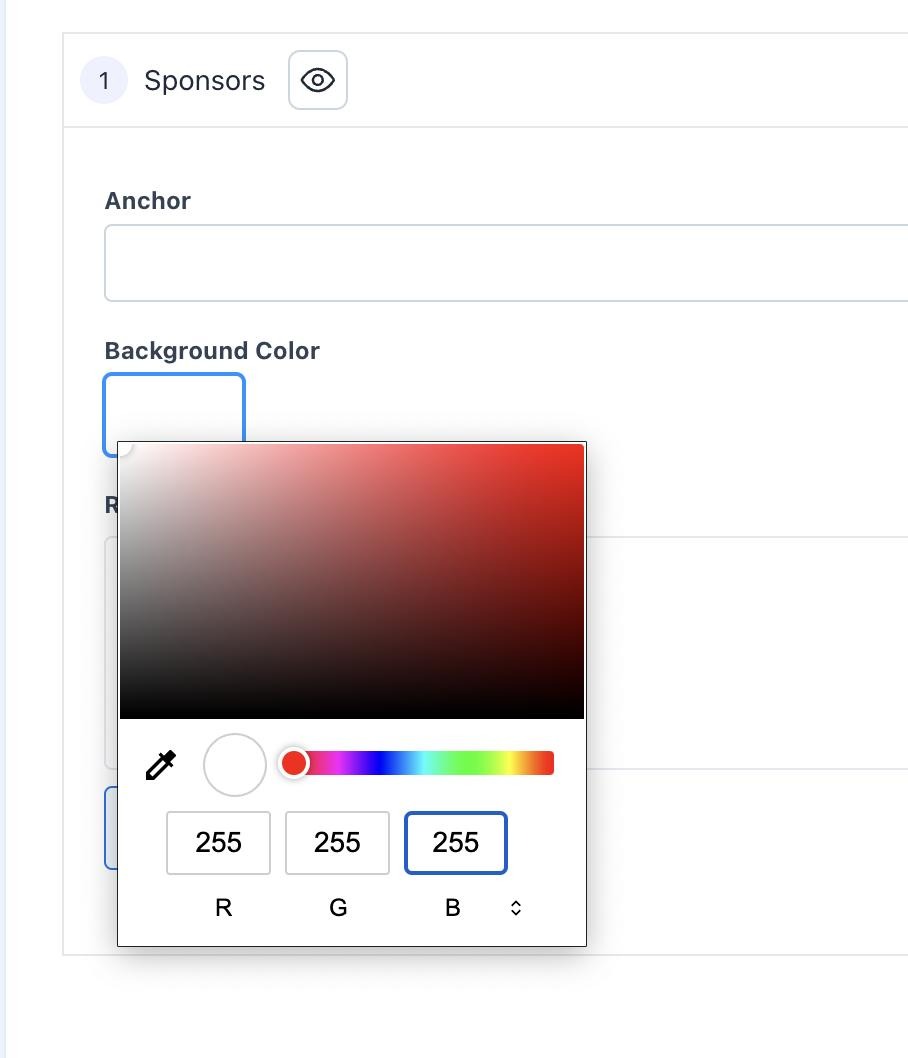
3. Adjust the 'Background Color' to match the current color being used on the site.
Edit the RGB values to match the color.
4. Select 'Add Sponsors' to add one sponsor to the section
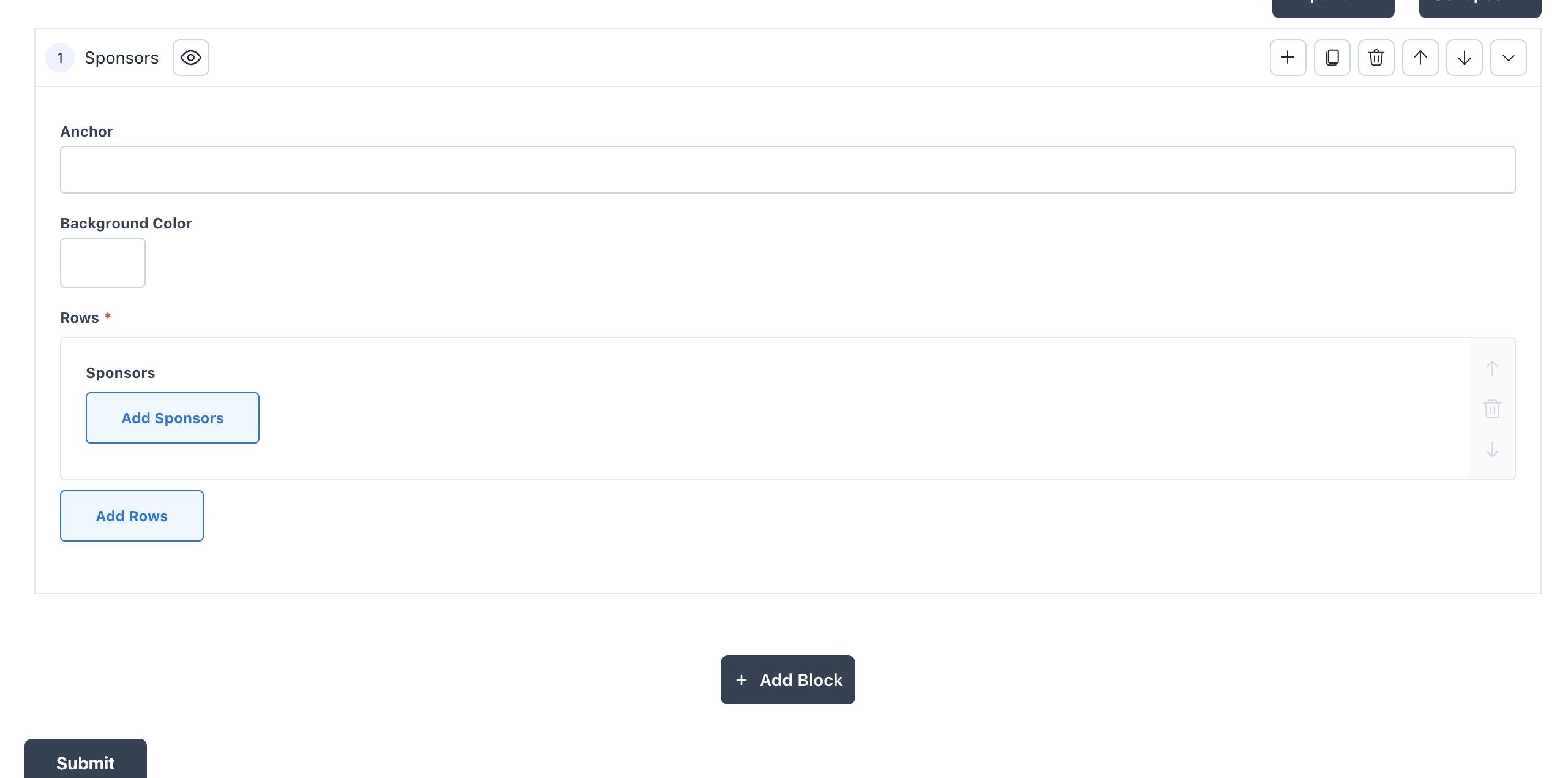
5. Populate the fields for one sponsor
Sponsor Image
Select 'Media' and upload/select the logo that you wish to use. It is recommended to use a .PNG file
Sponsor URL
Place a URL link to the sponsor website
Target
Set to 'New Window'
When a site visitor clicks on the image, this will open the Sponsor URL in a new window and not navigate them away from the website.

6. This is how it should look once all fields are populated per sponsor.

Tip: Repeat steps until all sponsor logos are added.
7. Scroll down and click 'Submit' to save your changes.