Staff Management - Add New Staff member
Last updated: September 20, 2026
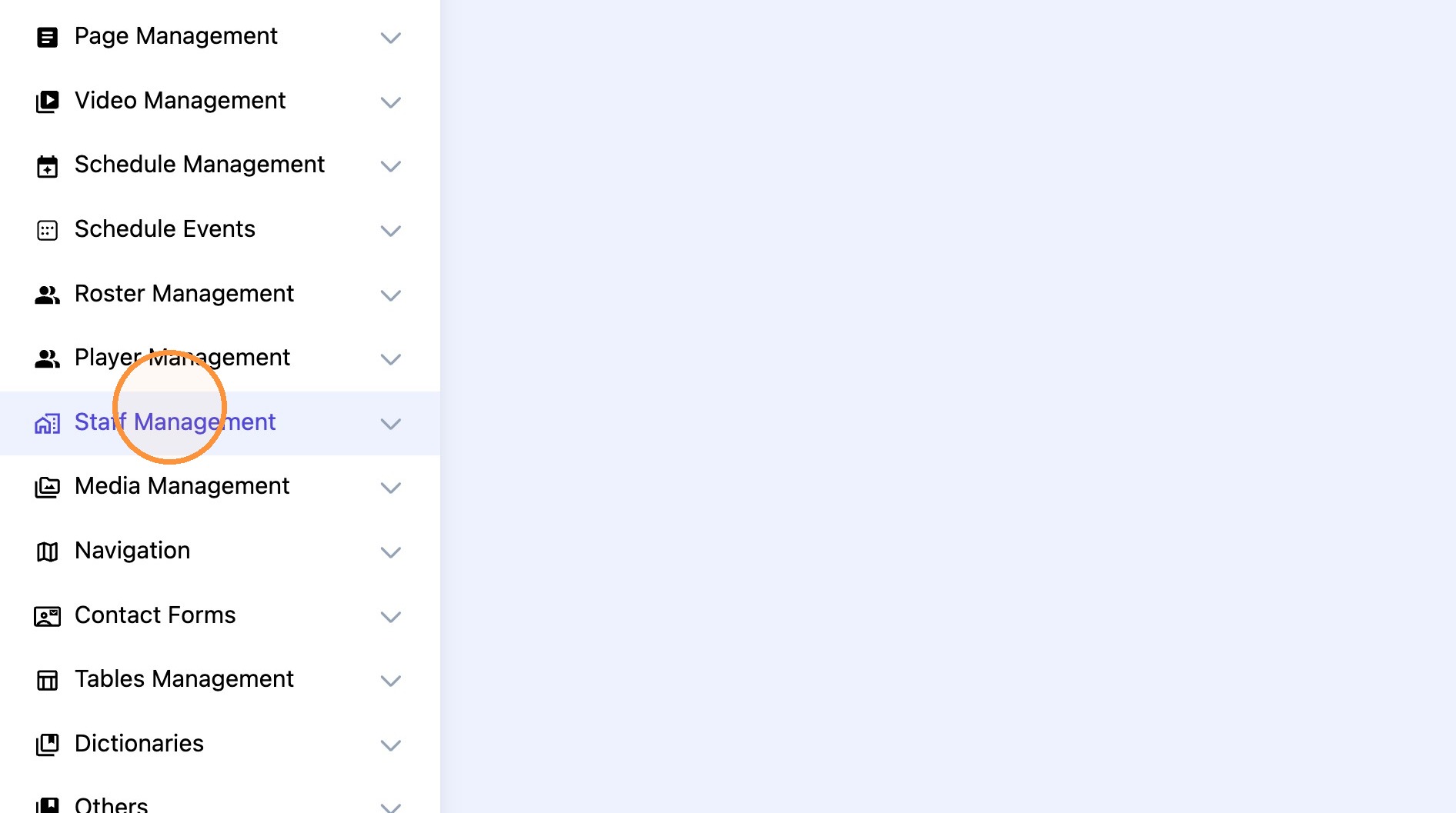
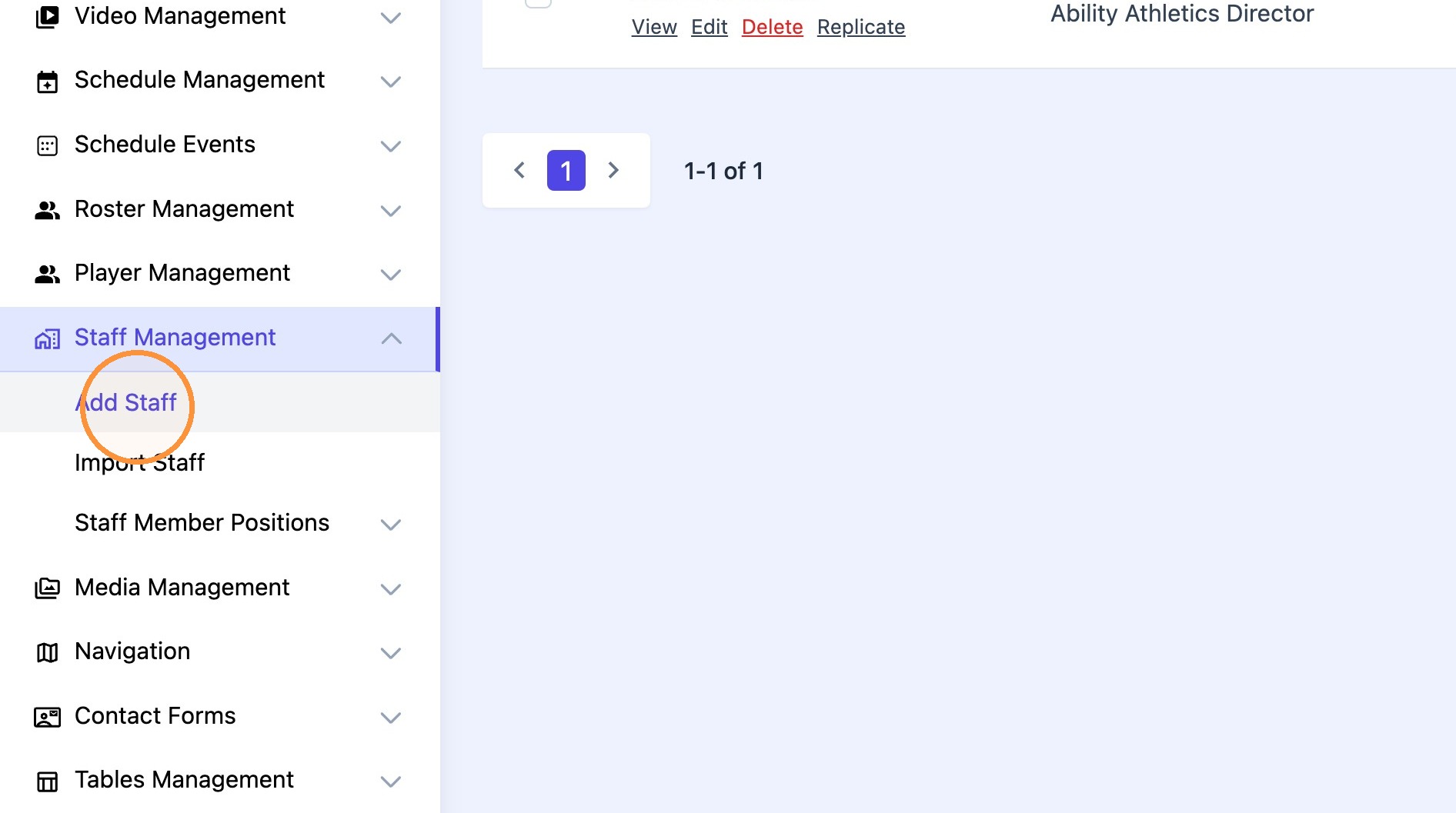
1. Click "Staff Management" and select "Add Staff"
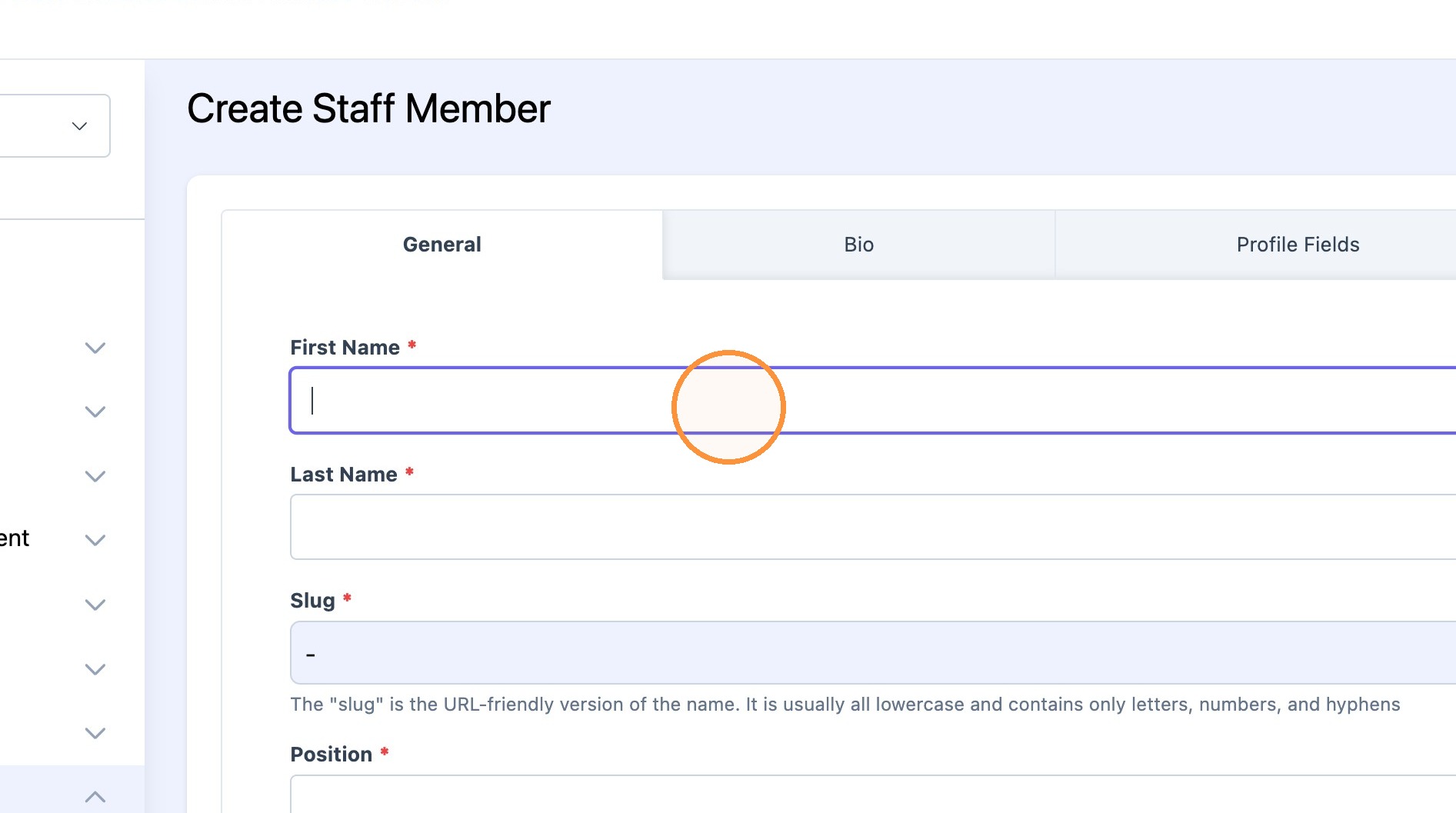
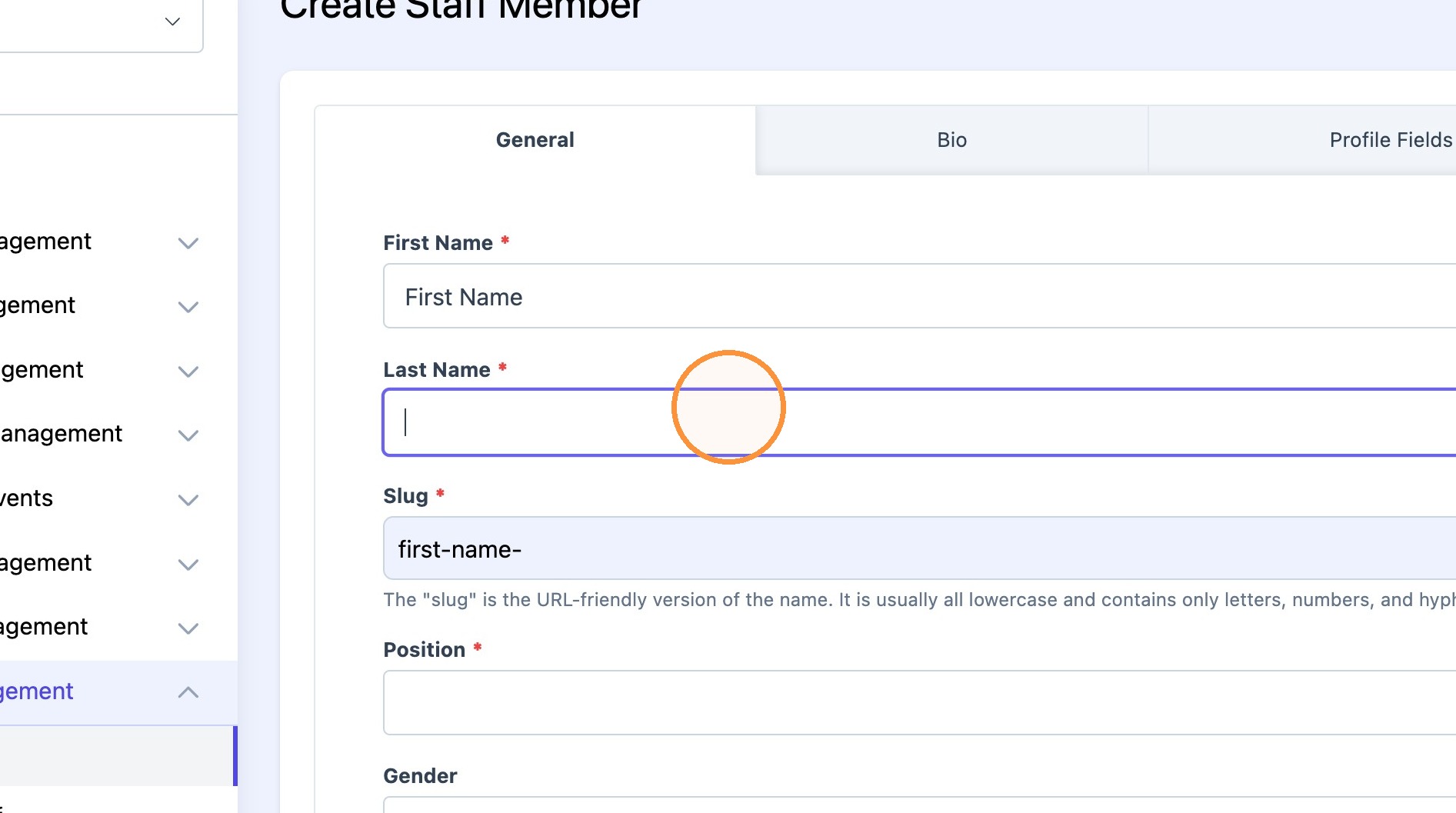
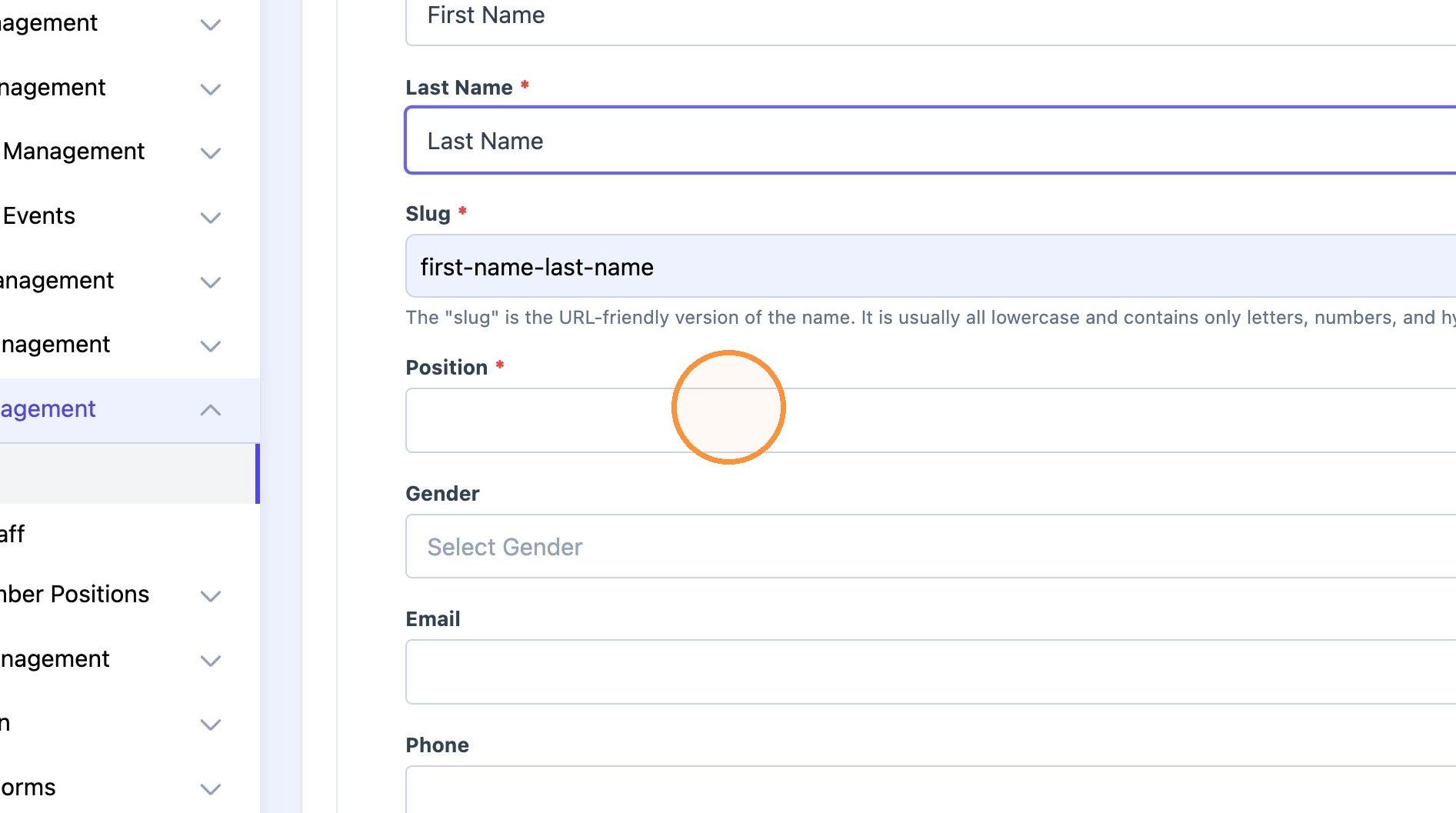
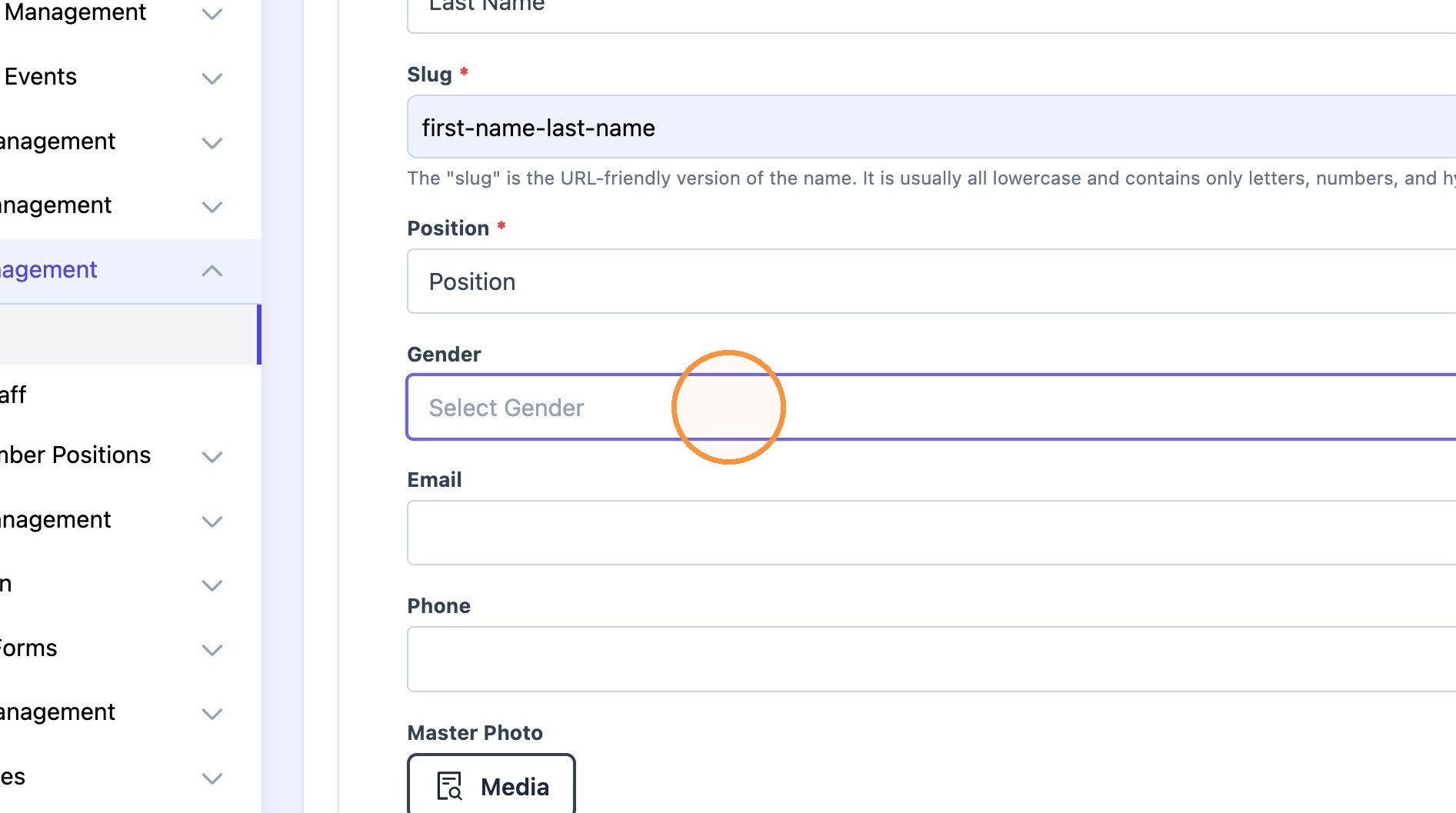
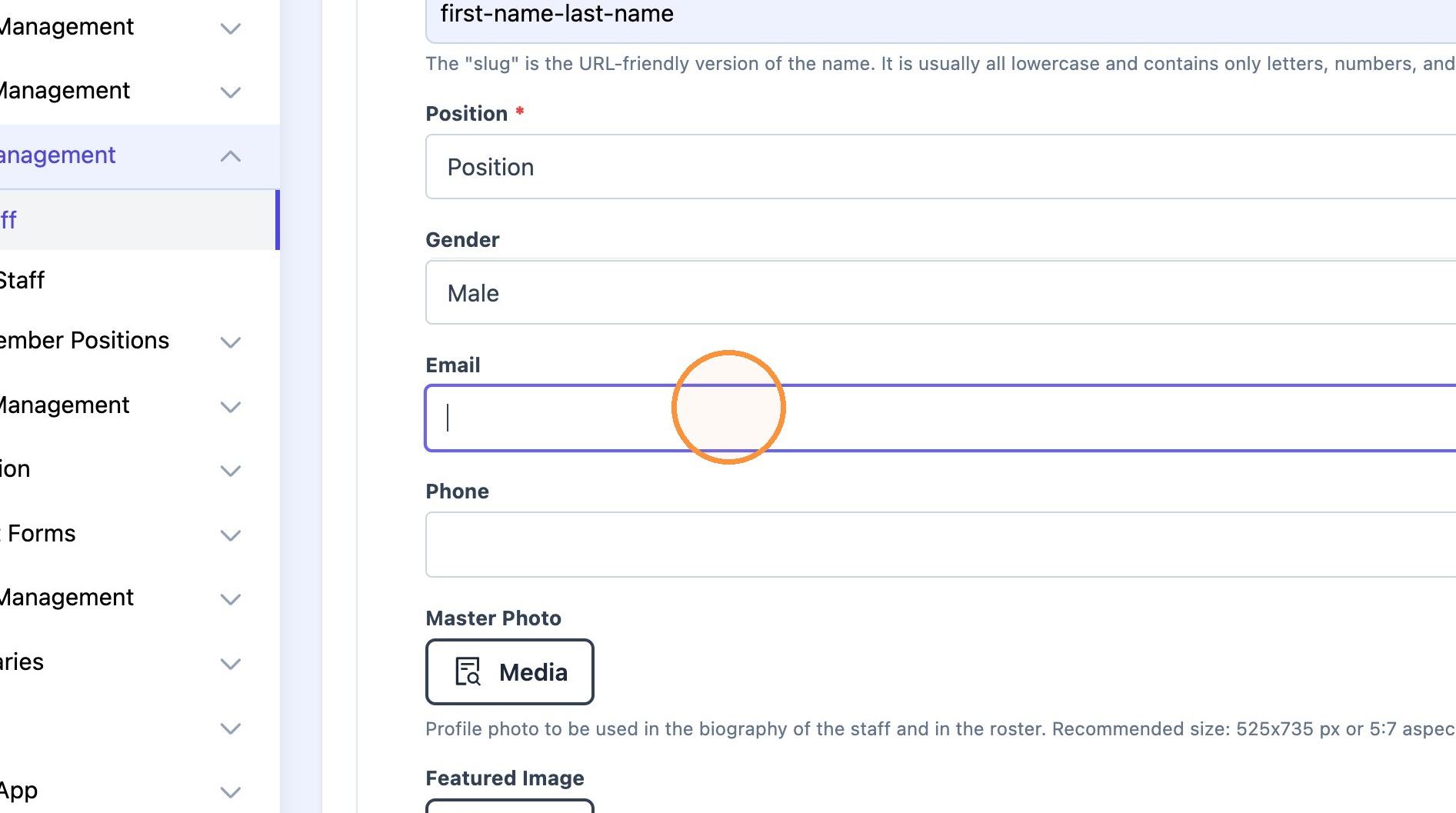
2. Fill out the "First Name*", "Last Name*", "Position*", "Gender*", "Email" , "Phone" fields.
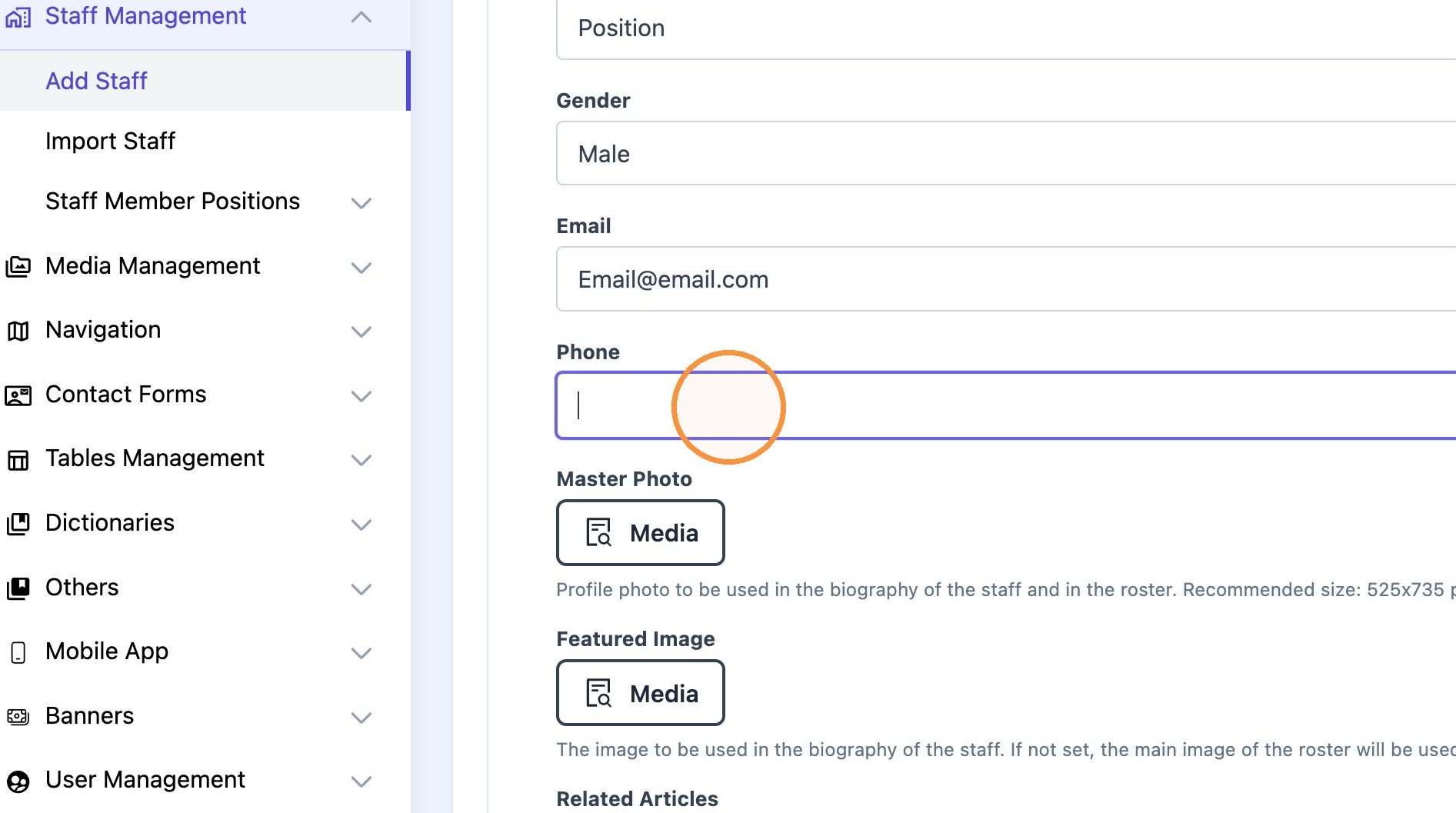
3. Select a headshot picture and a background image.
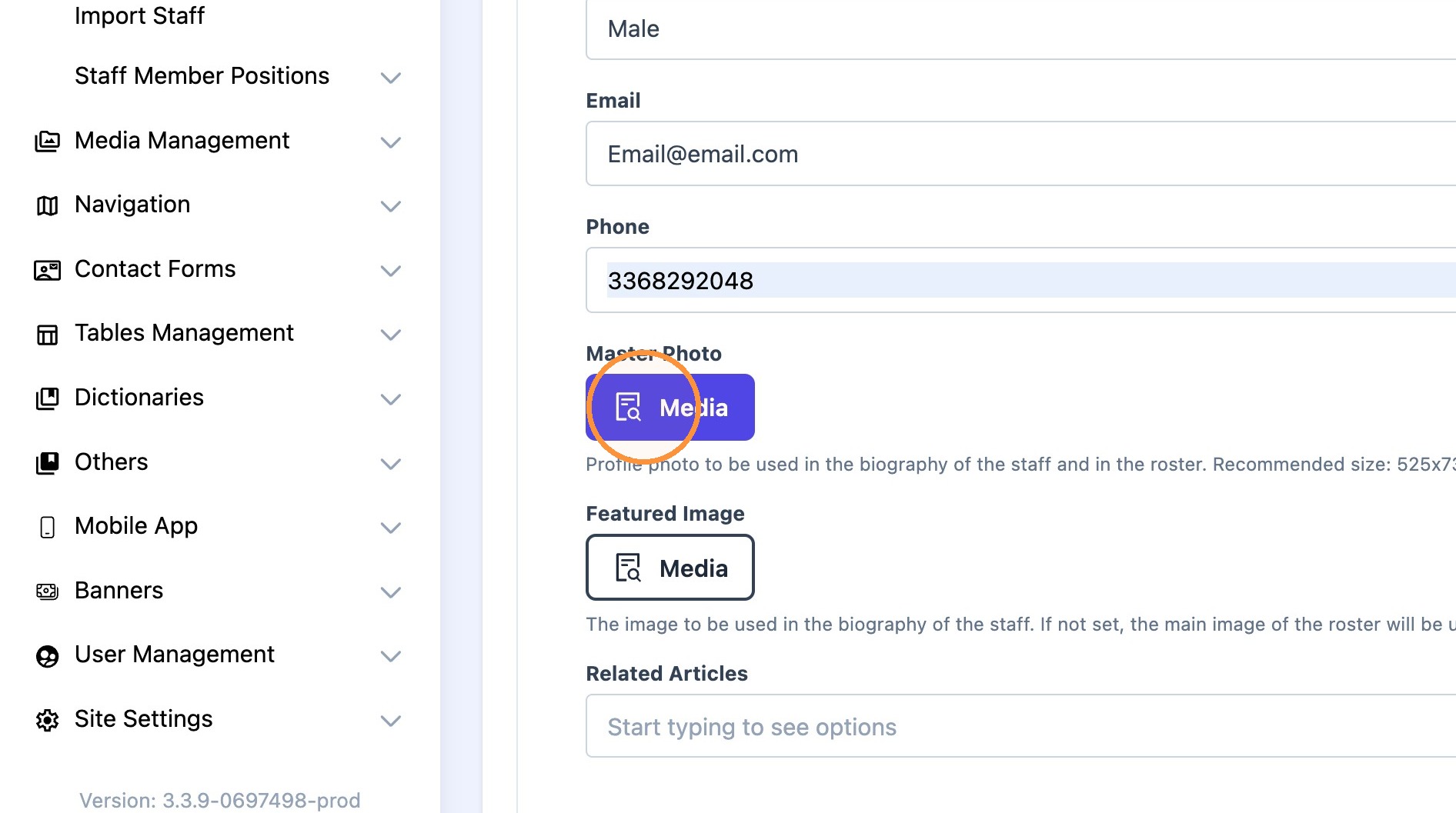
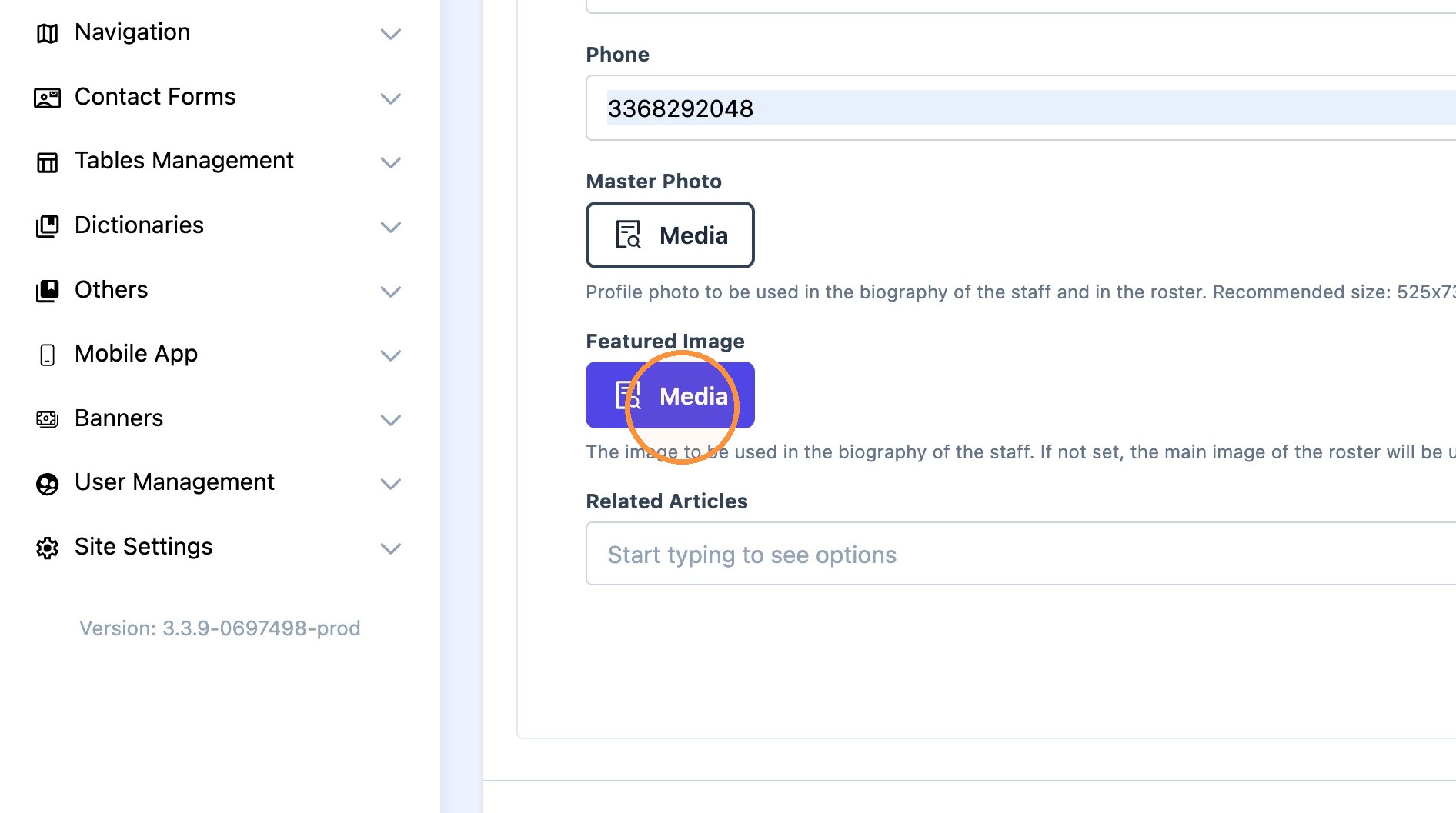
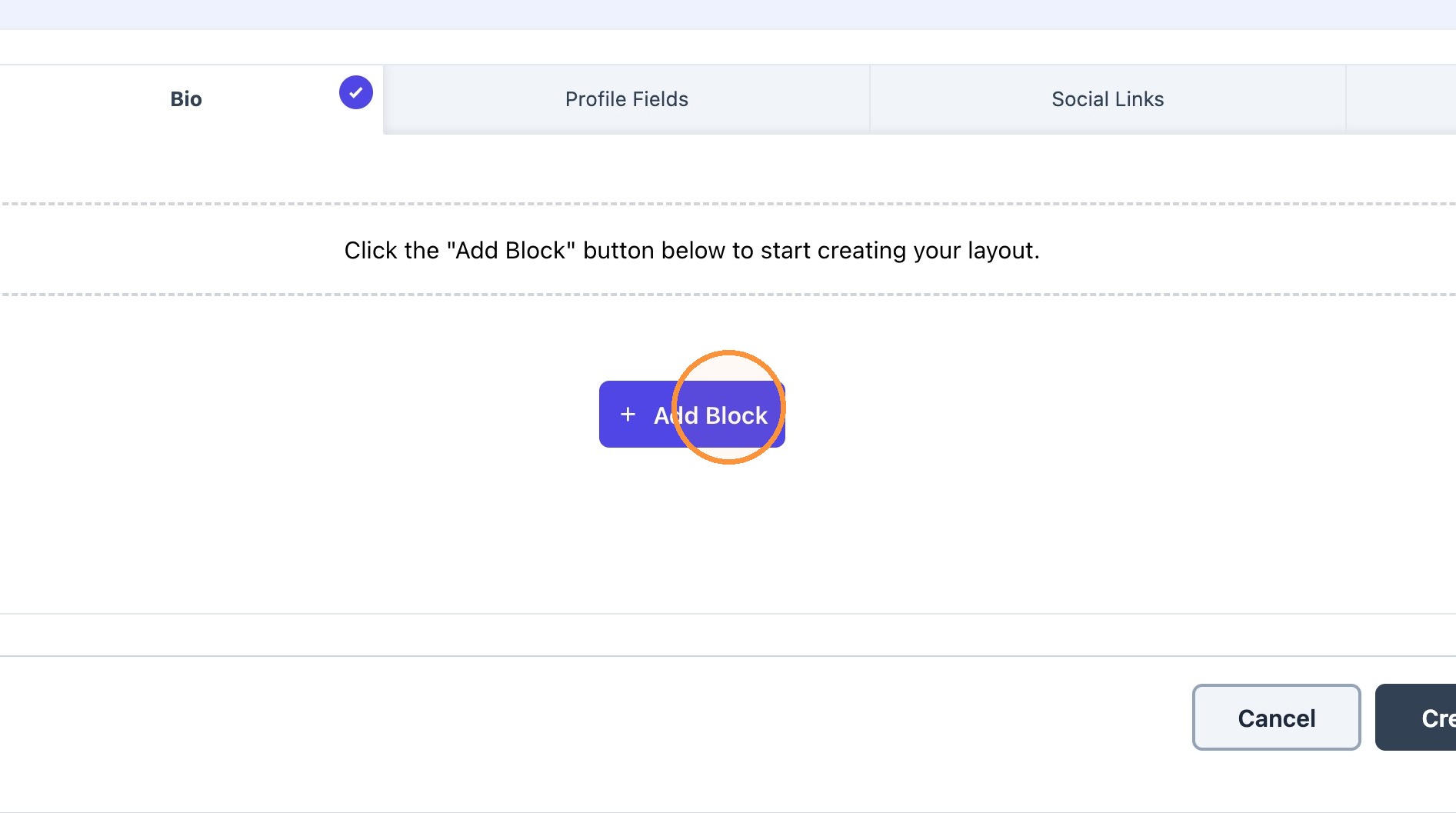
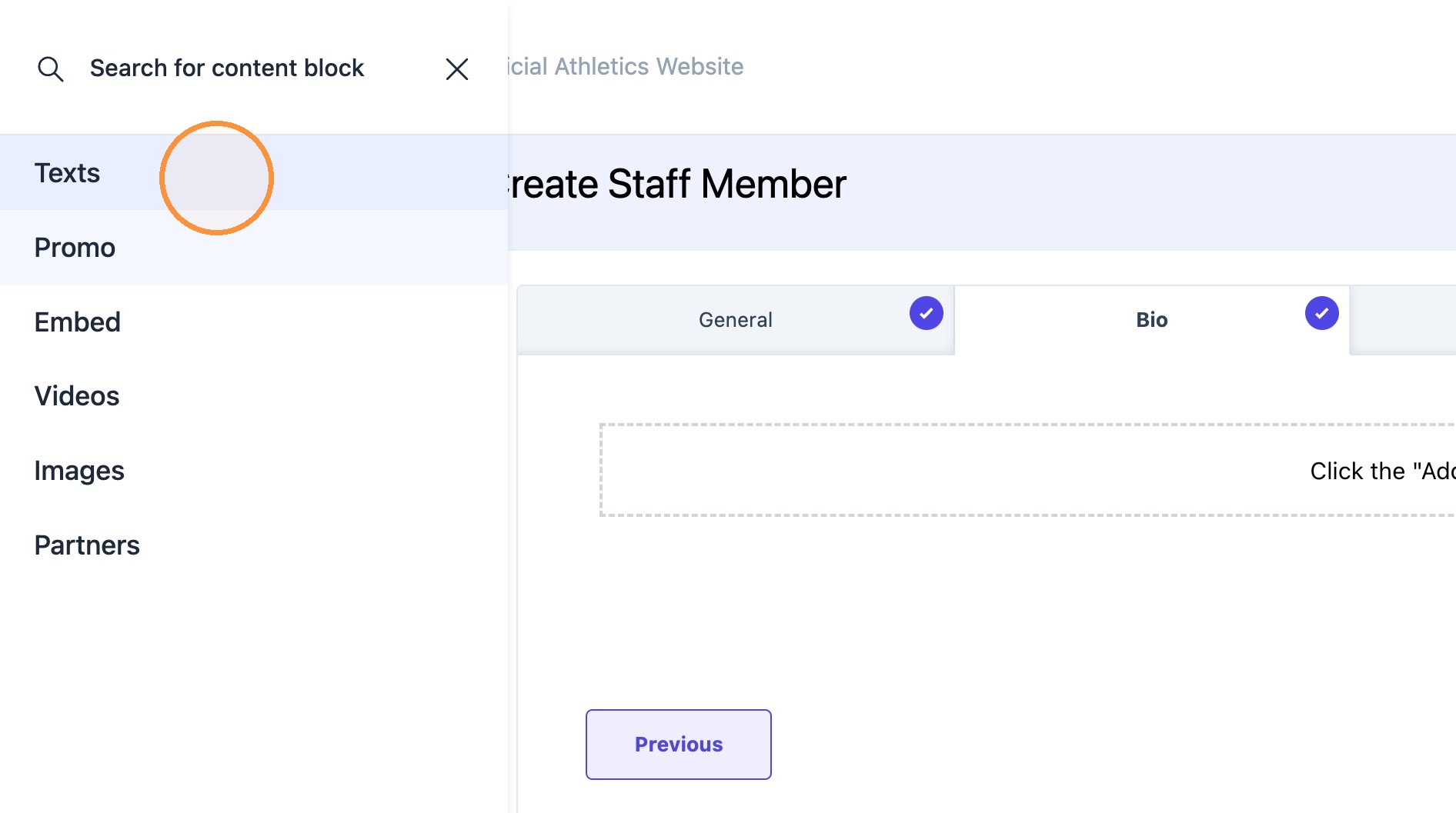
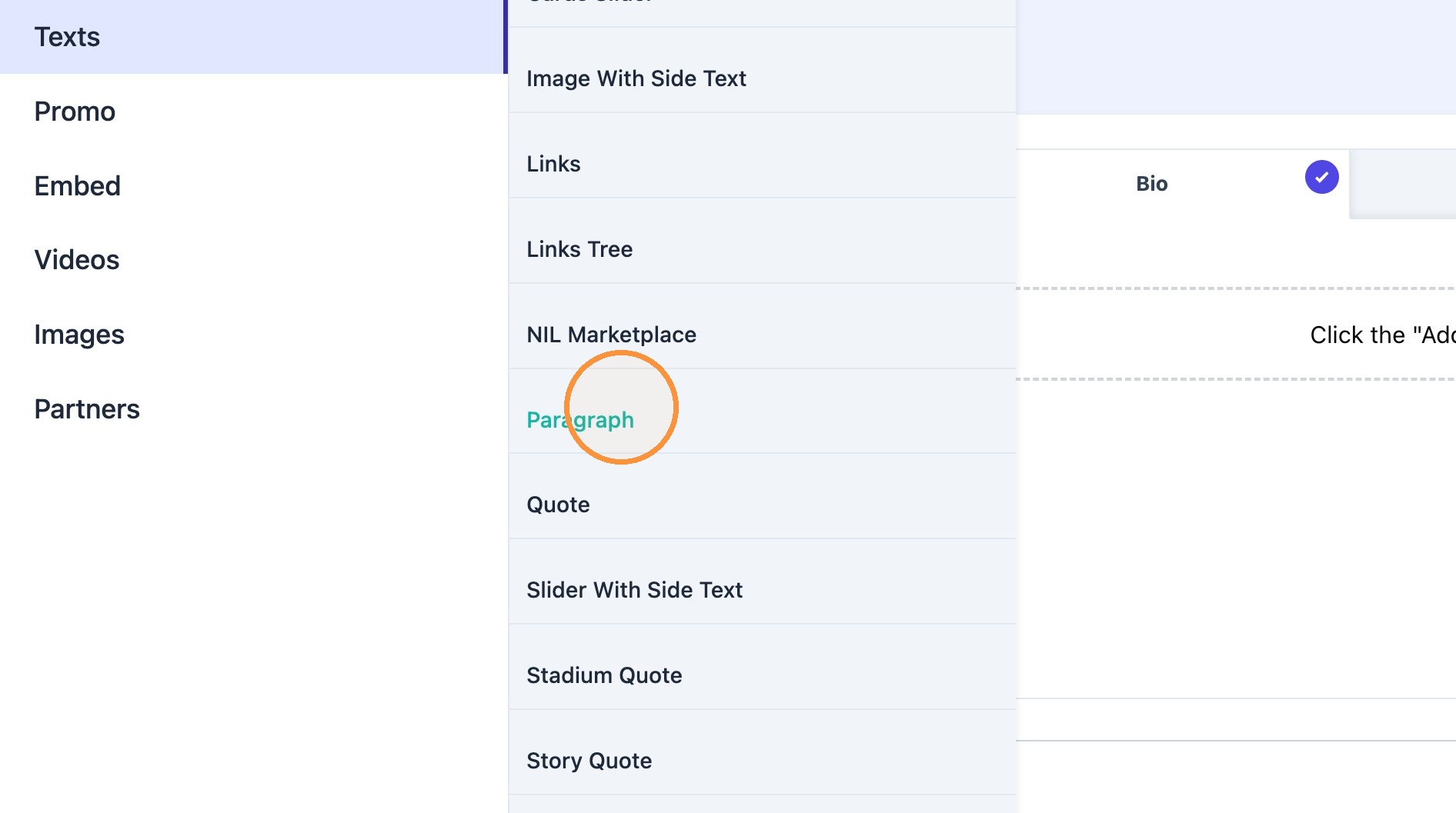
4. Click on the "Bio" tab to add general bio text to the staff's bio page.
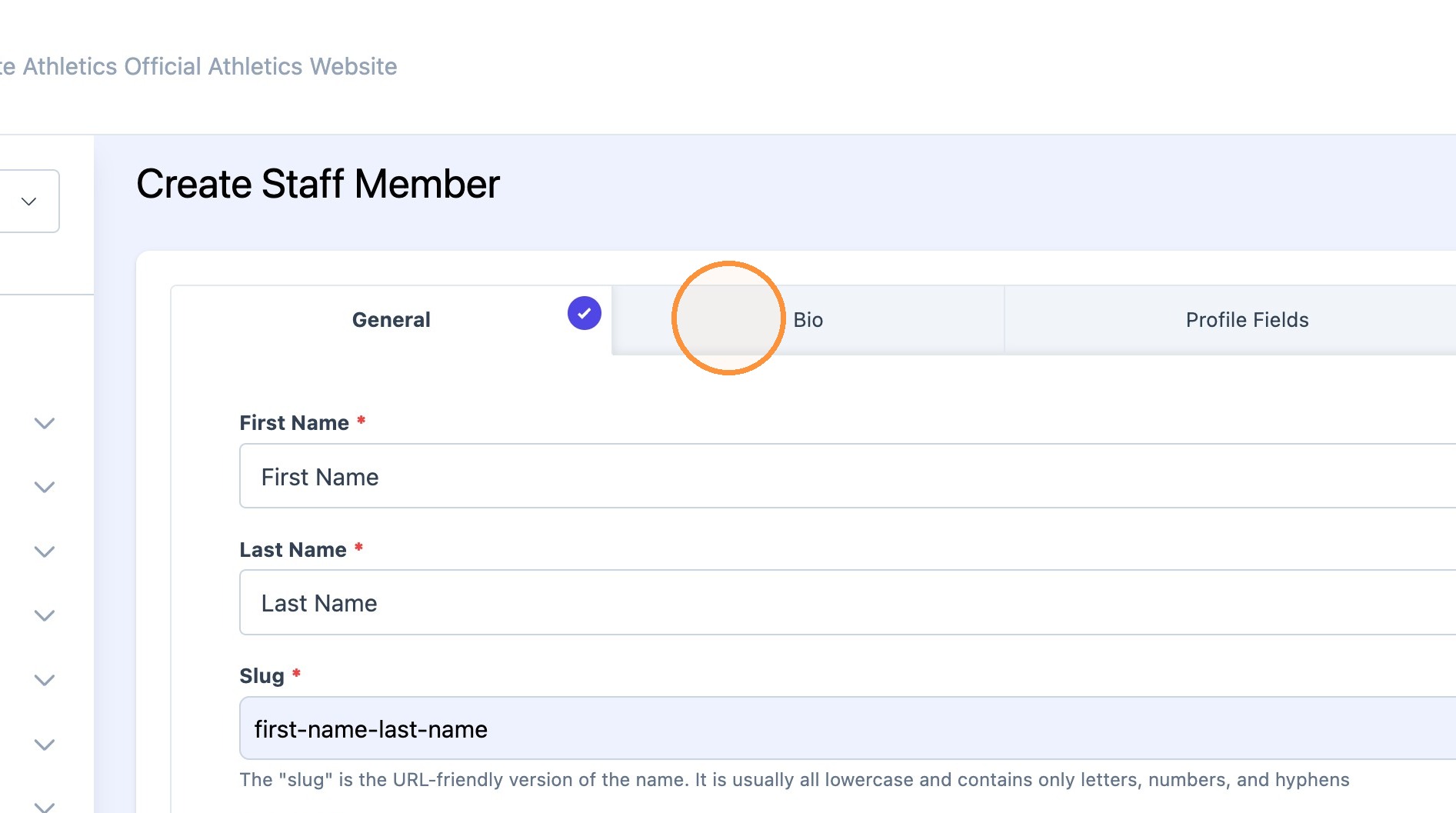
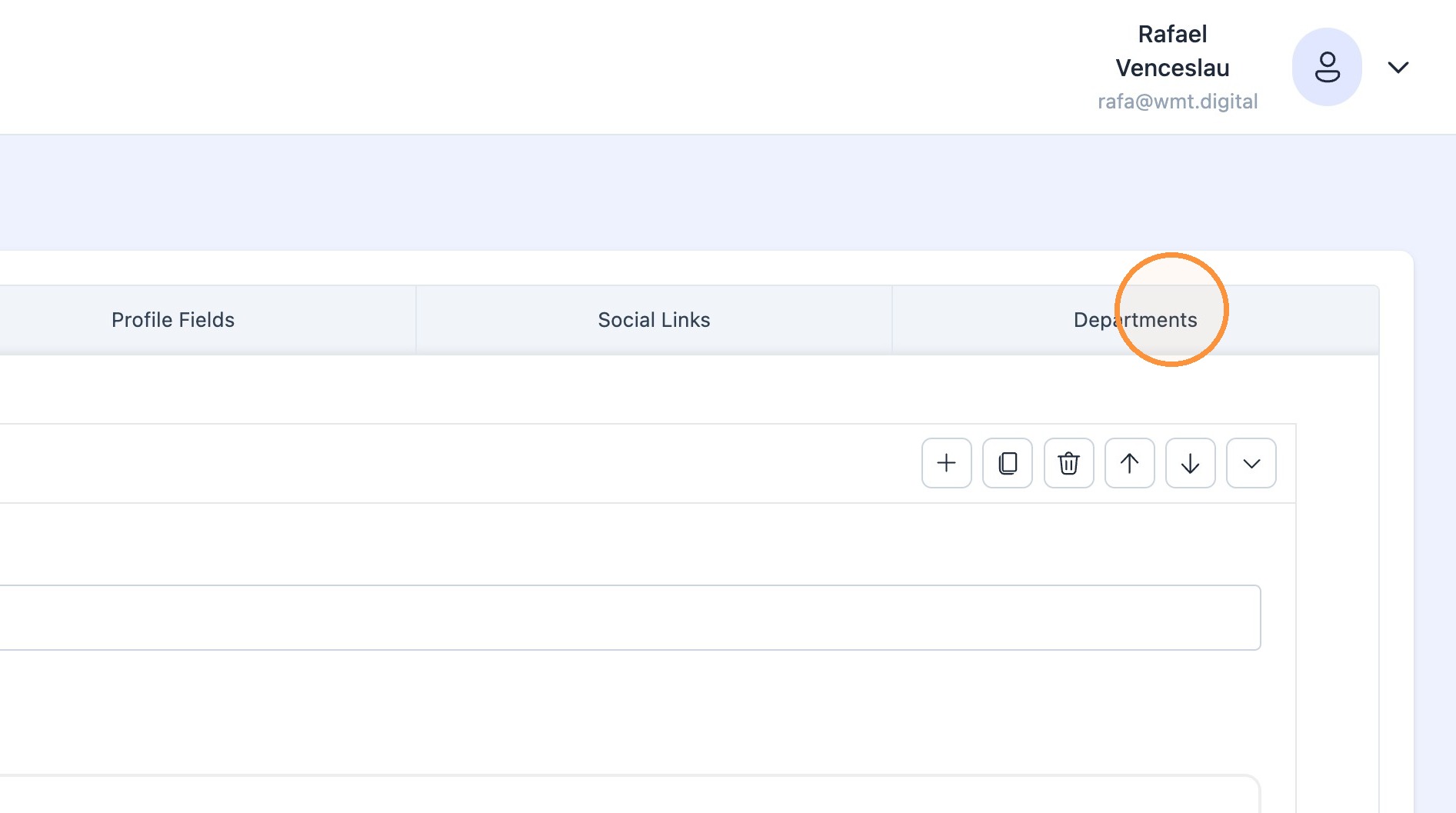
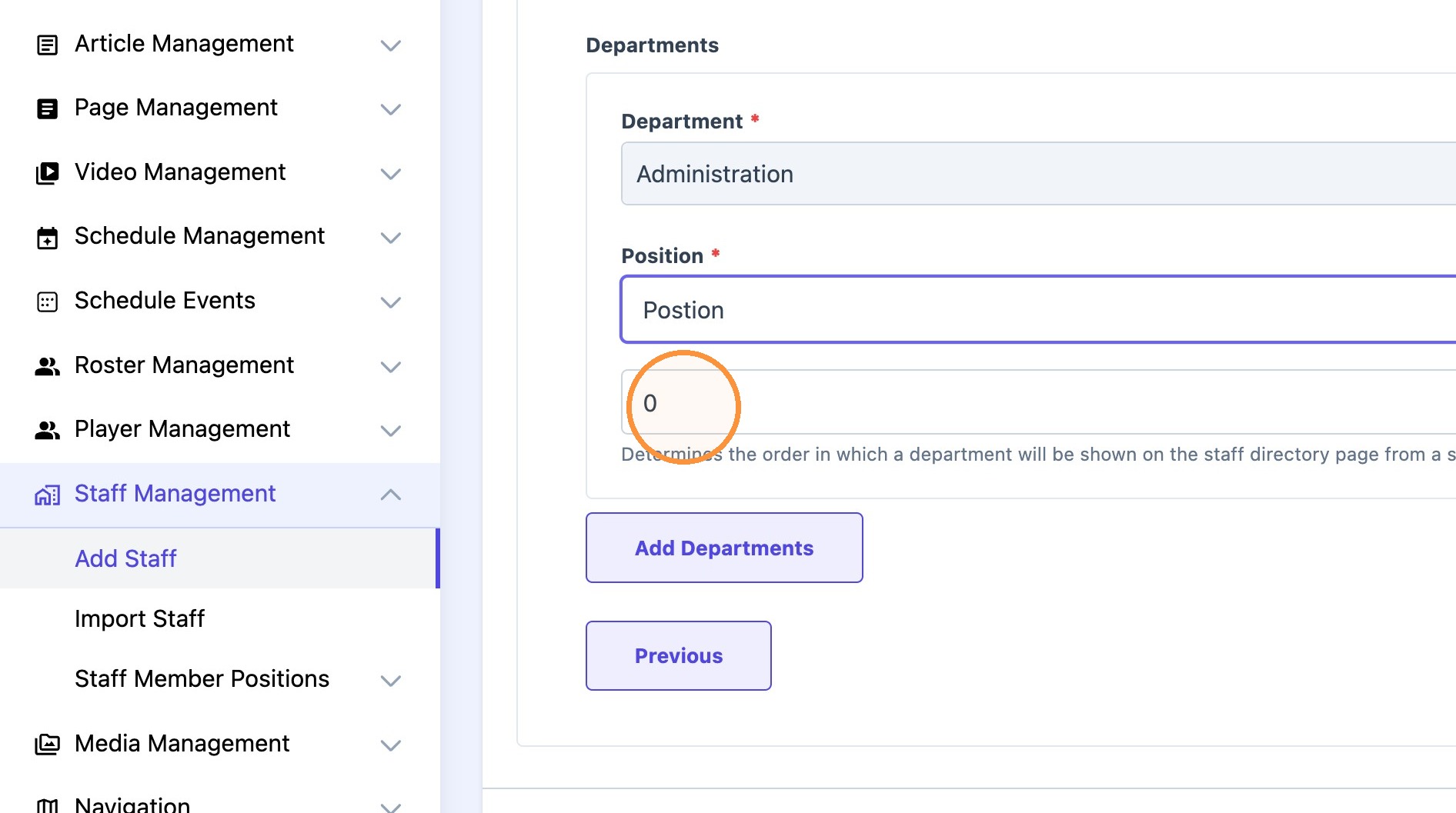
5. Click on "Departments" tab to add staff member to a department.
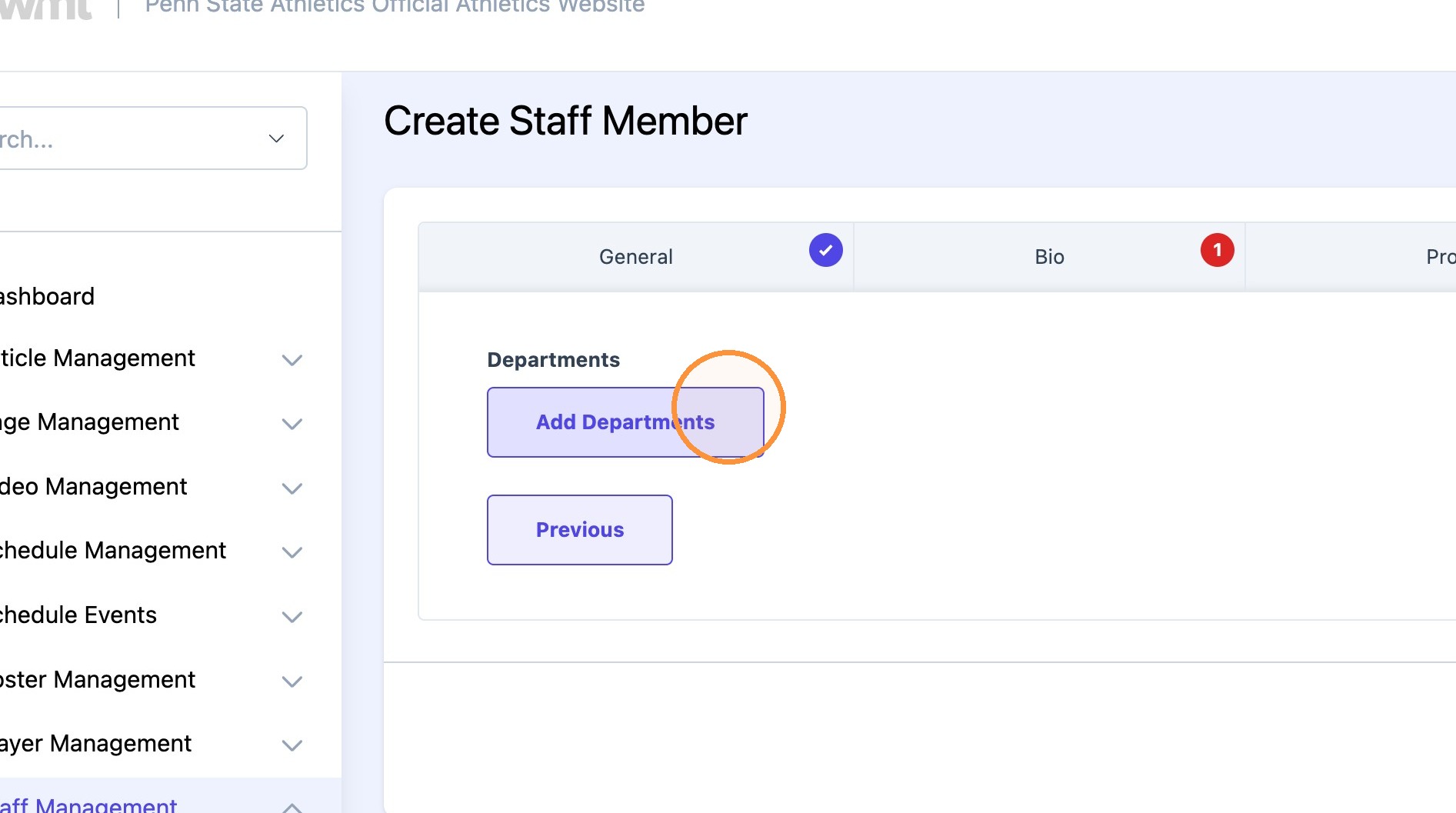
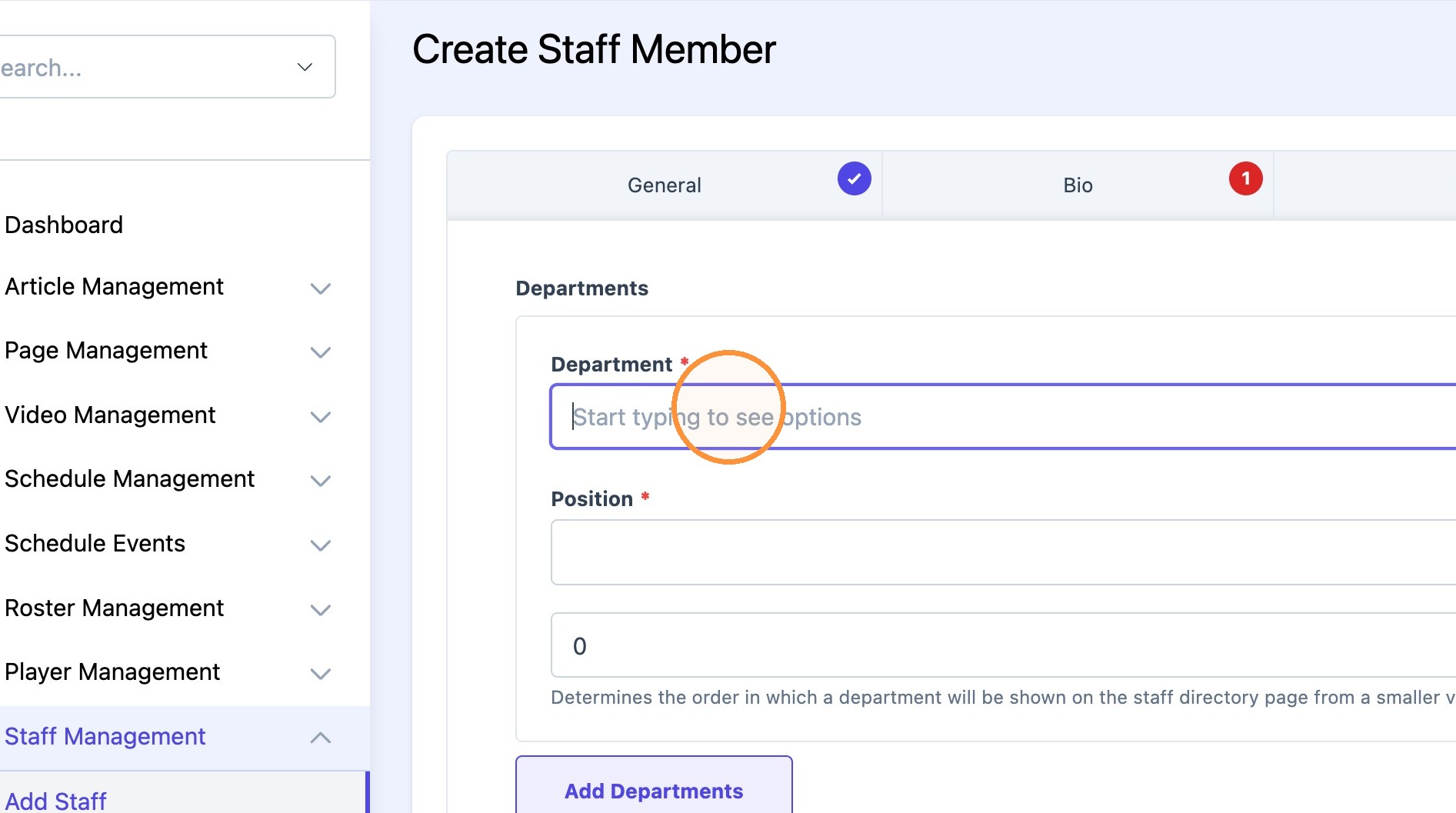
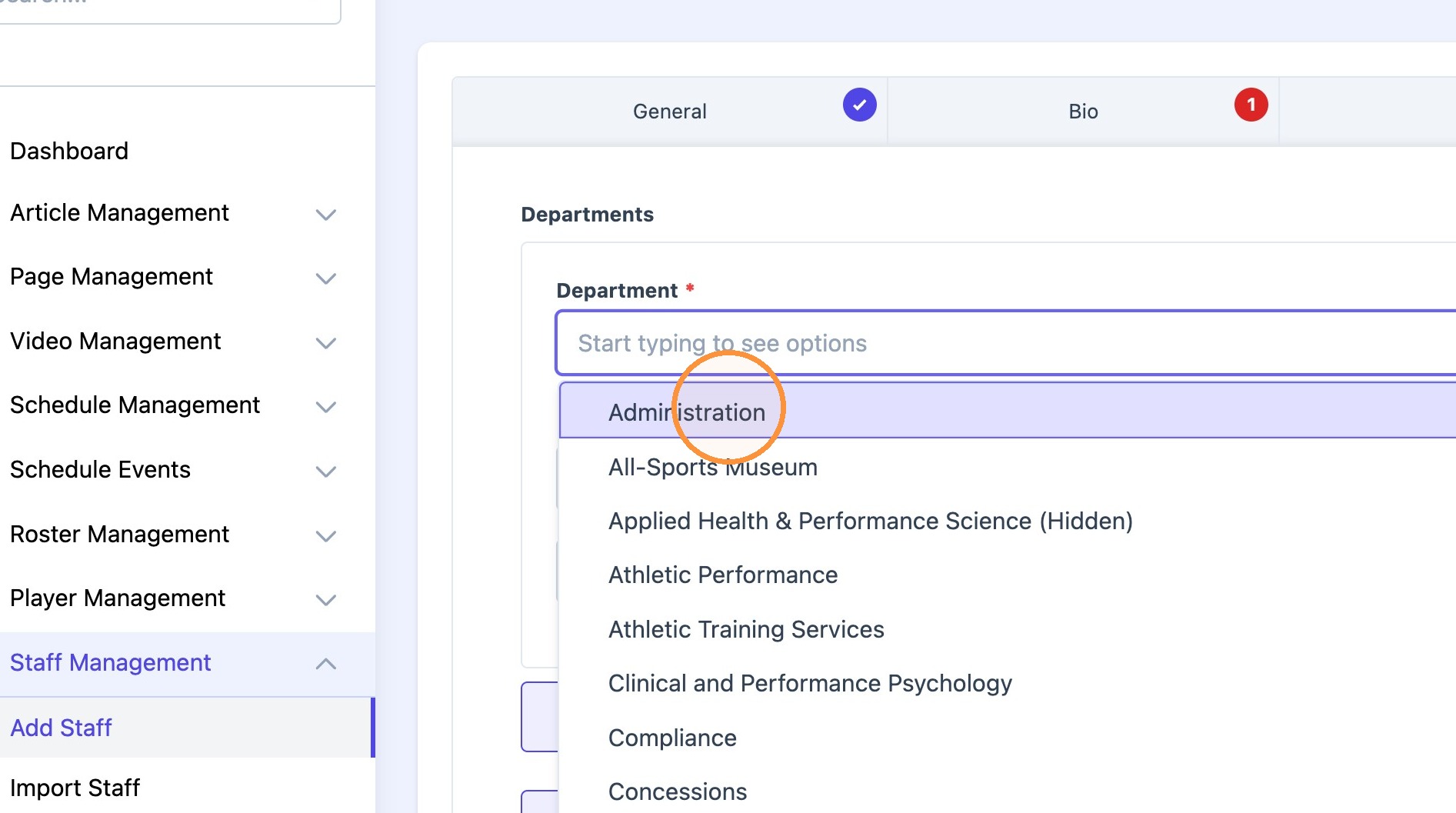
6. Select the desired department using the "Department*" field.
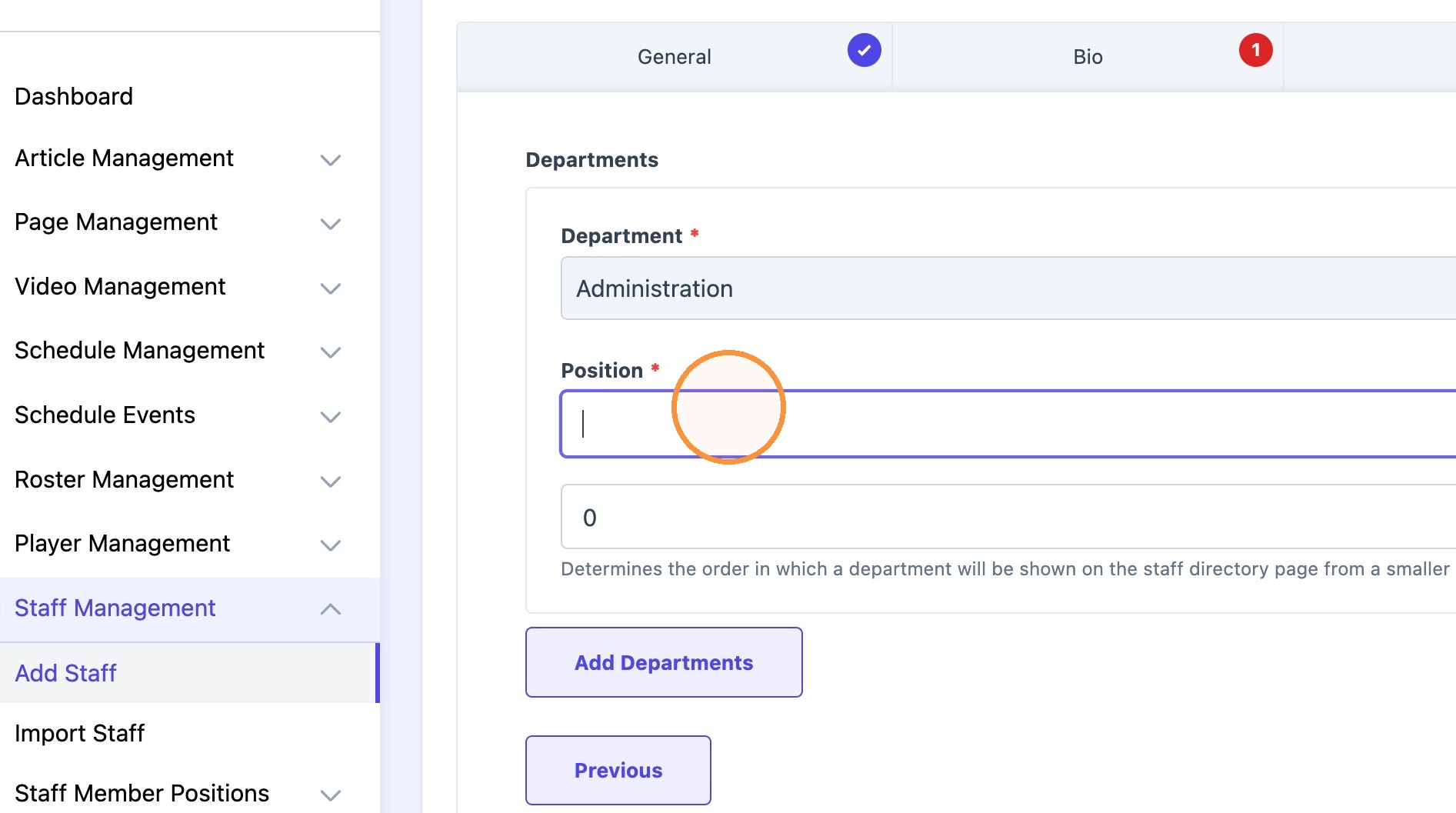
Type position in the "Position*" field.
Choose the order in which staff member should appear. This can be changed later.
Tip: Tip! Click here to learn how to change staff member order positions.
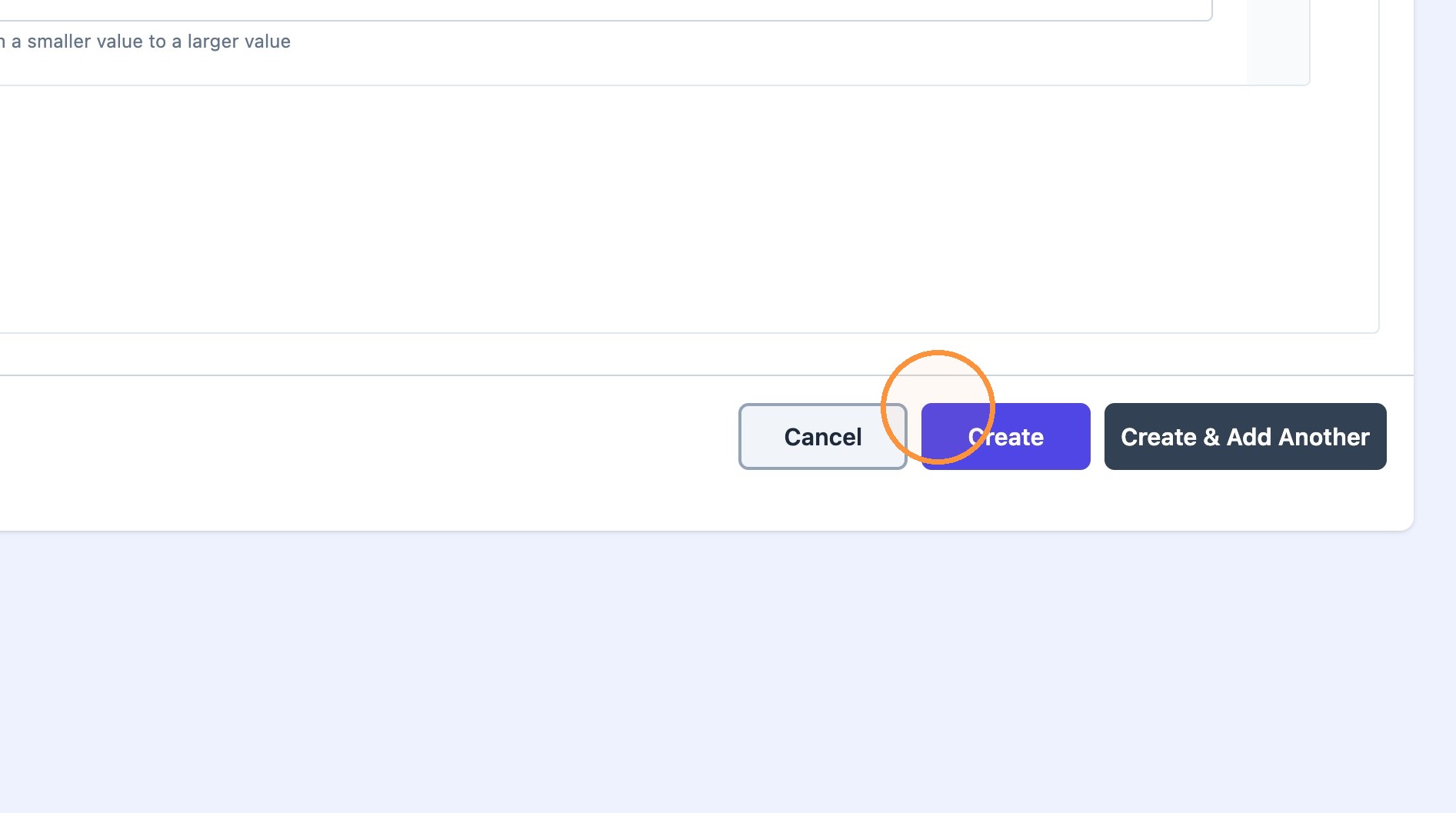
7. Click "Create"