Pages: How to replace a Video from the paragraph block and add a WMT Video
Last updated: September 18, 2026
Made by Finance WMT Digital with Scribe
1. Navigate to the page that needs updating with a video or multiple videos
2. If a video was previously added to a page, remove the video from the paragraph block
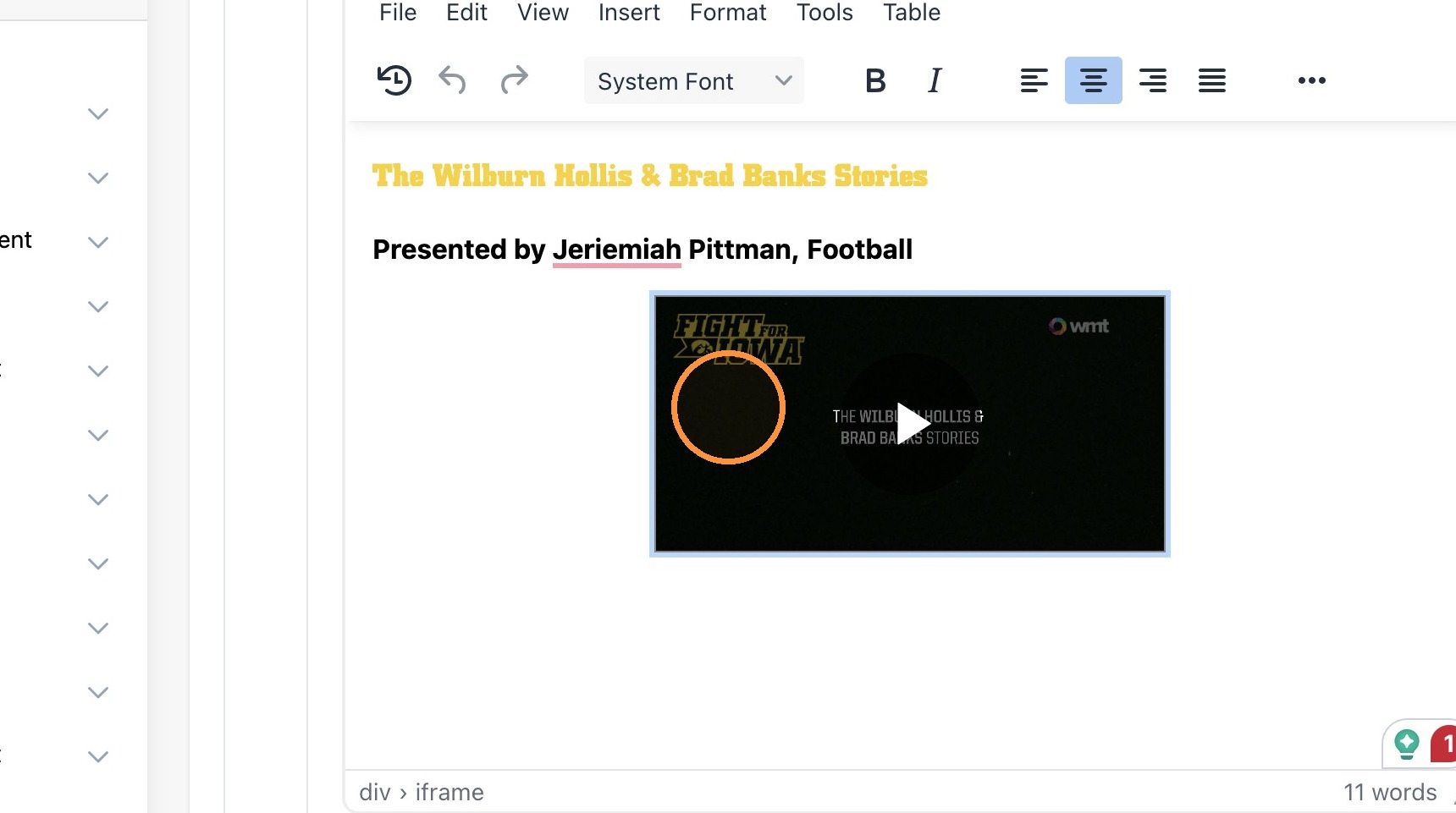
3. Select "Text", Highlight the script that is showing the video and press delete (or backspace) on your keyboard.
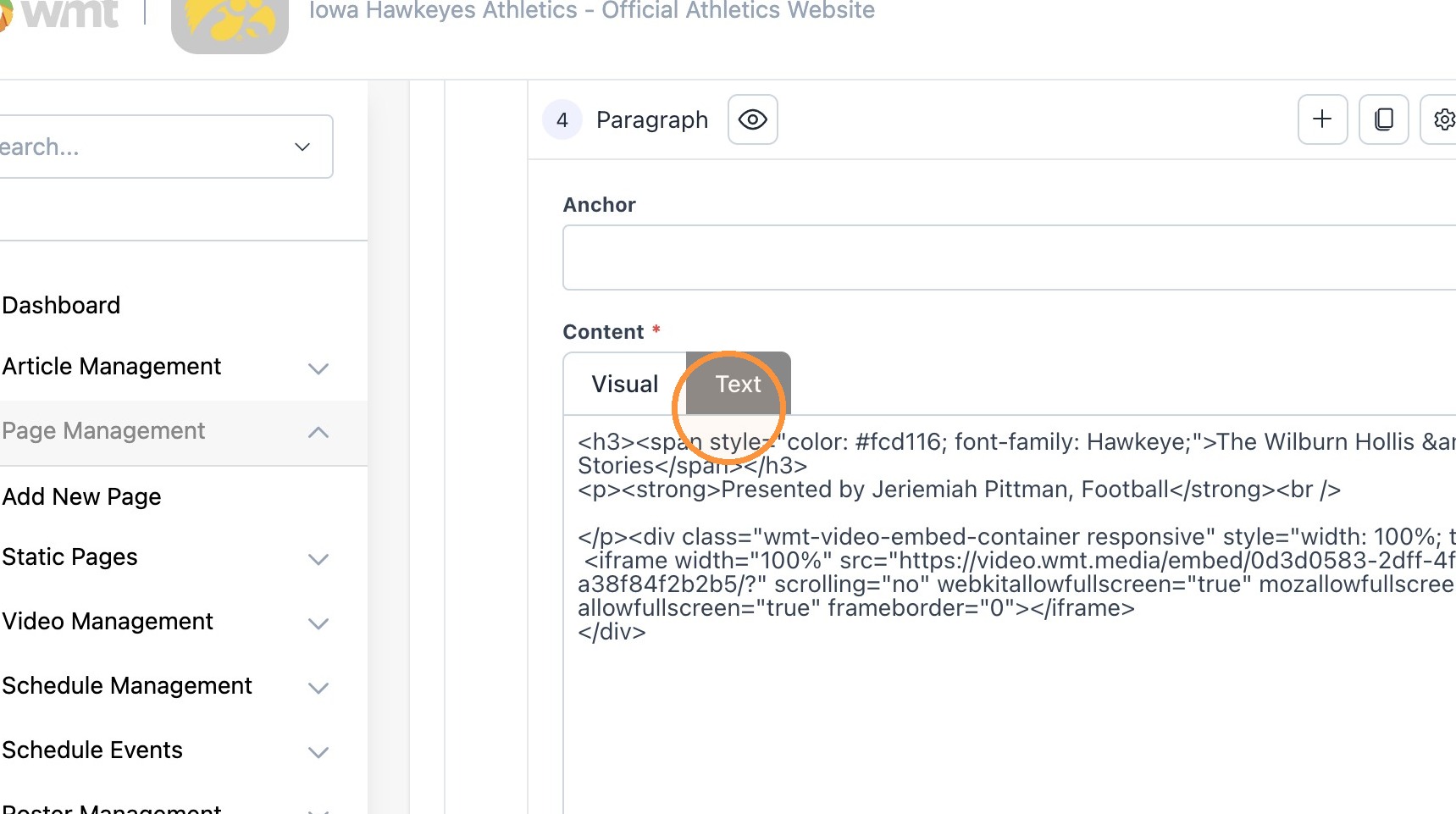
4. Add a new content block to place a video natively
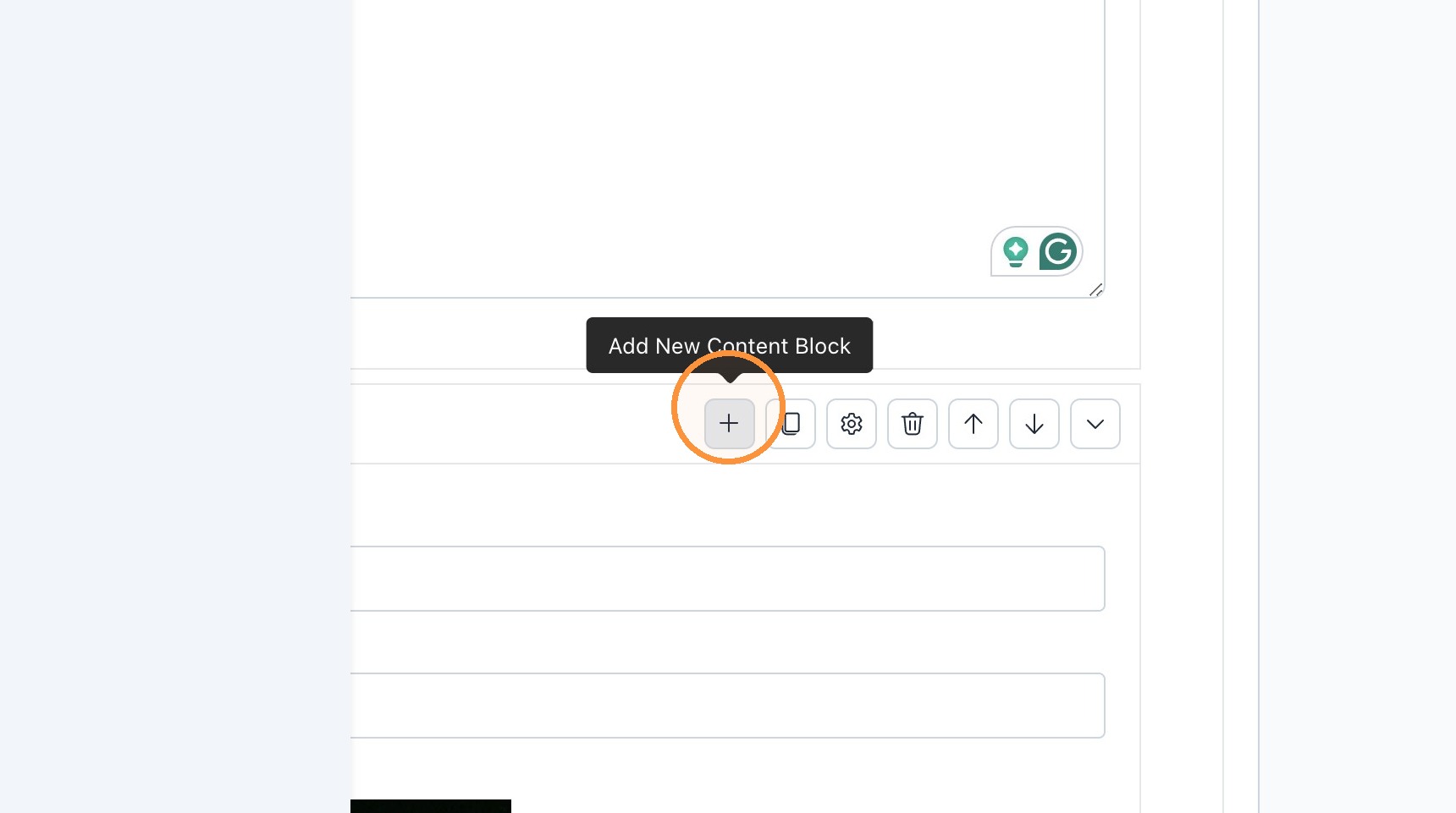
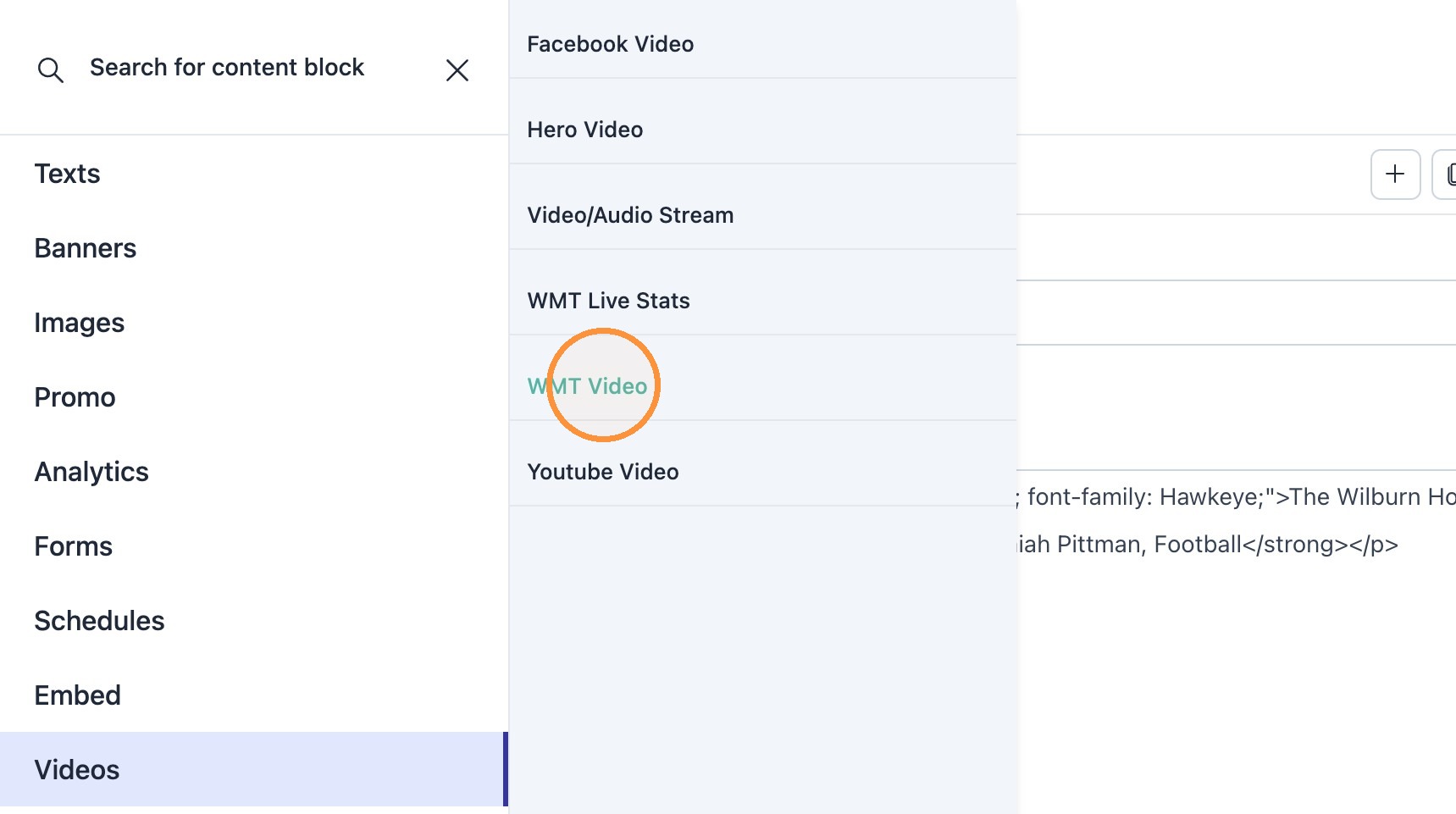
5. Select "Videos" -> "WMT Video"
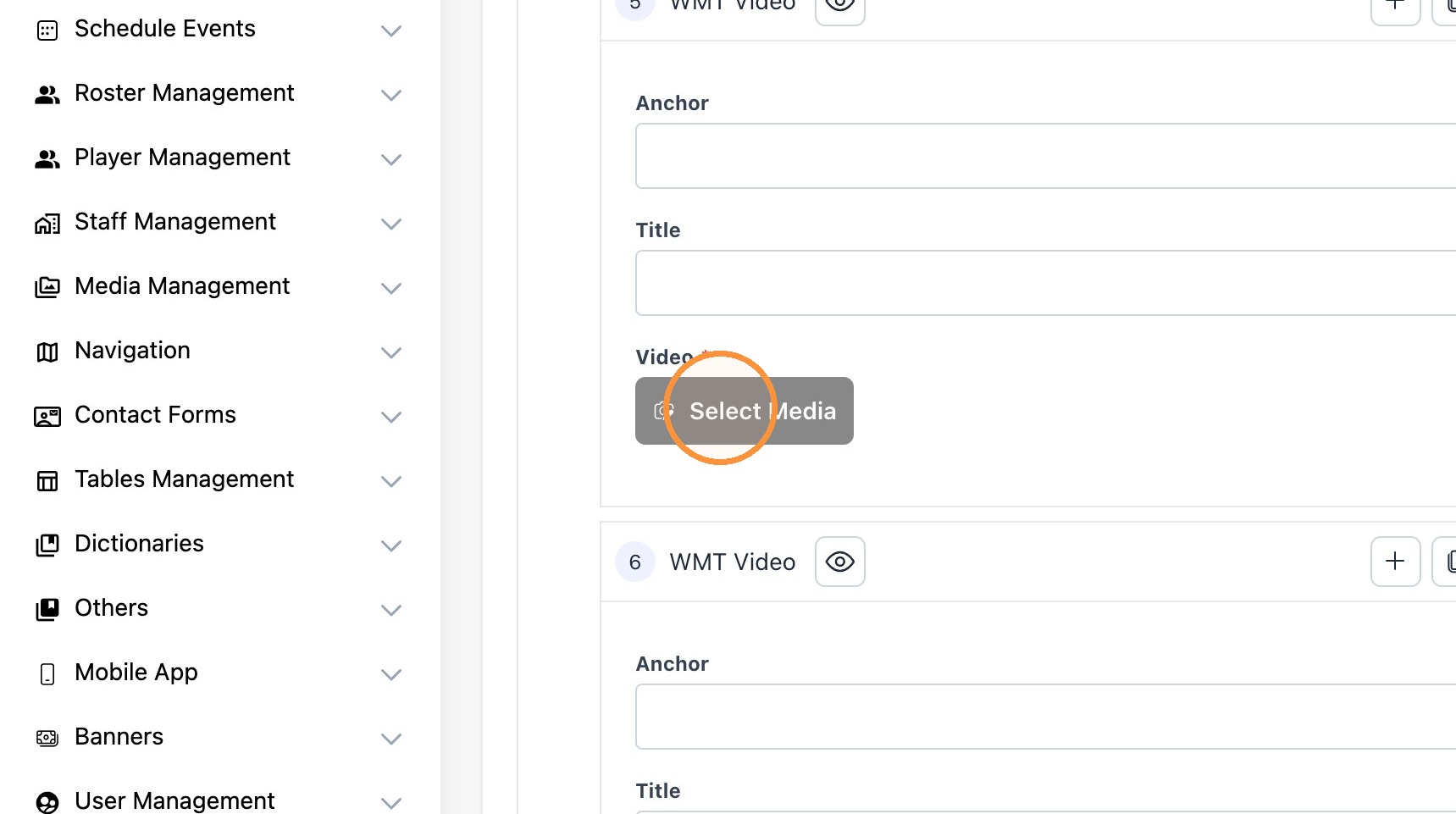
6. Click "Select Media" to open the WMT Video Library
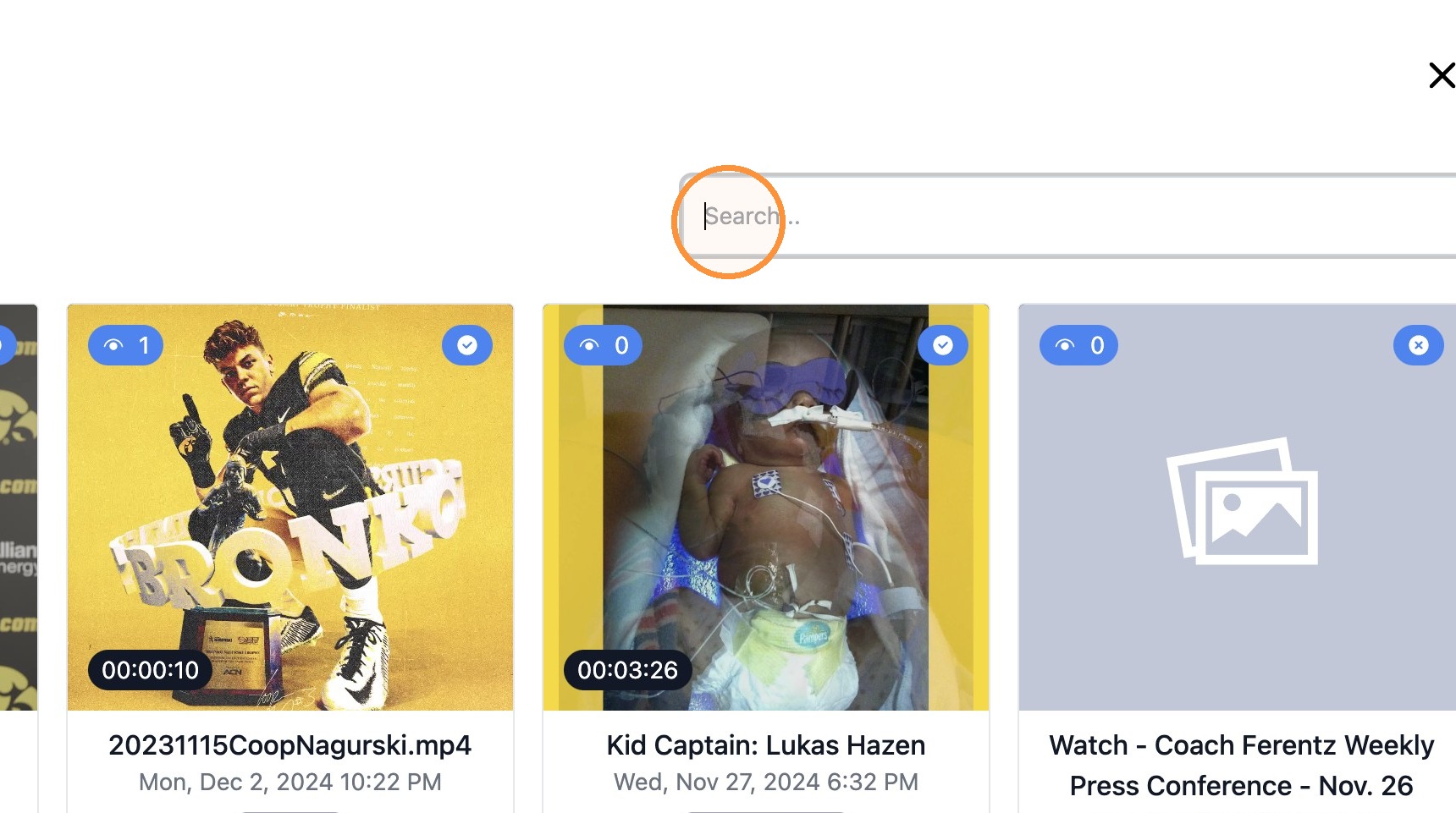
7. Find your video in the library or search by the title/name
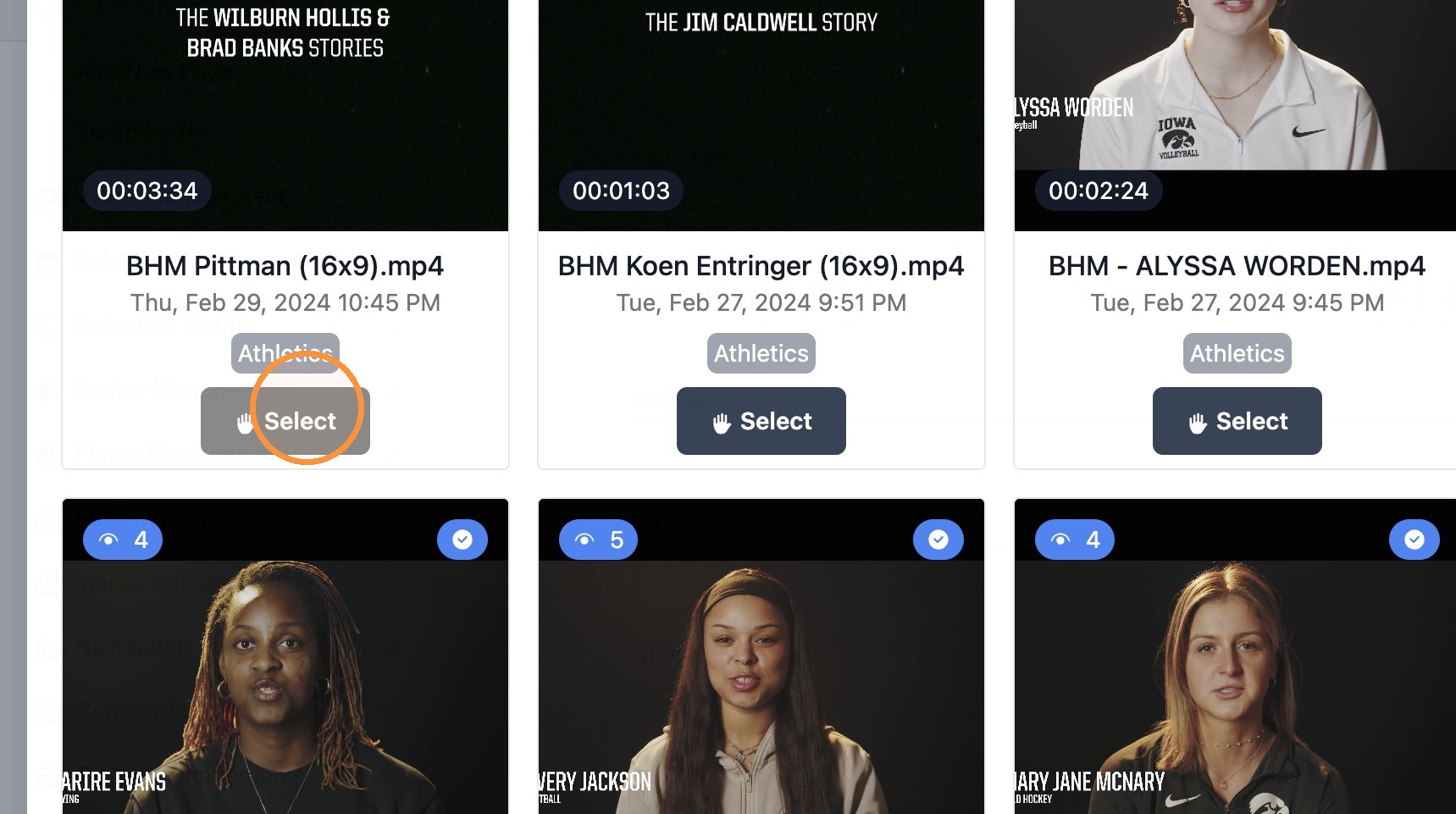
8. Click "Select" to choose the video you want to place
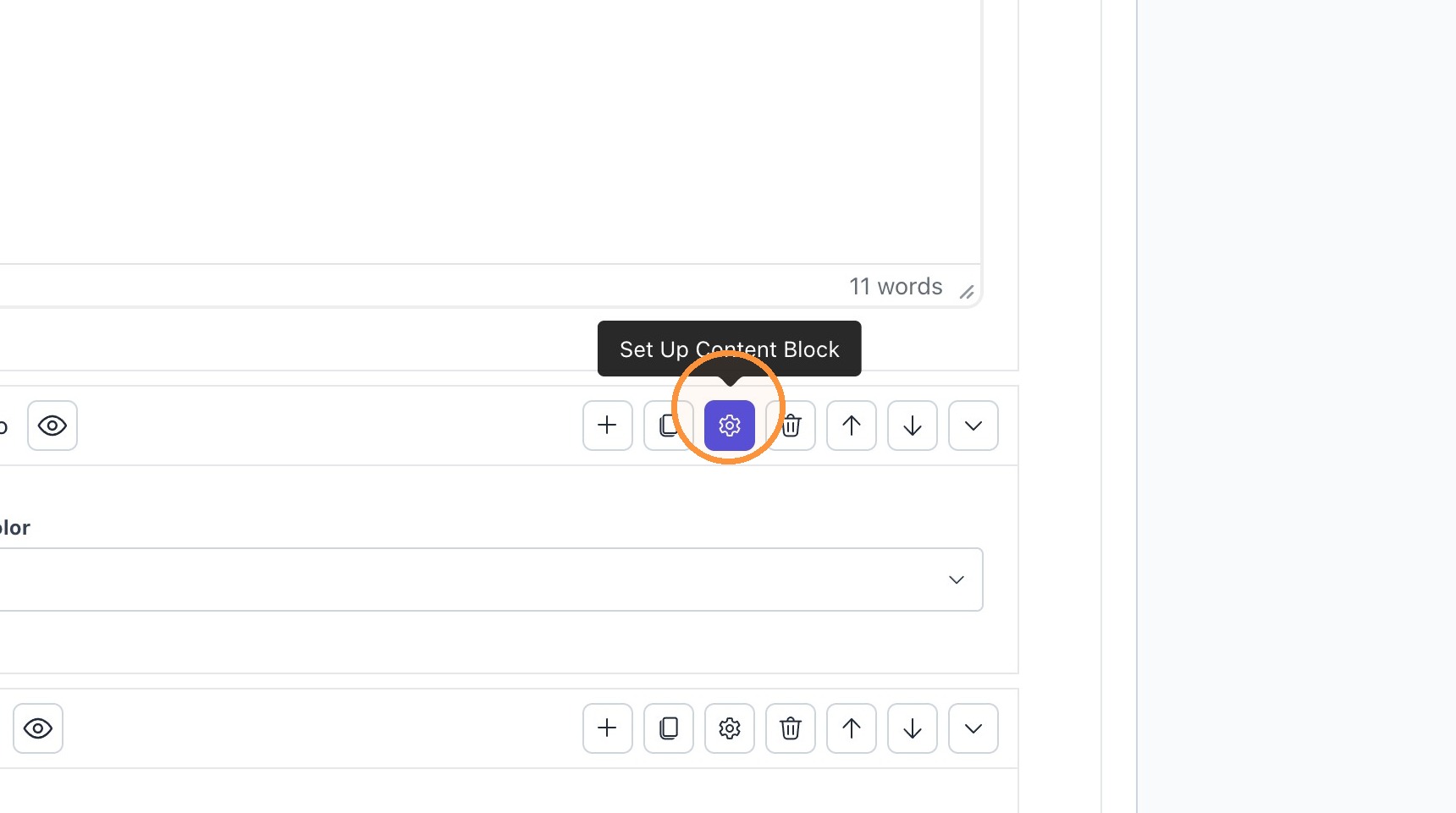
9. If you wish to edit the background color behind the video player, select the 'gear' icon to set up the content block.
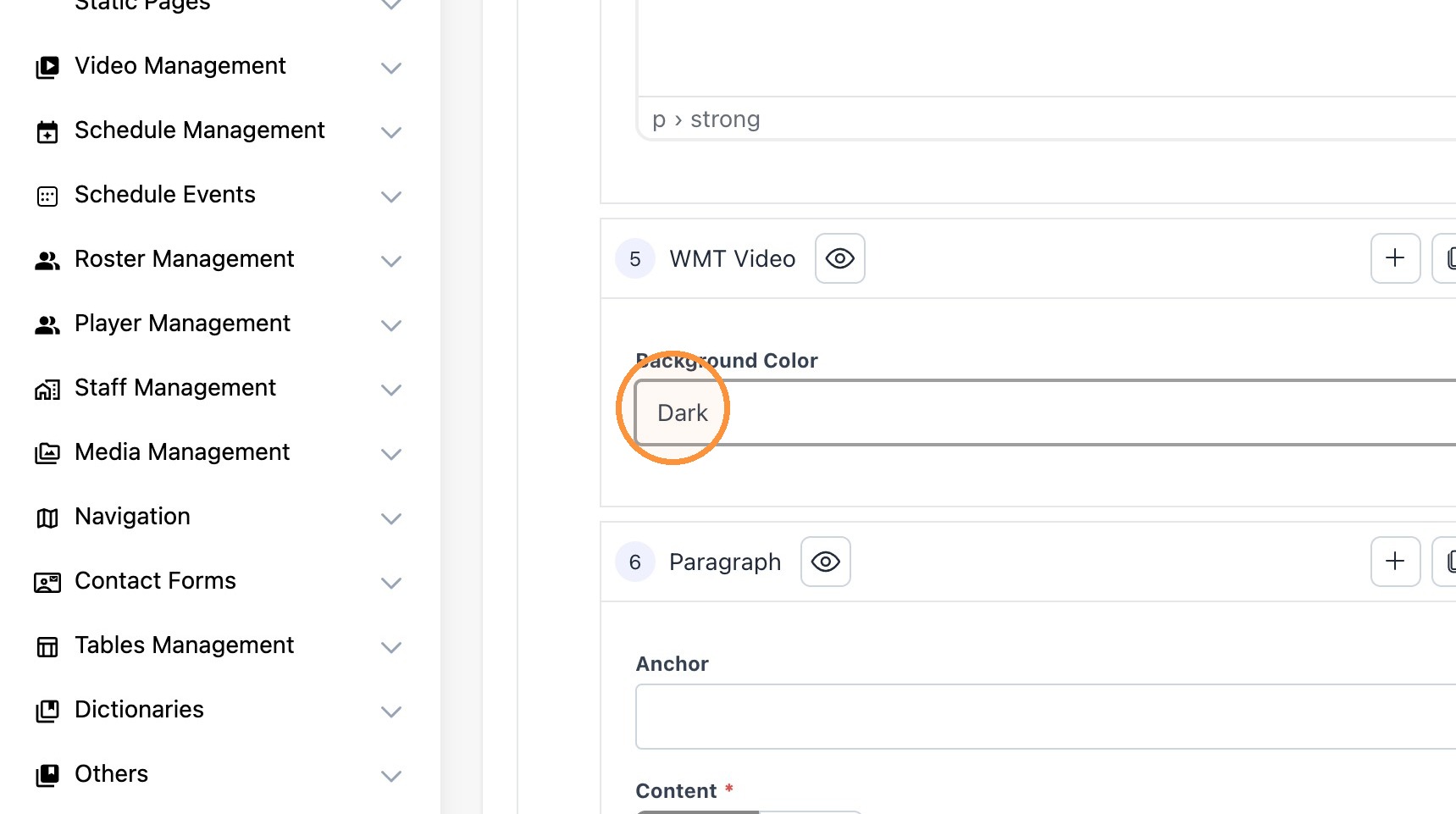
10. Select the "Dark" option to have a black background.
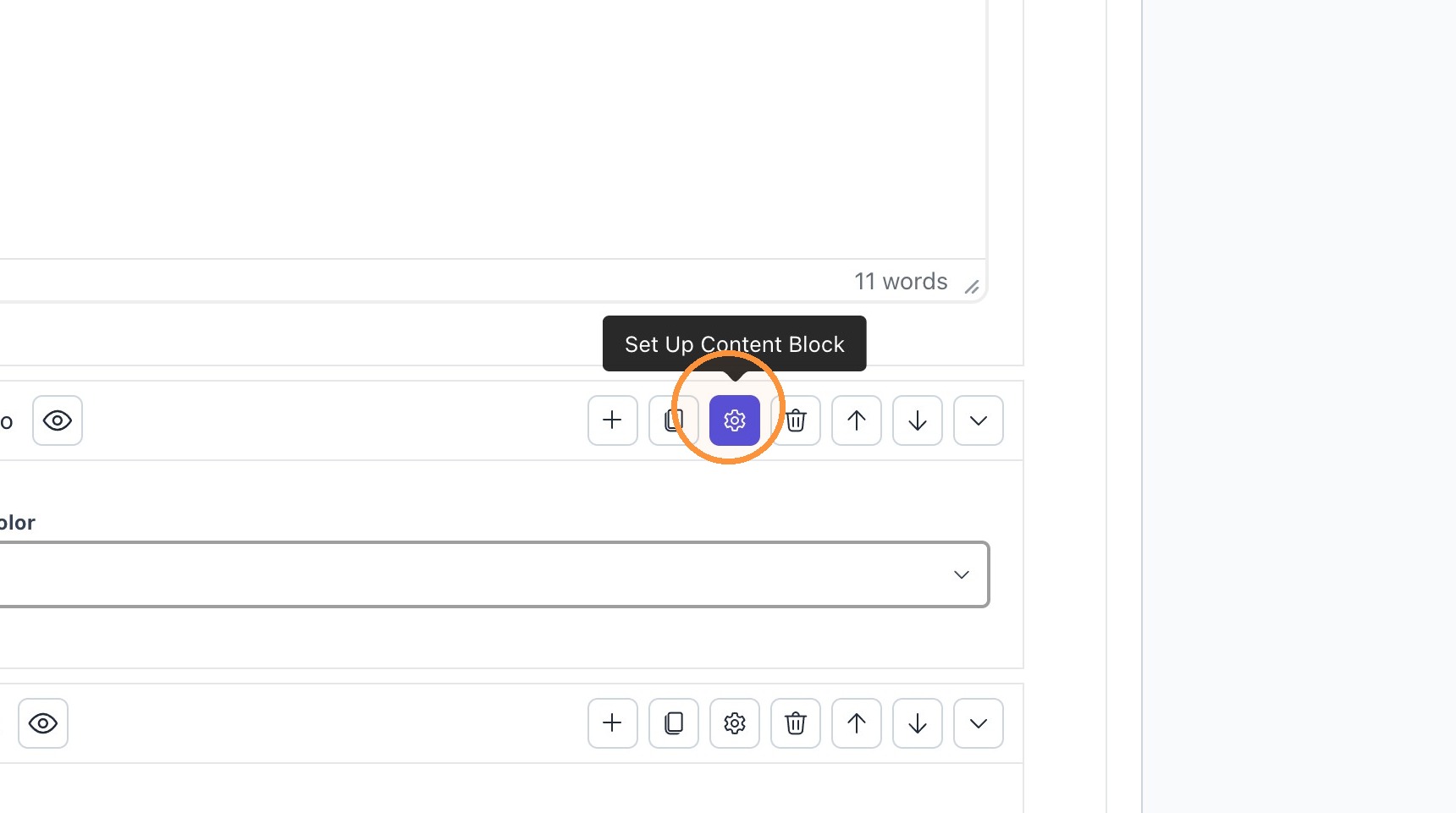
11. Click the gear icon to go back to the initial content block view
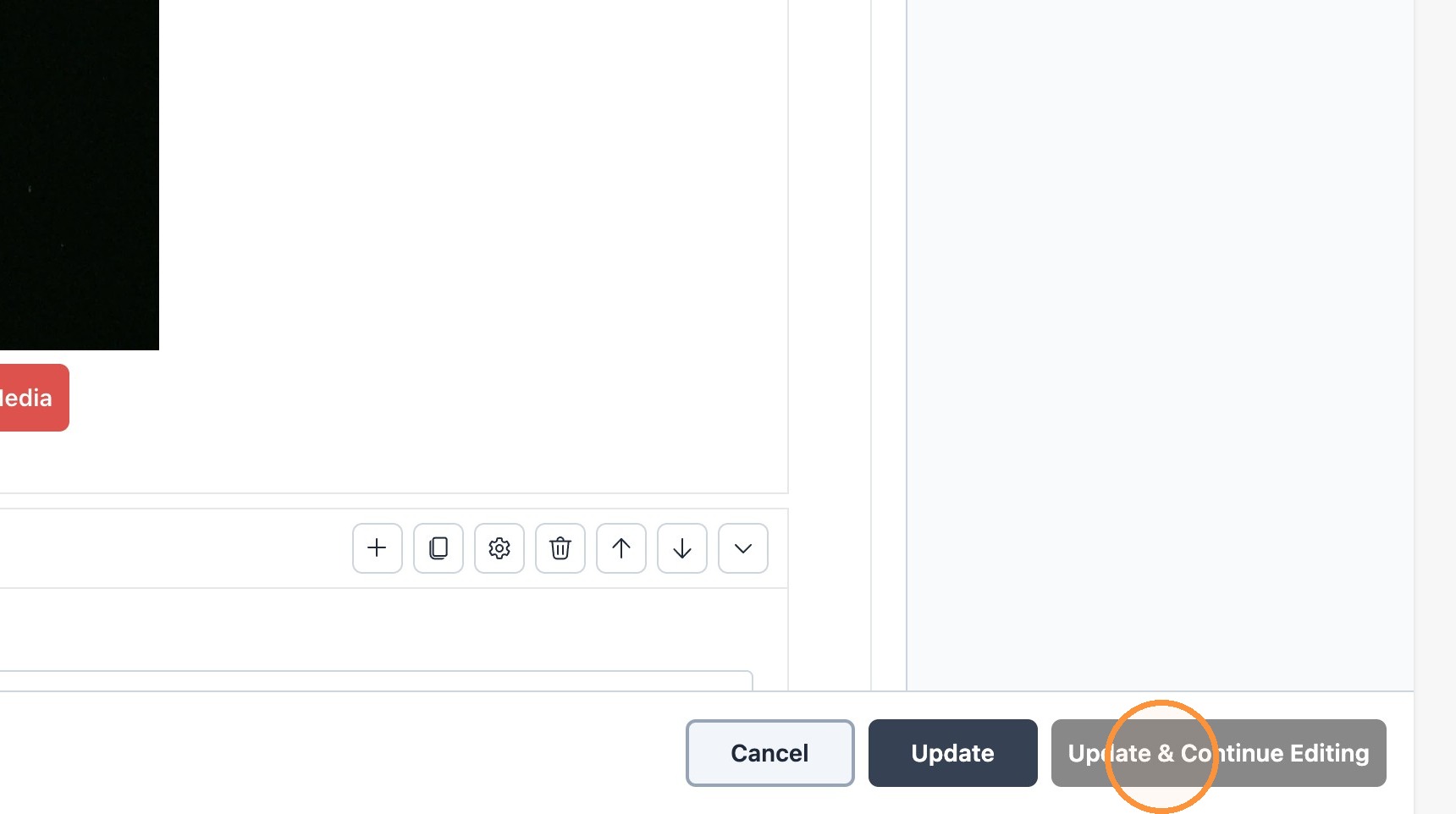
12. Save your page and changes by selecting "Update & Continue Editing"