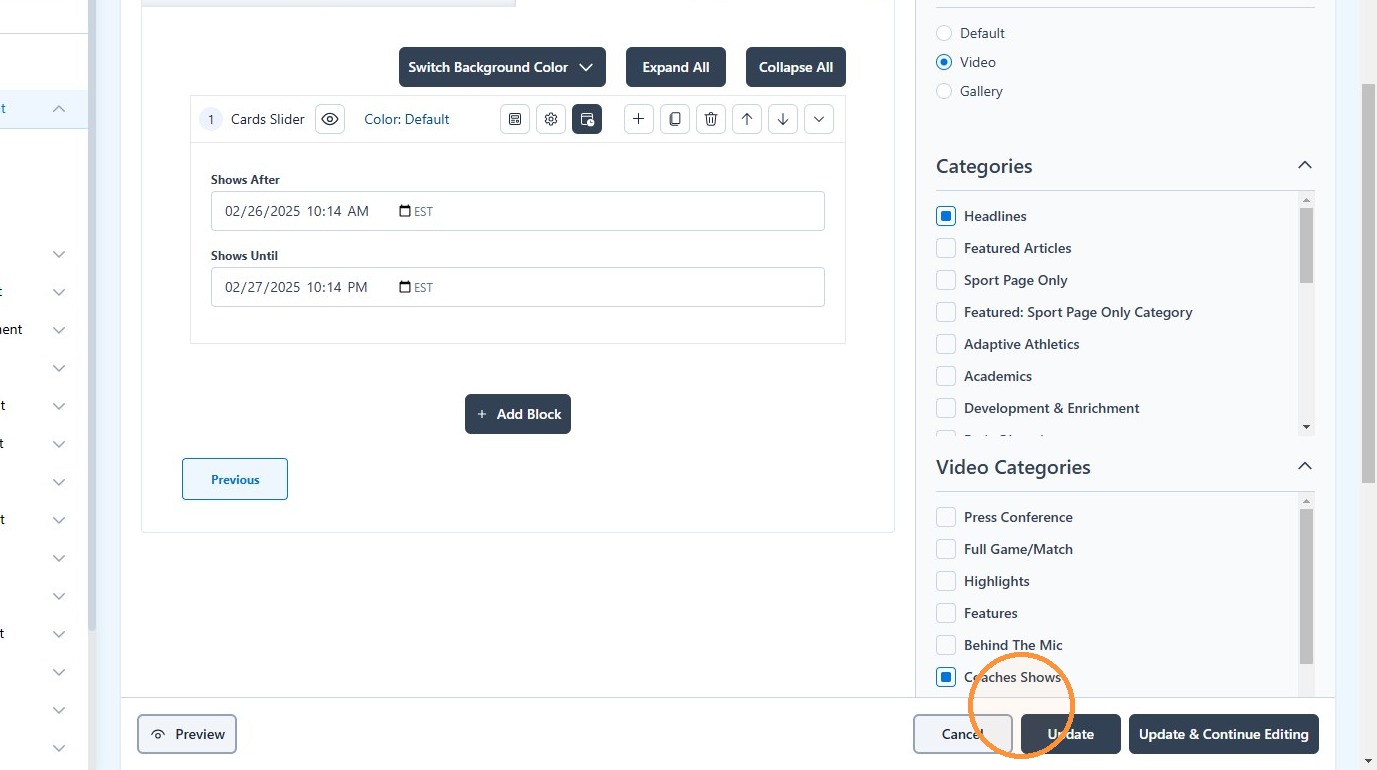
Scheduling Content Blocks in Pages and Articles
Last updated: September 18, 2026
1. This applies to content blocks in articles, pages and mobile screens
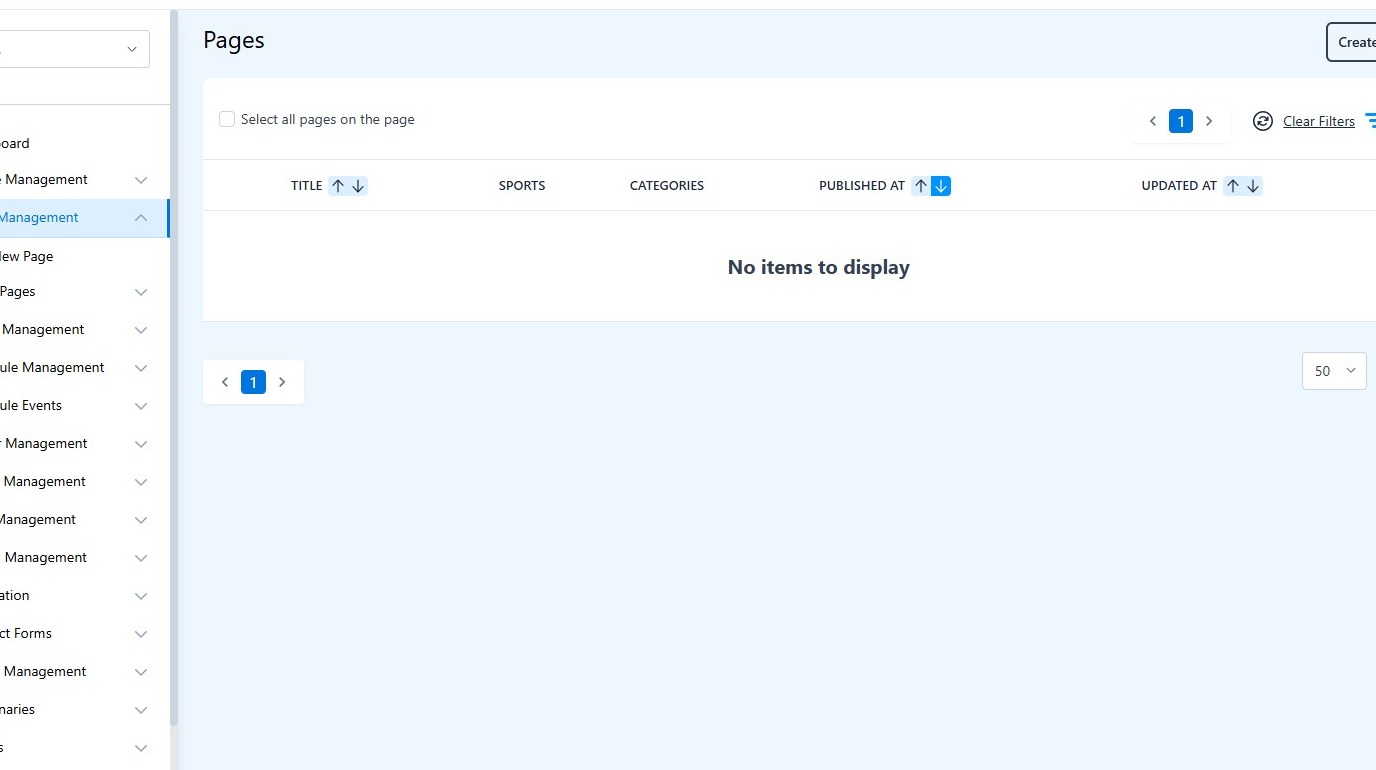
2. Pages
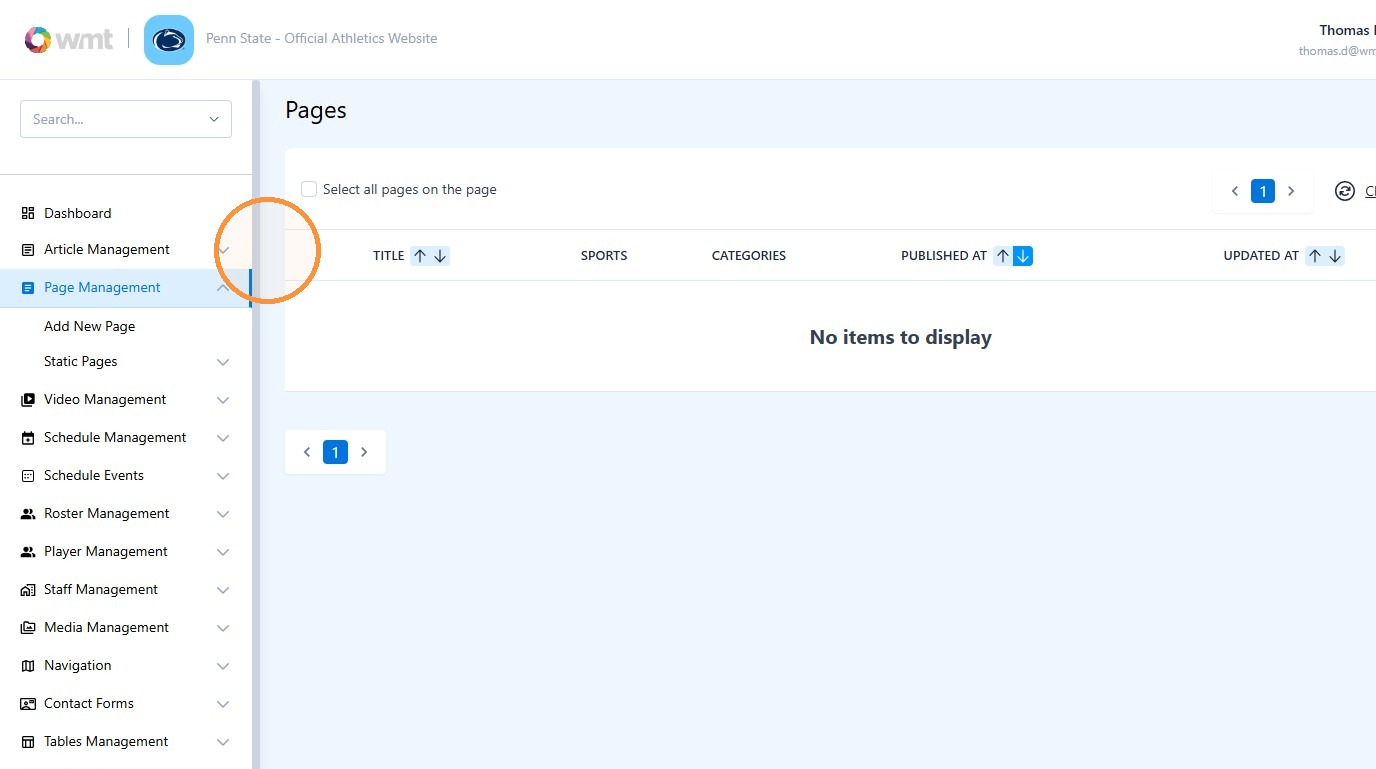
3. Mobile Screens
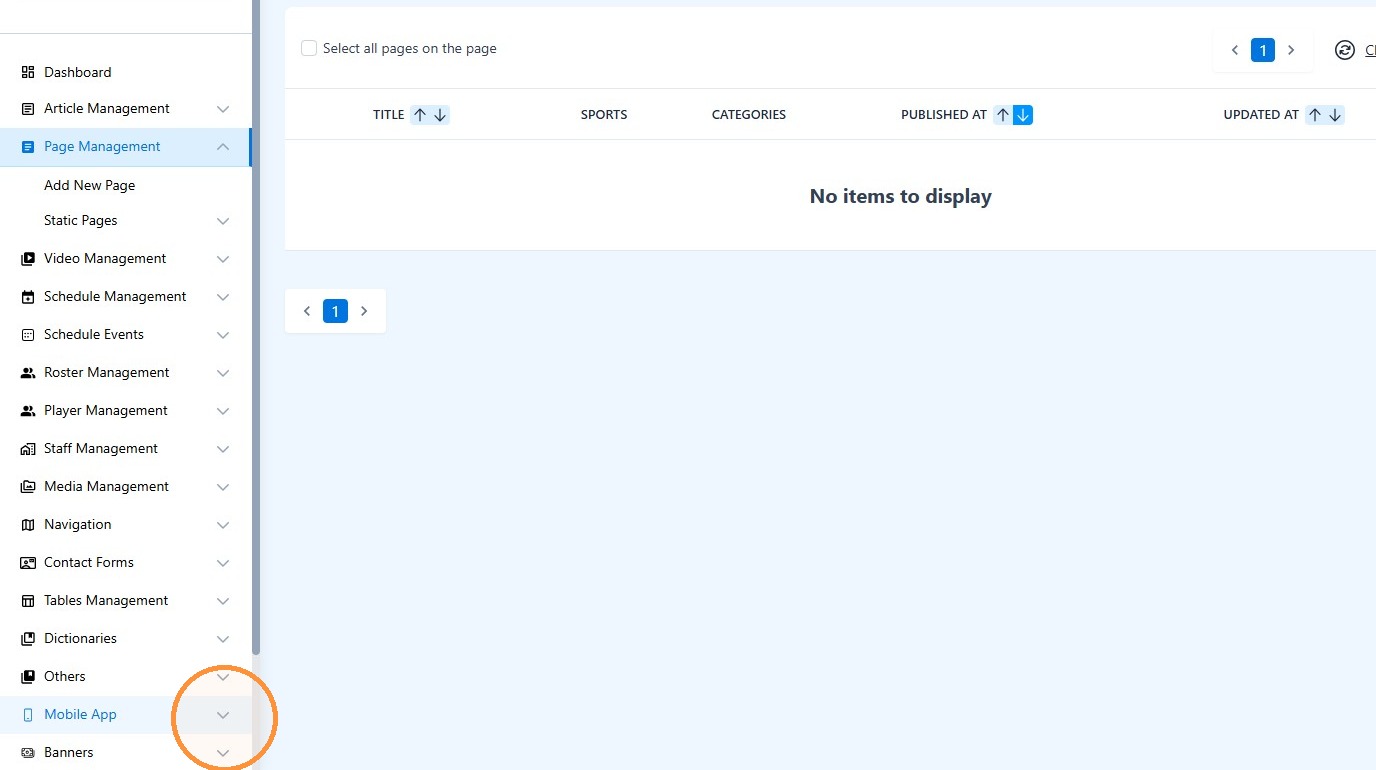
4. Click here to create and article...
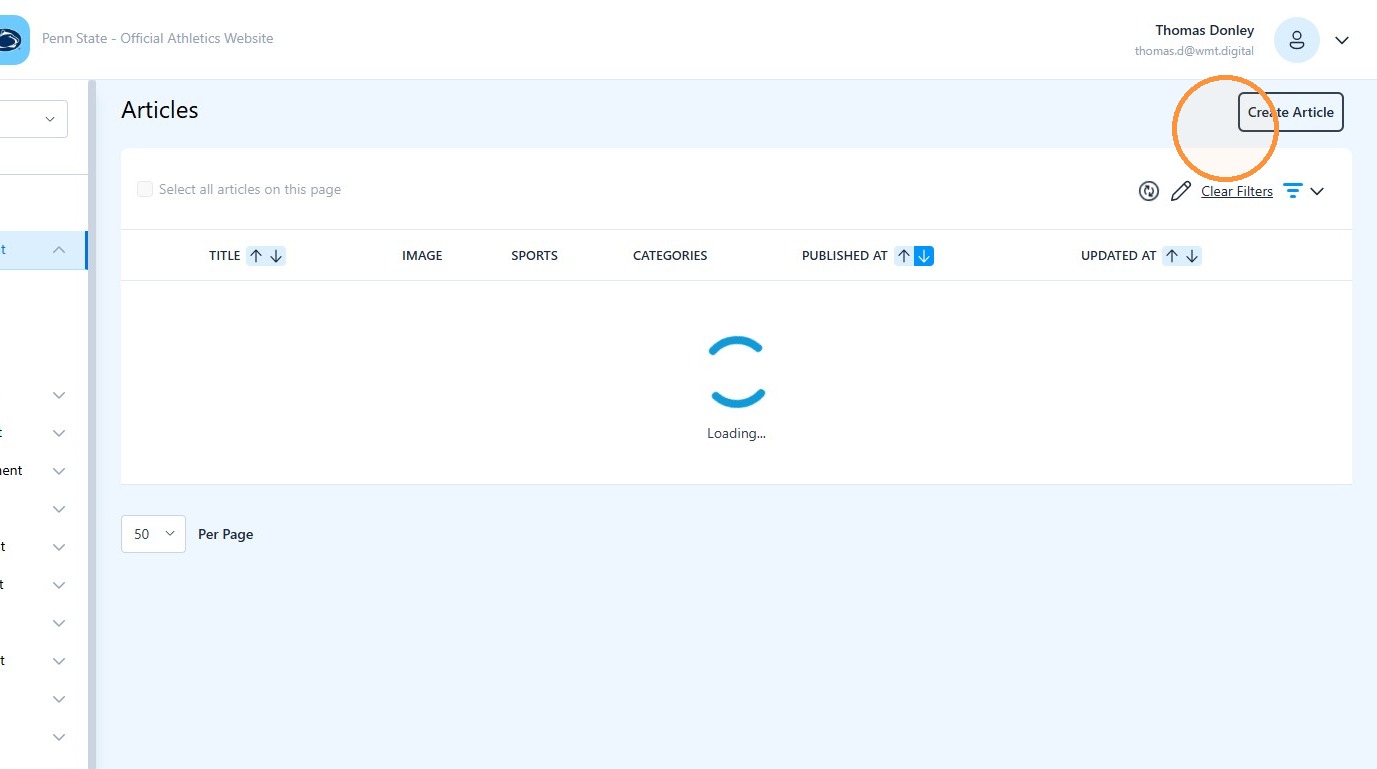
5. or here on an existing article to Edit it
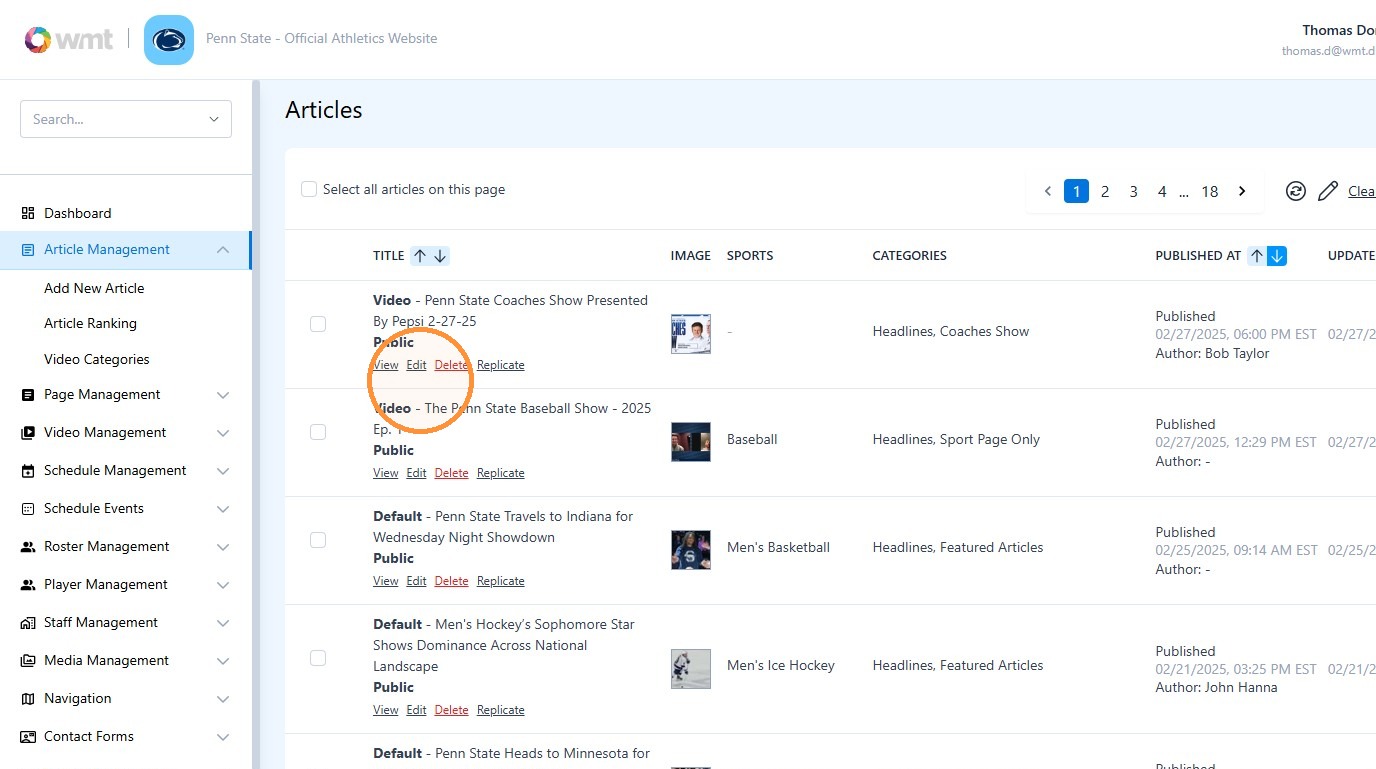
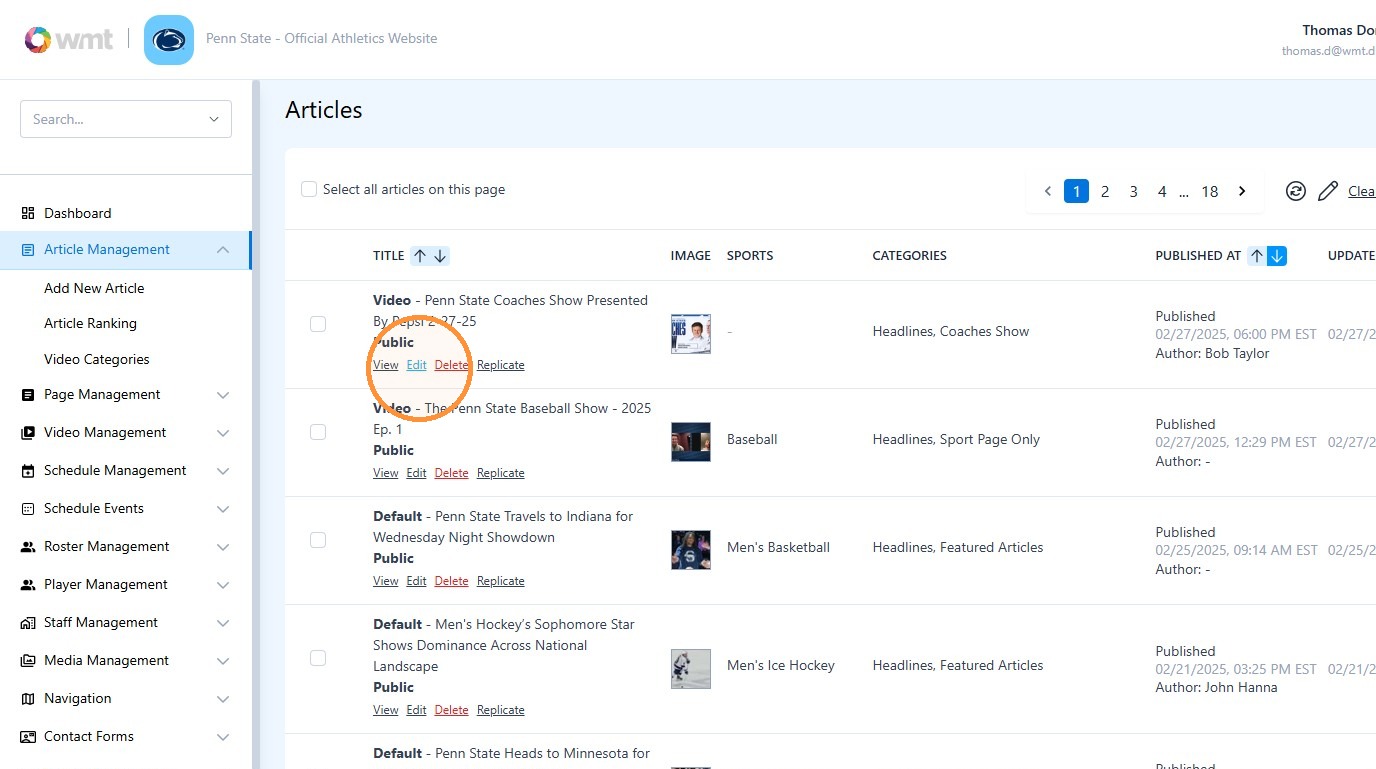
6. Click "Edit"
7. Click "Content"
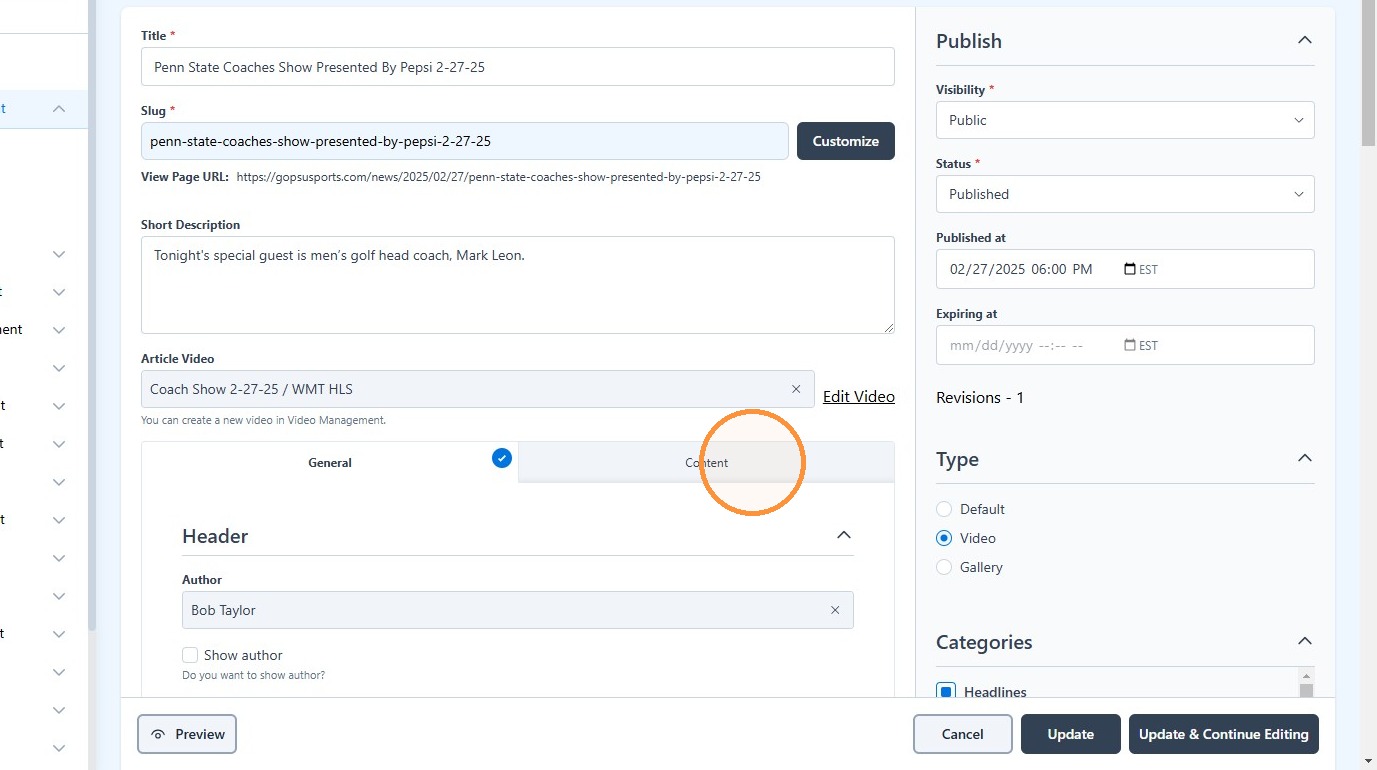
8. Click "Add Block"
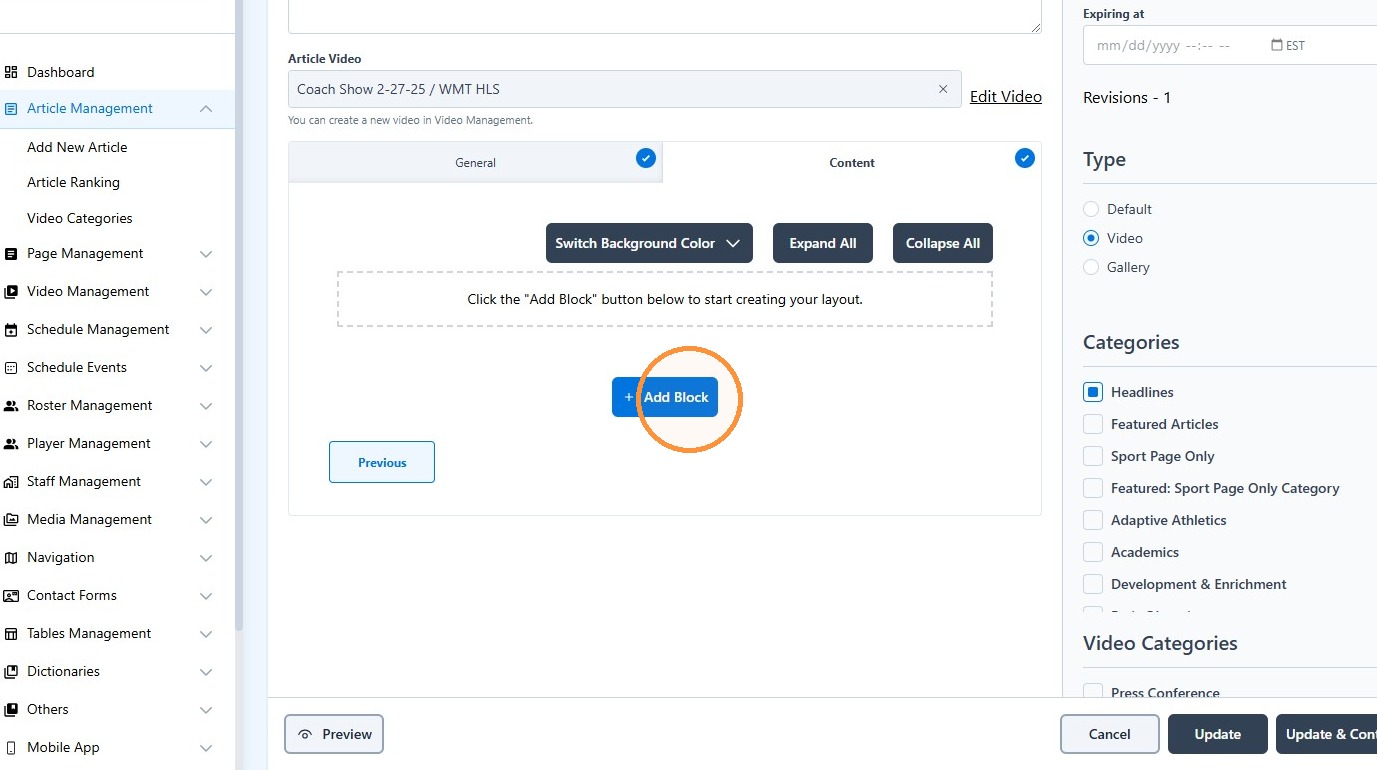
9. Select your block

10. Click this icon.
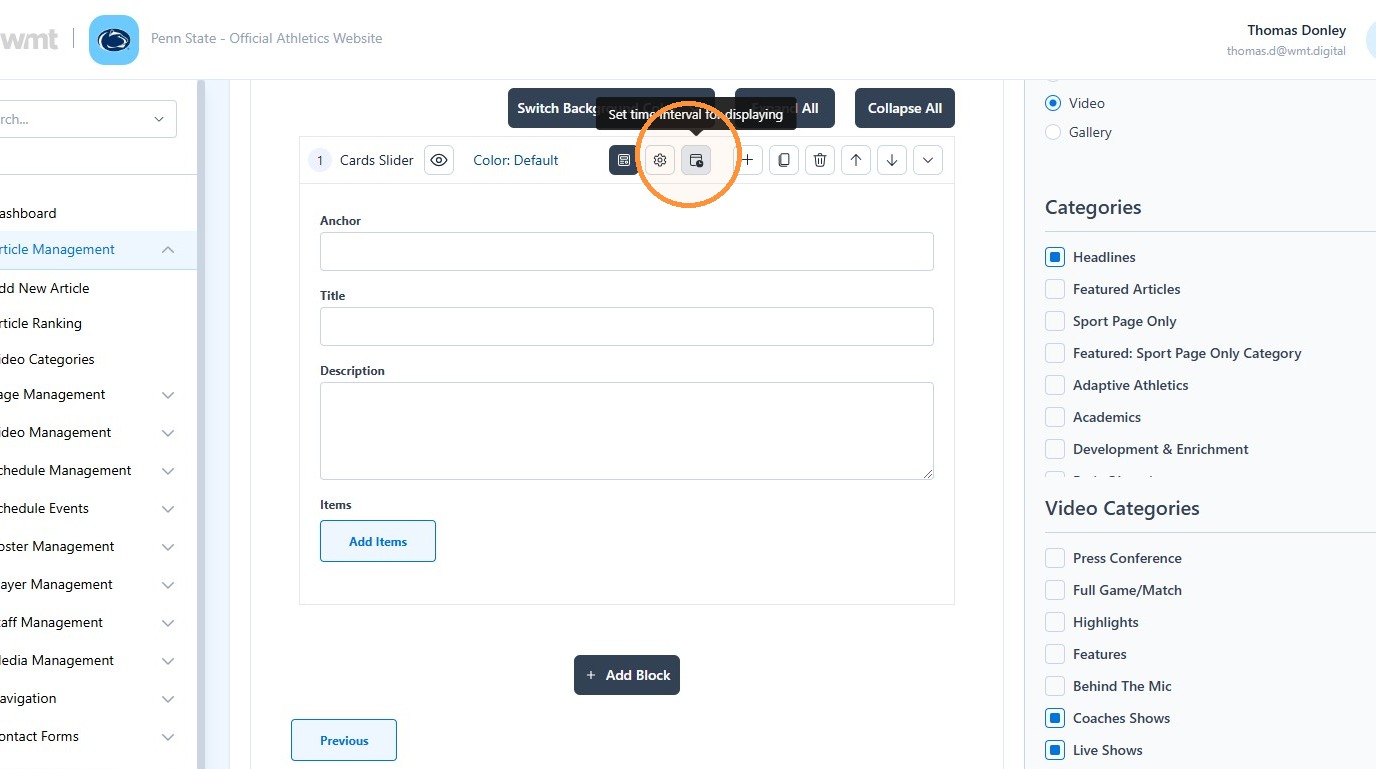
11. Click this date and time field.
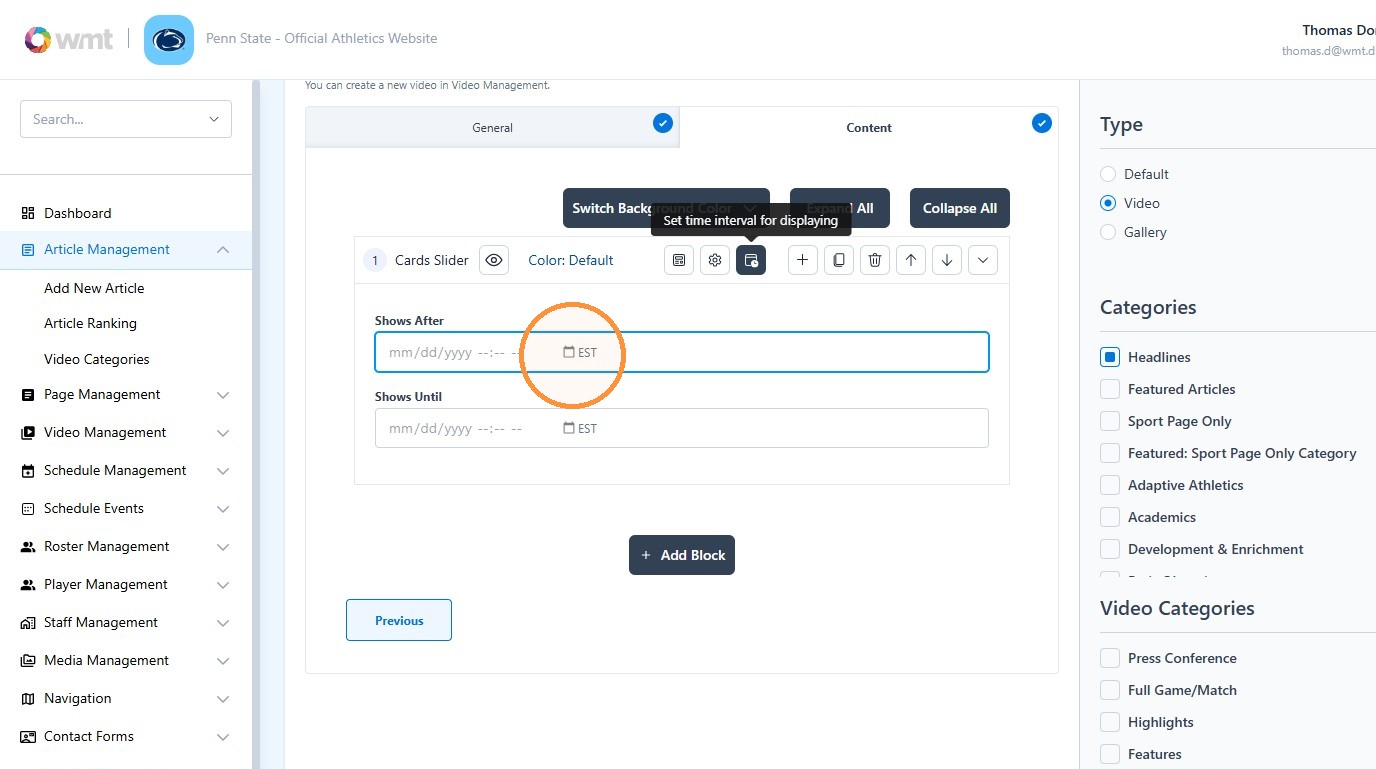
12. Click here.
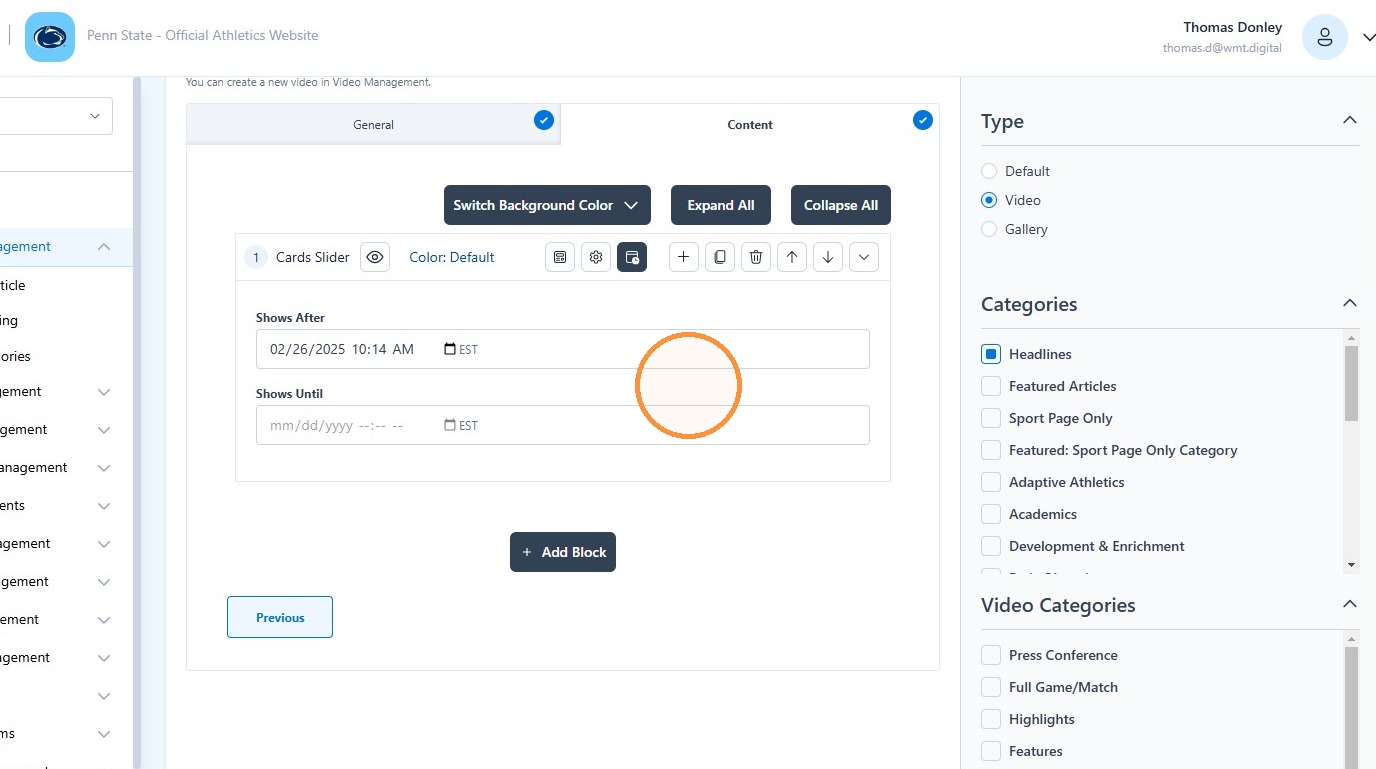
13. Click this date and time field.
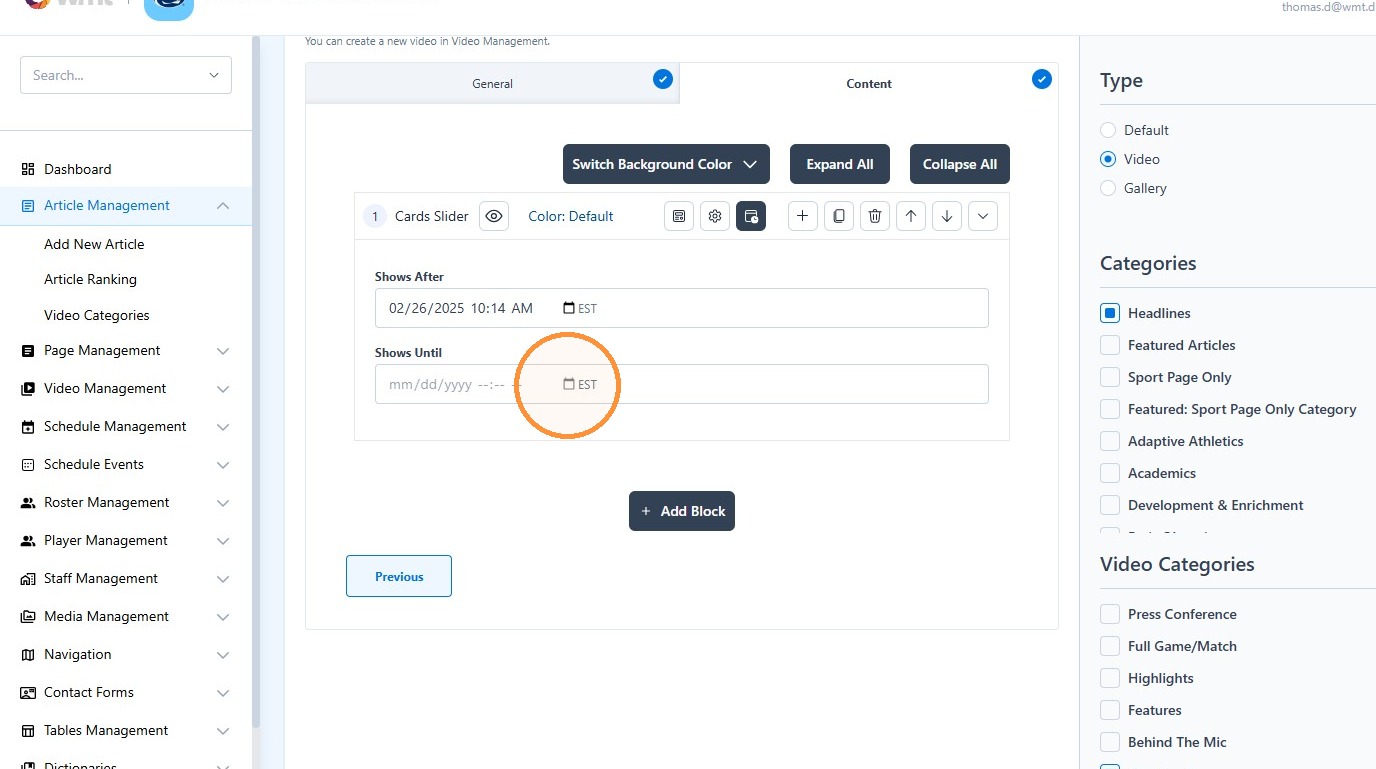
14. Click "Switch Background ColorSwitch to Default ColorSwitch to Light ColorSwitch to Dark ColorSwitch to Accent ColorExpand AllCollapse All1 Cards Slide..."
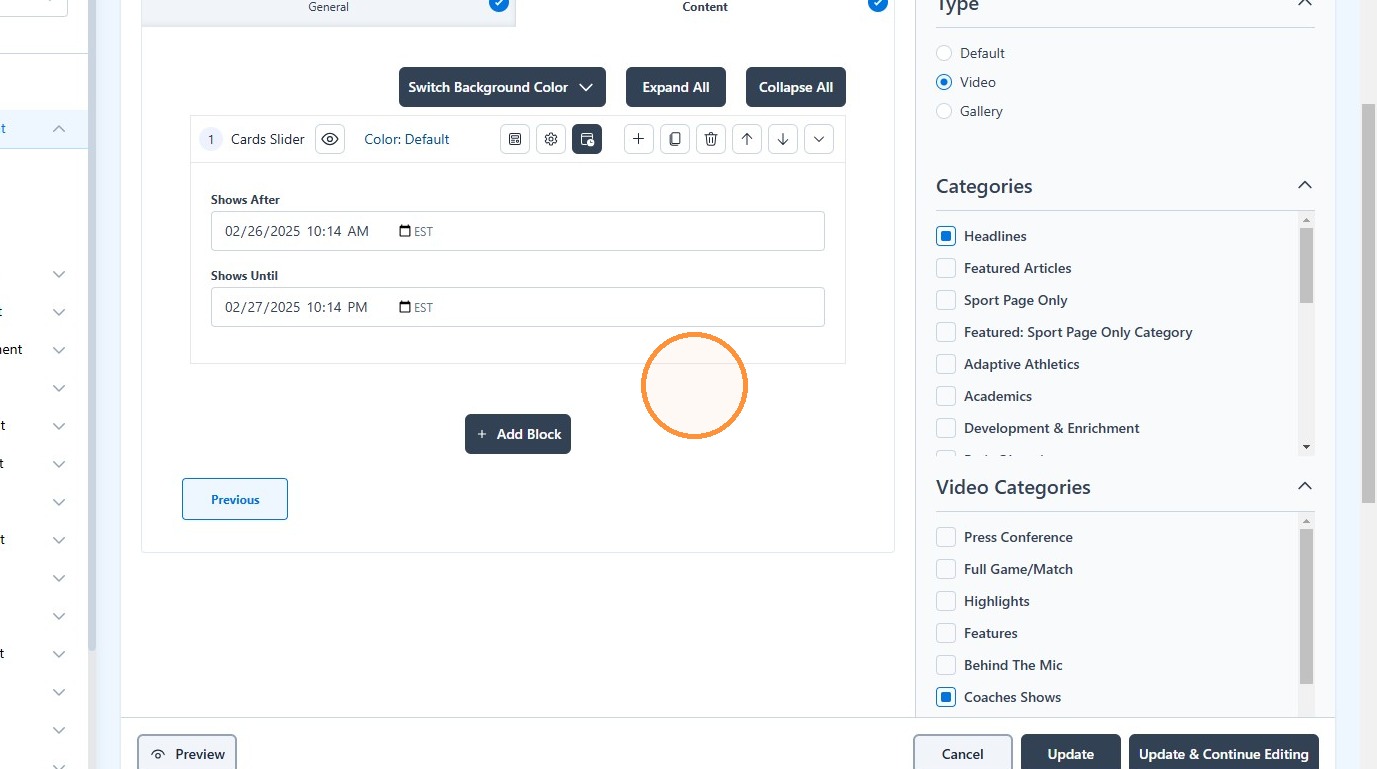
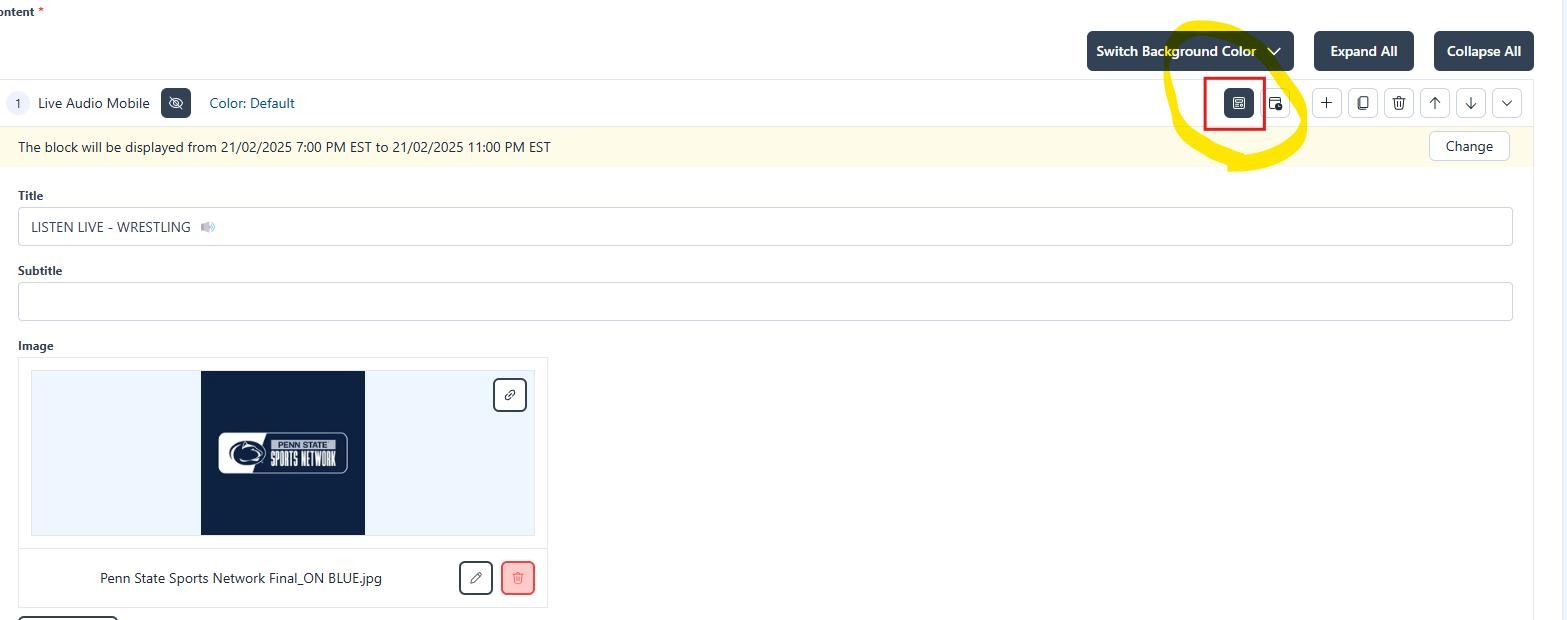
15. Click this icon to return to the block editor
16. Click here to update