How to create a GIF from video or photo files
Last updated: September 18, 2026
Made by Rafael Venceslau with Scribe
1. Locate desired video file or photos that will be used to create GIF file.
Tip: Tip! If pulling video from Twitter or Instagram you can use a 3rd party video downloader. Youtube videos can be downloaded to WMT video server through the Video Management section.
Tip: Tip! For this scribe https://ssstwitter.com/ was used to download the Twitter video
Convert Video or Photos to a GIF
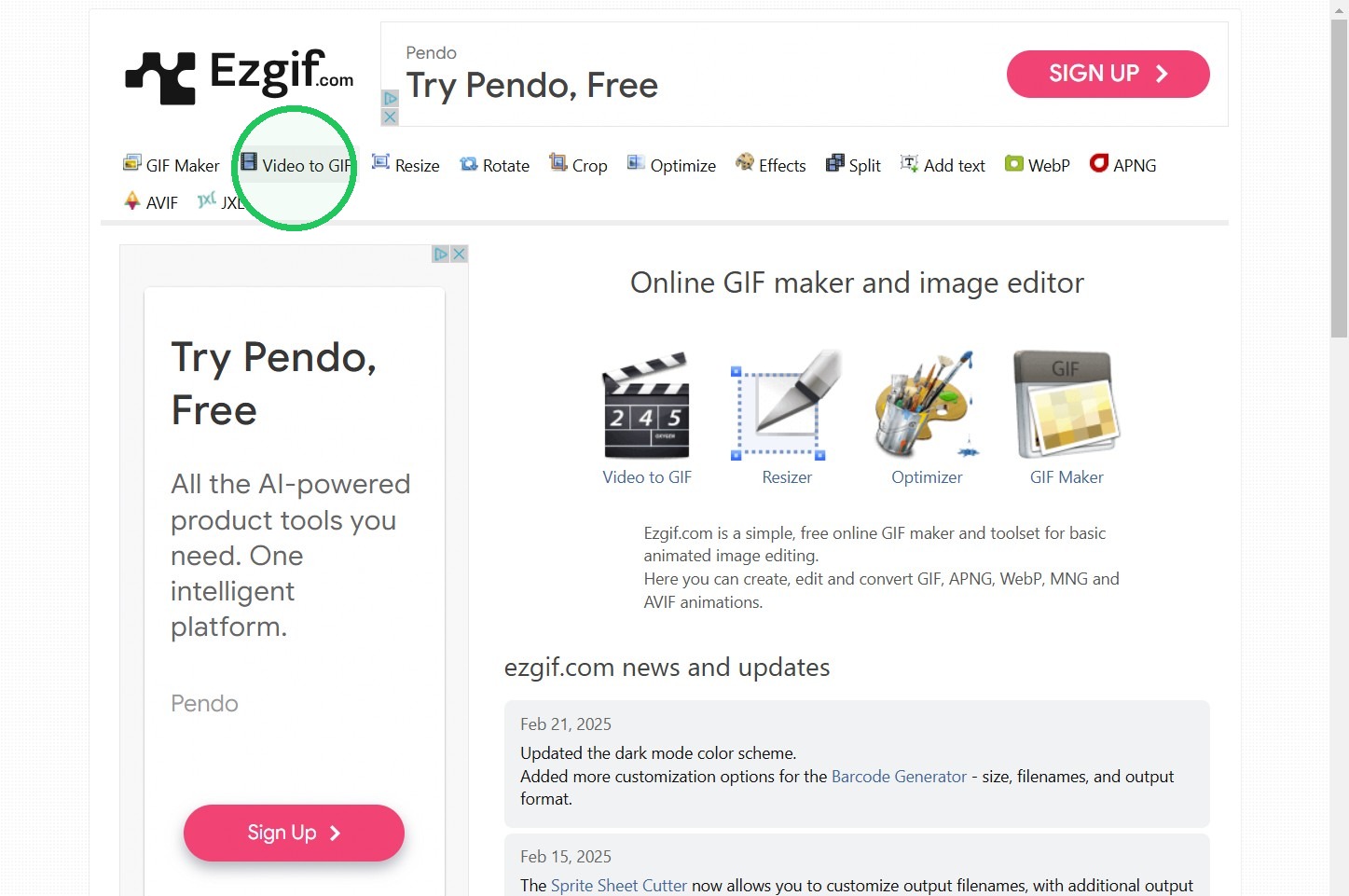
2. In a new tab, navigate to https://ezgif.com/
3. Click "GIF Maker" for photo uploads or "Video to GIF" for a video upload
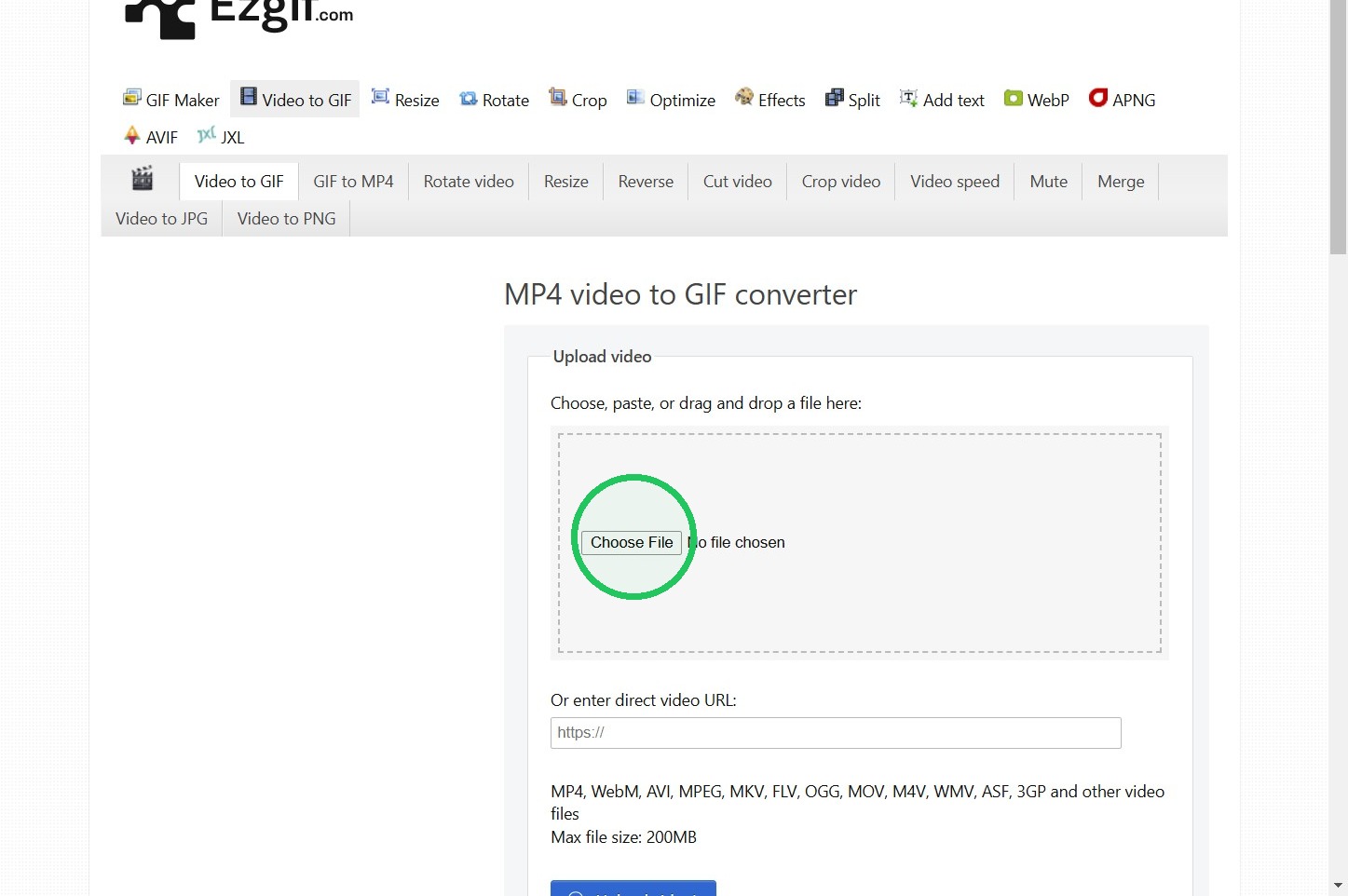
4. Click the "Choose, paste, or drag and drop a file here:" field.
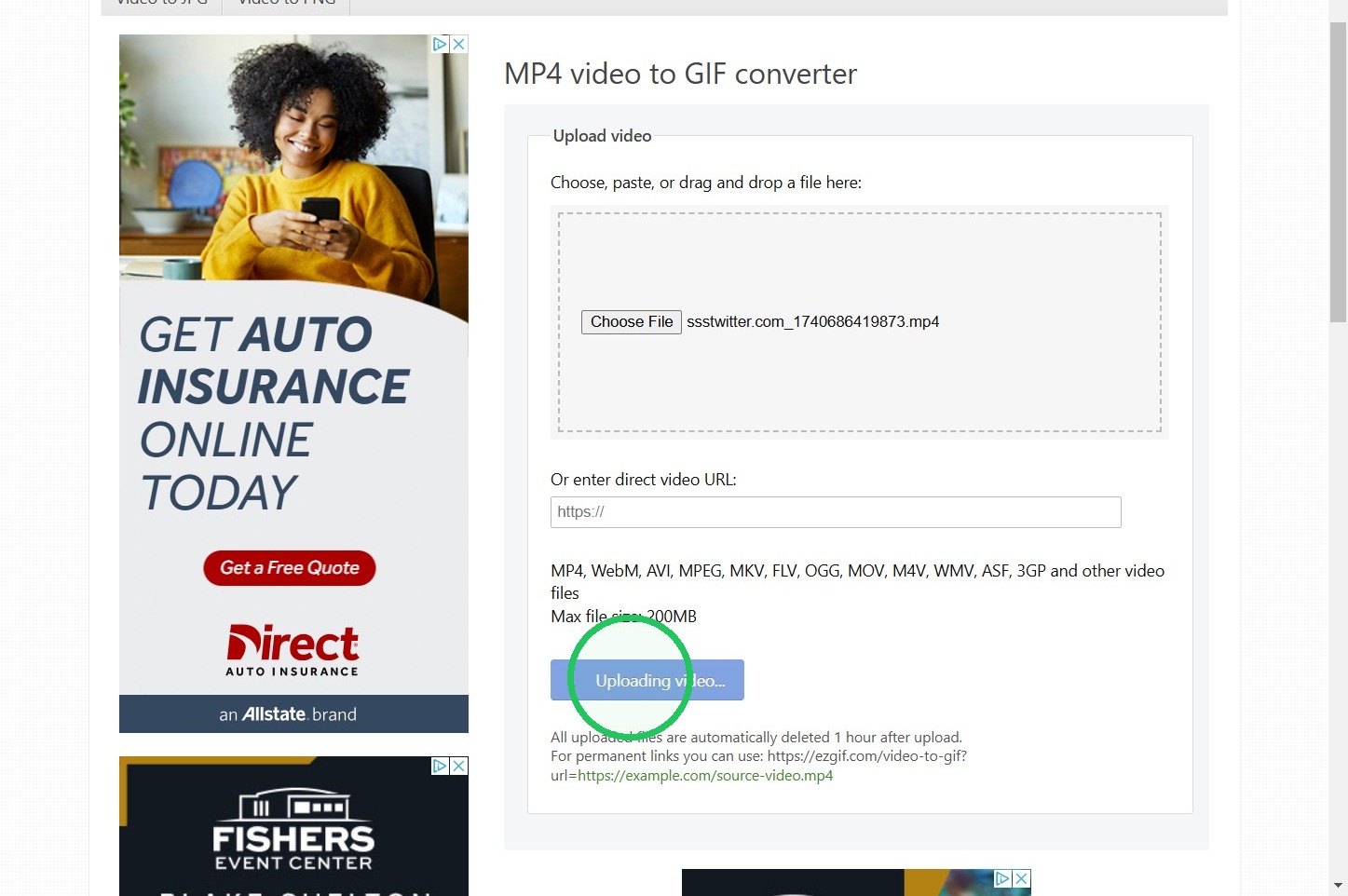
5. Click this button to upload media.
6. Adjust video setting as needed
Use Start and End time settings to convert portion of the video you'd like to a GIF
Select the "320xAUTO" option.
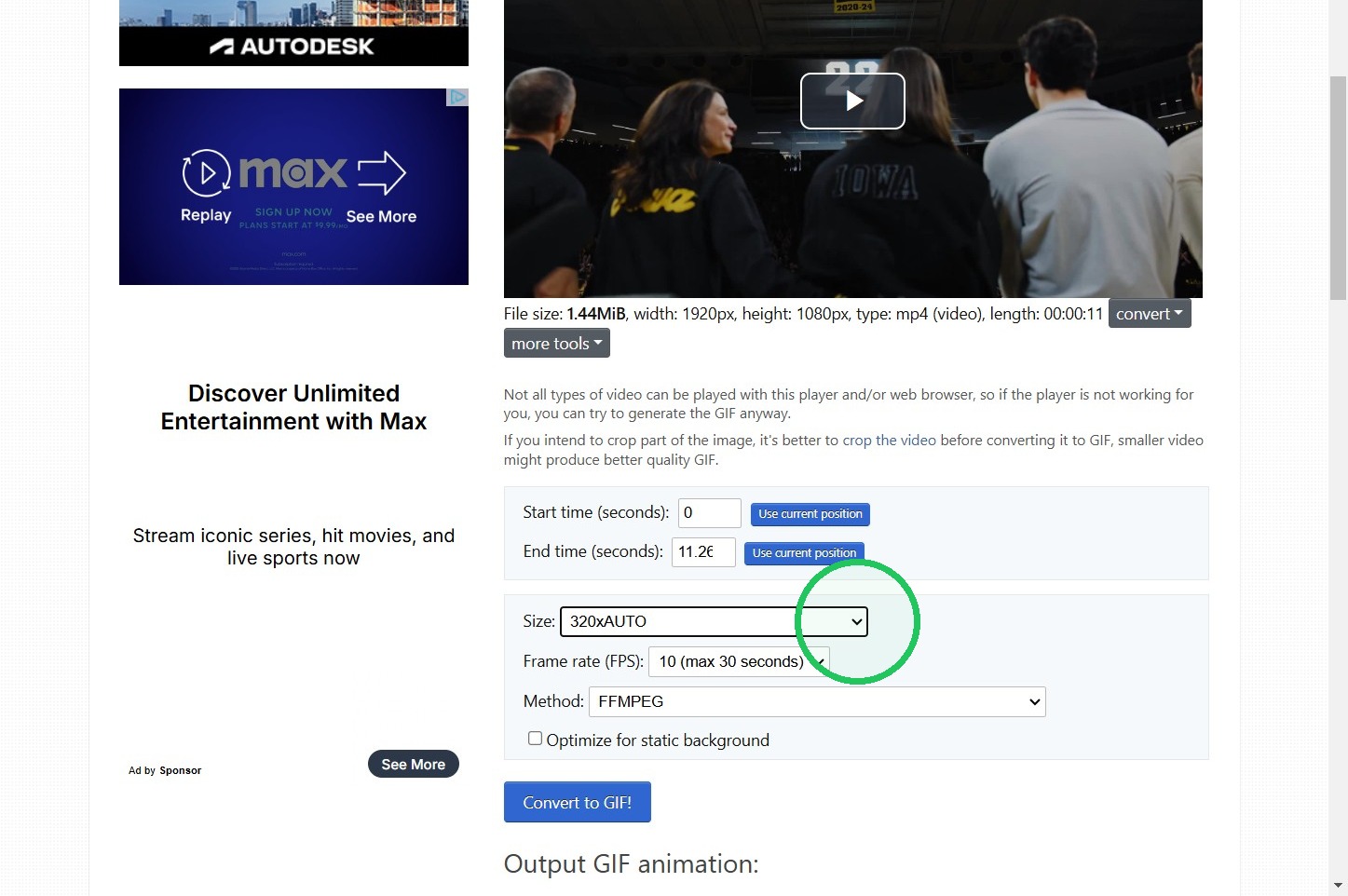
7. Click this Convert to GIF button.
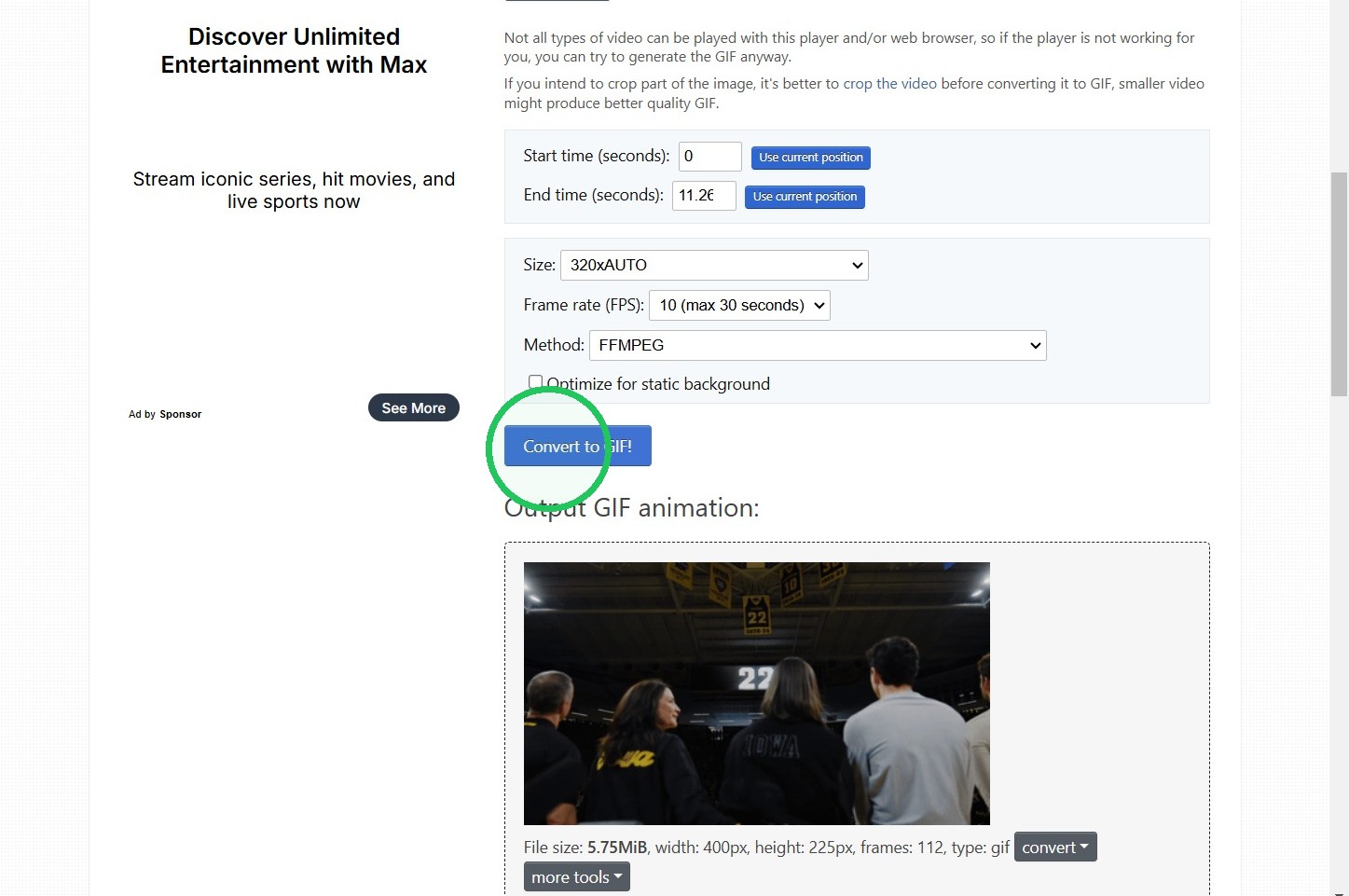
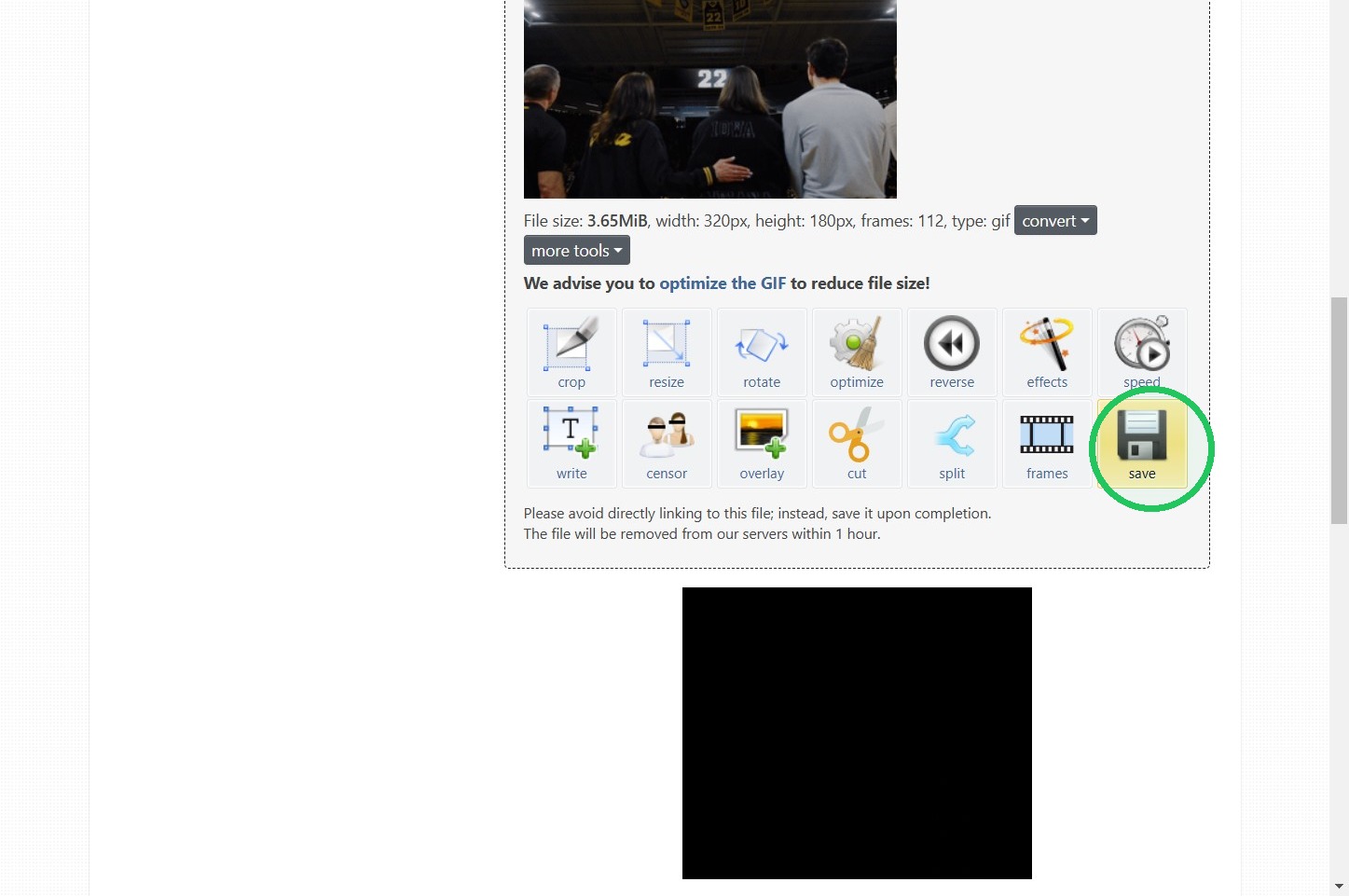
8. Use the Additional tools as needed to ensure GIF is sized and displayed as desired.
Click the Save image to download finshed file.
Tip: Tip! When Making a GIF to be used on the mobile app:\
GIFs included in Push Notifications should be no larger than 5MB\
ensure GIFs are not too busy or move too fast when being placed on the home screen or in push notification. The speed of the GIF can be adjusted before final download\
Be sure to specify in the GIF file name if it is intended for APP ONLY use. GIFs saved to 5MB or smaller will display poorly on desktop view as they're too small
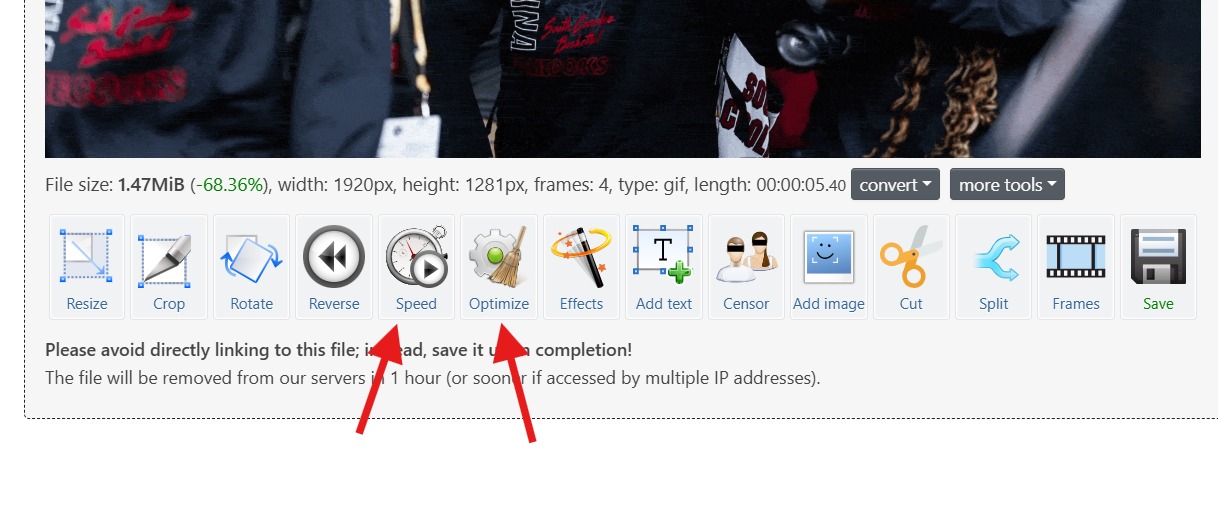
9. Common .gif Adjustments
Gif too fast: Adjust the speed
Gif file too large: Optimize the file