Setting up YouTube Automation within Video Management
Last updated: September 18, 2026
Made by Finance WMT Digital with Scribe
1. Navigate to https://dashboard.ucfknights.com/videos
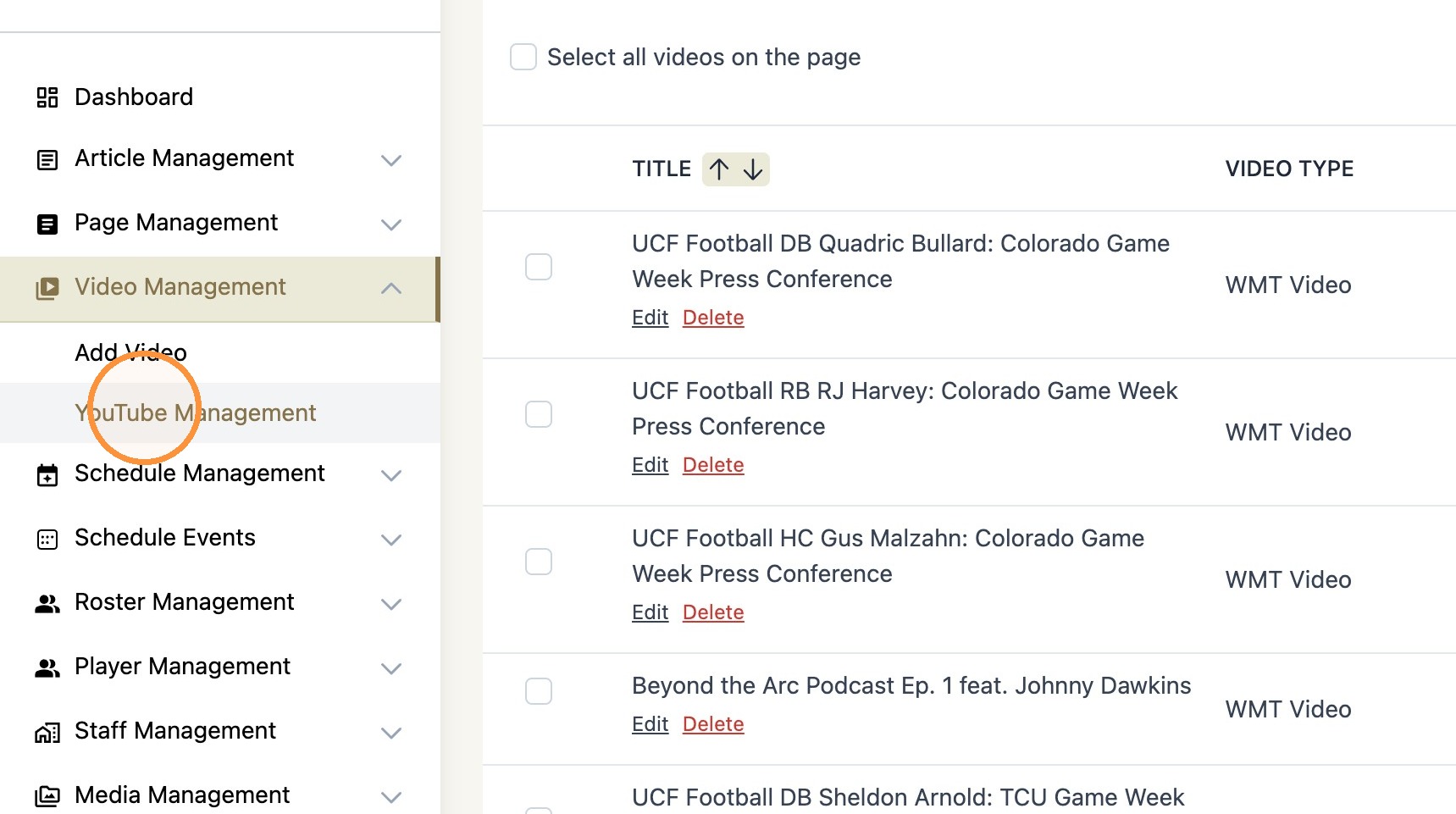
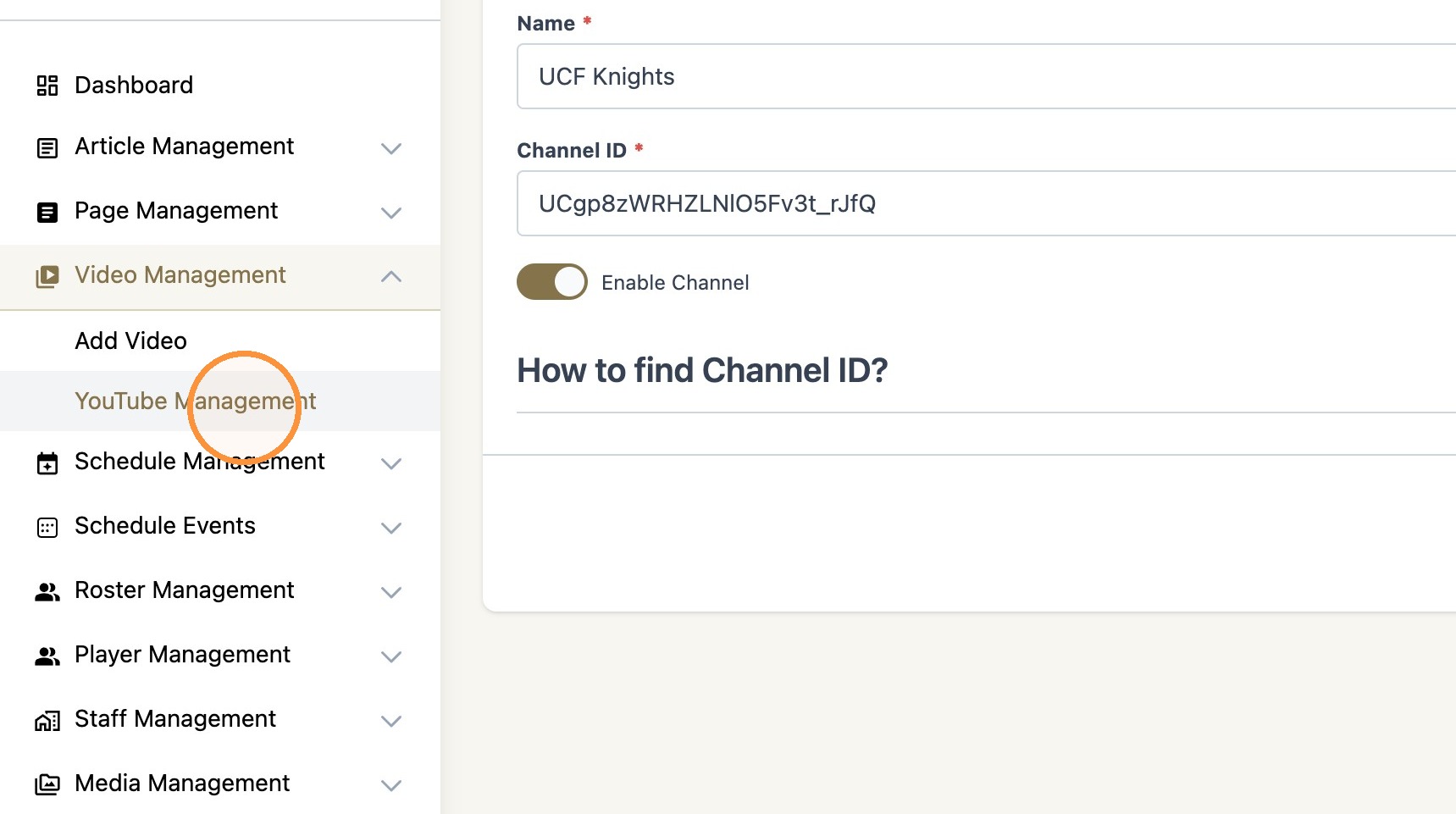
2. Click "YouTube Management"
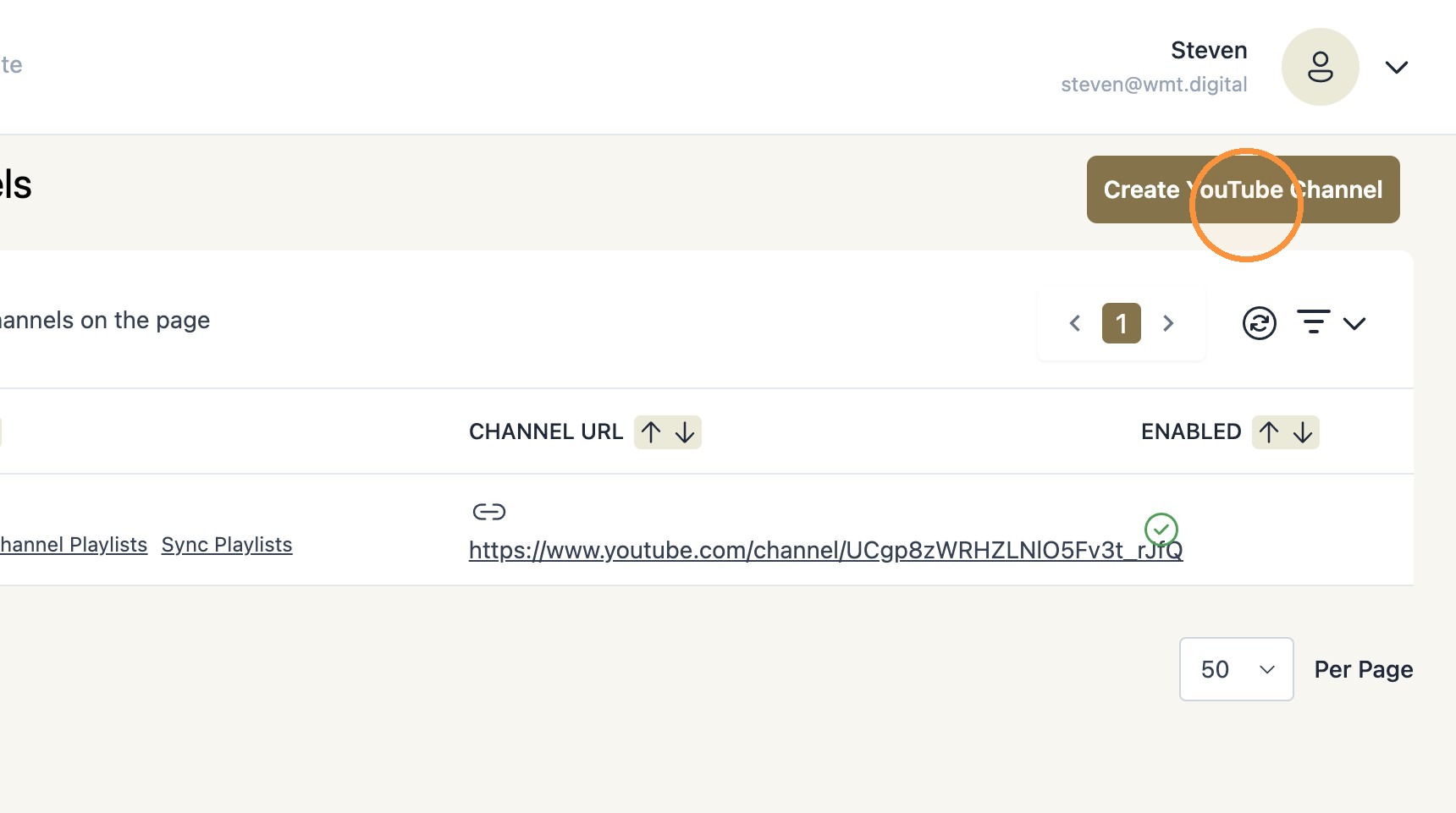
3. Click "Create YouTube Channel"
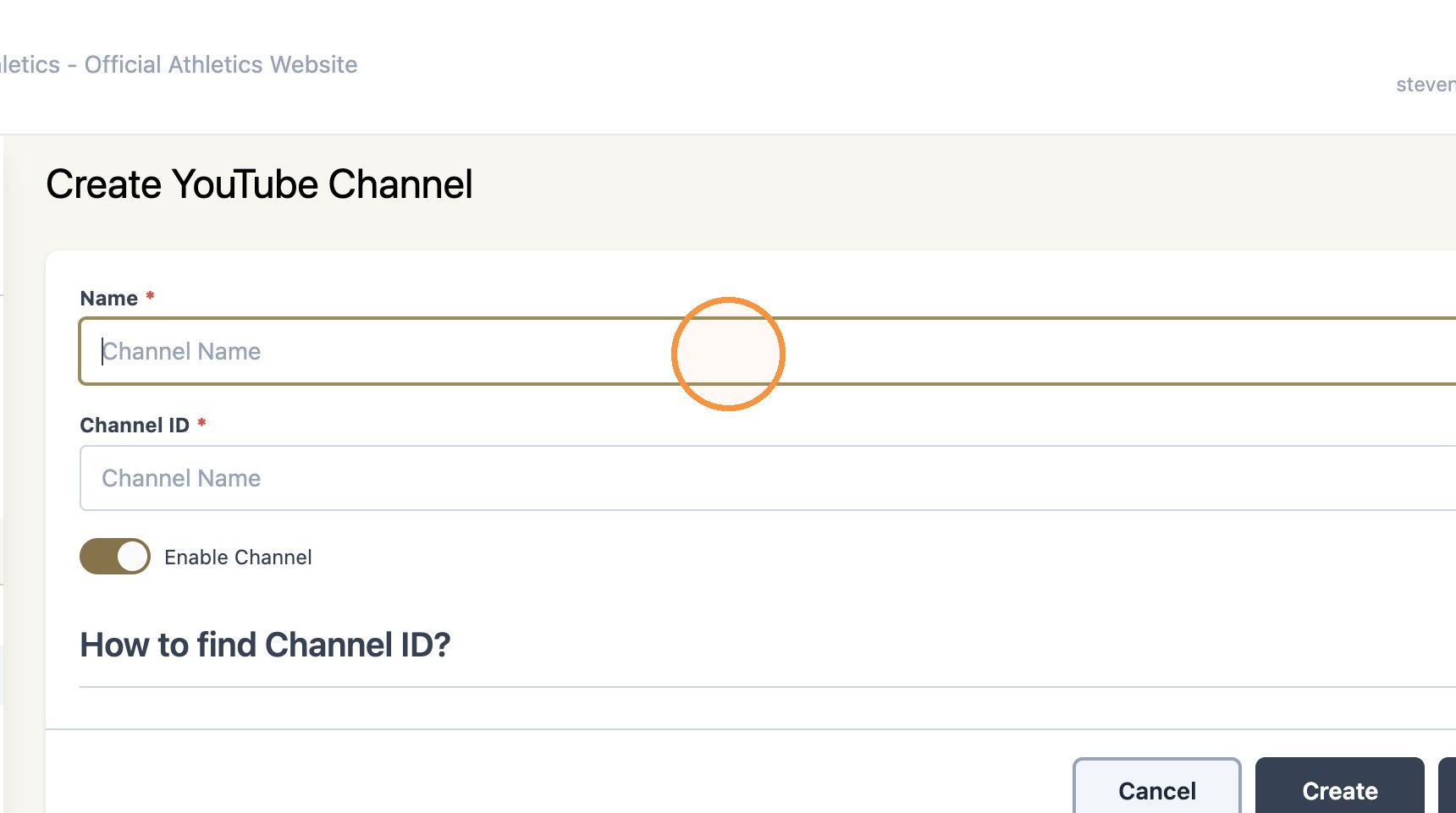
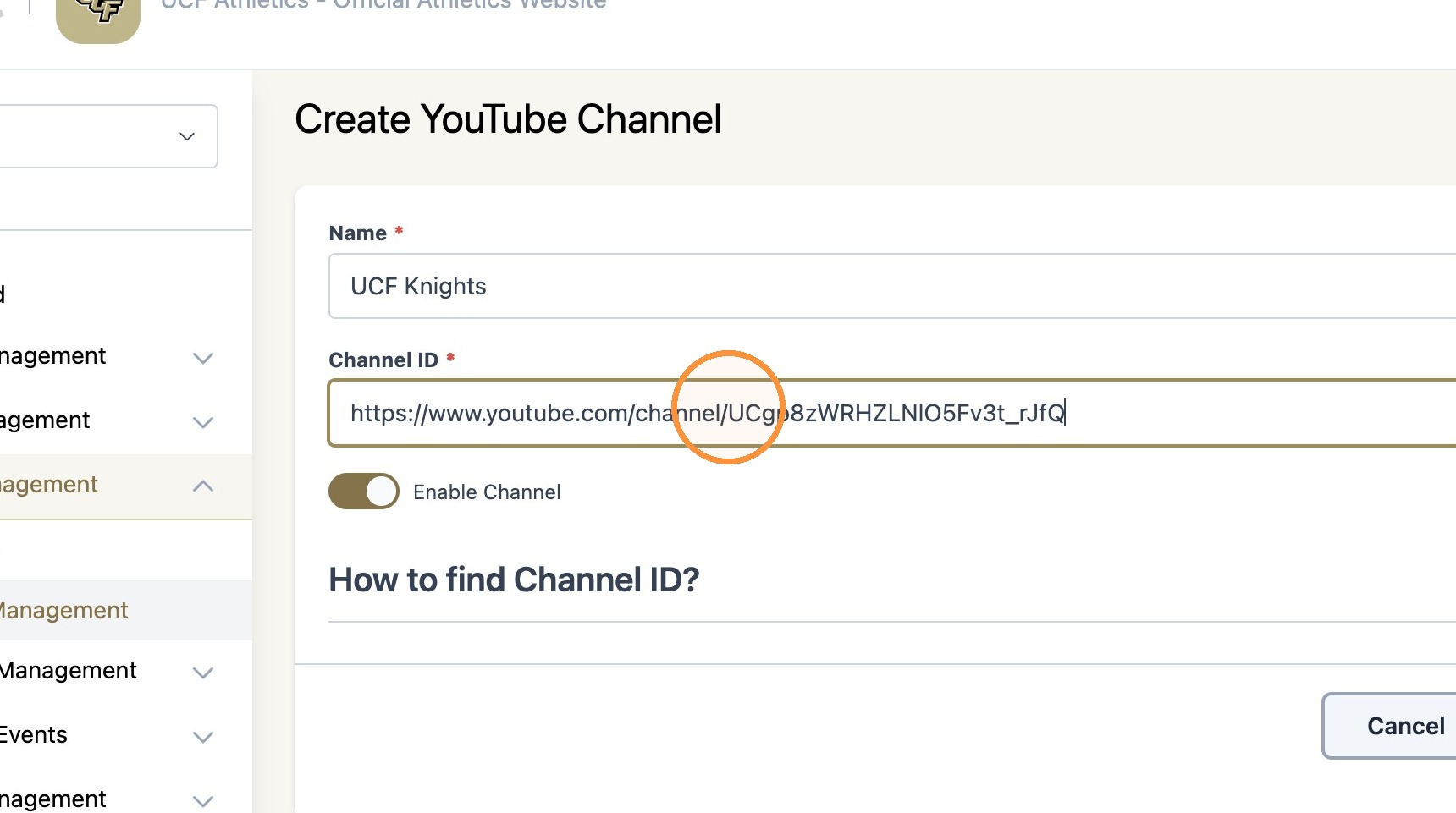
4. Type the name of the YouTube channel in the "Name*"field.
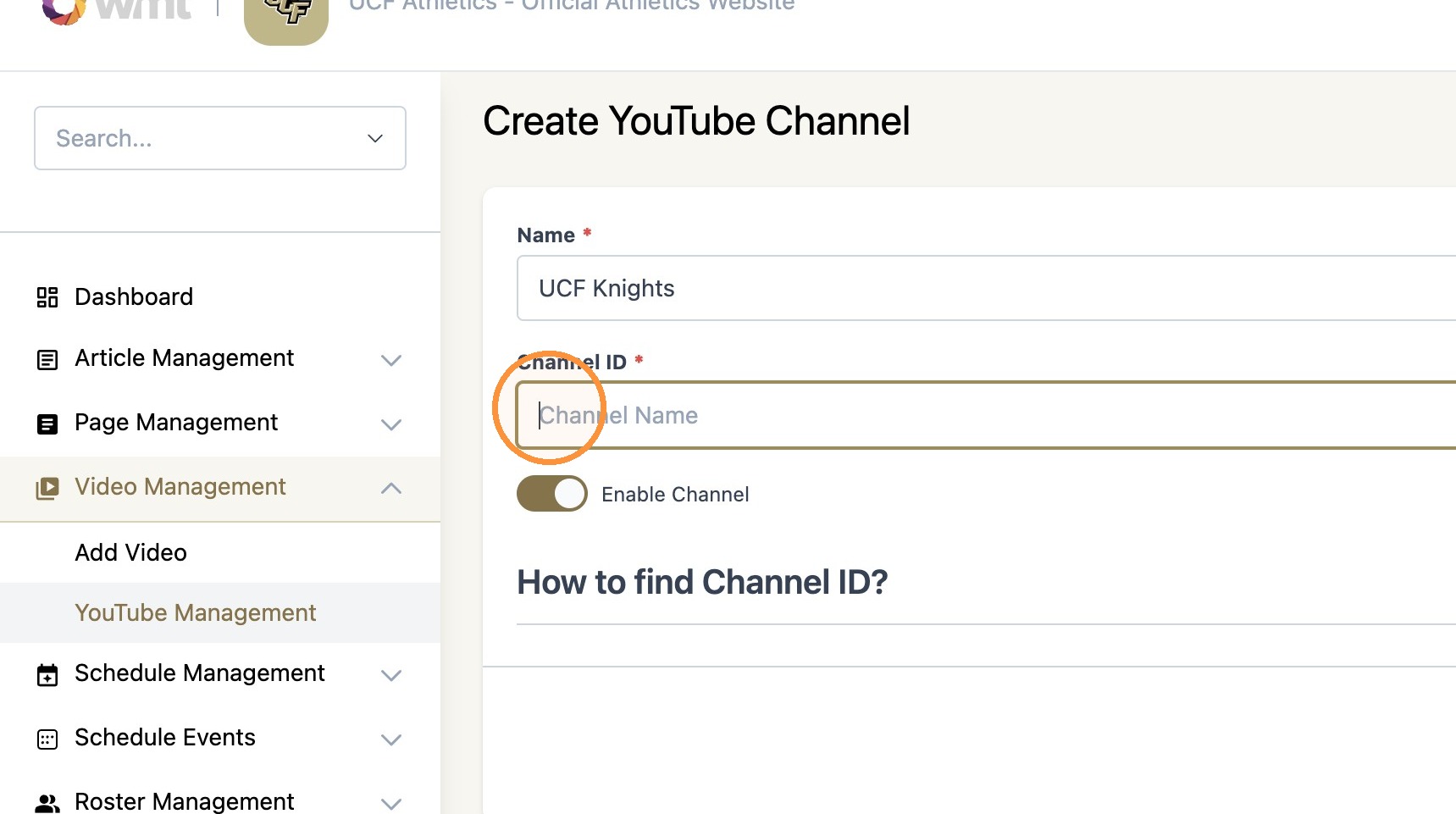
5. Click the "Channel ID*" field.
6. Remove all URL parameters except for the Channel ID that is at the end.
7. Confirm the Channel ID field matches the format below (No URL)
8. Select "Sync Playlists" to start syncing the WMT Platform with the YouTube Account
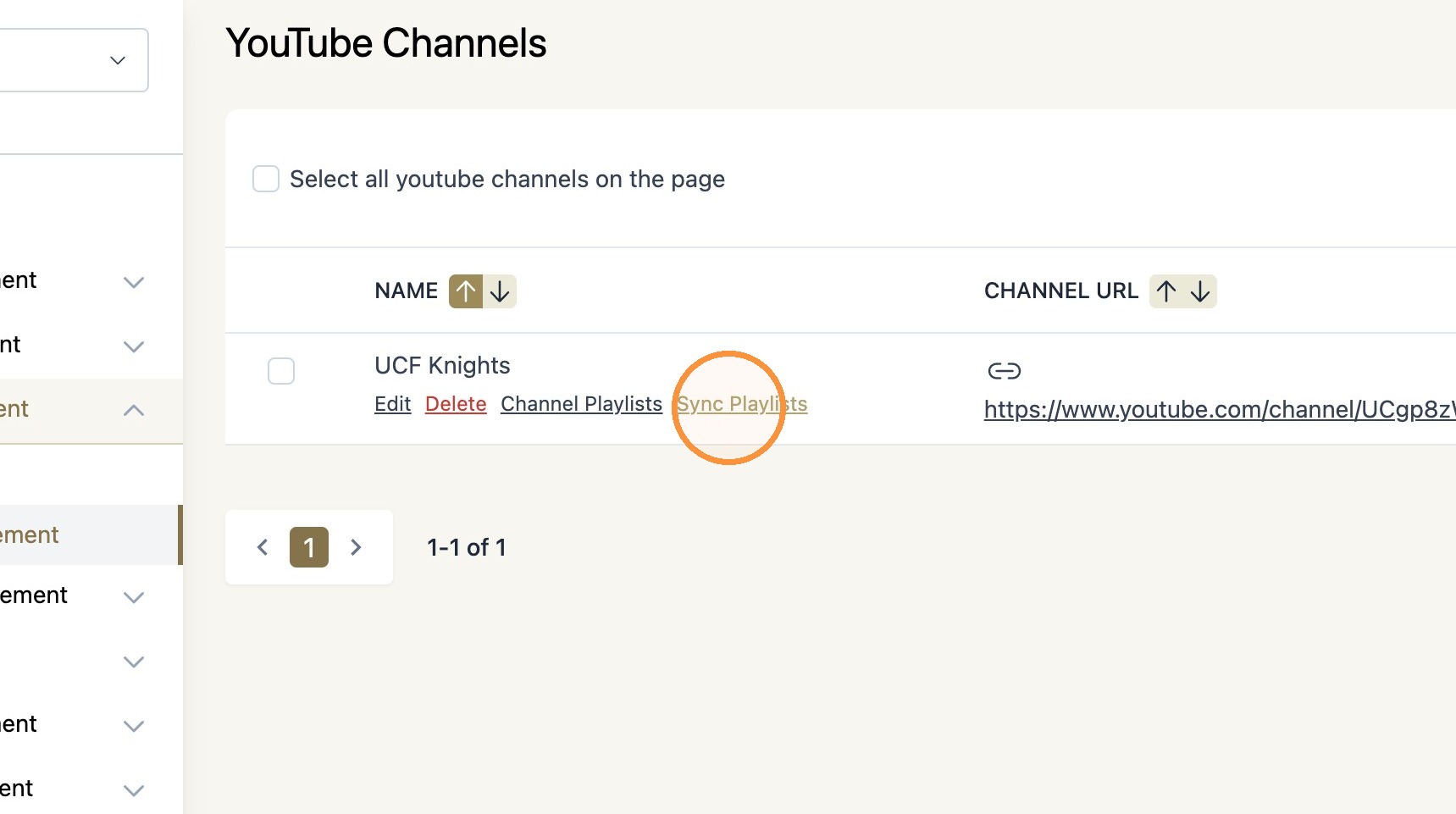
Tip: Note: All videos must be within a 'Playlist' on YouTube in order to be transferred into 'Video Management' within the WMT Platform
Alert: Note: All videos must be within a 'Playlist' on YouTube in order to be transferred into 'Video Management' within the WMT Platform