How To add more photos to a photo gallery
Last updated: September 18, 2026
Made by Rafael Venceslau with Scribe
Adding more photos to the CMS
1. Click on "media management" on the side menu.
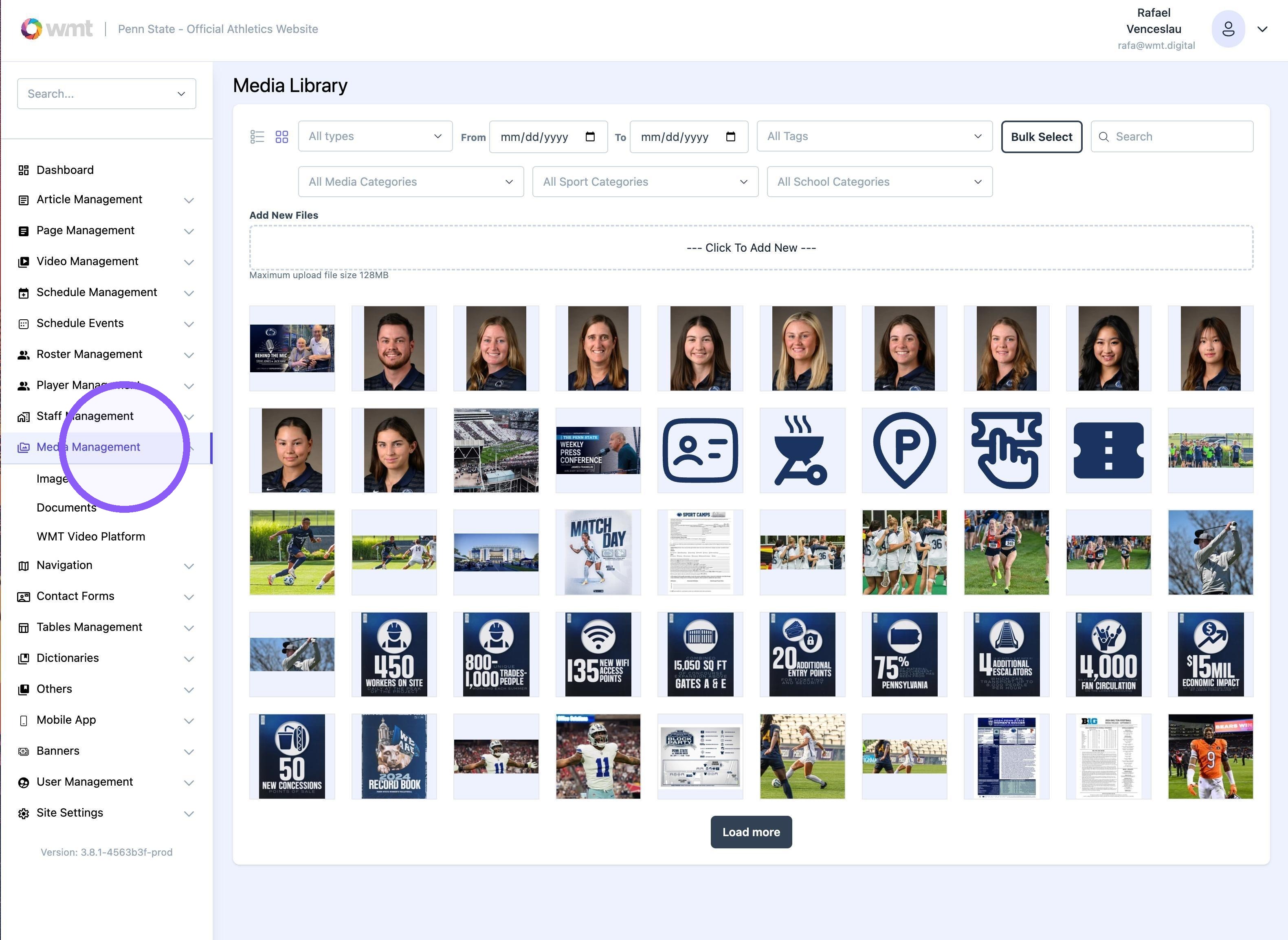
2. Click on 'add new file' or 'click here to select" to upload new photos.
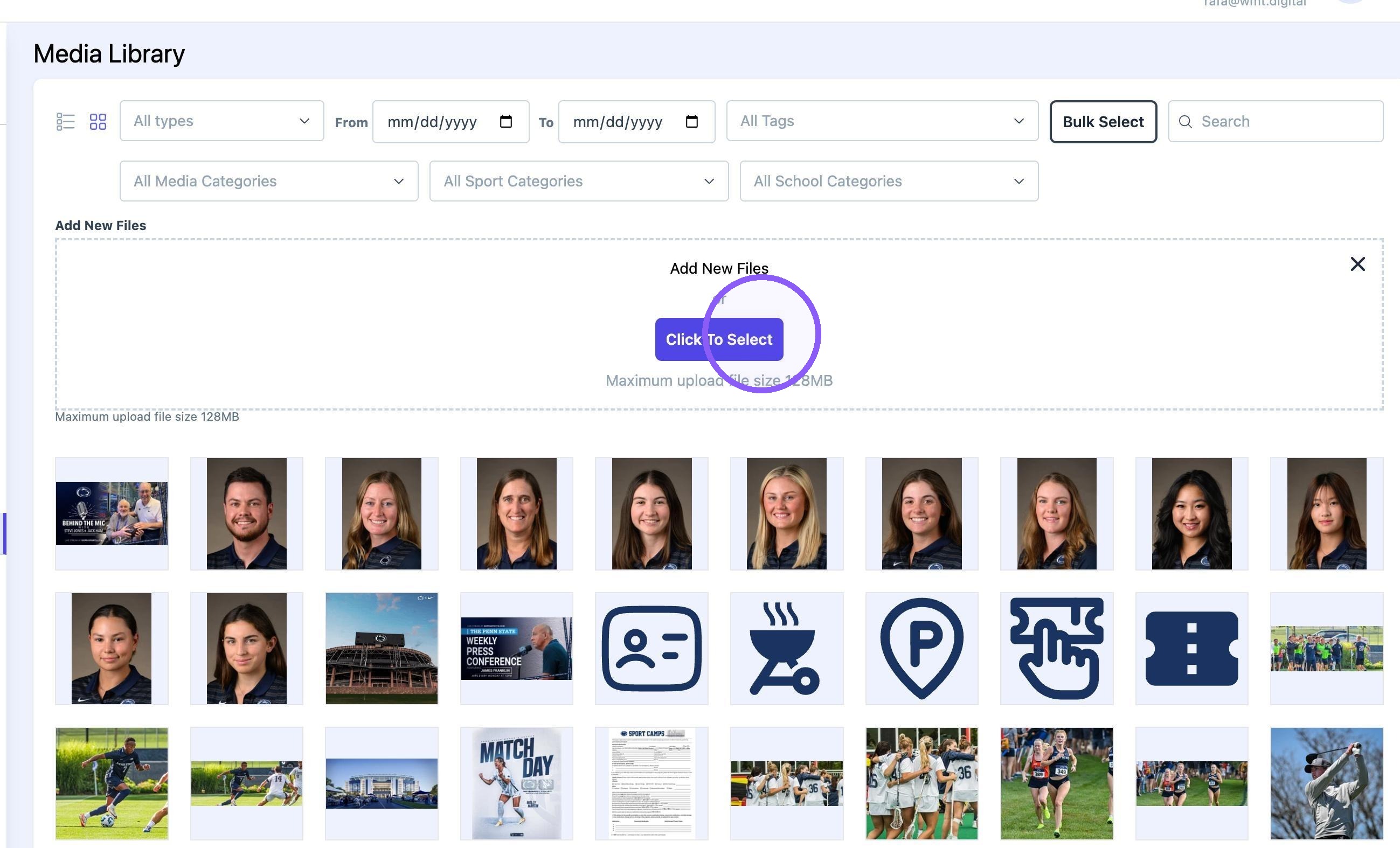
Tip: Note! Once photos are uploaded, edit the published photo gallery.
How to find published photo gallery
3. Navigate to article management.
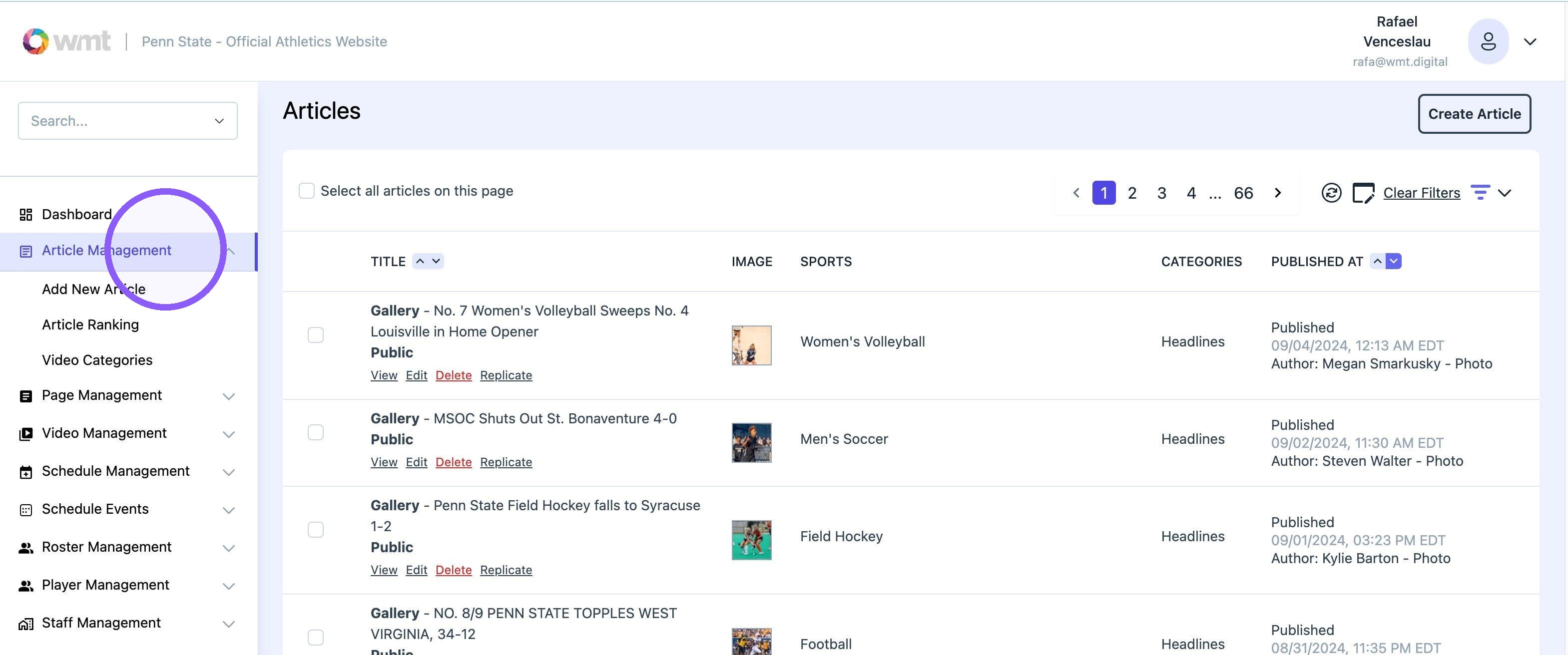
4. Use the dropdown menu to sort "gallery" articles only. Click 'apply filters."
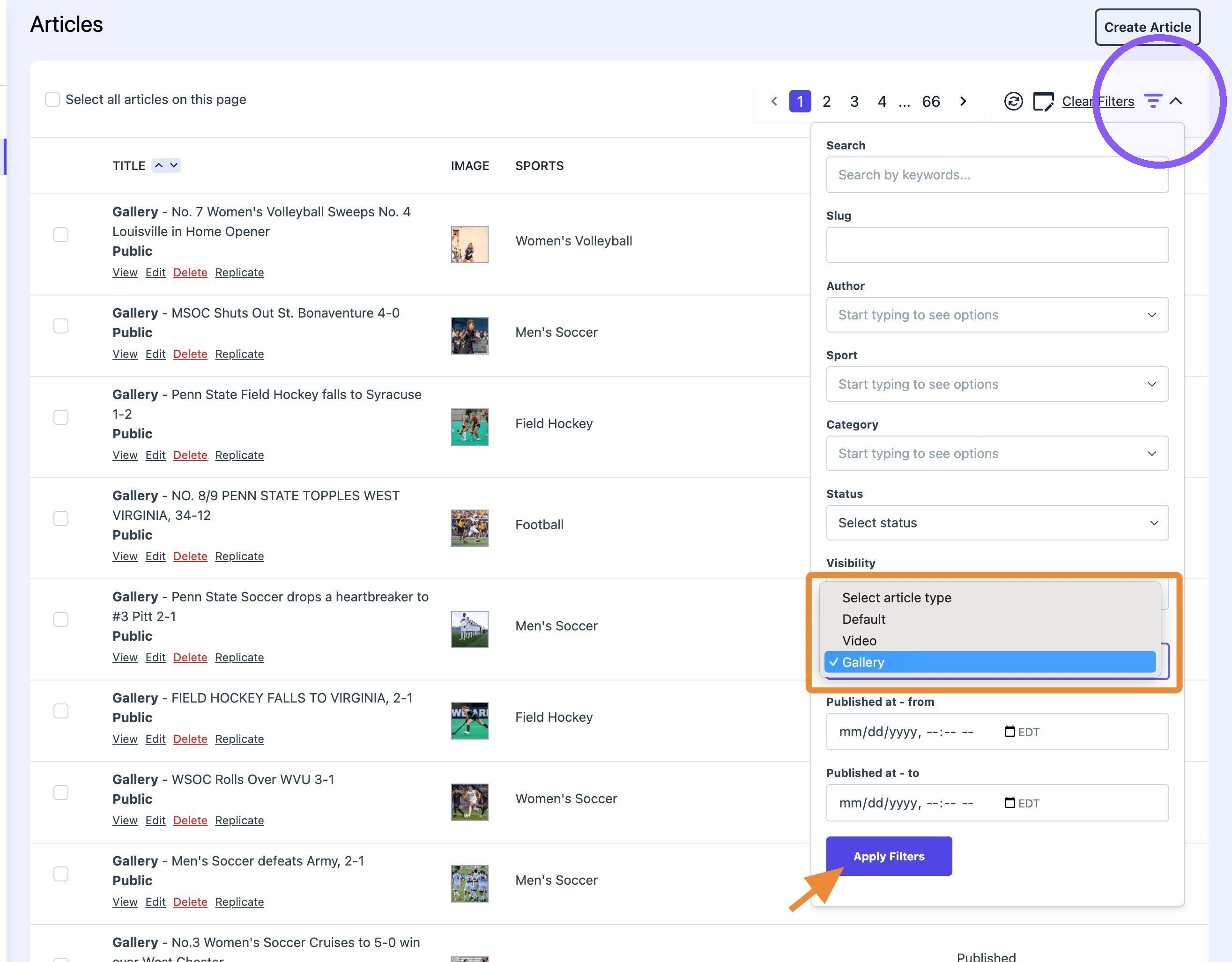
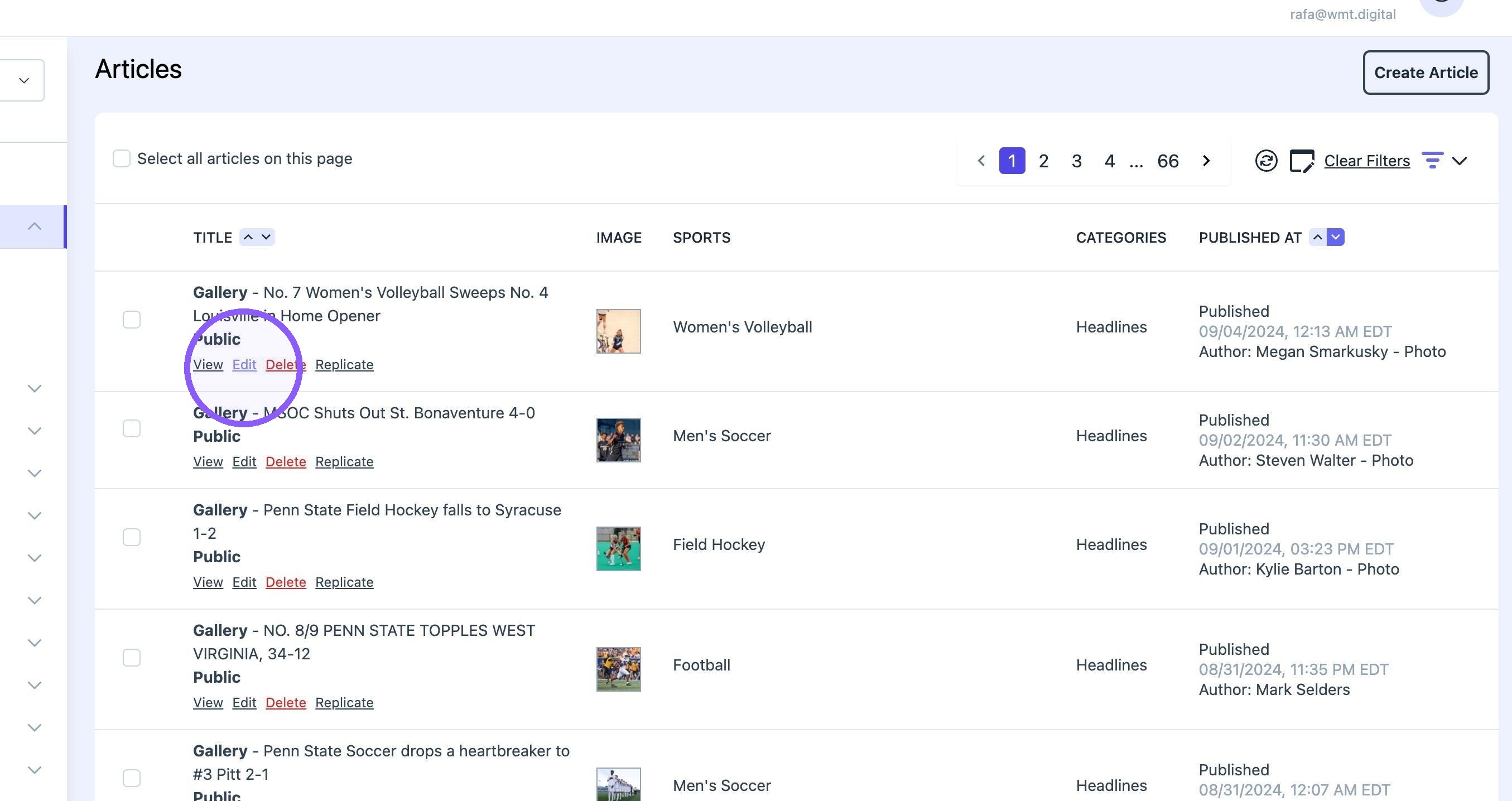
5. Find the desired article and click "edit".
Adding new photos to a published article
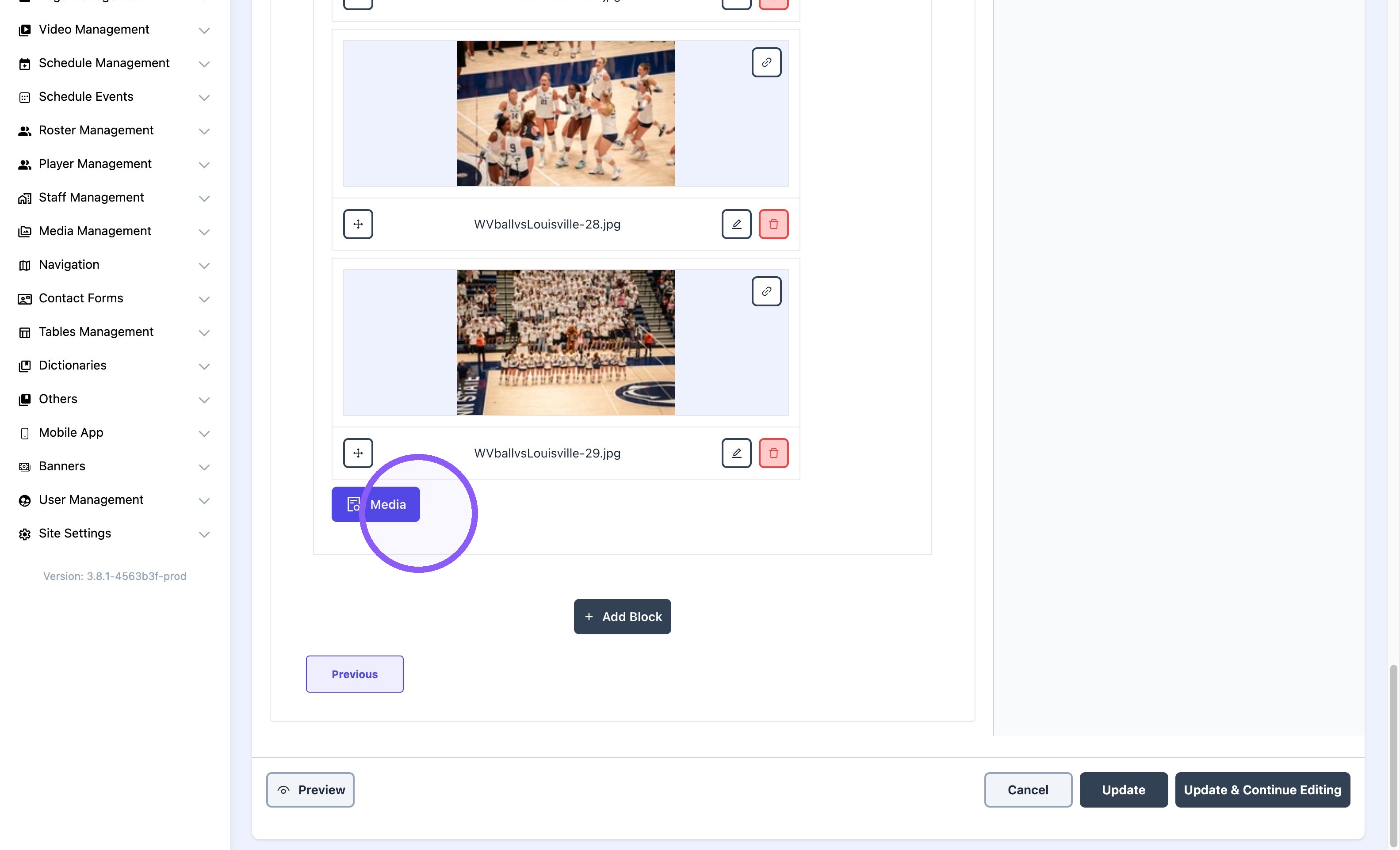
6. Scroll all the way to the last photo and click "Media"
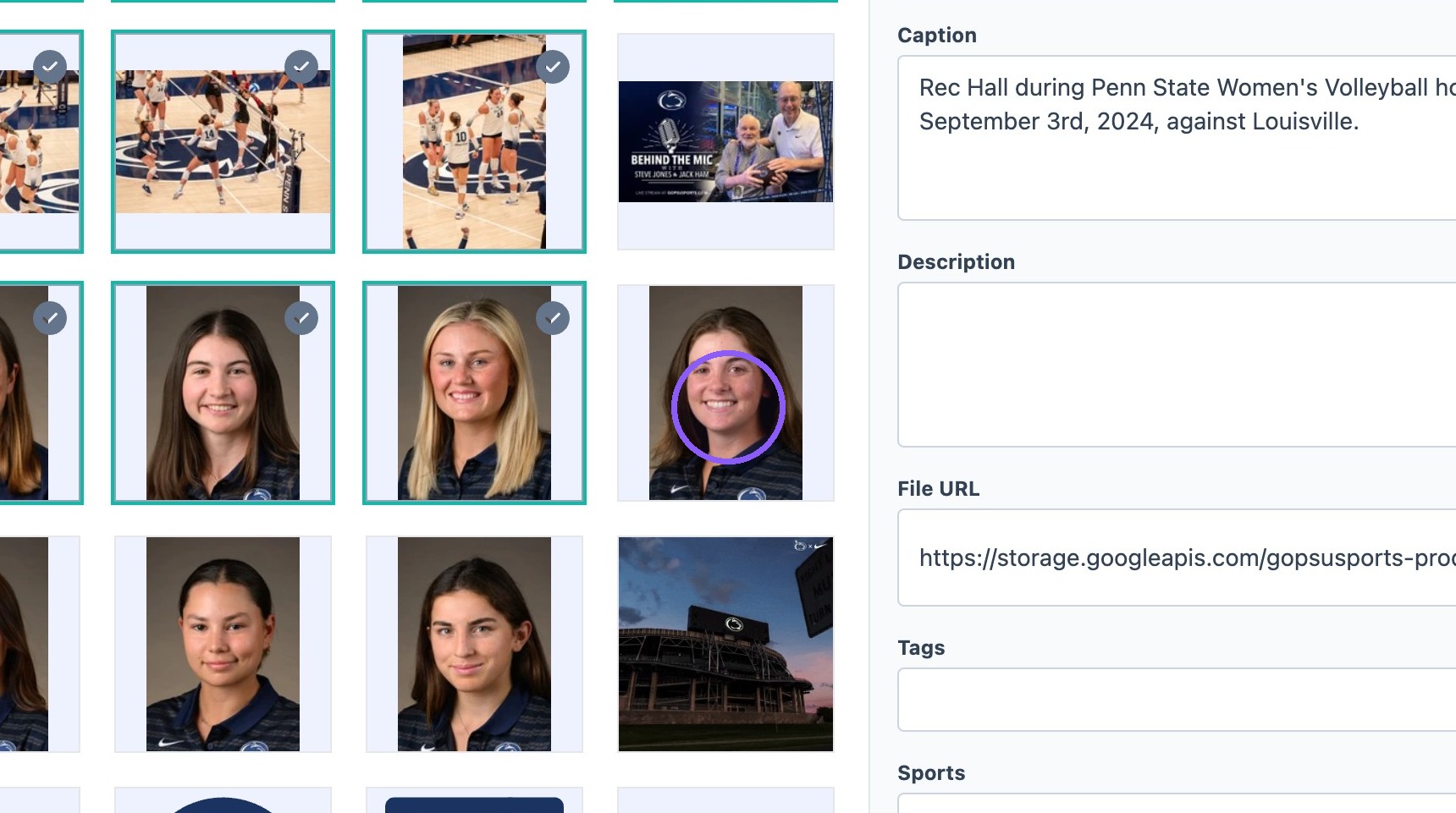
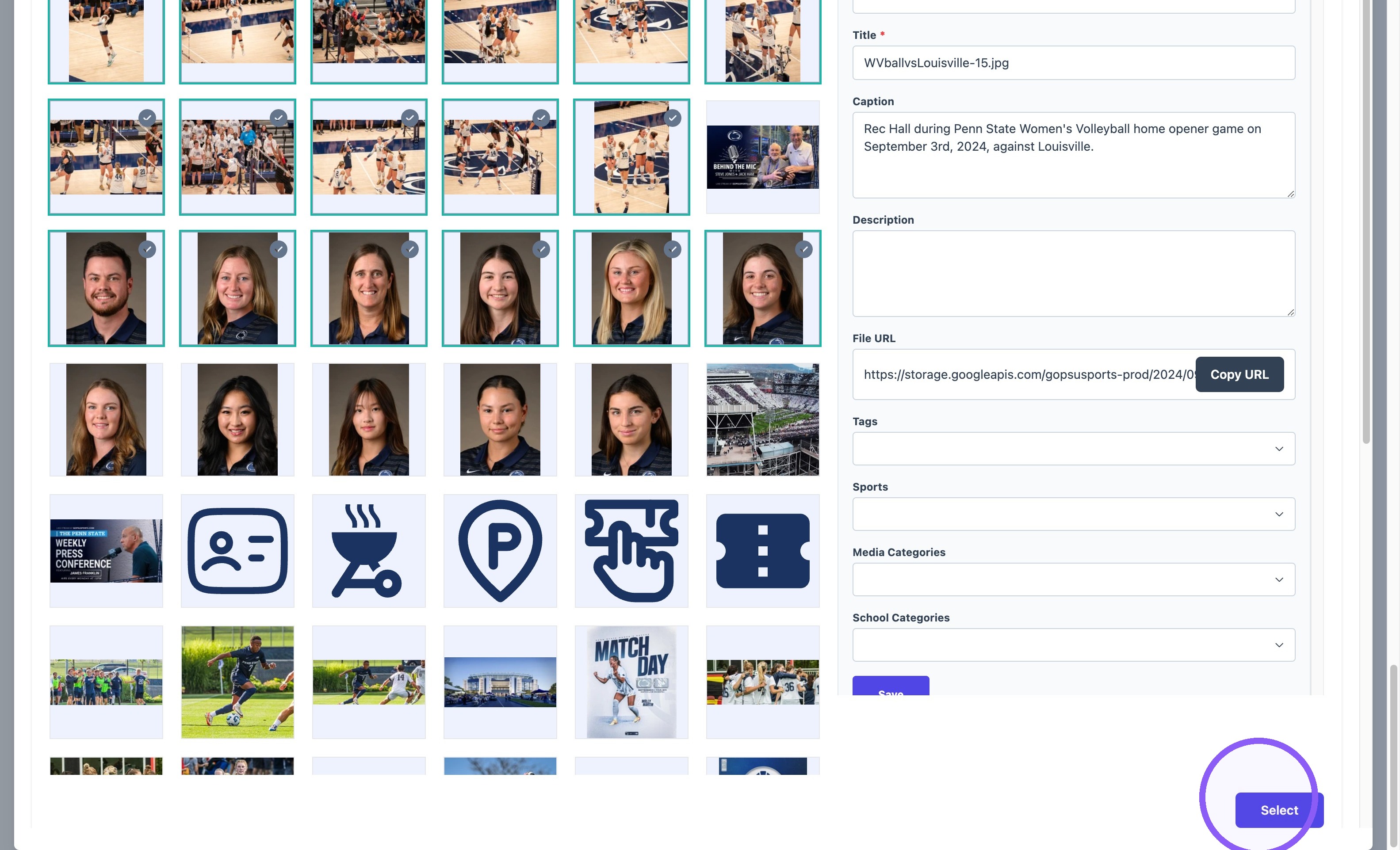
7. Click on each additional photo.
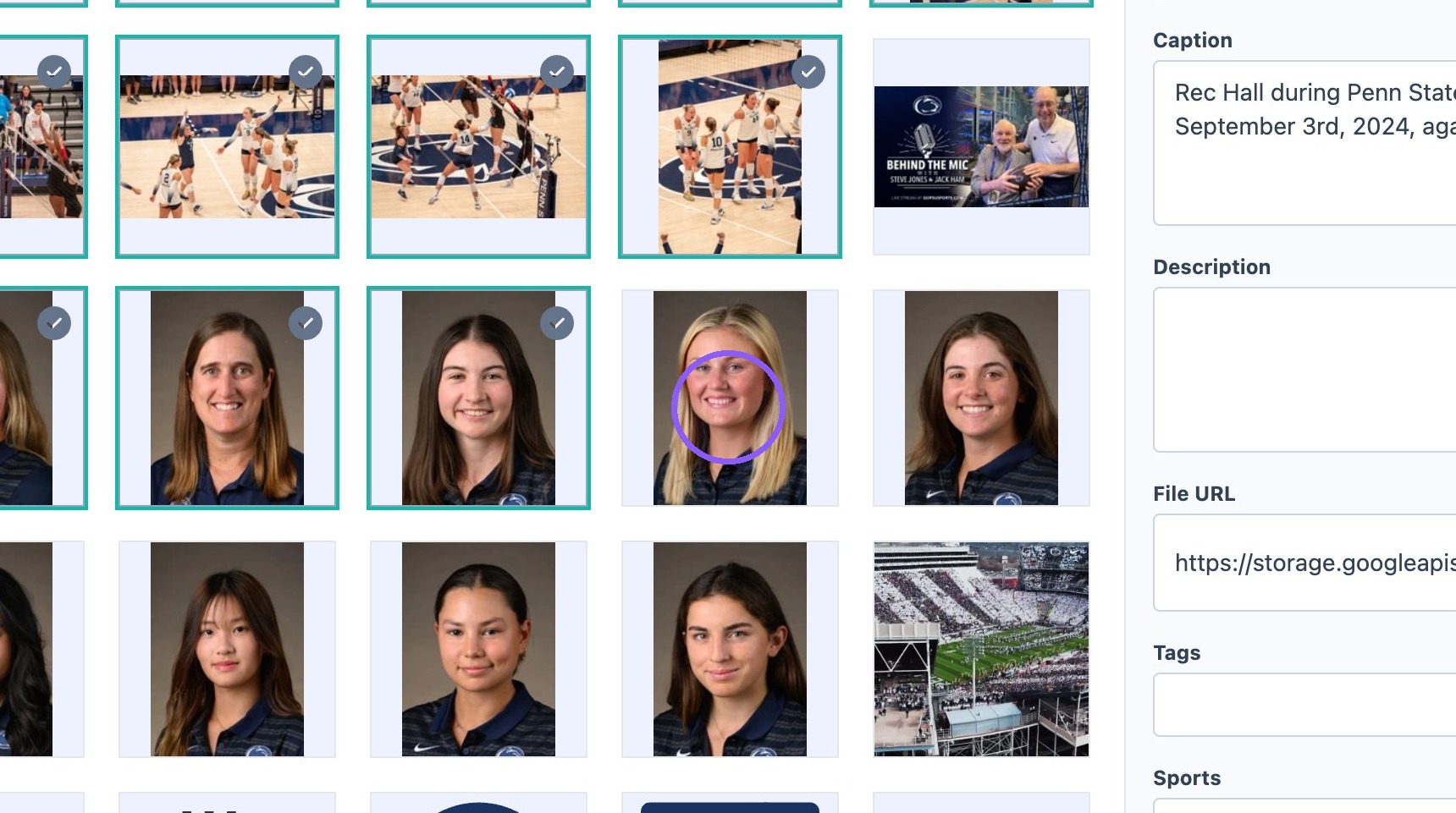
8. Click "Select"
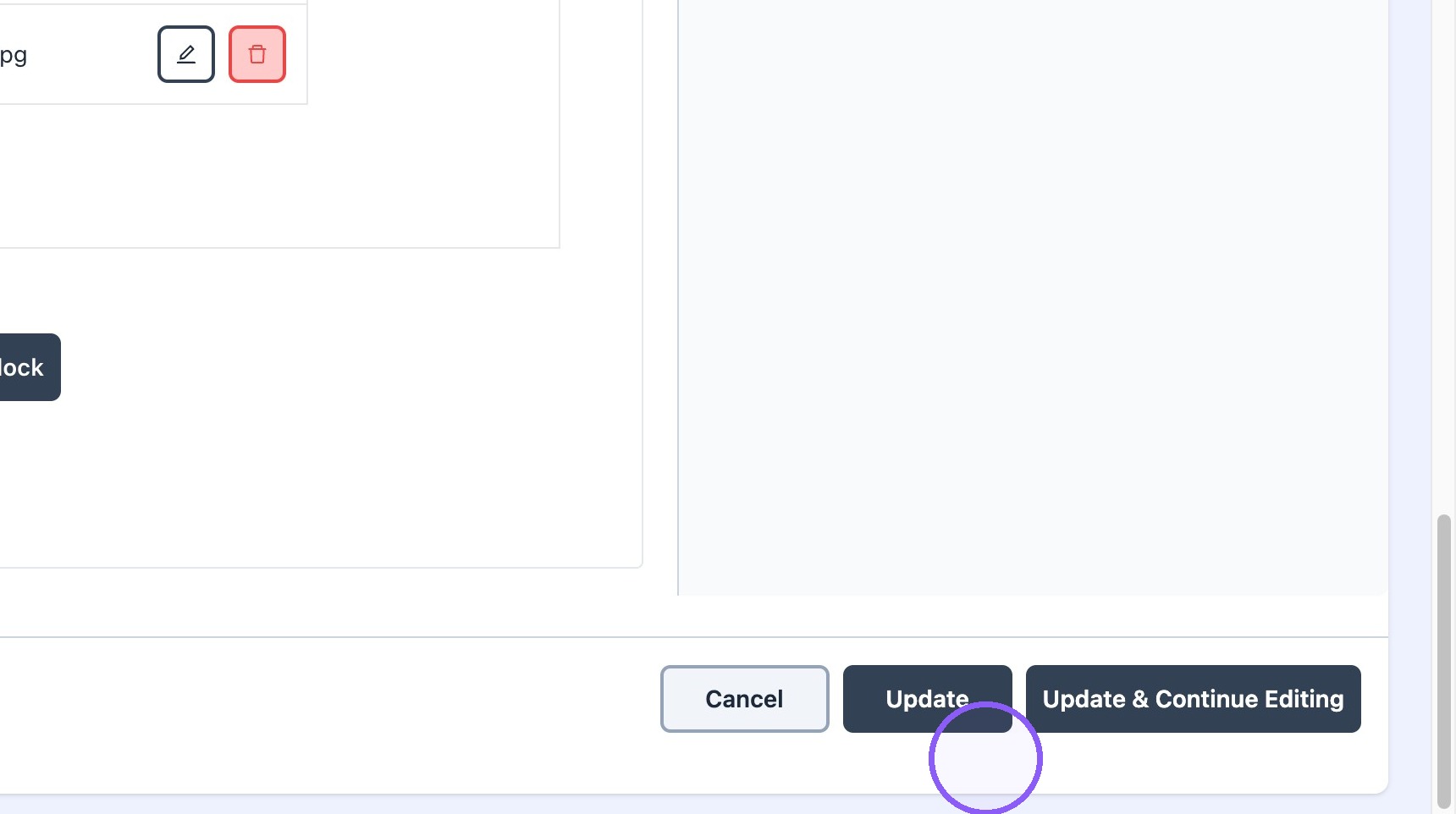
9. Update the article.