How To Create Schedule Events
Last updated: September 20, 2026
Create one Schedule Event at a time
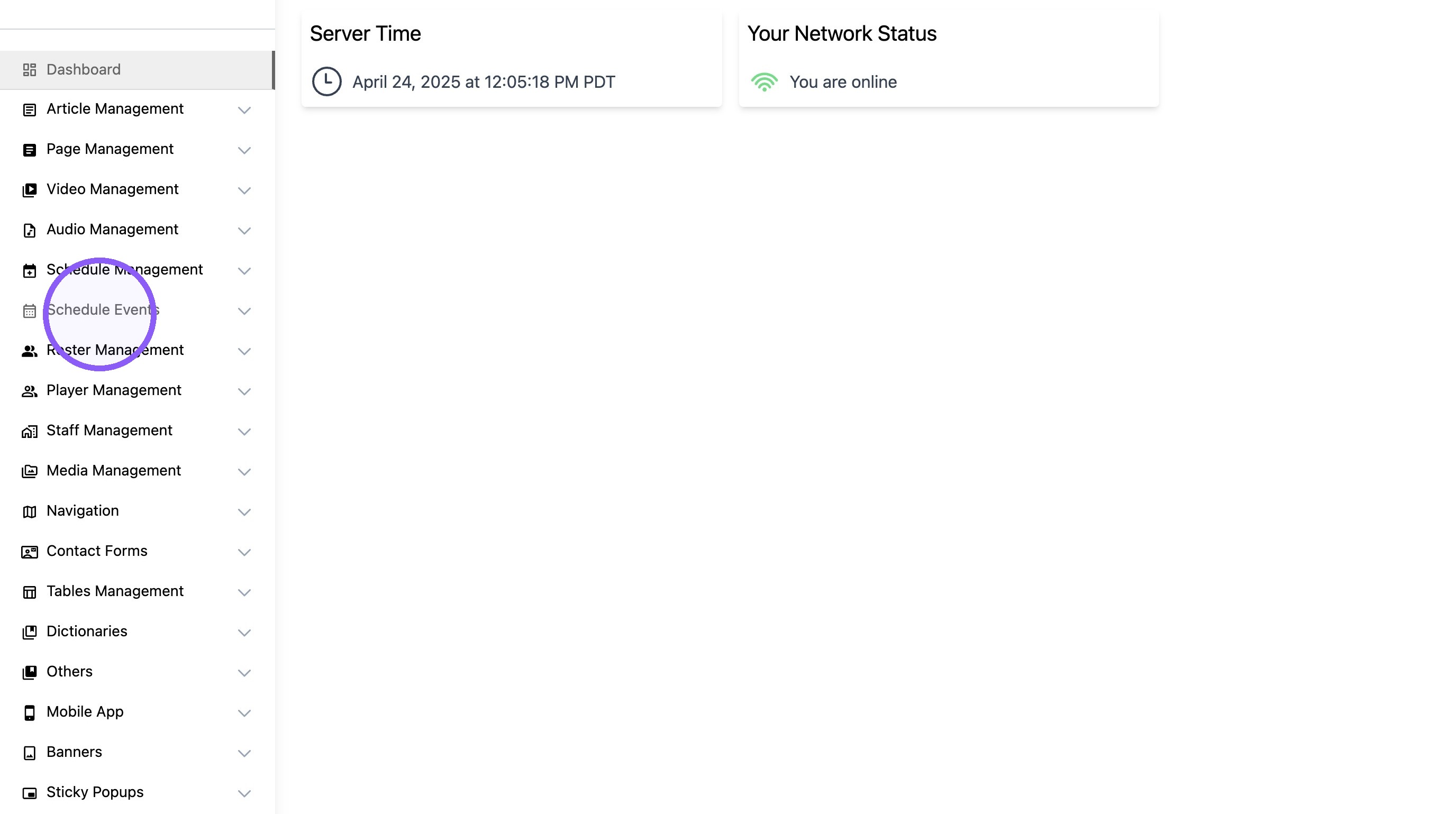
1. Click "Schedule Events"
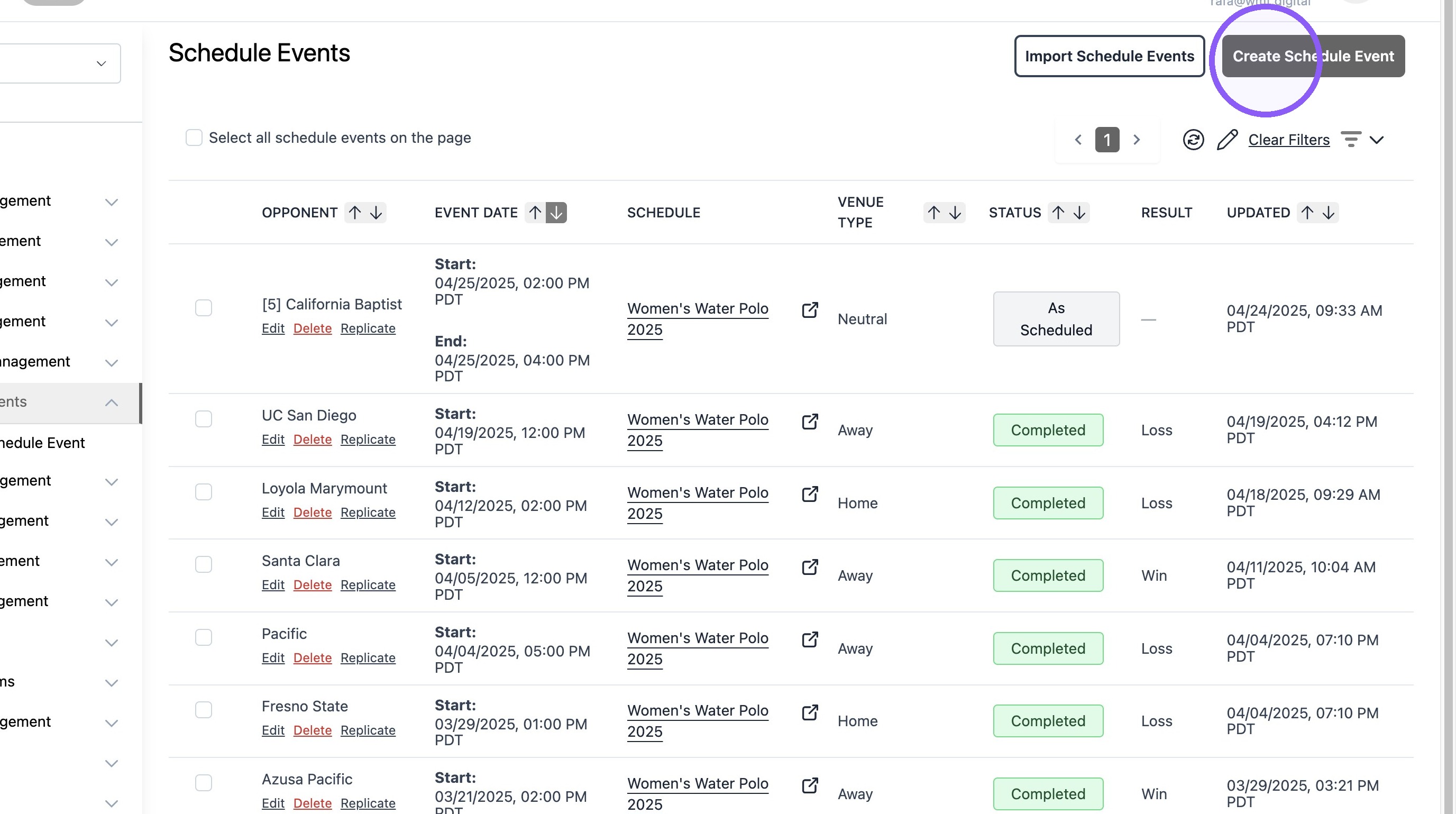
2. Click "Create Schedule Event"
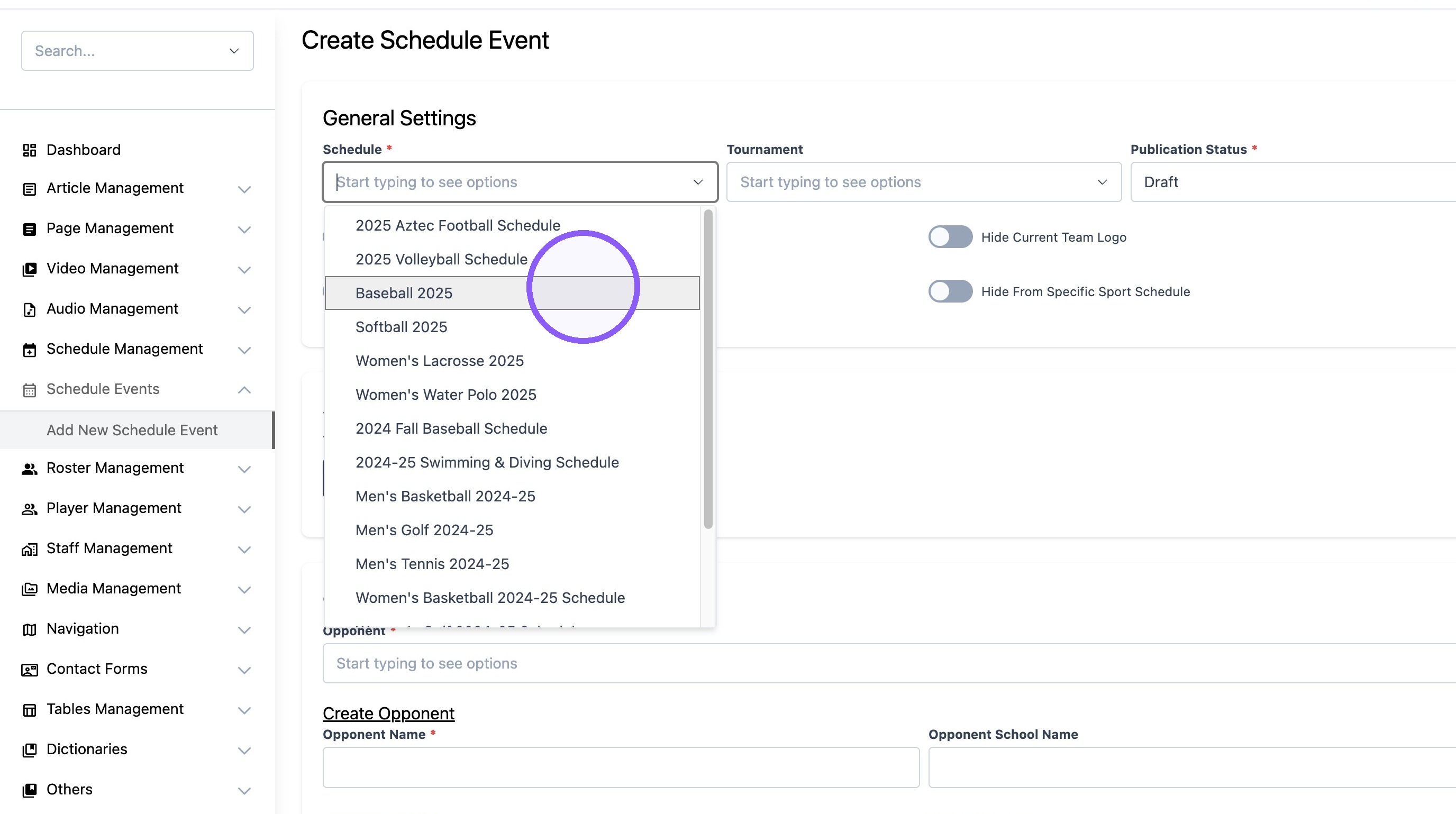
3. Select the desired sport schedule.
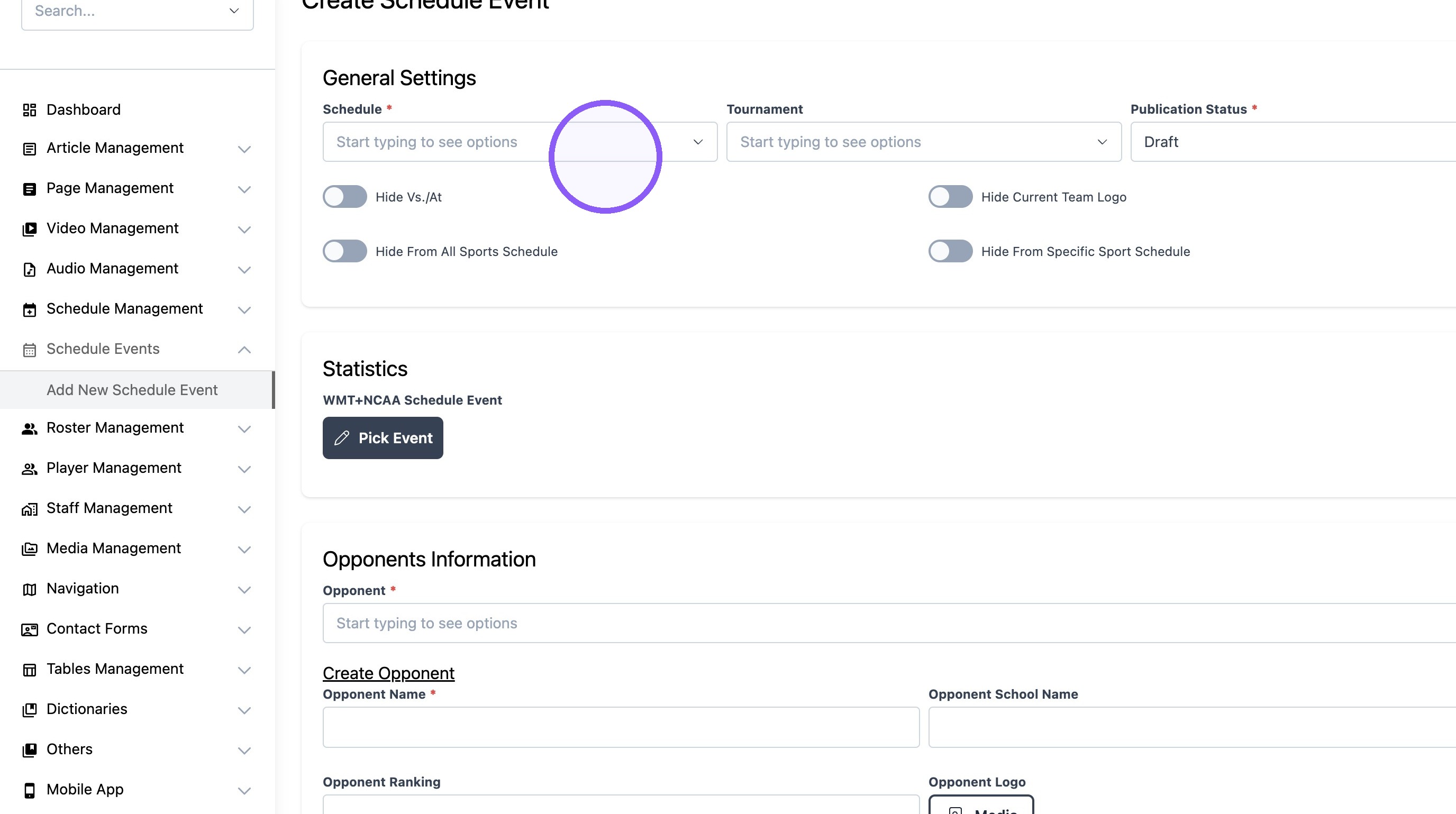
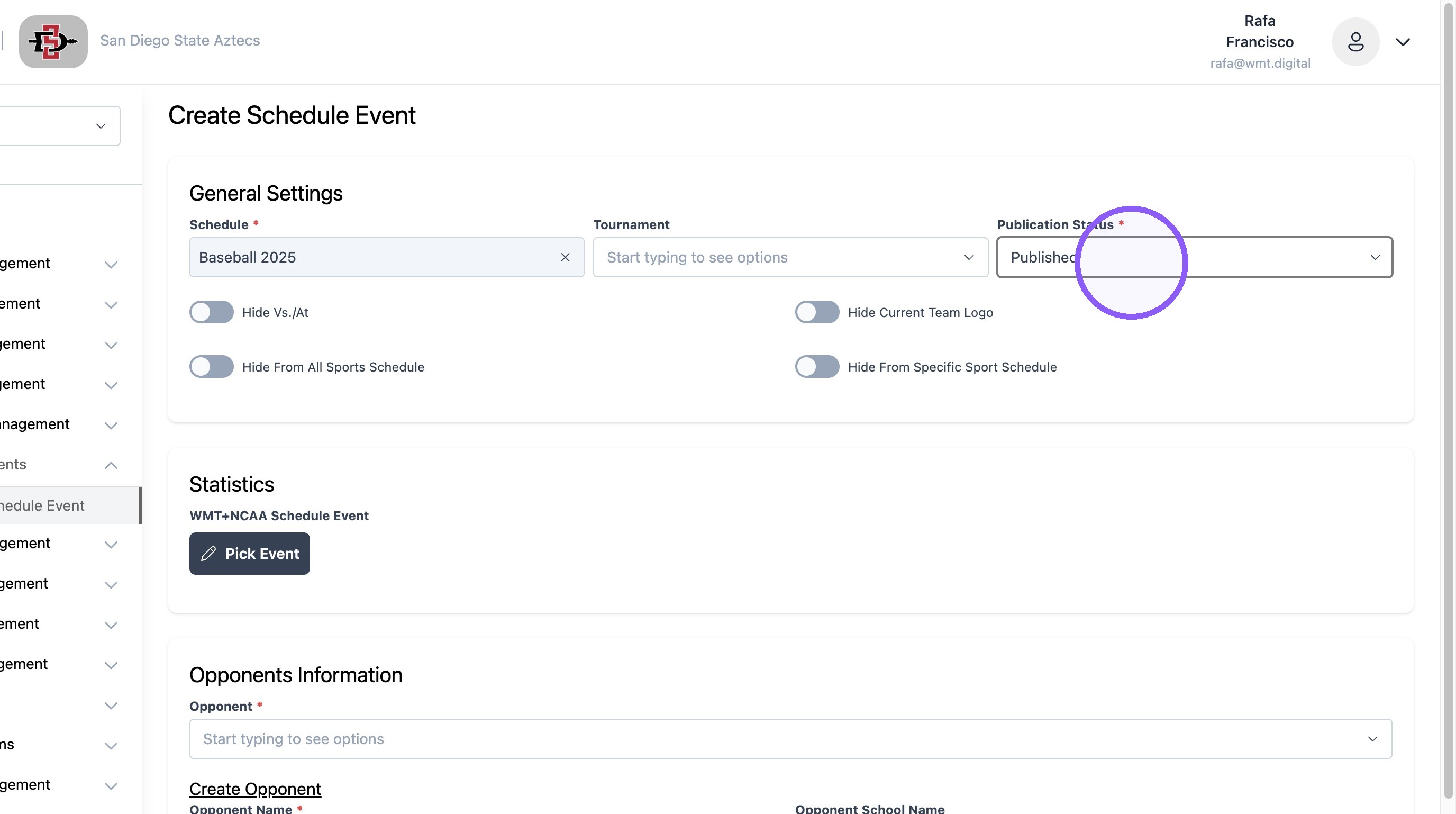
4. Set the status of the event to "Published."
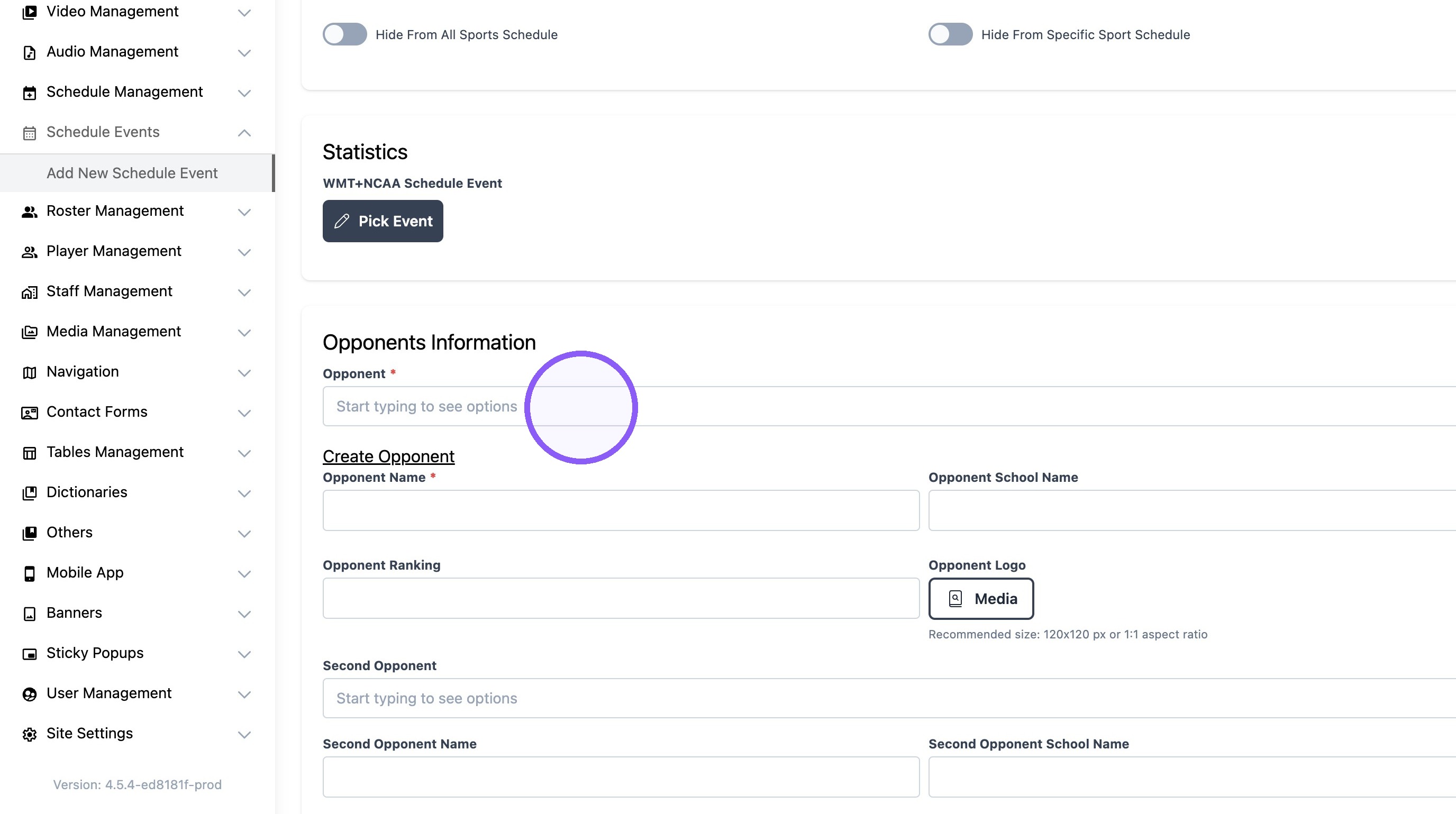
5. Select Opponent.
6. Select the date and time.
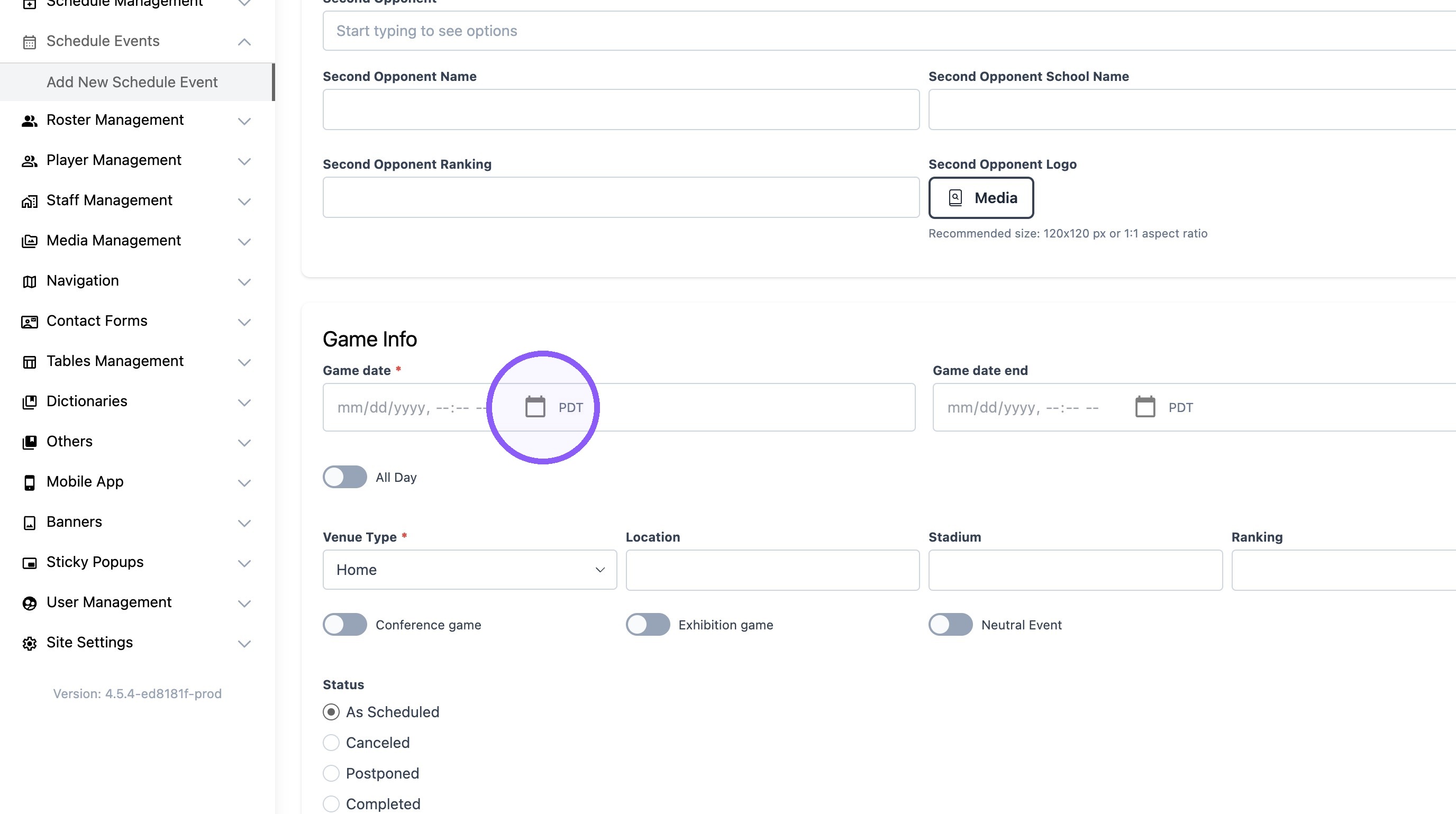
7. Select Venue Type.
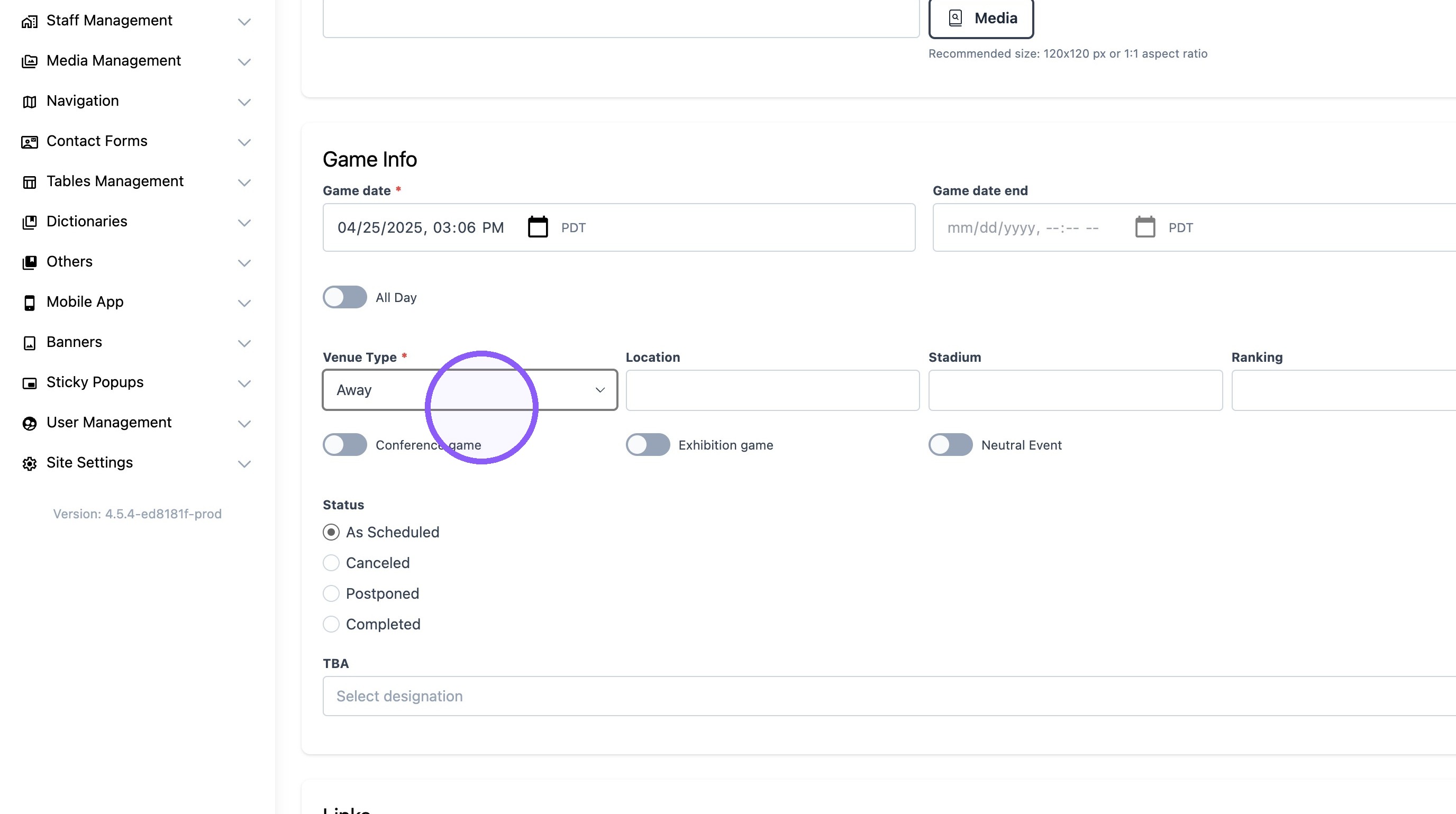
8. Add event location.
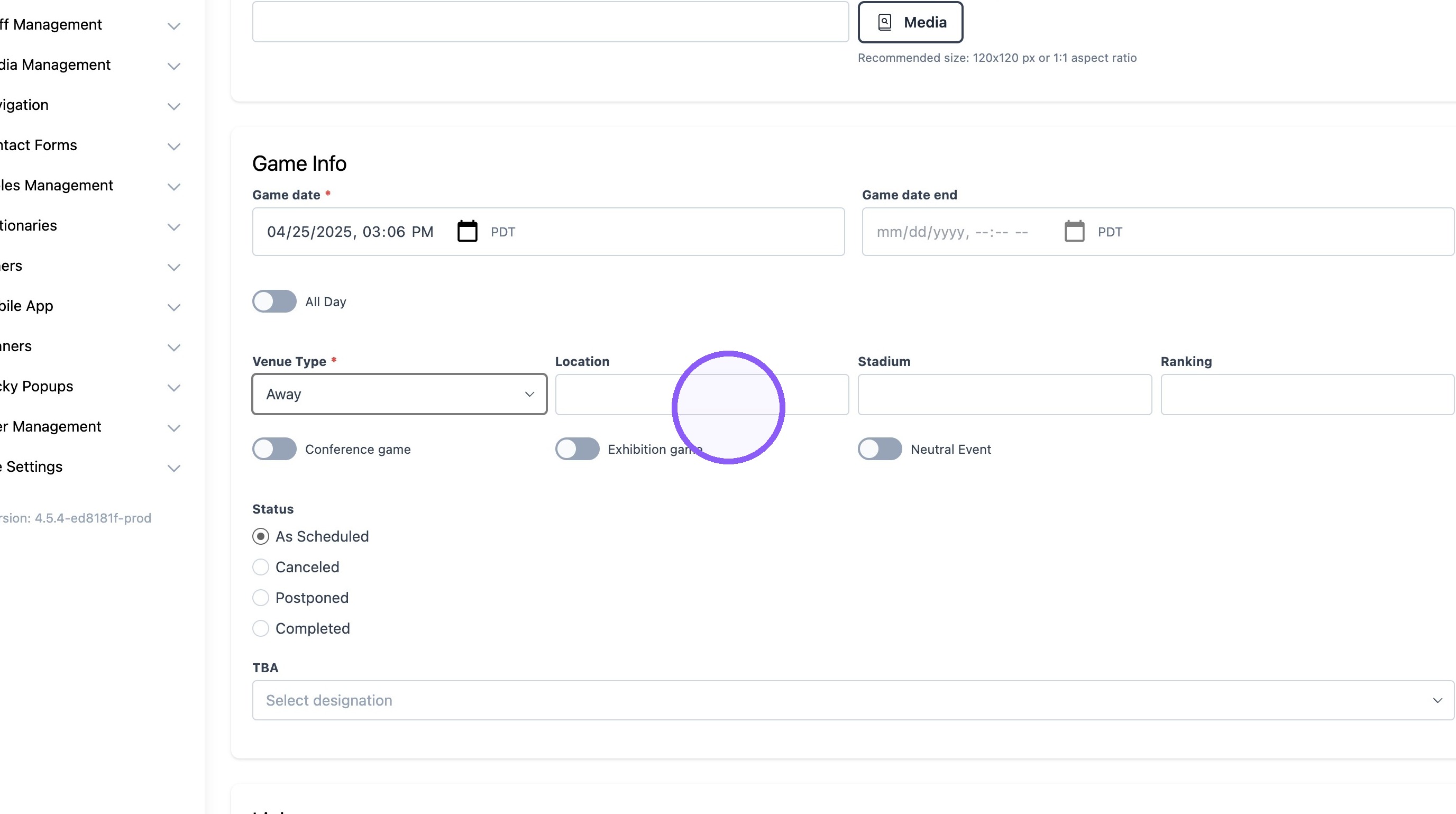
9. Turn toggle on if it is a conference event.
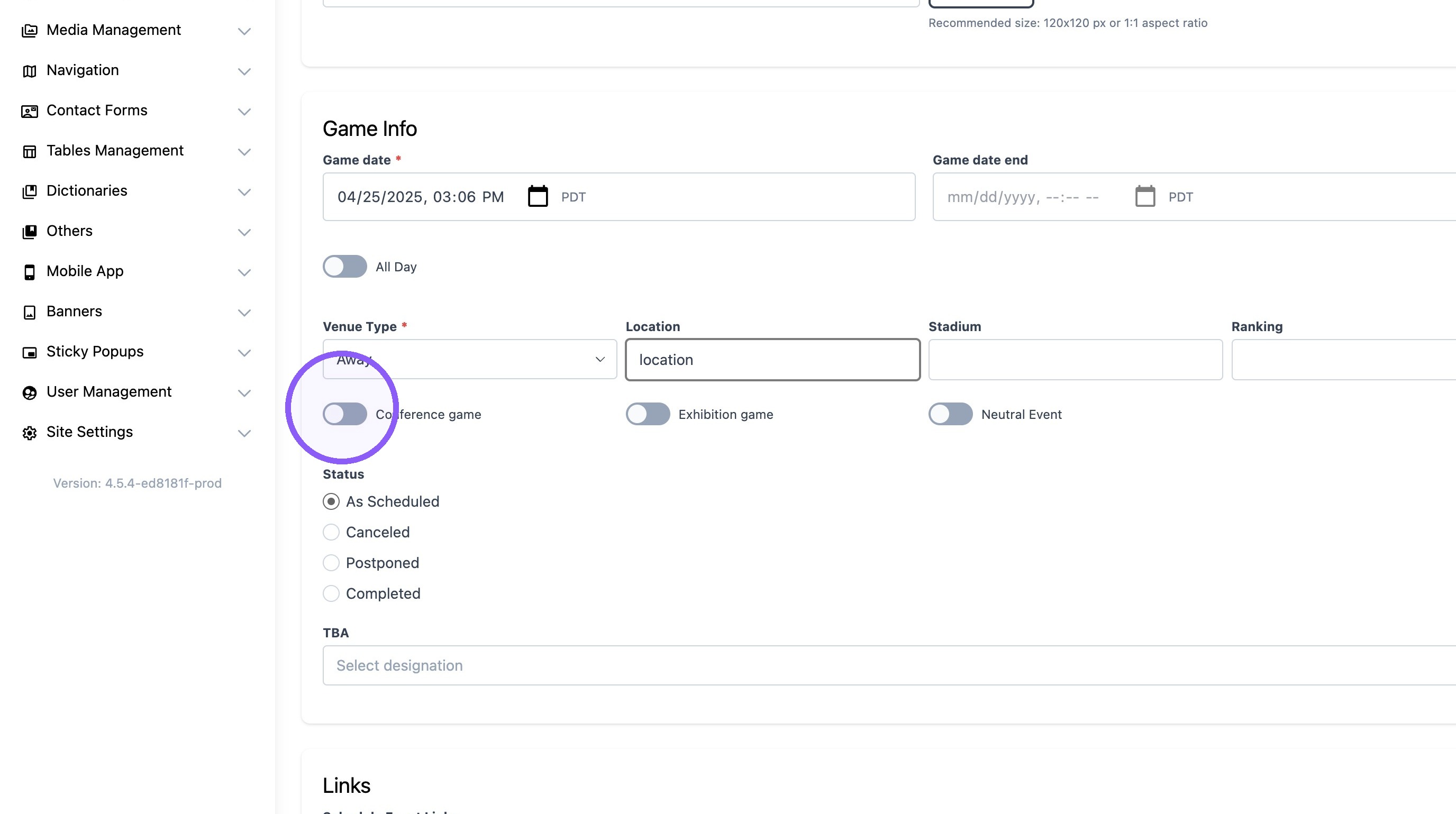
10. Turn on toggle one if the event does not include "home" school in the event.
Example: School Opponent 1 vs. School Opponent 2 in a three (3)-school volleyball event.

11. Click "Add Schedule Event Links" to add event links.
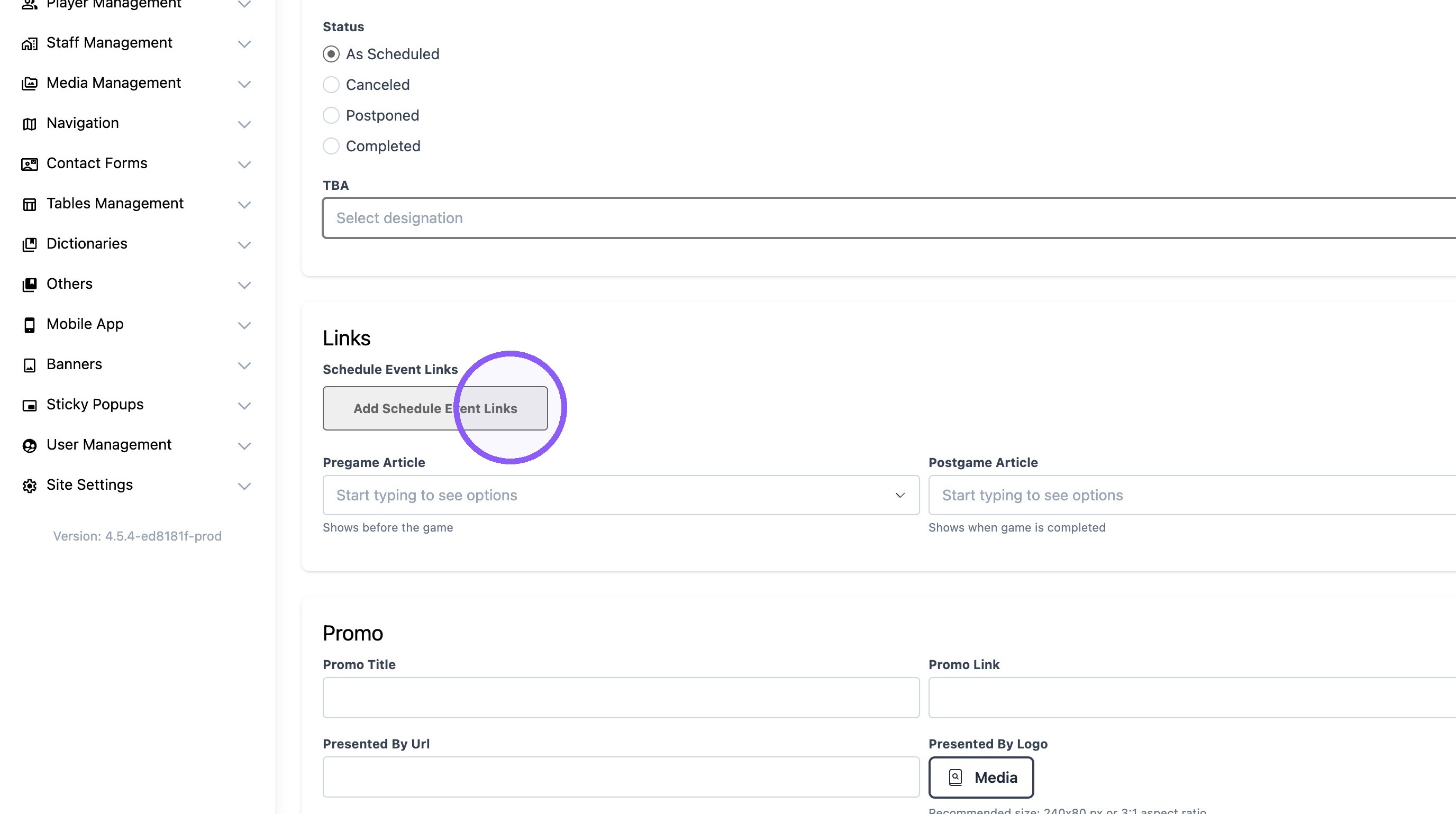
12. Add link title to show on schedule event.
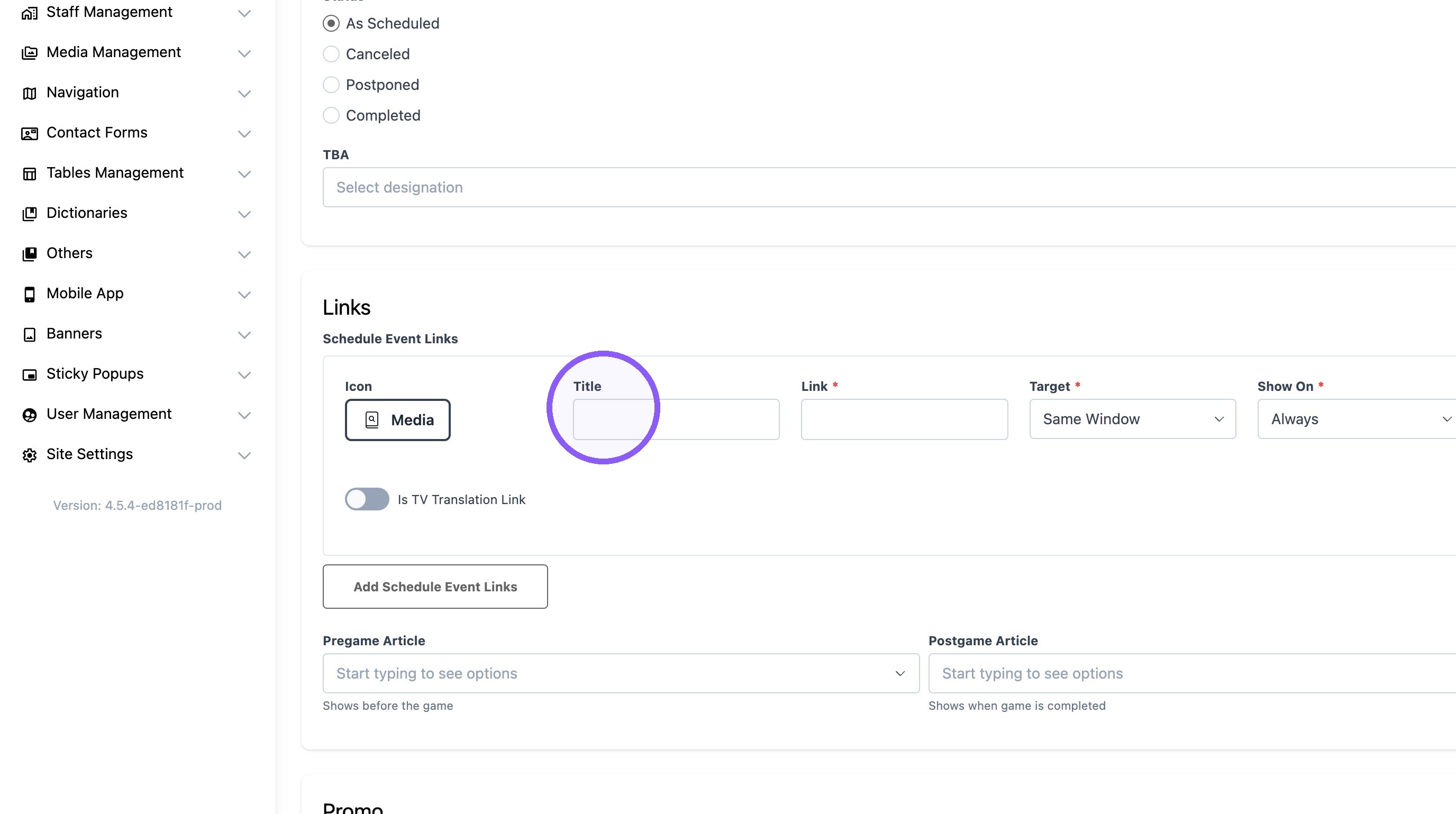
13. Add a link URL.

14. Click "Add Schedule Event Links" to add more links.

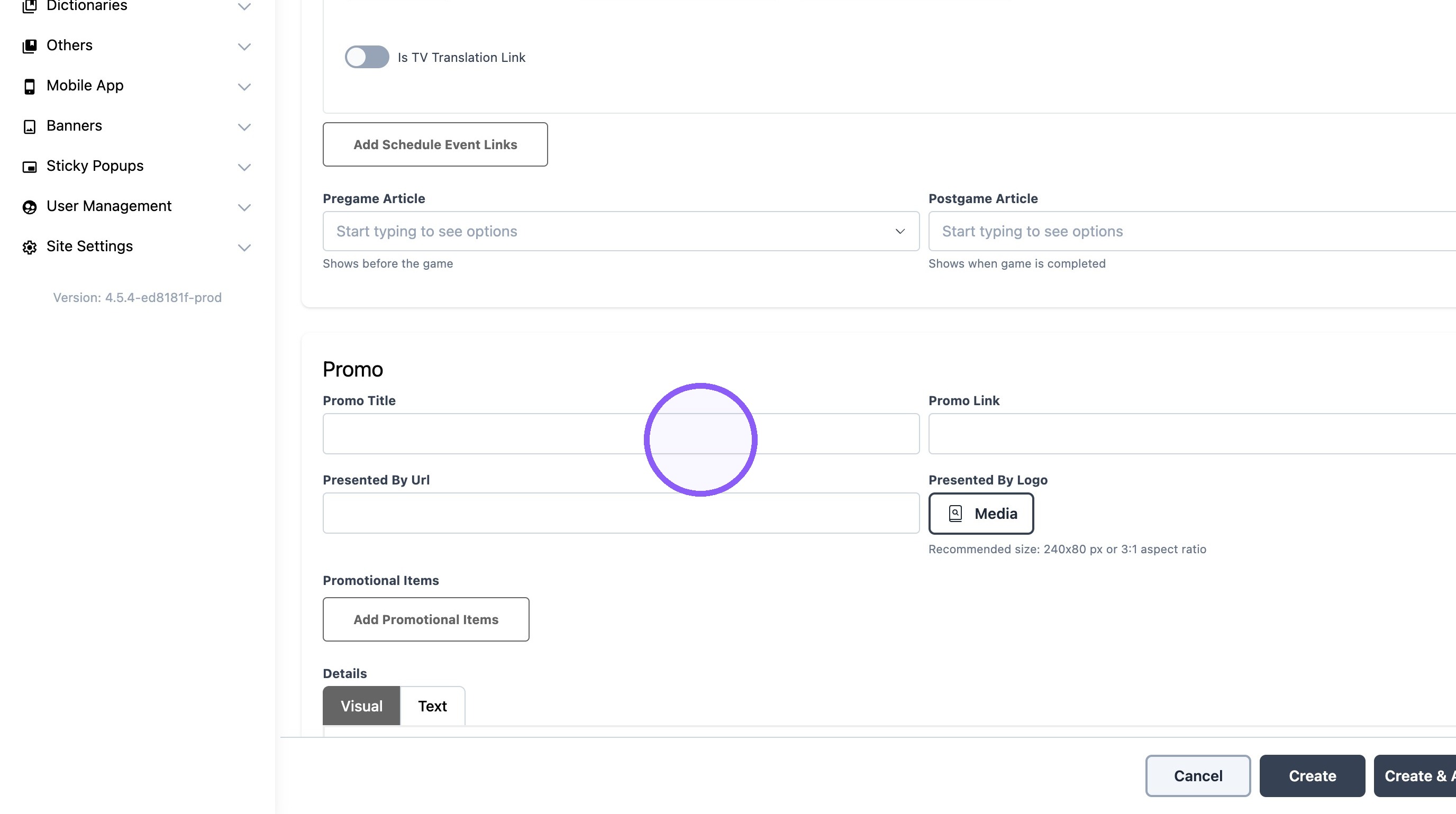
15. Click the "Promo Title" field to a Promo title.
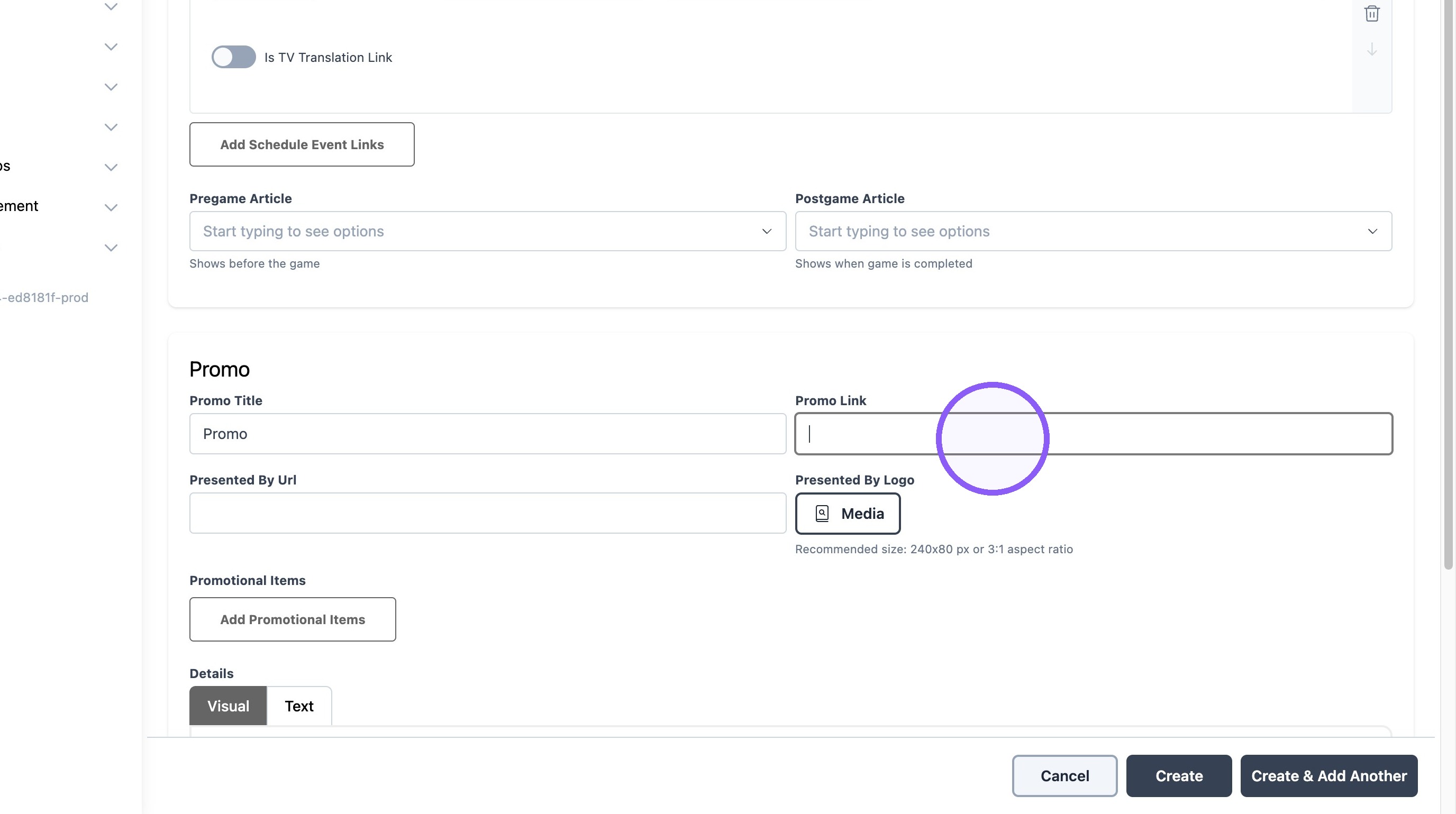
16. Click the "Promo Link" field to add URL if necessary.
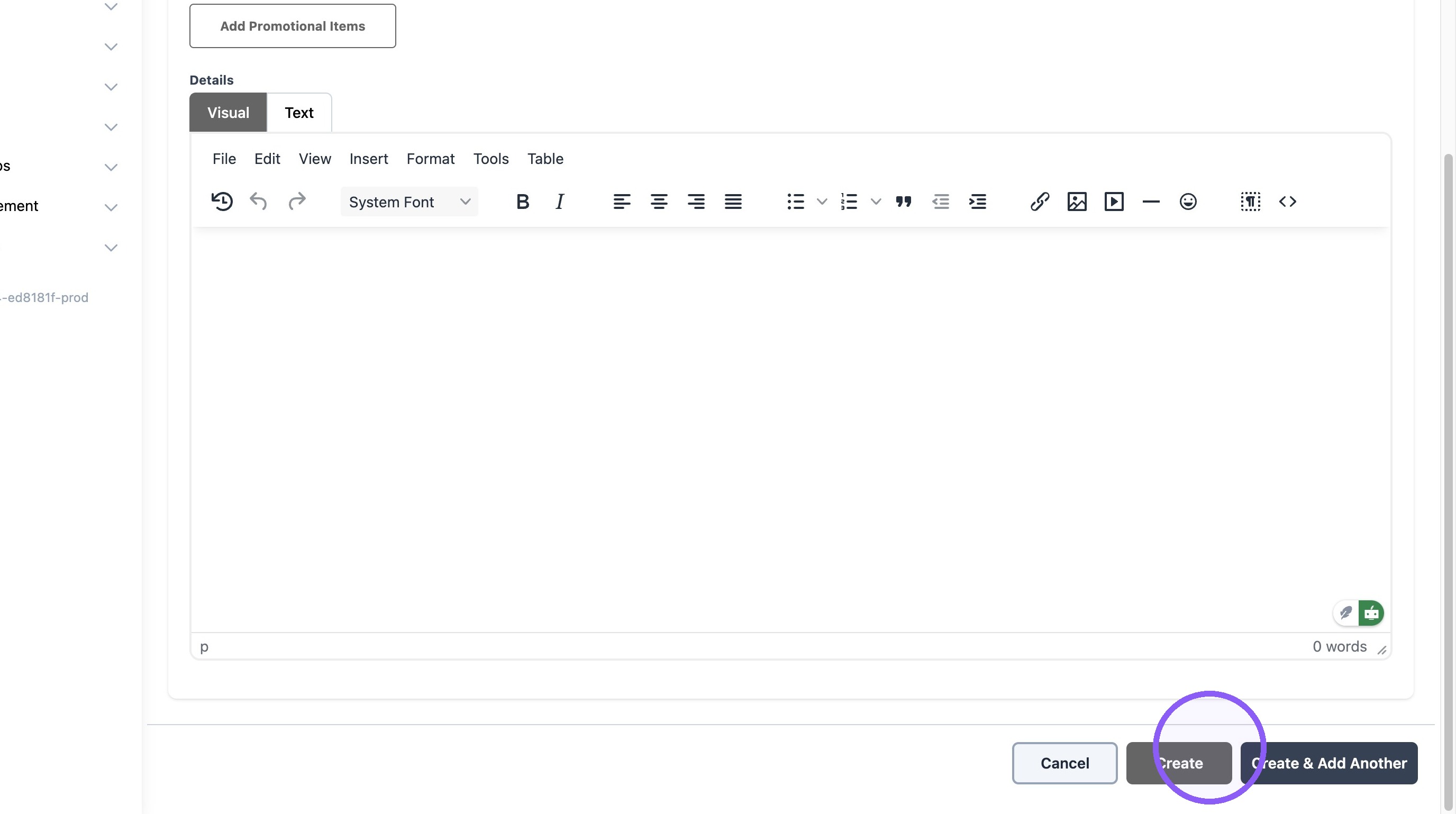
17. Click "Create"
Create multiple Schedule Events at a time
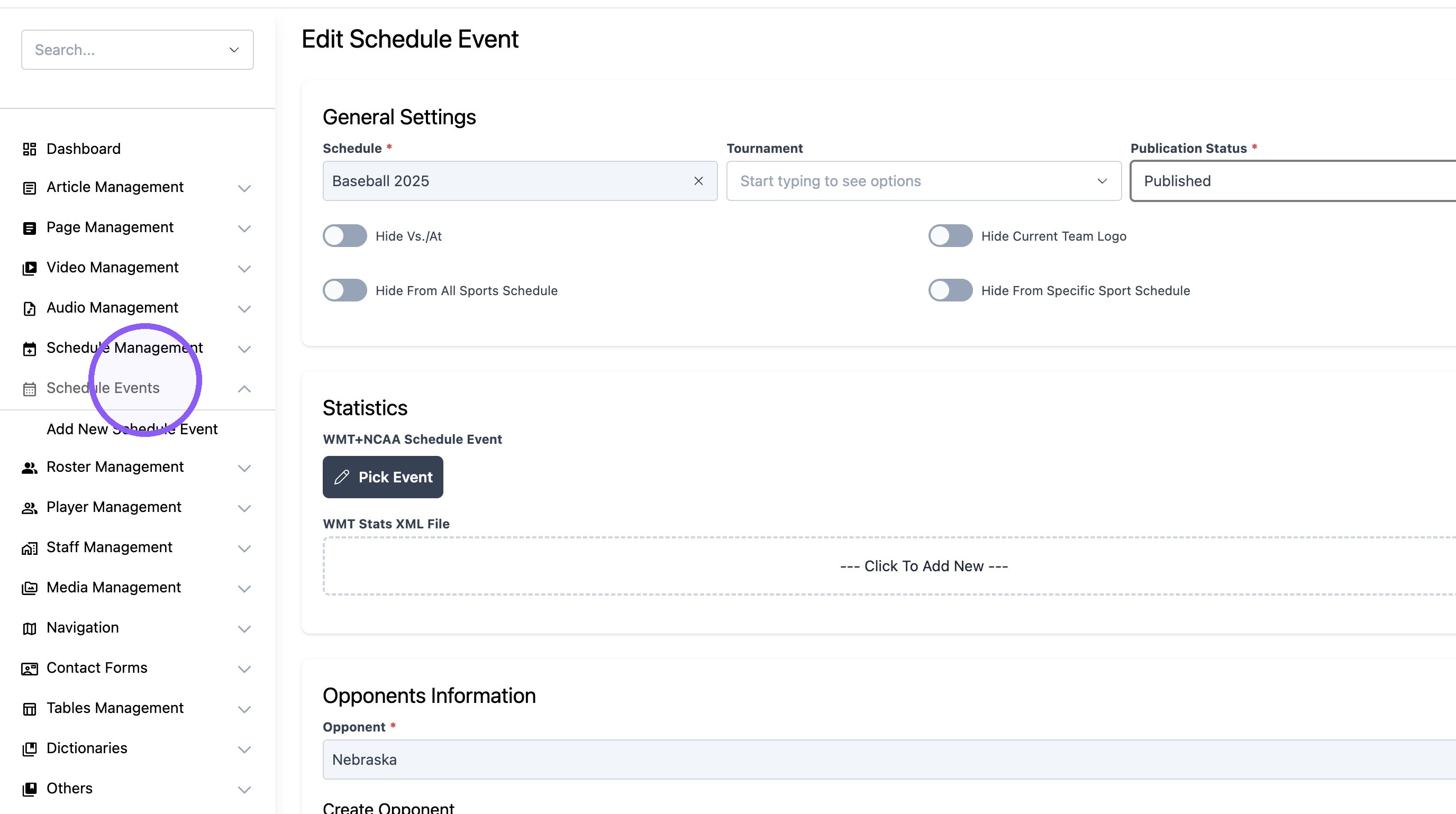
18. Click "Schedule Events"
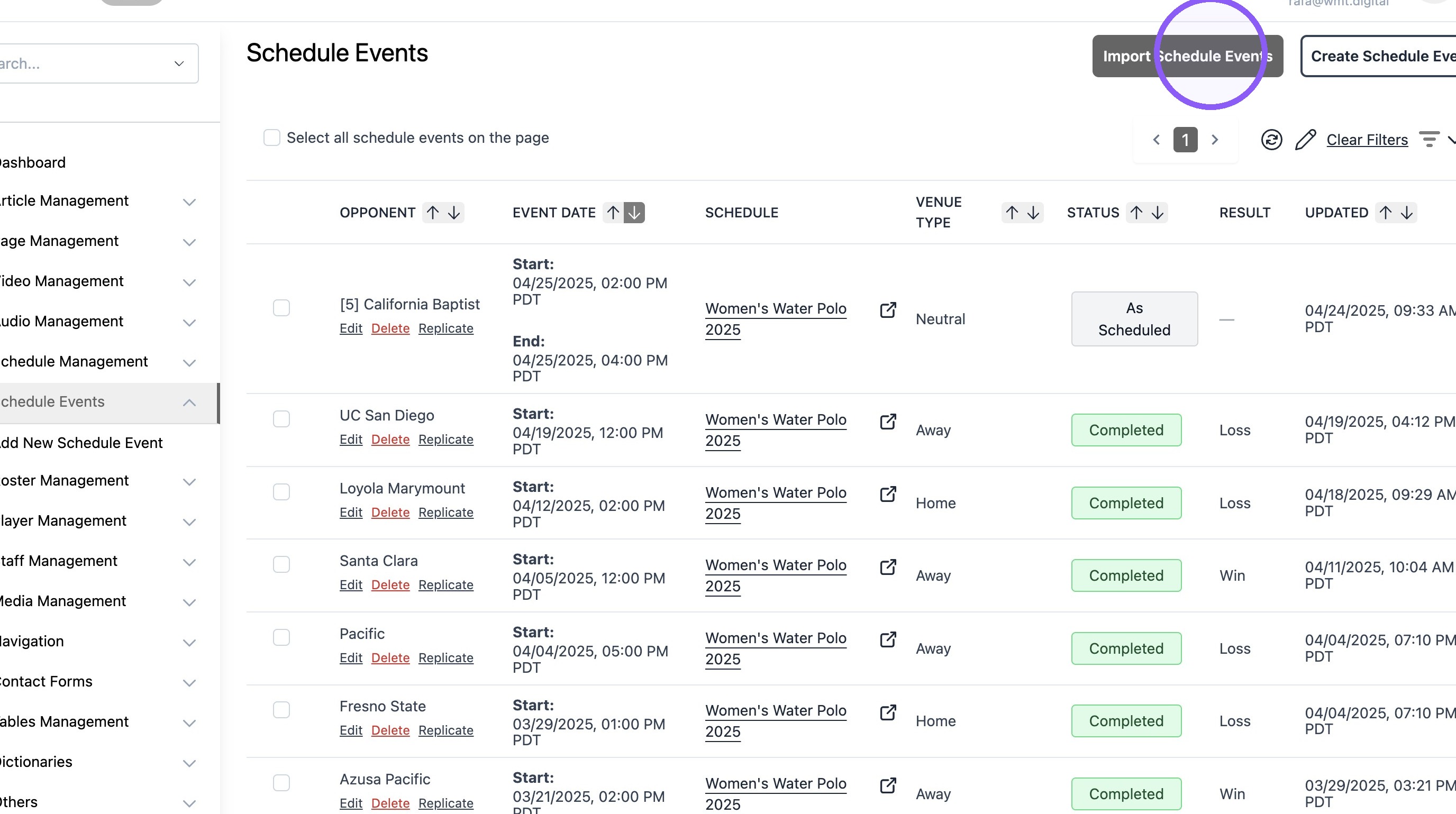
19. Click "Import Schedule Events"
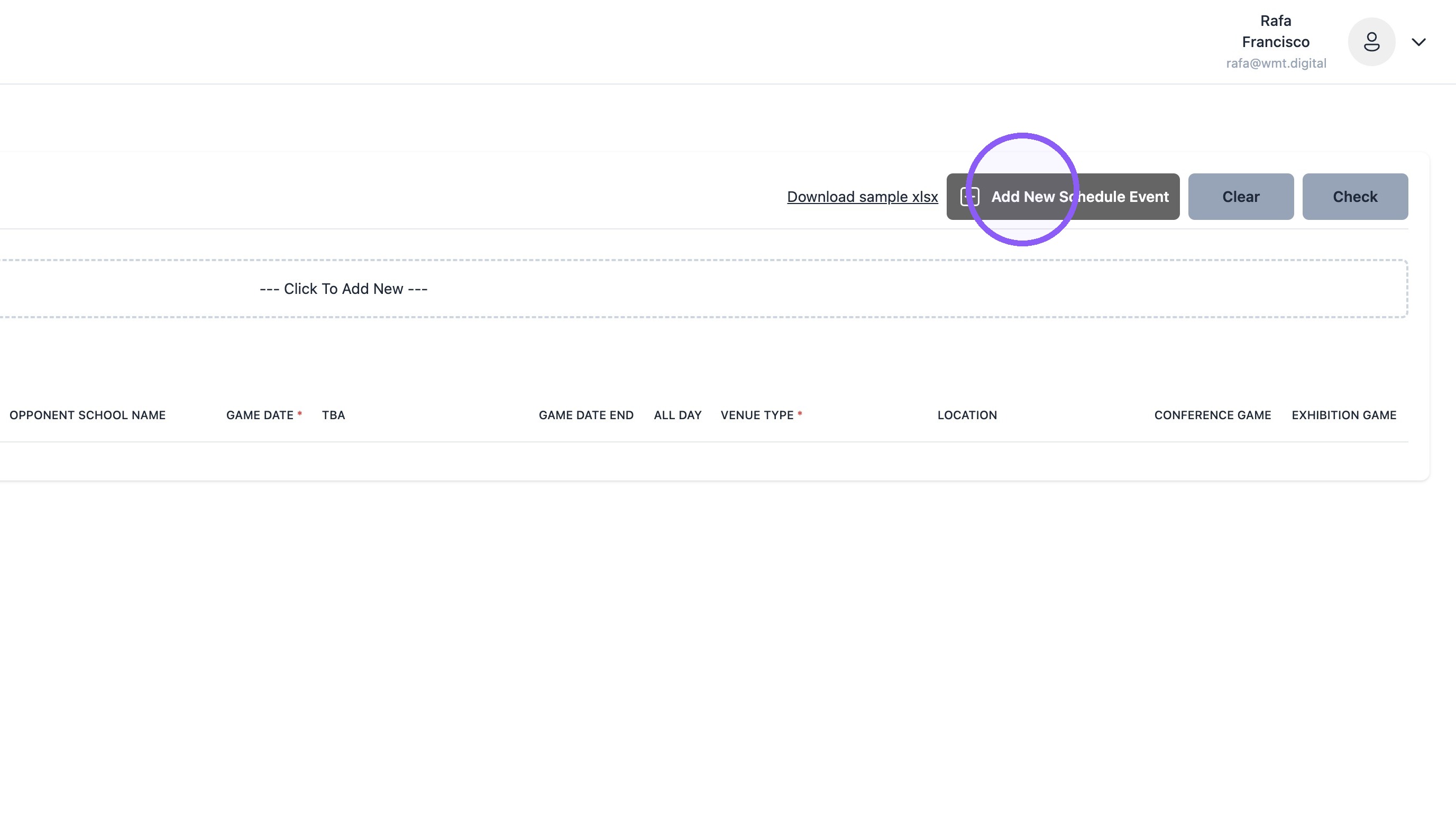
20. Click "Add New Schedule Event"
21. Double-click "Add New Schedule Event"
Note: Click the button multiple times to add as many events as desired.
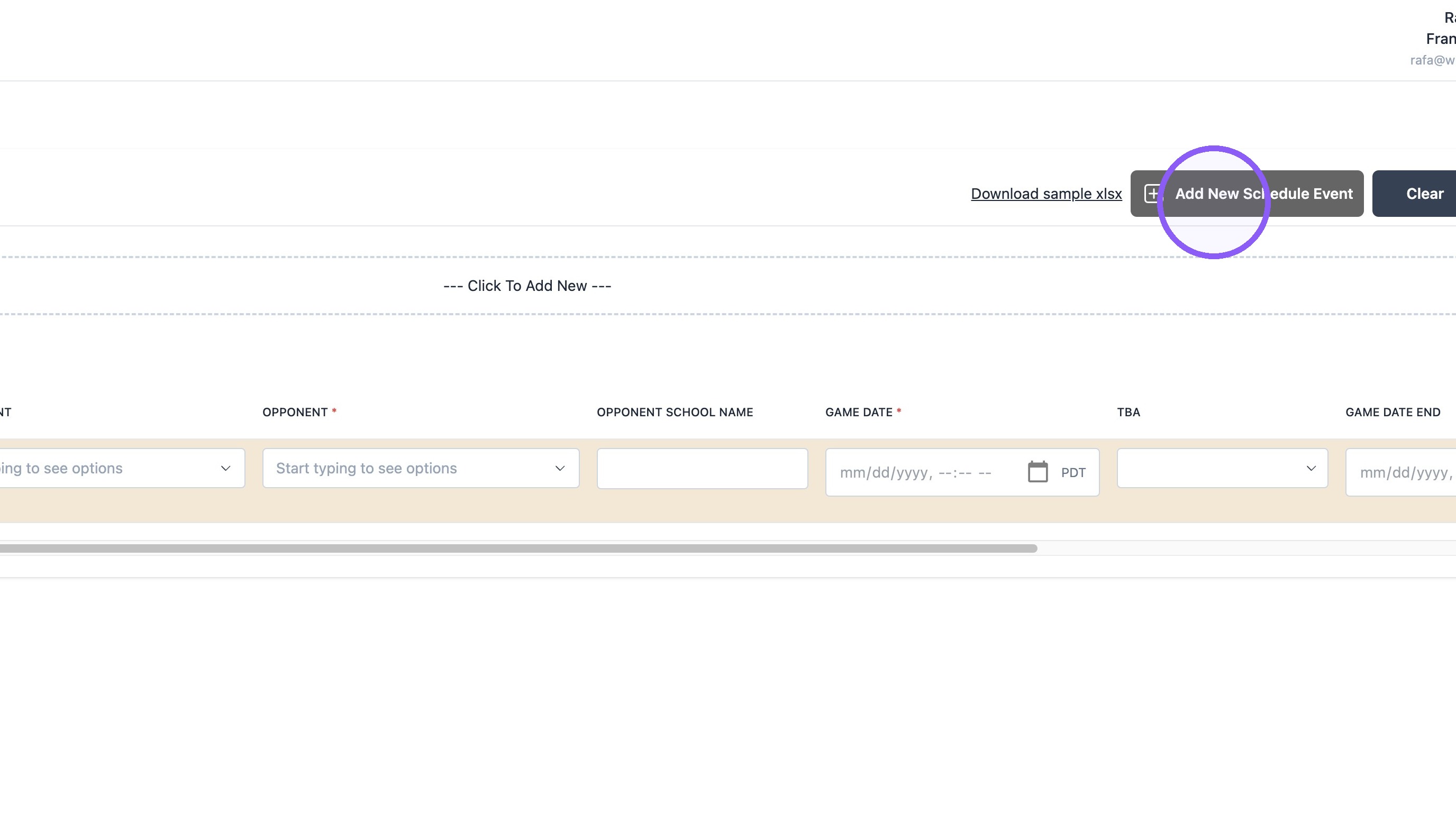
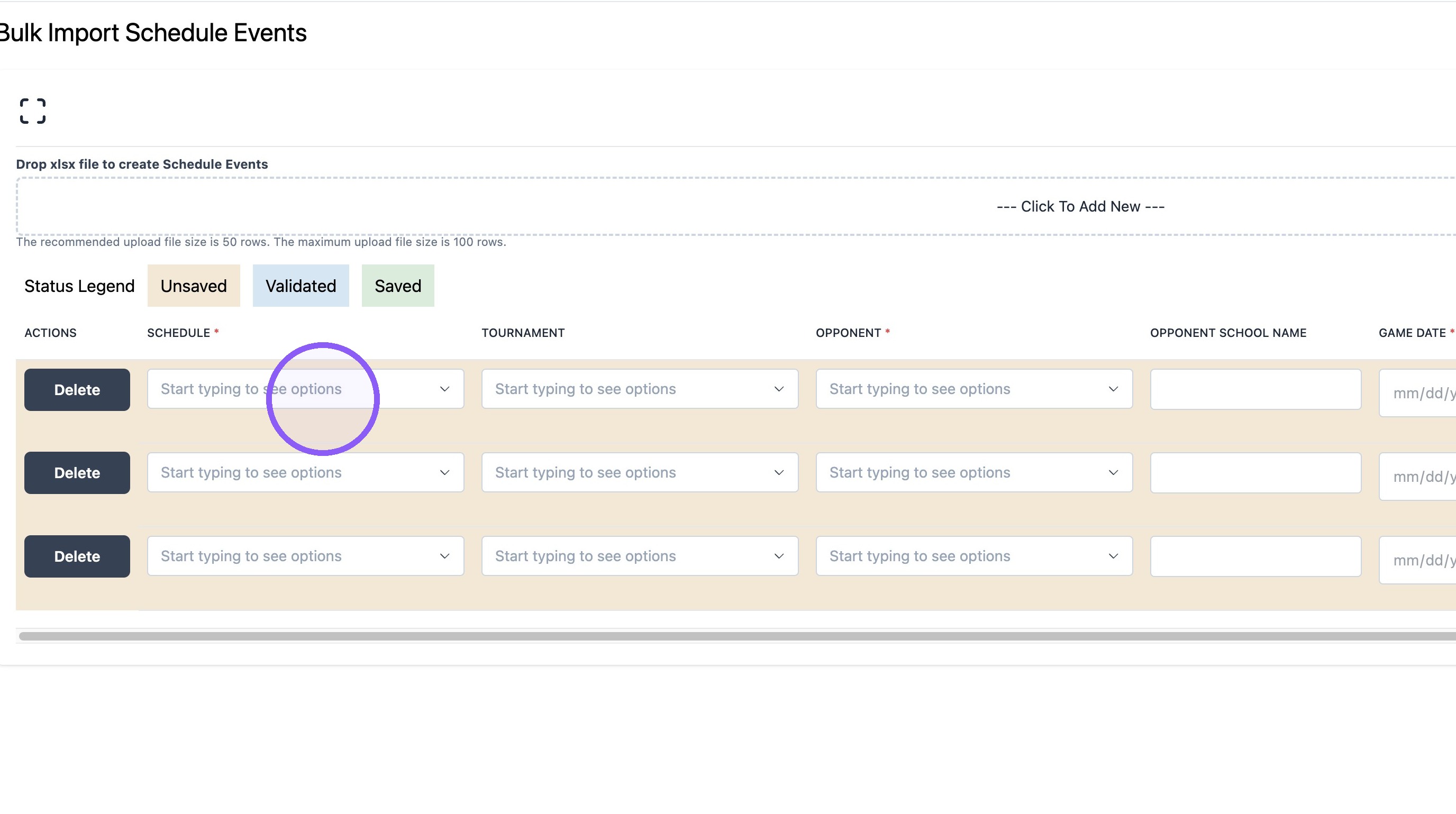
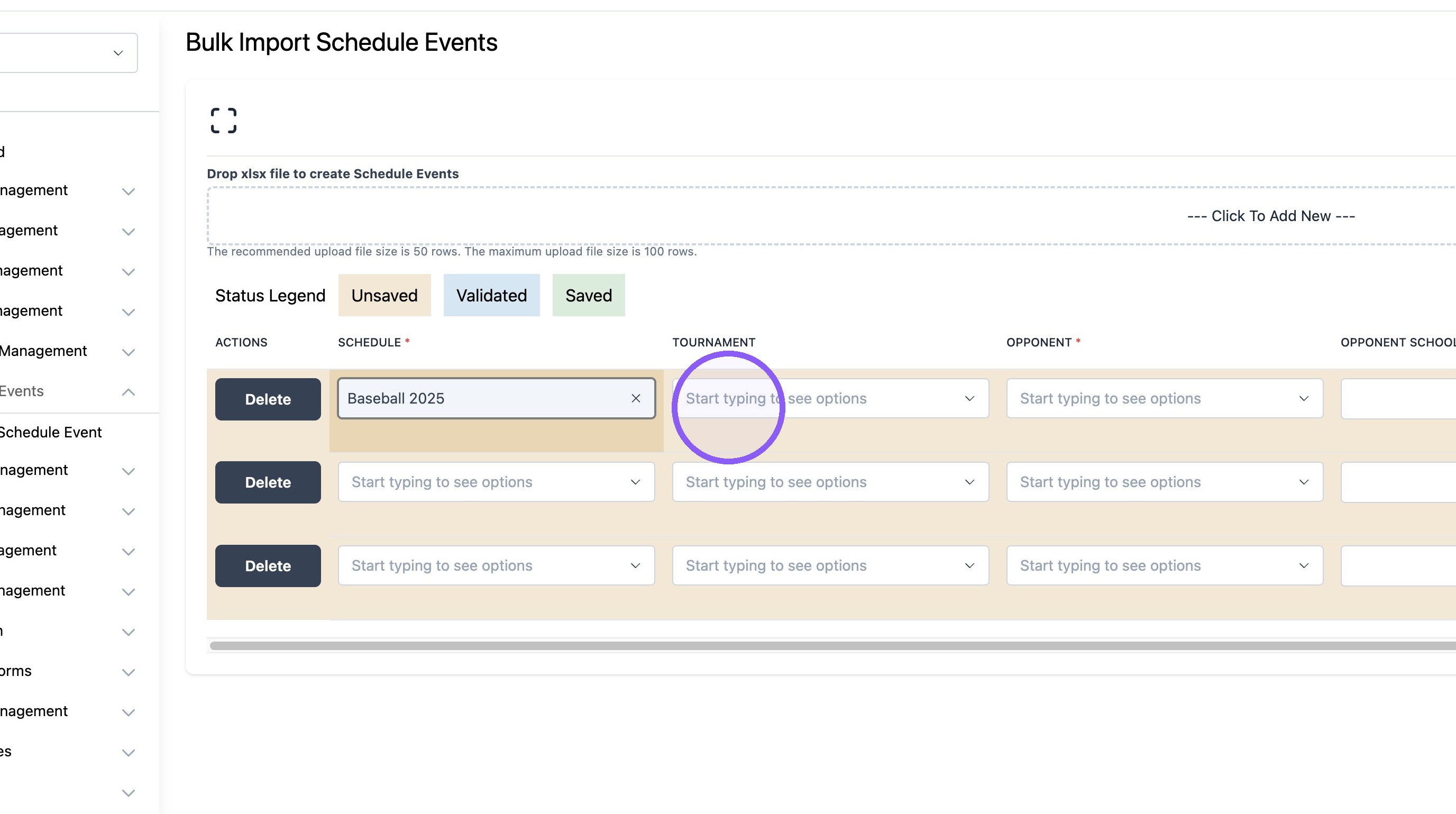
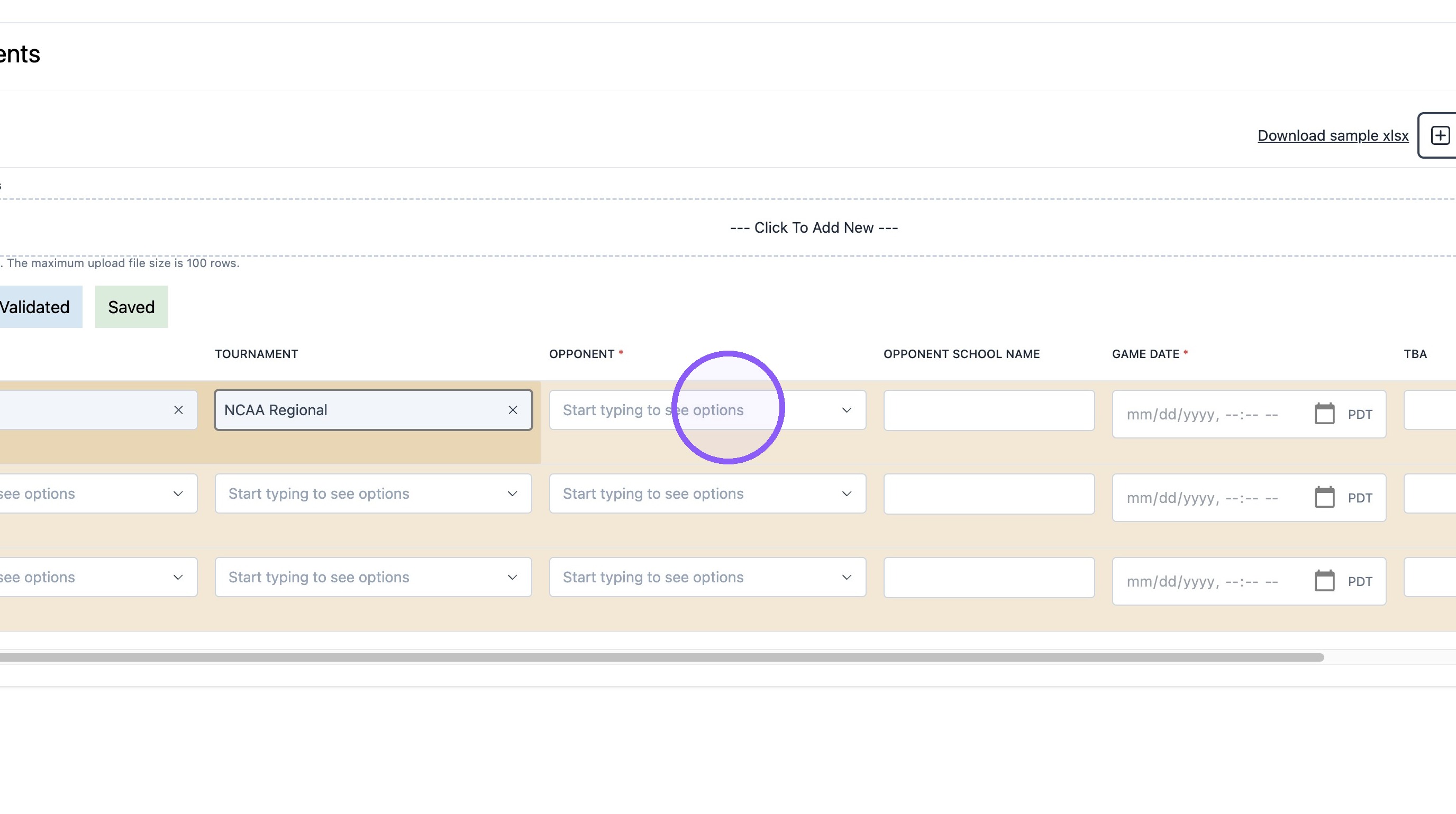
22. Fill out all *required fields.
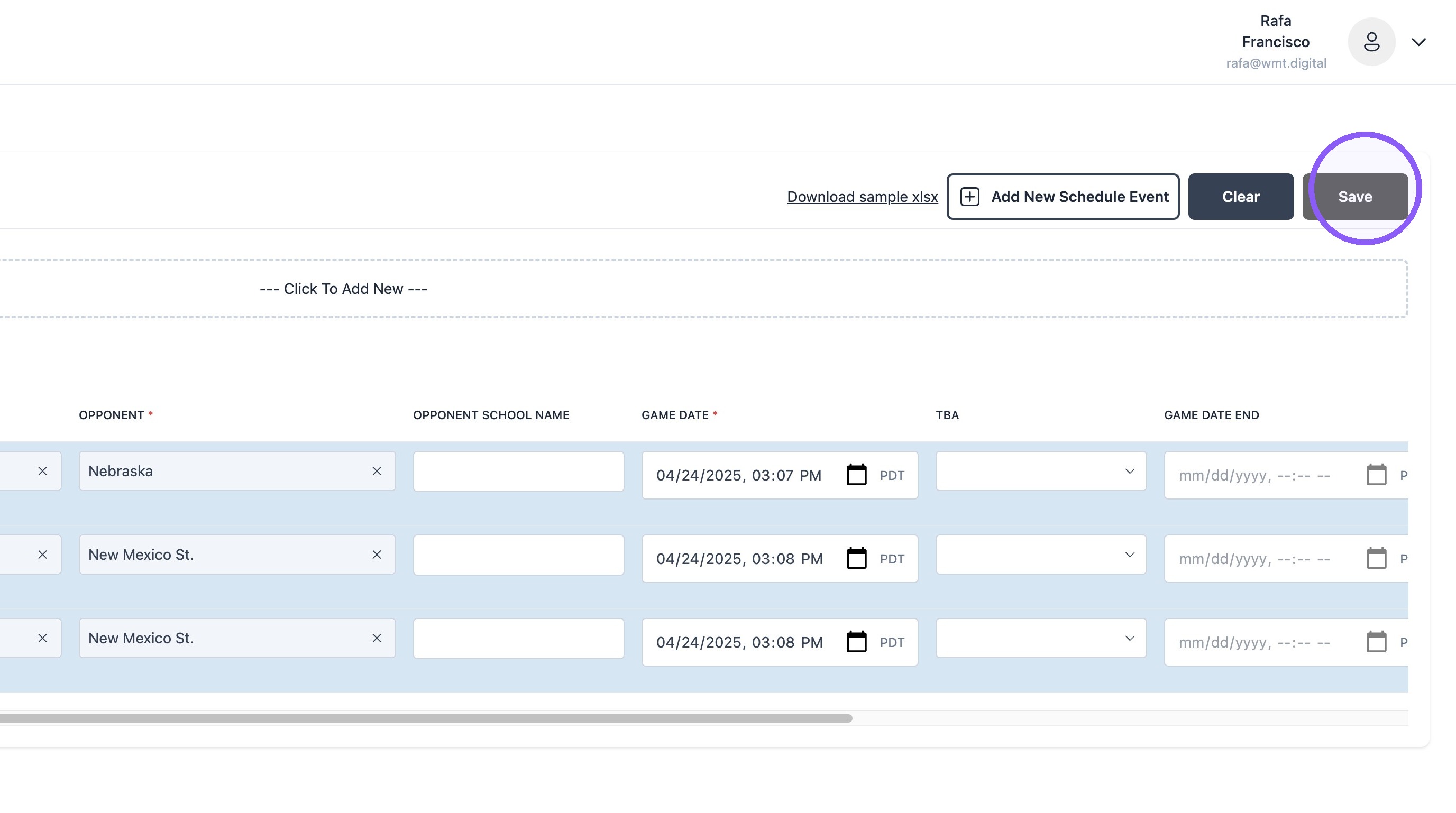
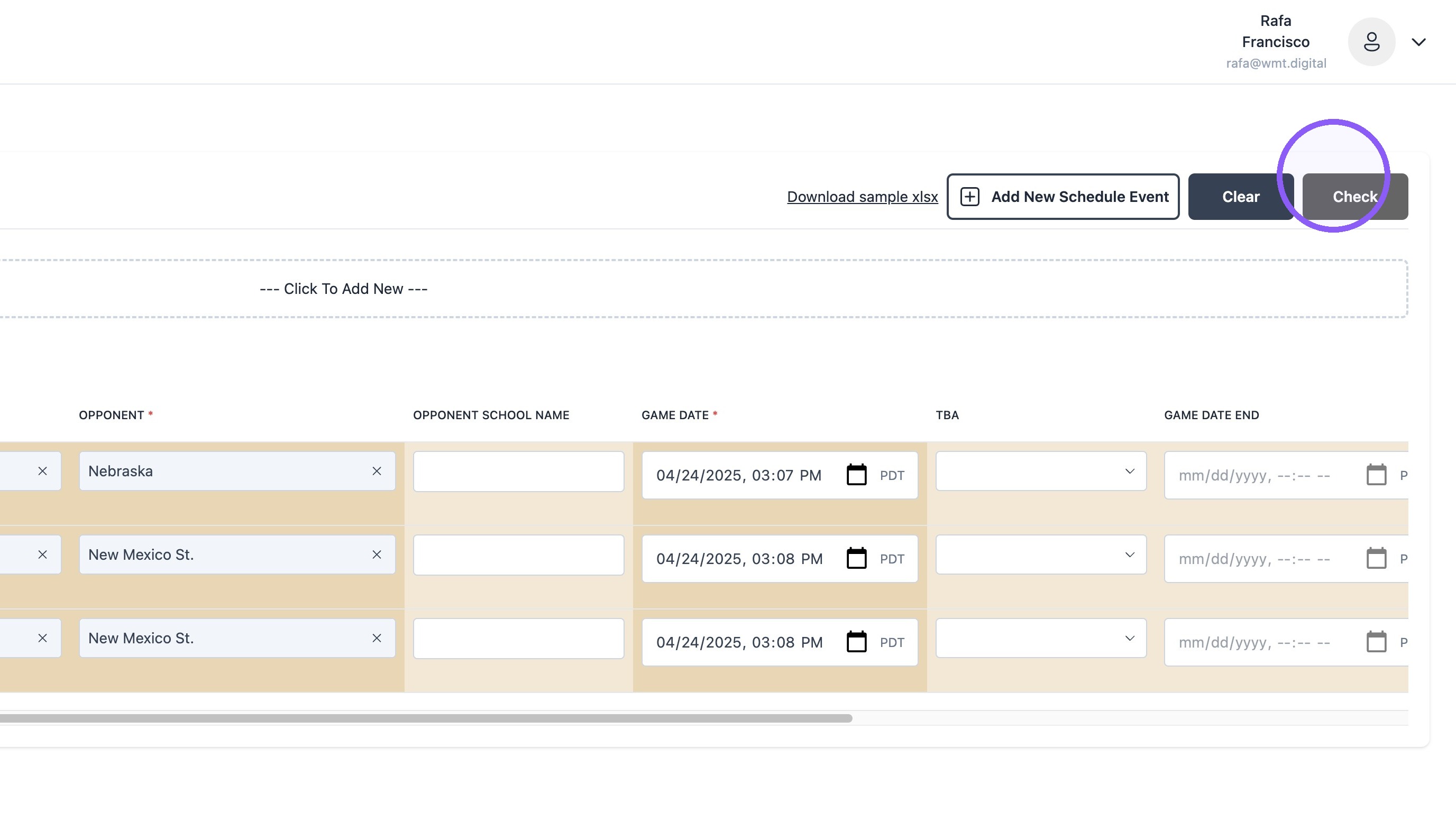
23. Click "Check"
24. Click "Save"