How to create a Push Notification
Last updated: September 18, 2026
Made by Rafael Venceslau with Scribe
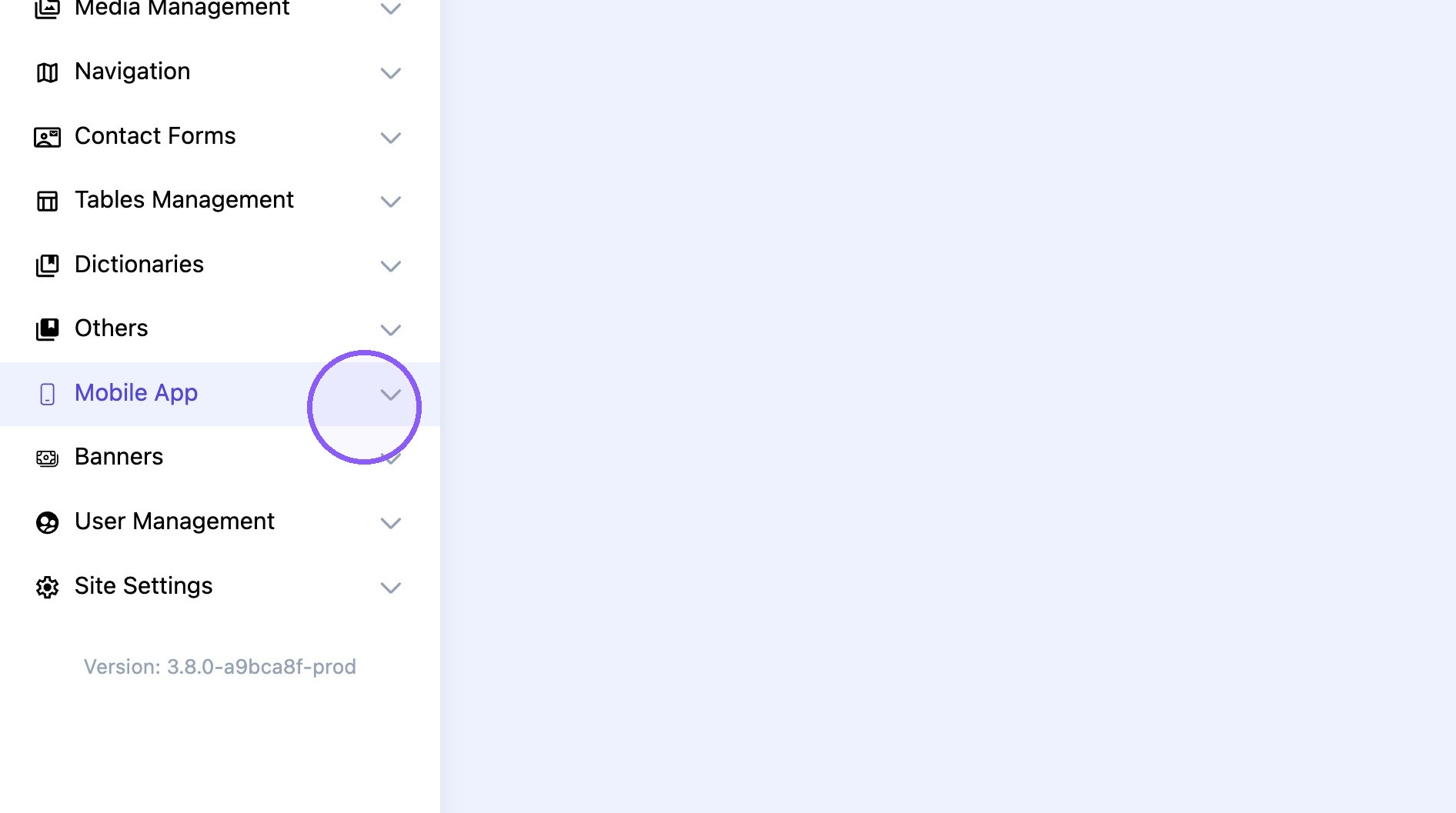
1. Click "Mobile App" on CMS main menu
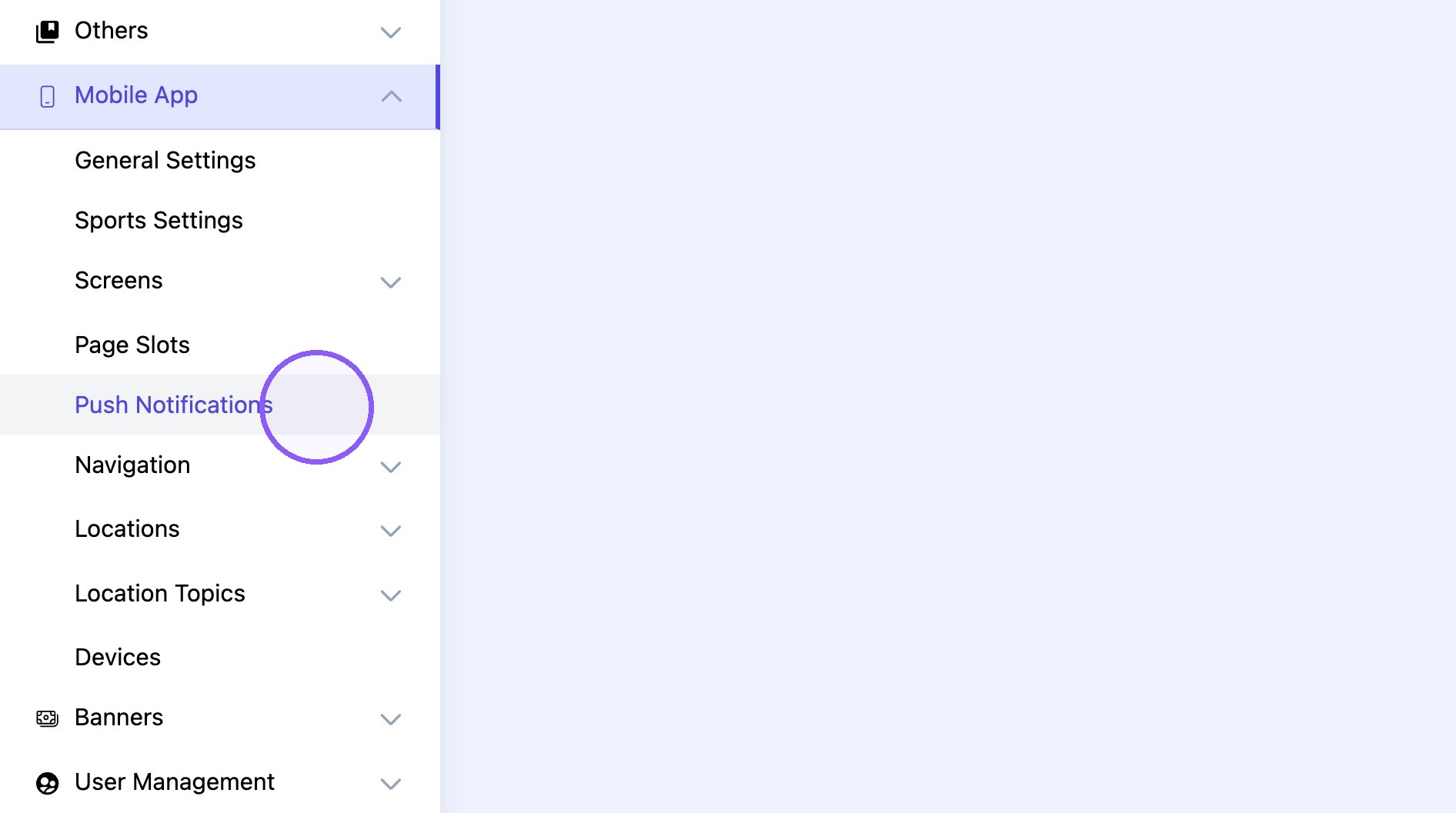
2. Click "Push Notifications"
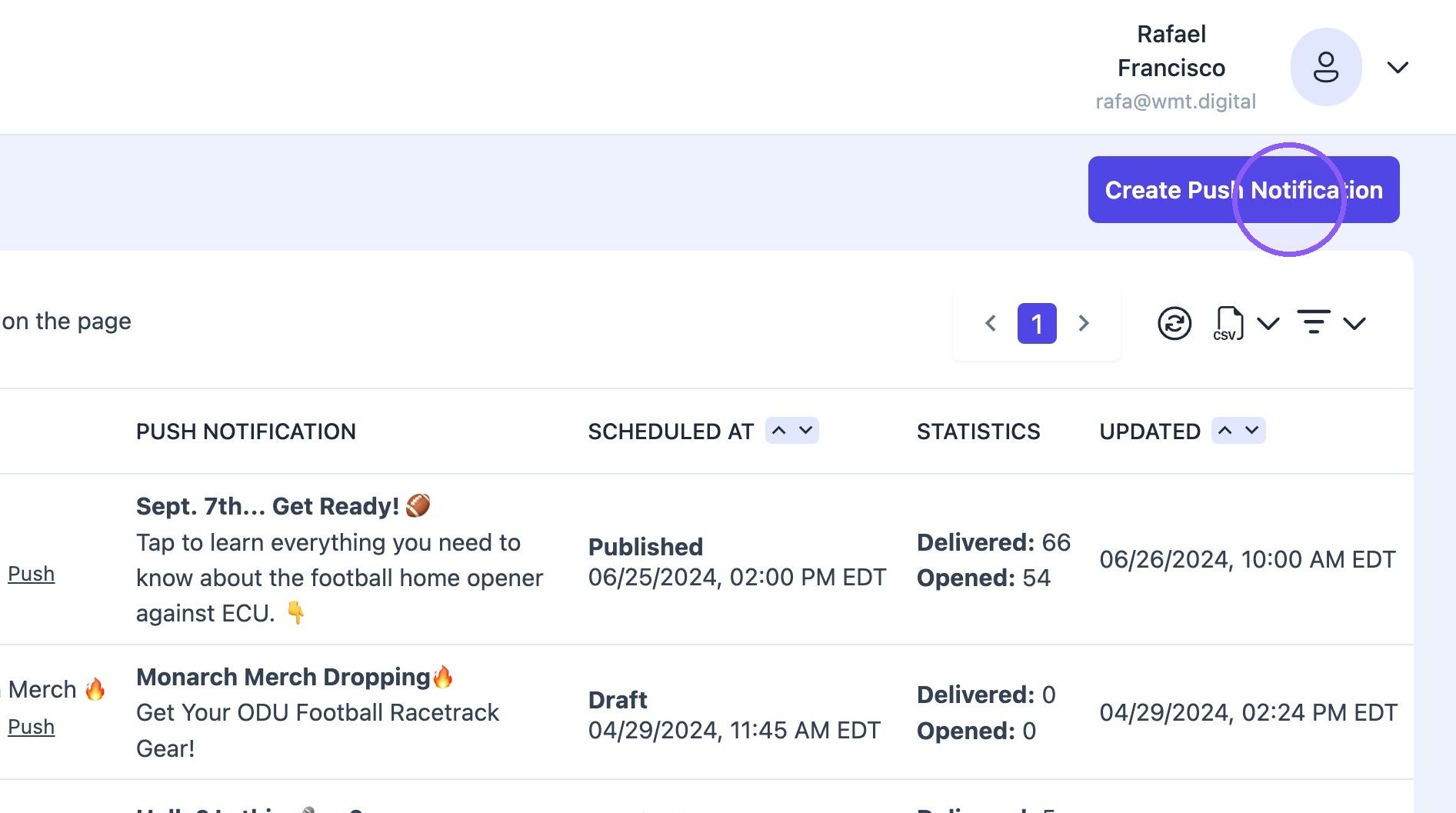
3. Click "Create Push Notification"
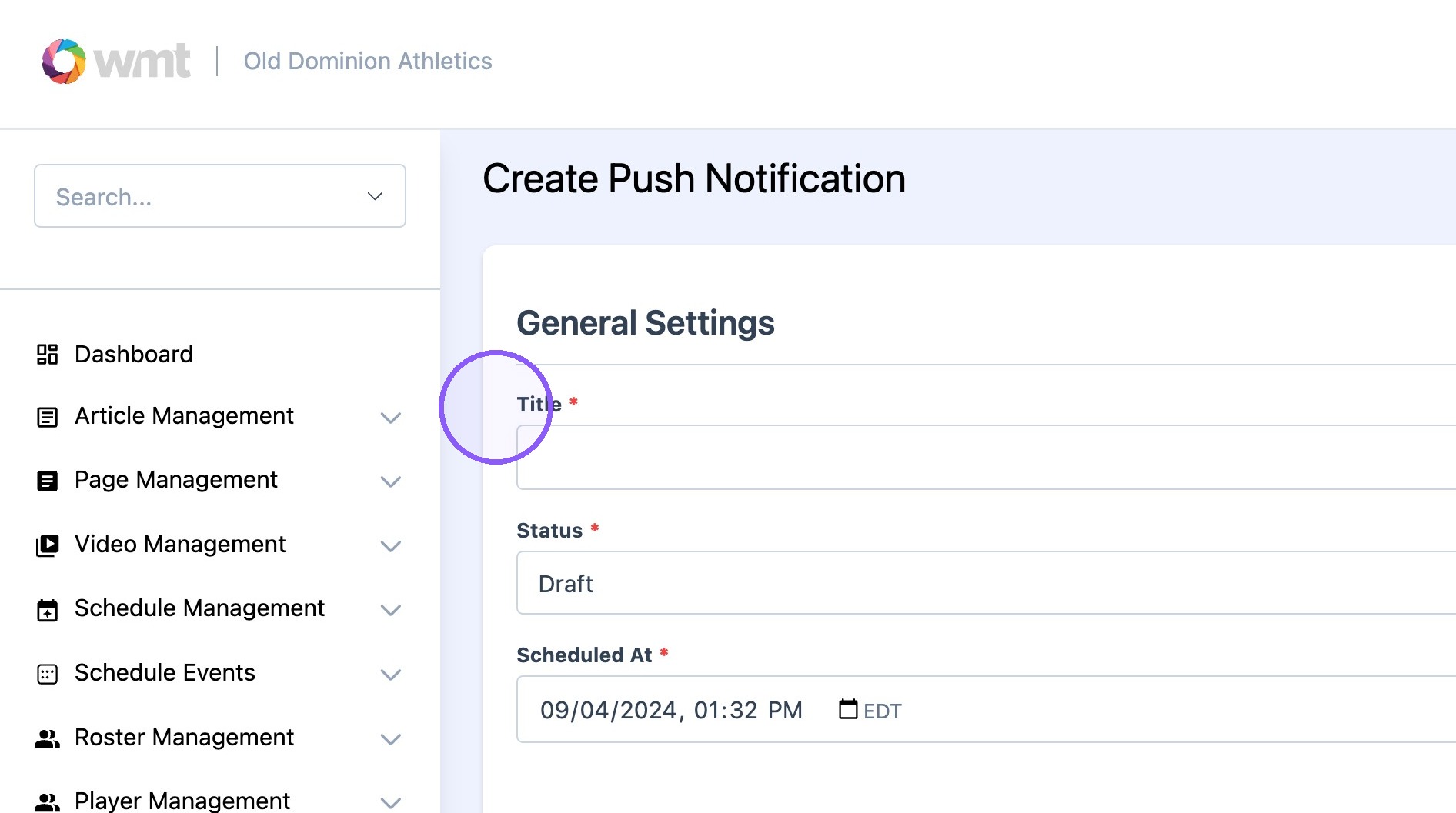
4. Title will only show on the CMS. Not fan facing.
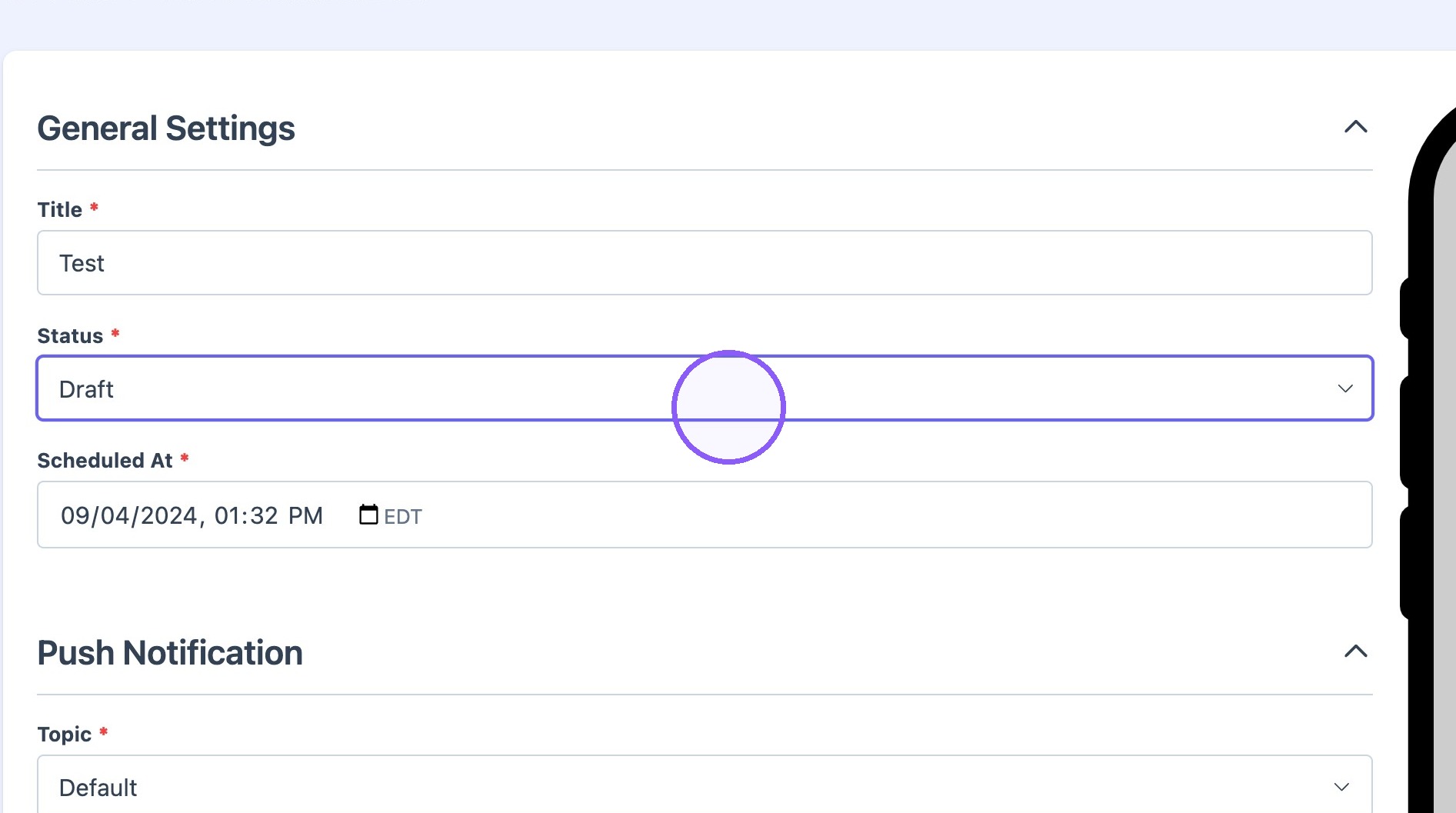
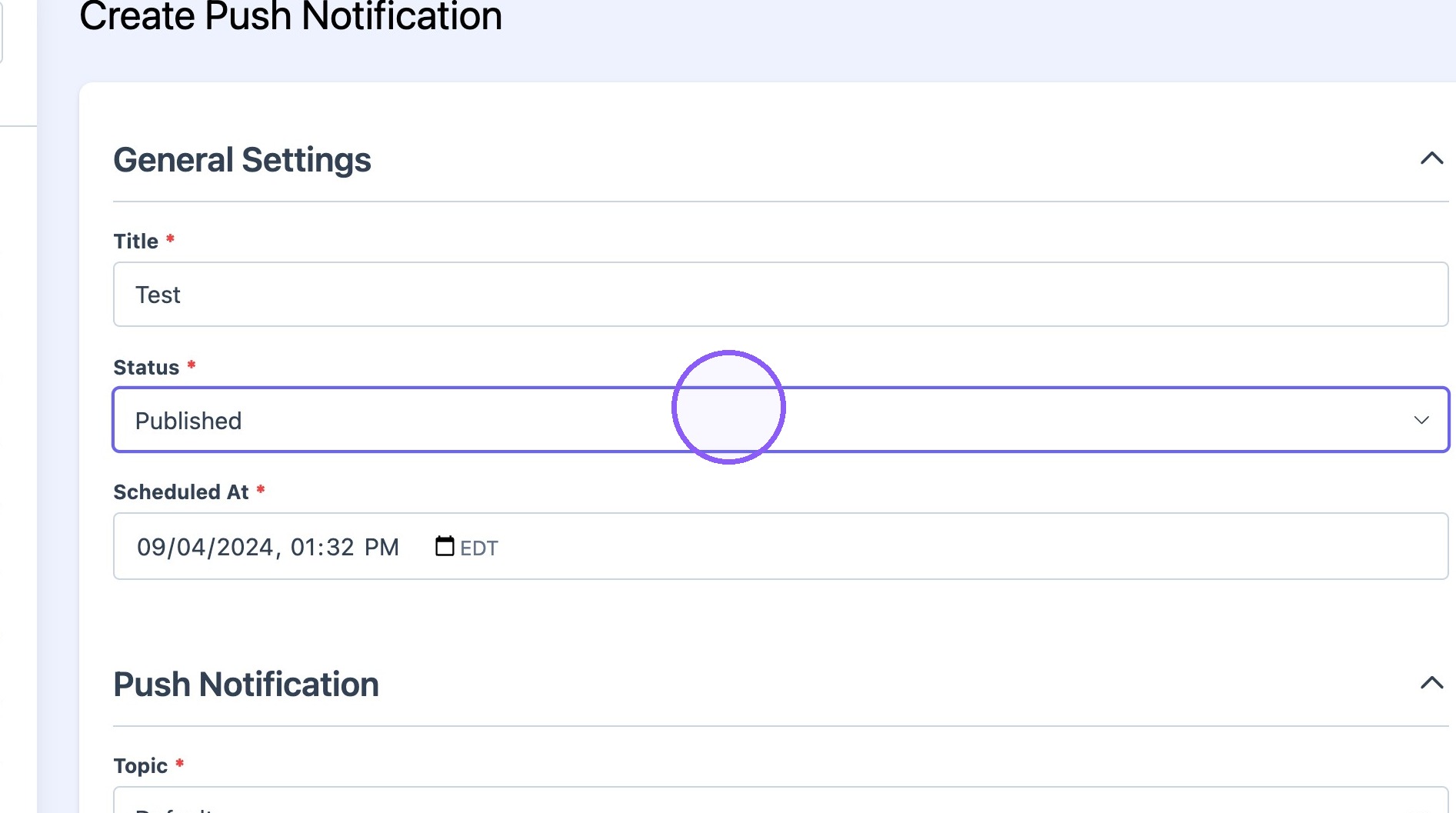
5. Change Status to "Published" when the push notification is ready to send.
6. Select the correct date and time.
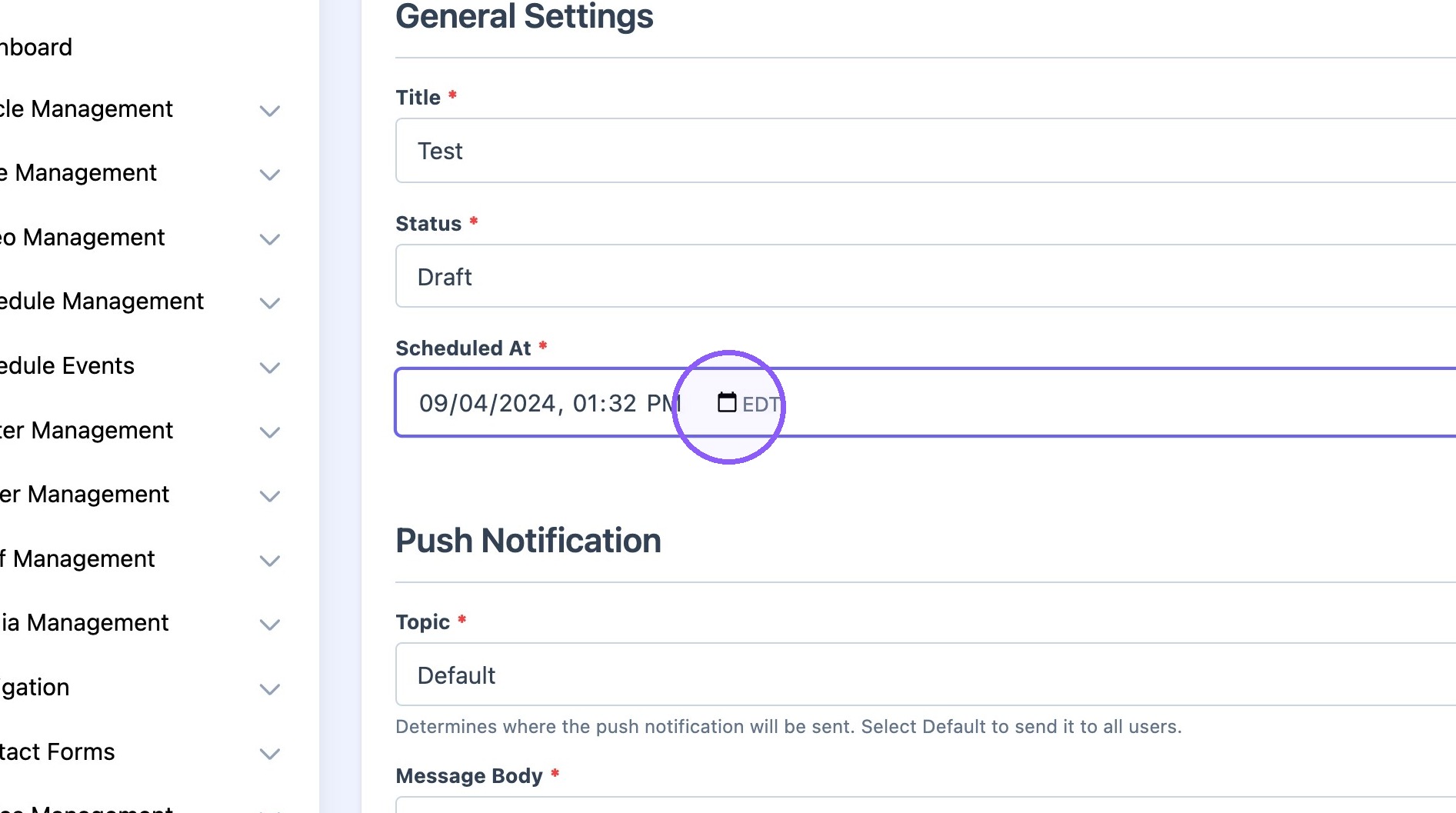
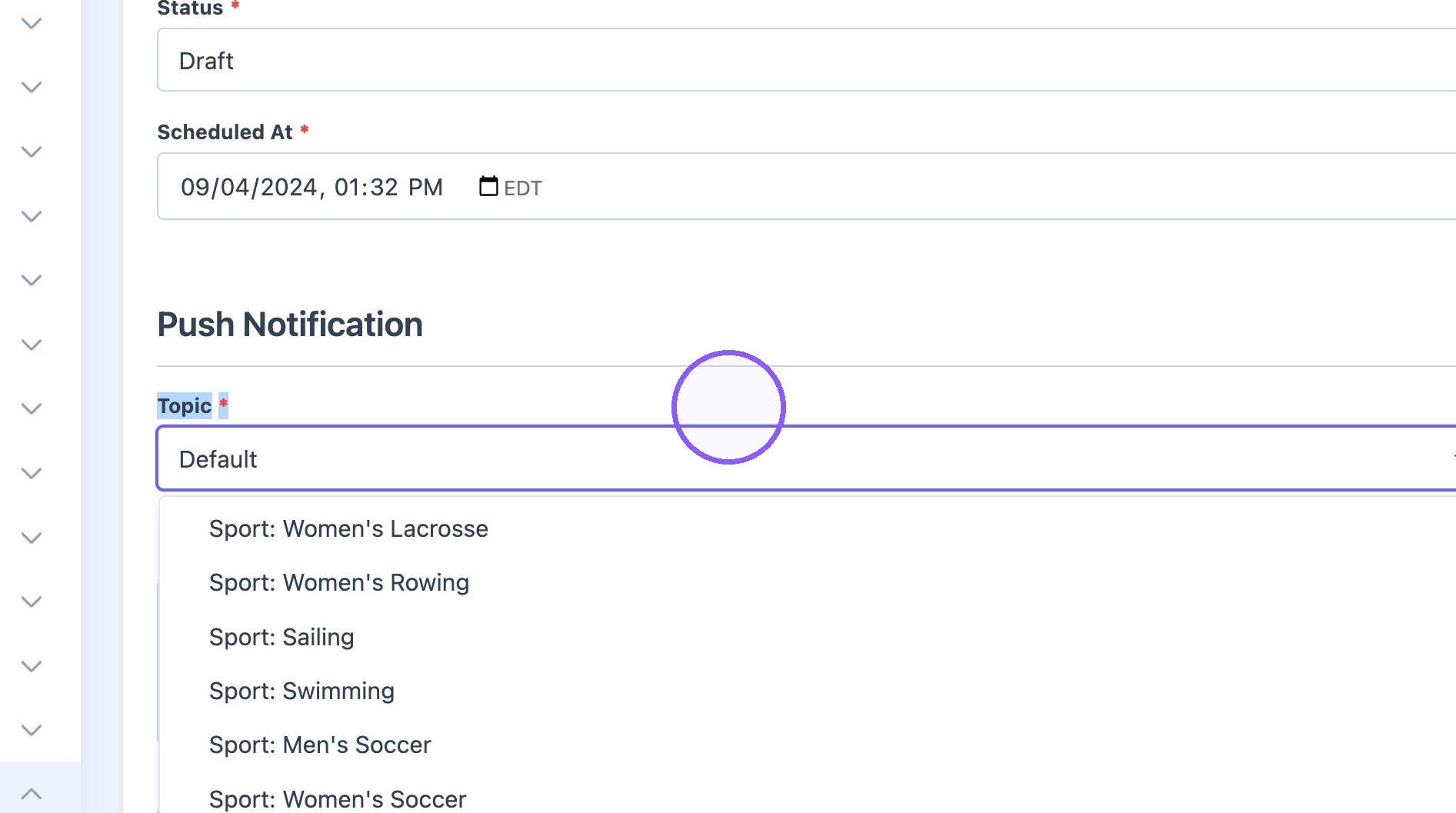
7. Select the preferred "Topic*." Default pus notifications will be sent to everyone.
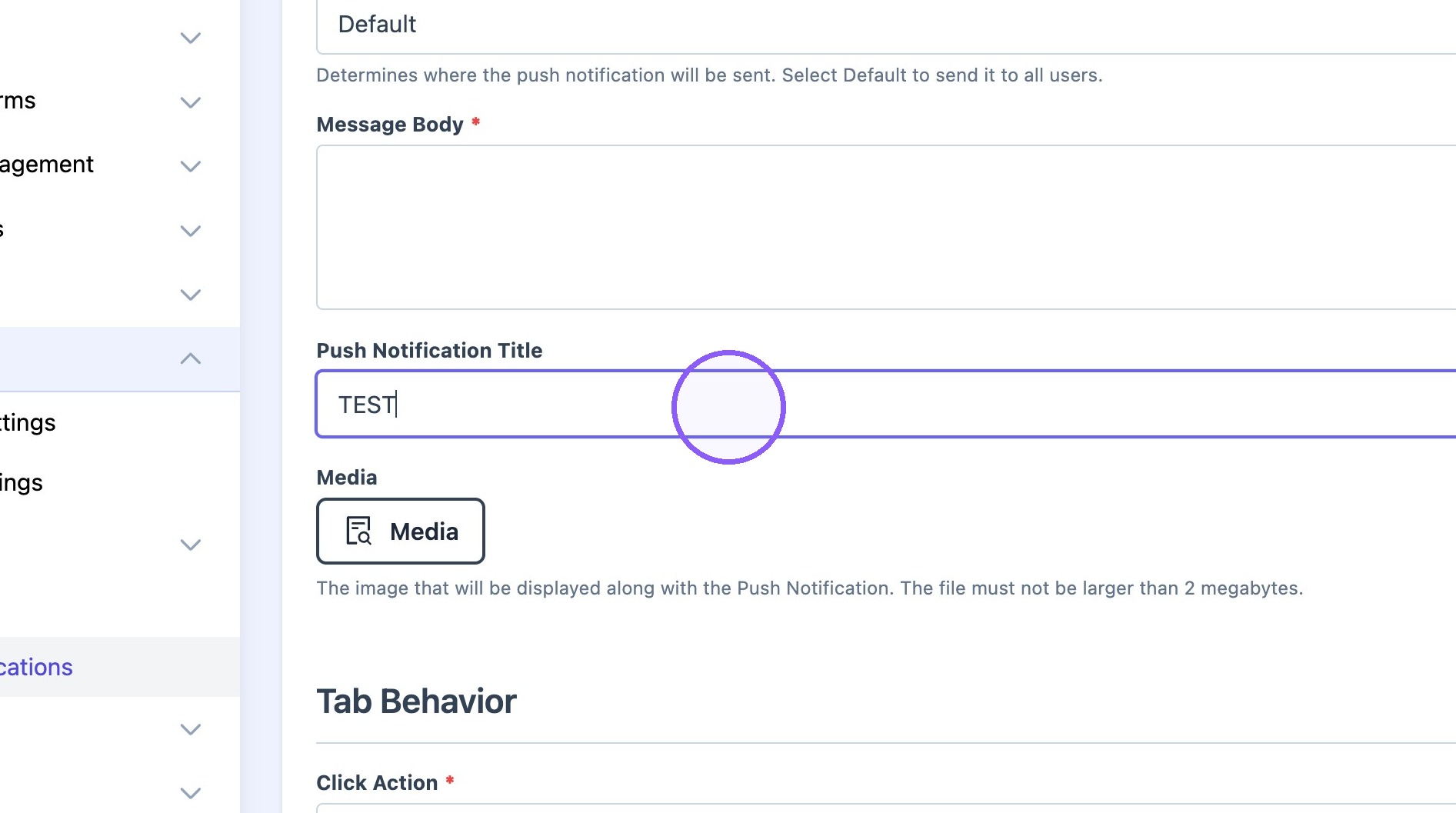
8. Add Push title. Keep it short so the full title can be visible on user's screens
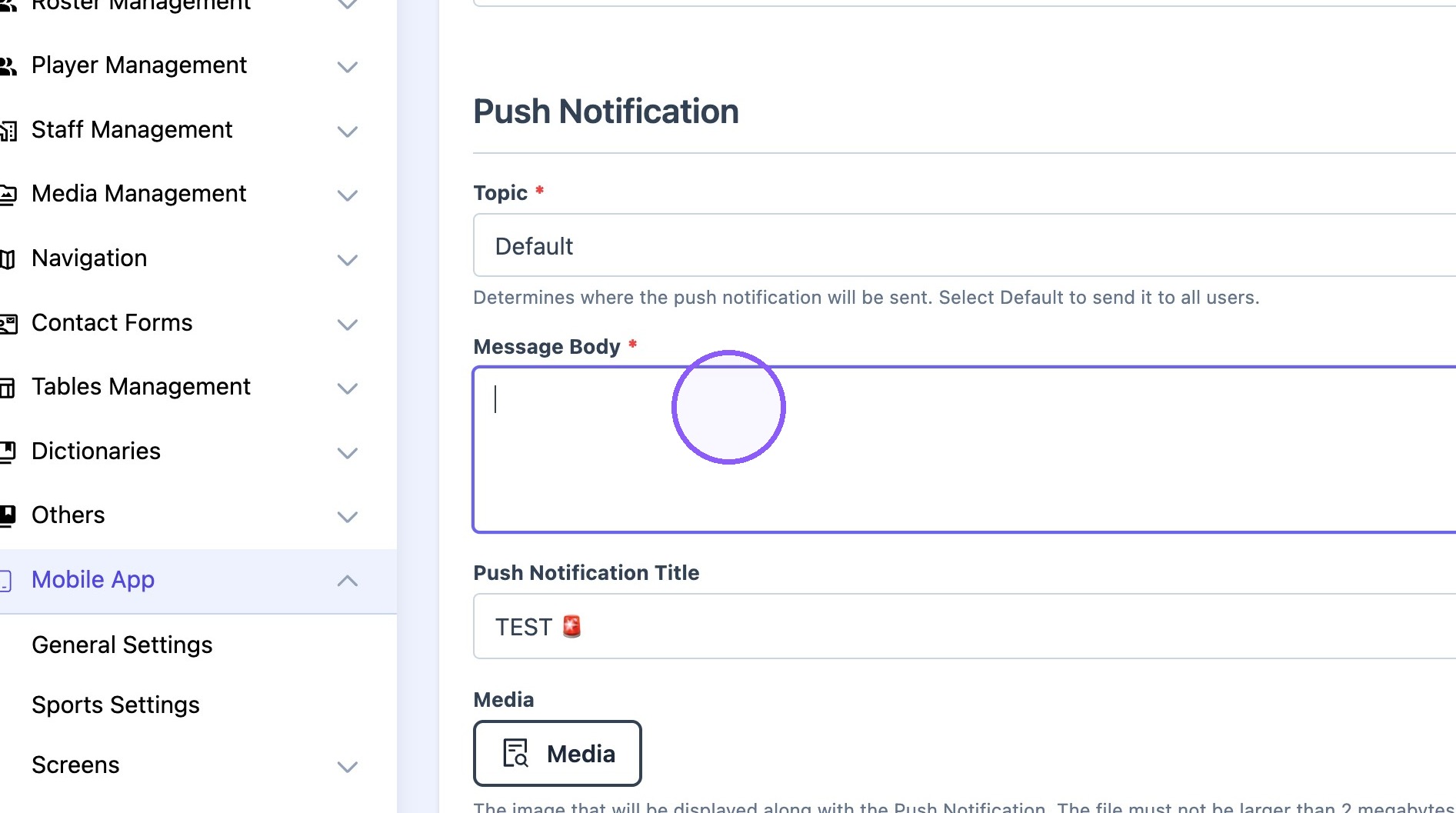
9. The push notification body. Recommended 130 max characters. Emoticons can be added as well. 🔥
10. Select the desired "Media."
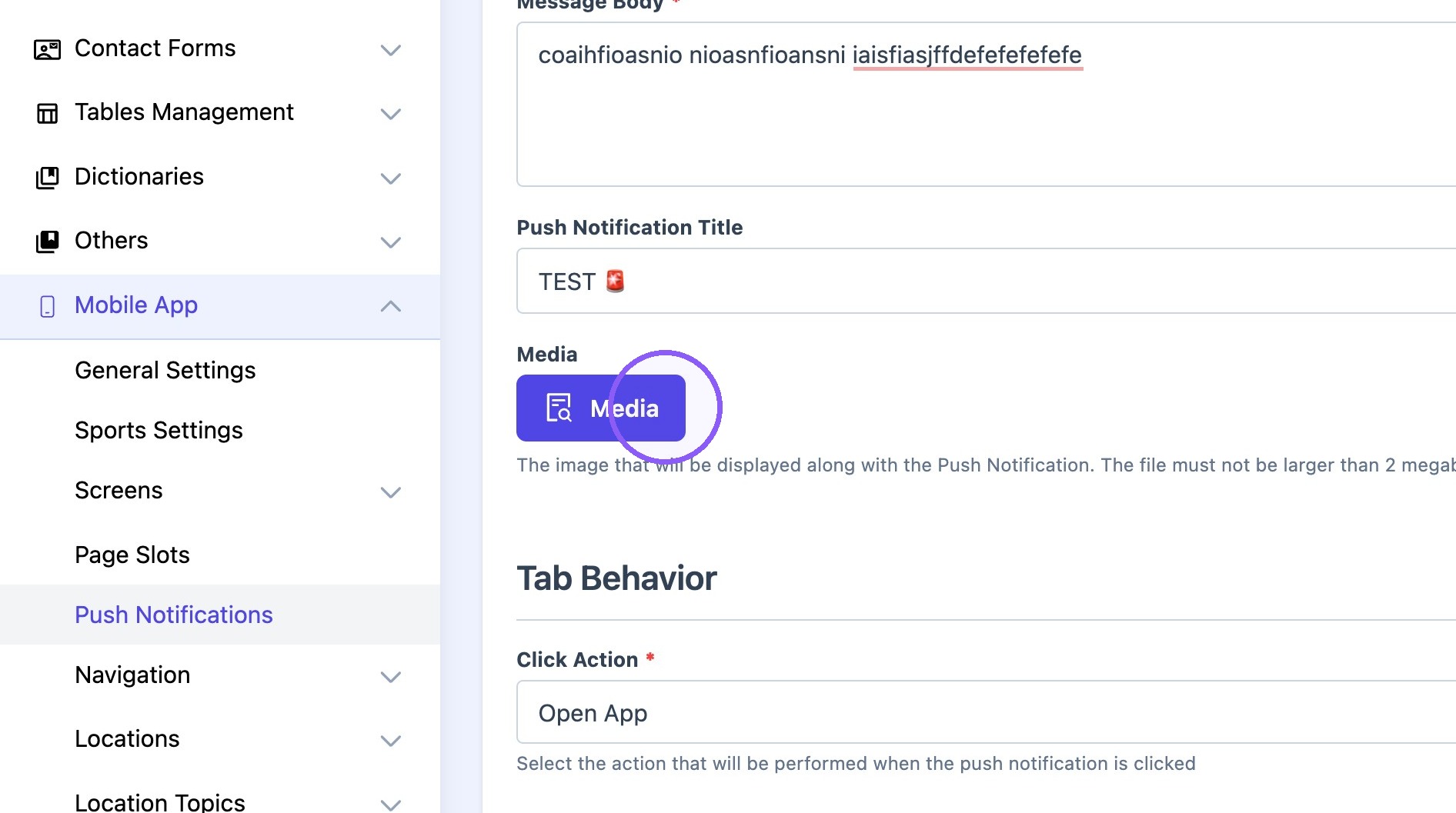
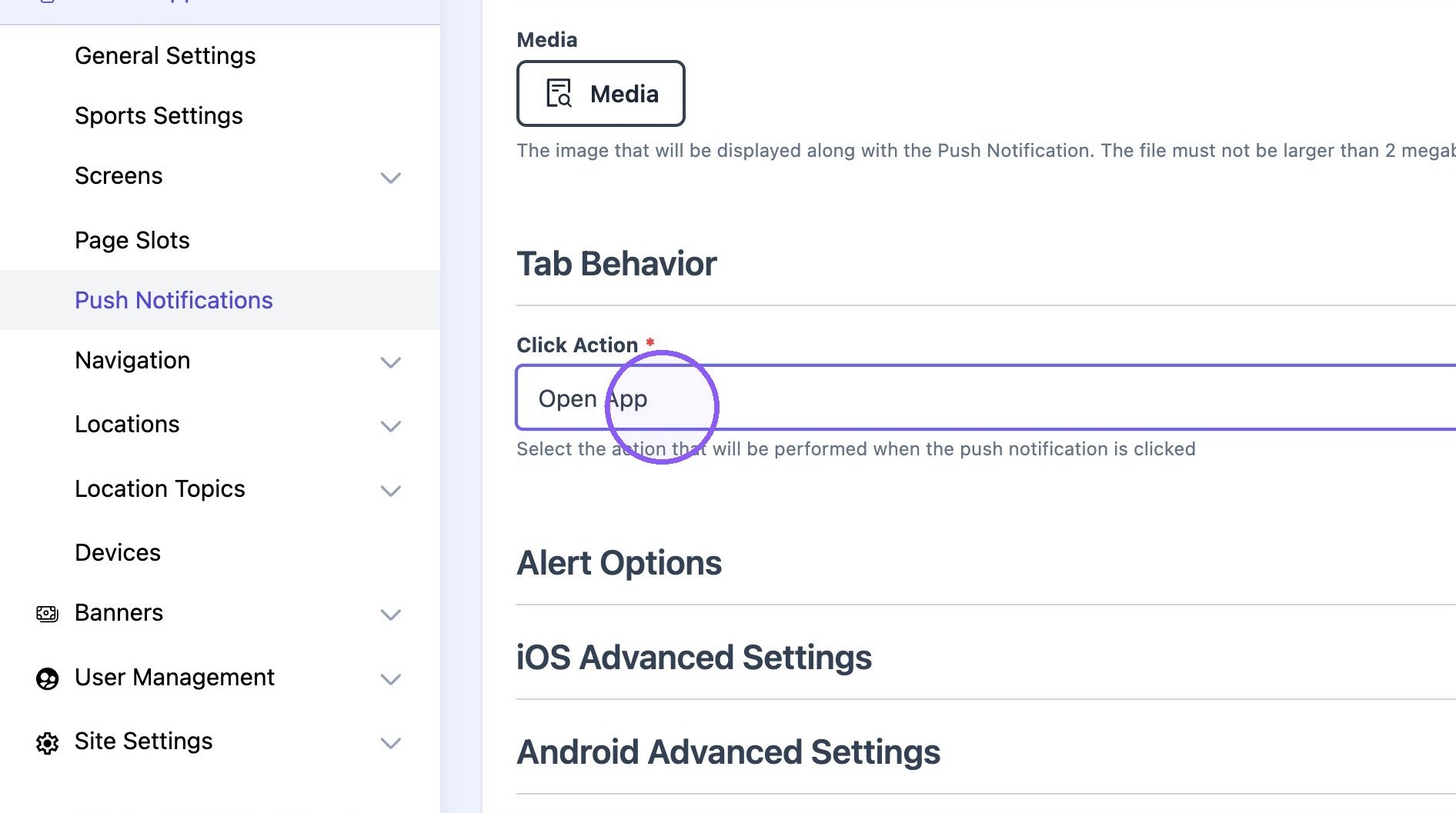
11. Select push behavior:
Open App
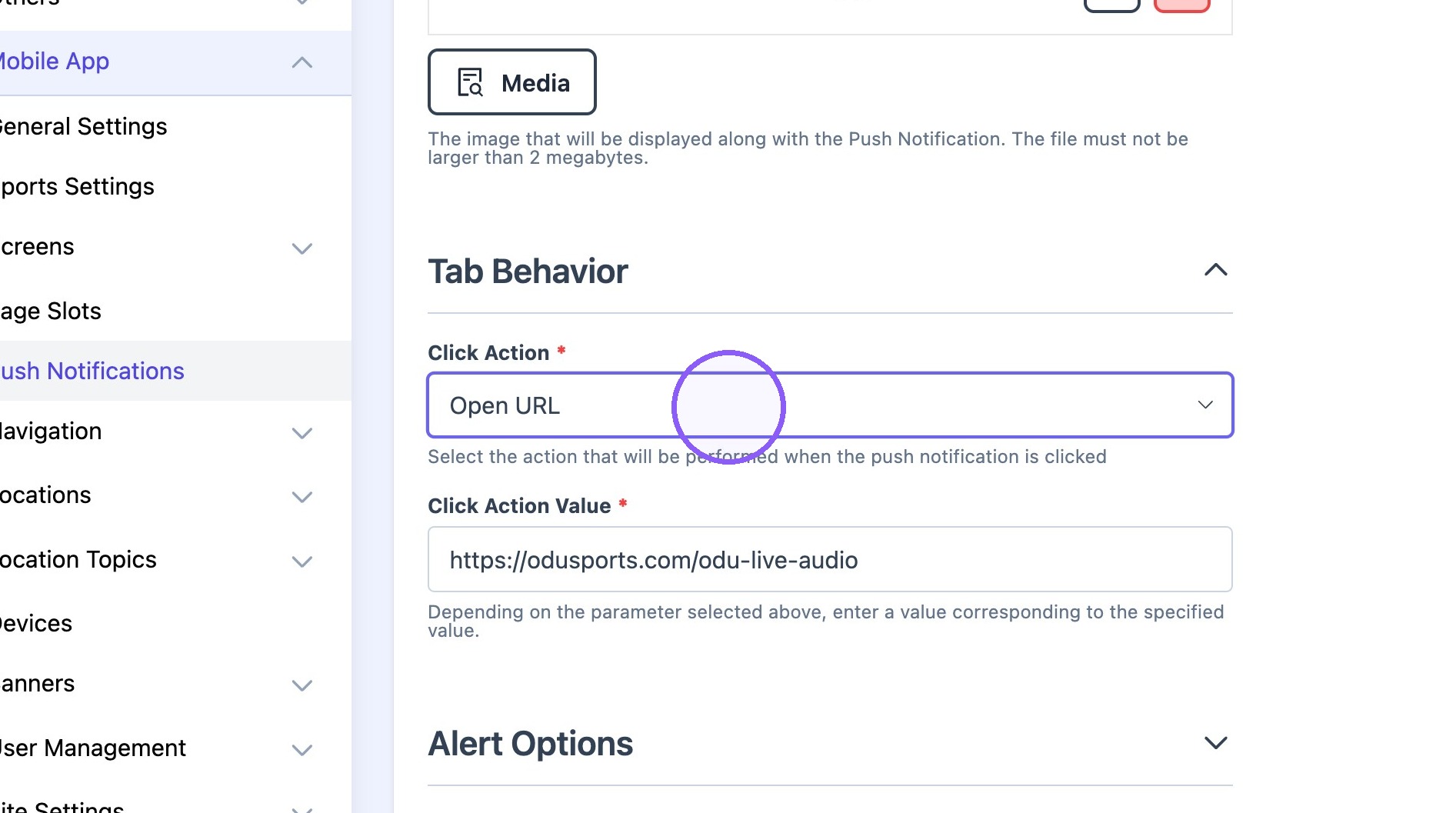
Open URL
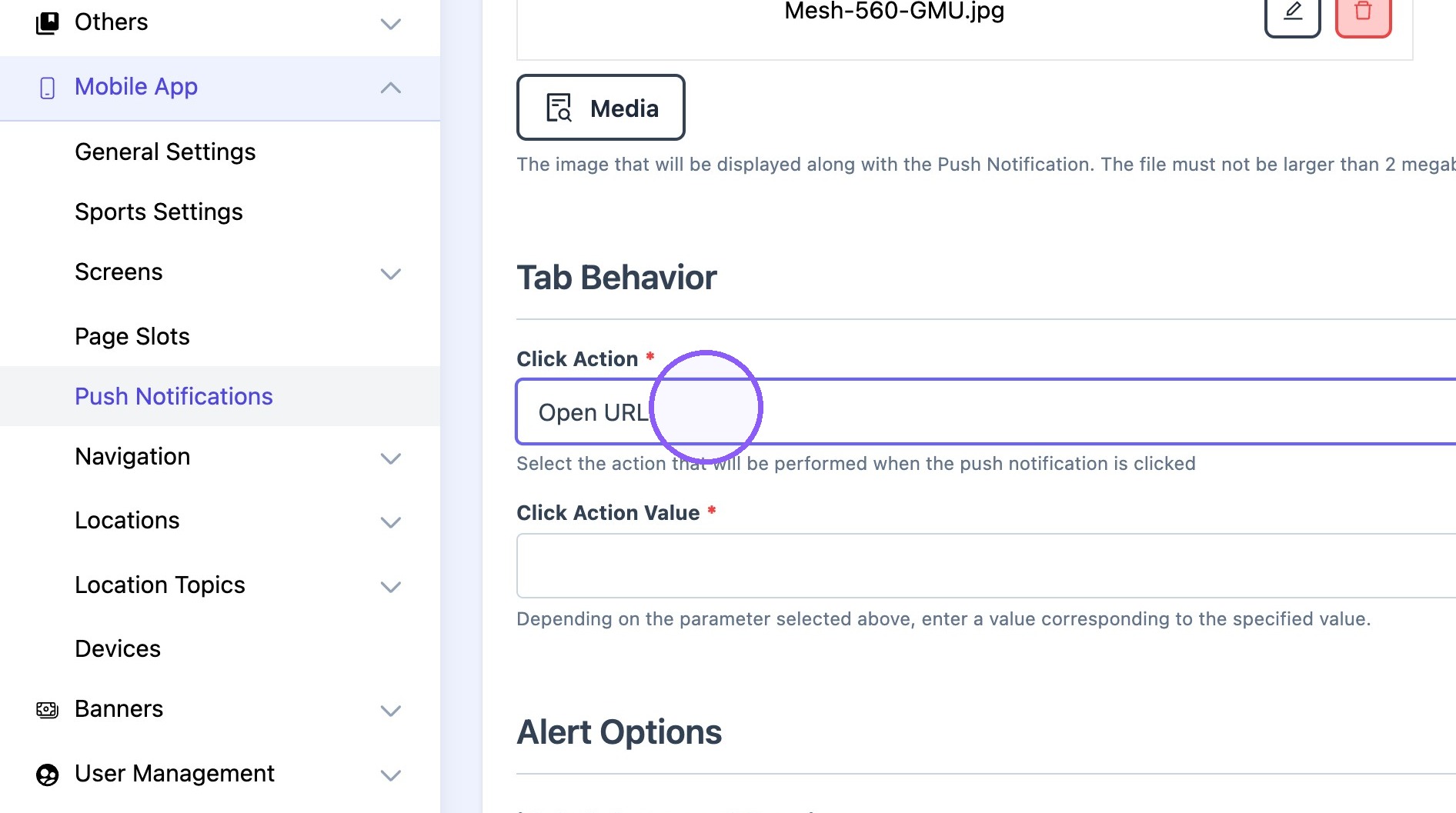
12. Use "open URL" to open web links.
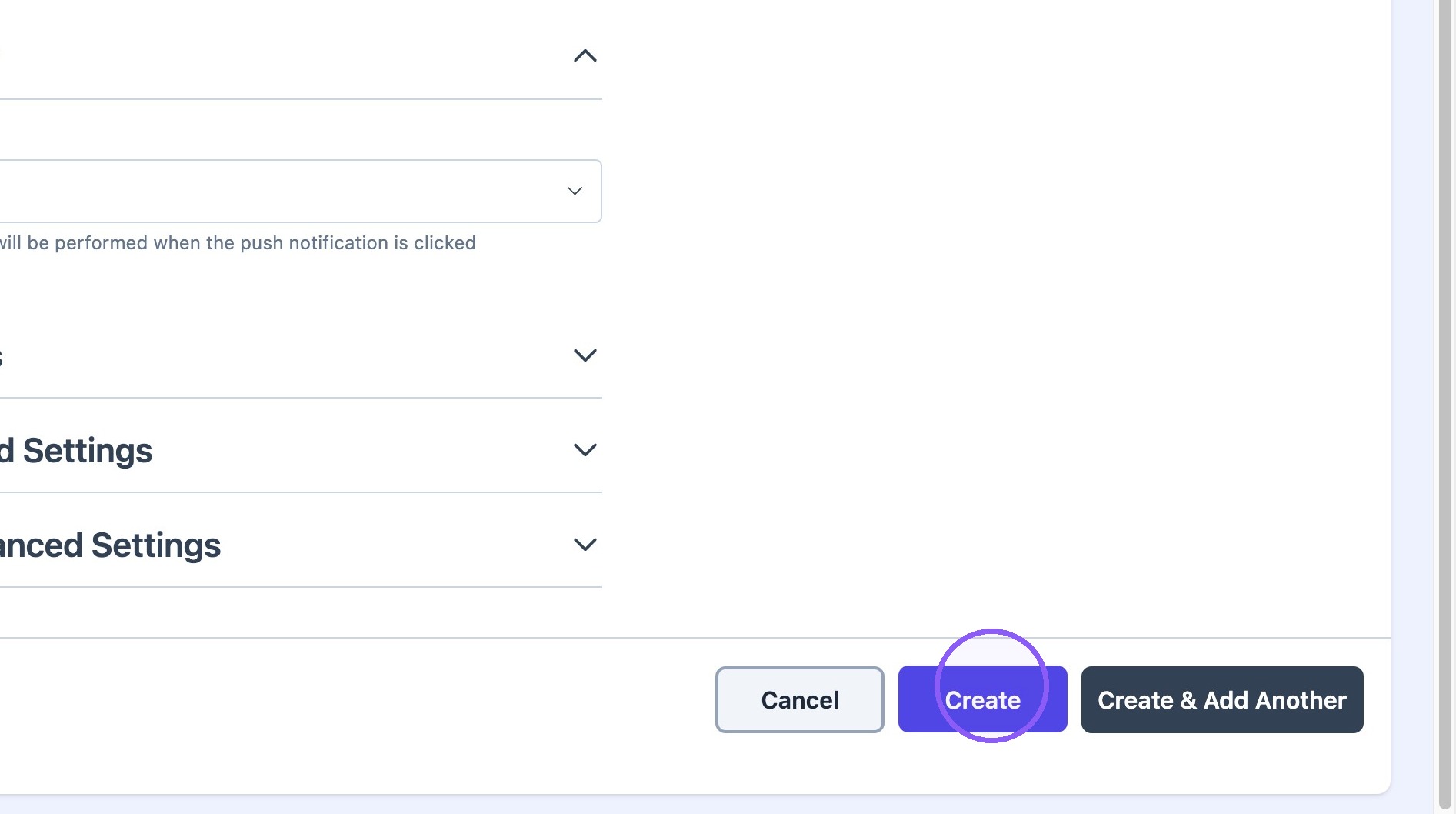
13. Click "Create"
Advanced Settings
Alert: ### Review Alert Options Before Sending
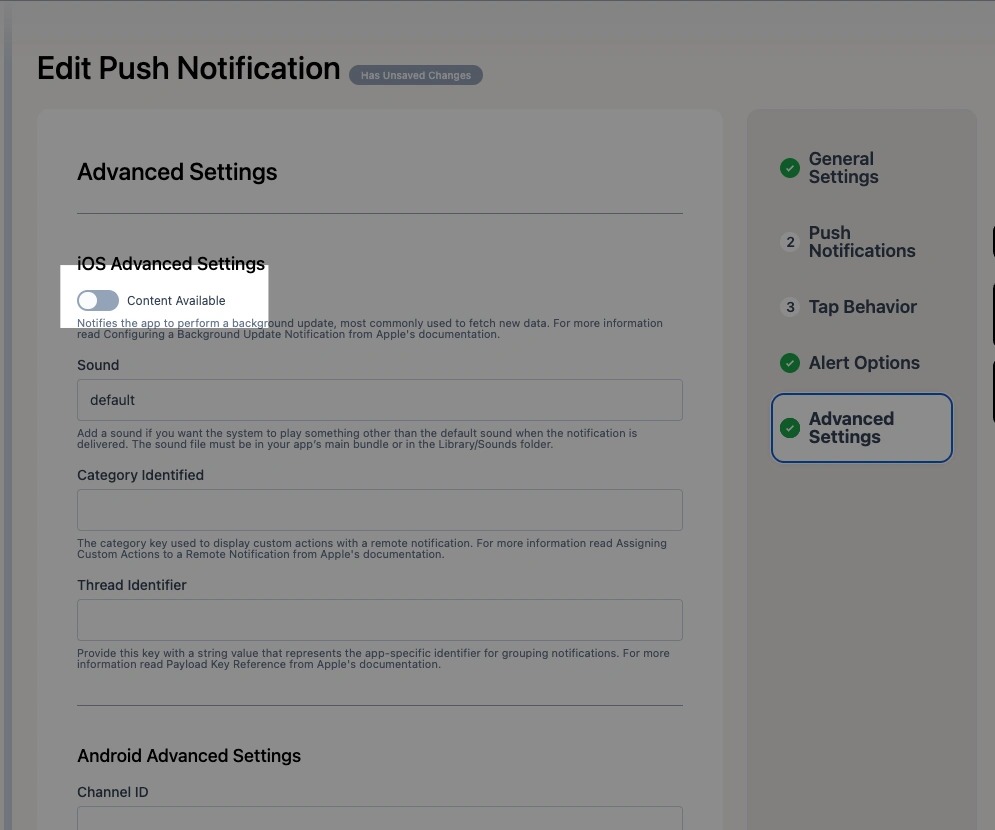
14. Ensure the Message field is not enabled. This setting is intended for silent background data synchronization and should not be used for standard user-facing push notifications.
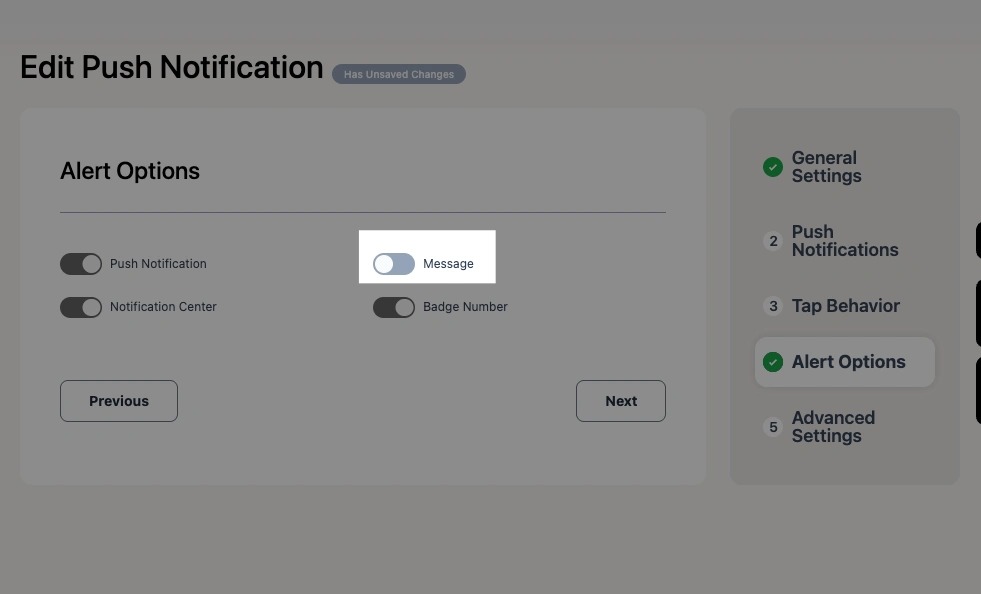
Tip: Use Content Available Only for Silent Notifications
15. Enable Content Available only when silent background processing is specifically required. When this option is selected, the notification may be delivered as a background operation that triggers processing on the device without displaying a visible alert to the user. Leaving this option disabled (the default setting) ensures that push notifications are delivered as expected and visible to end users.