Roster Management: Deleting a Roster
Last updated: September 20, 2026
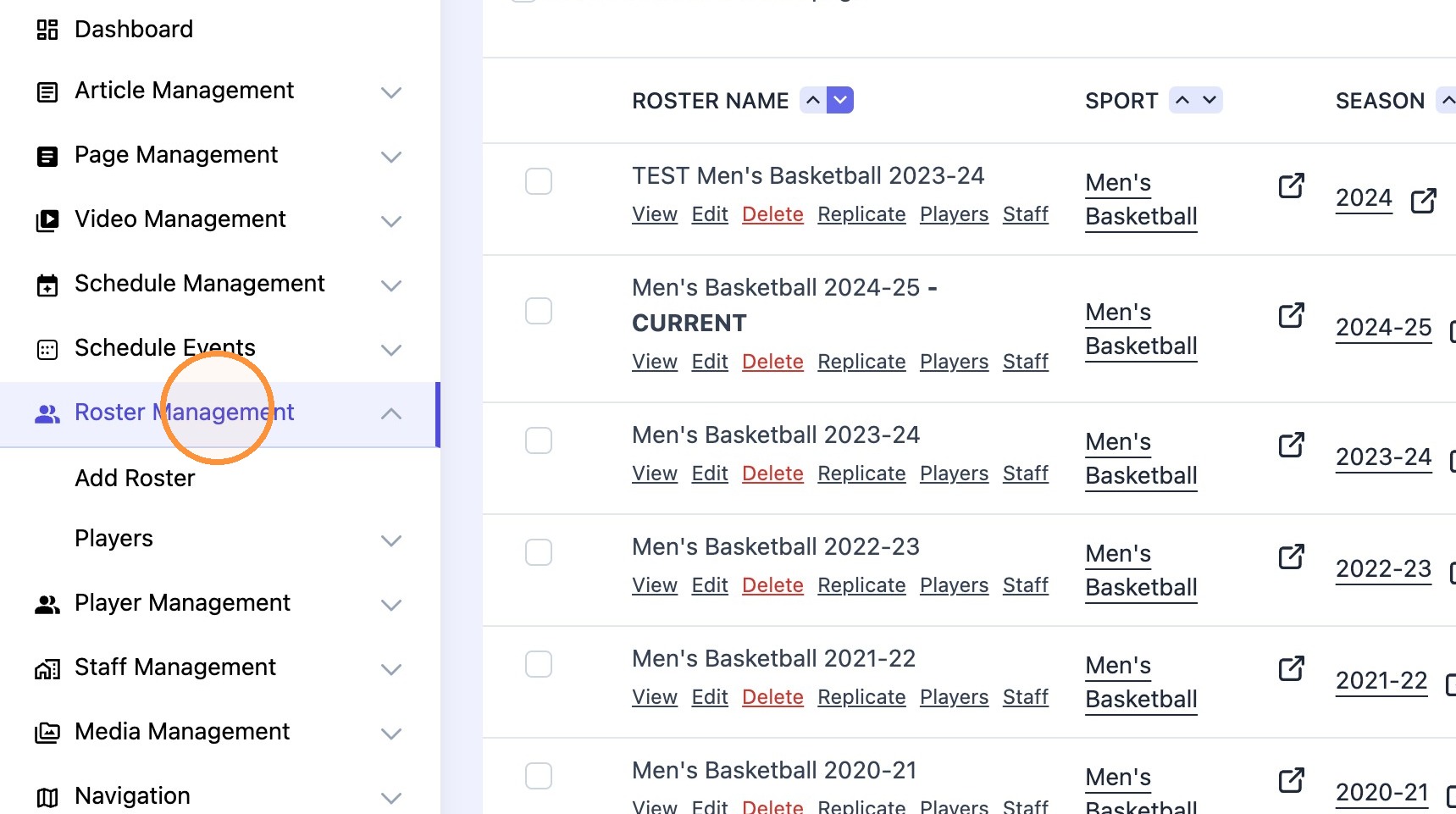
1. Log in to the CMS and select "Roster Management"
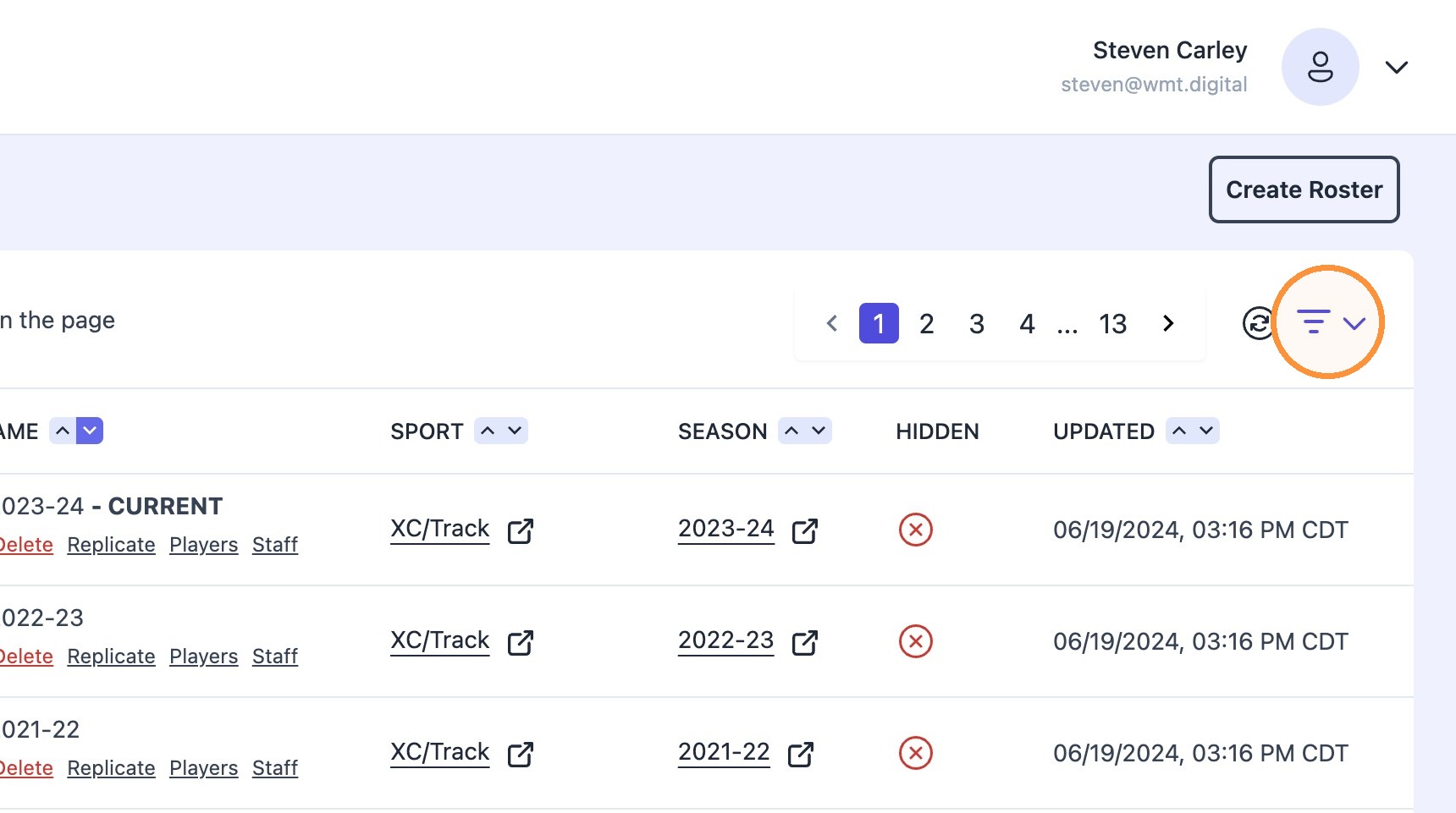
2. Select the 'Filter' icon.
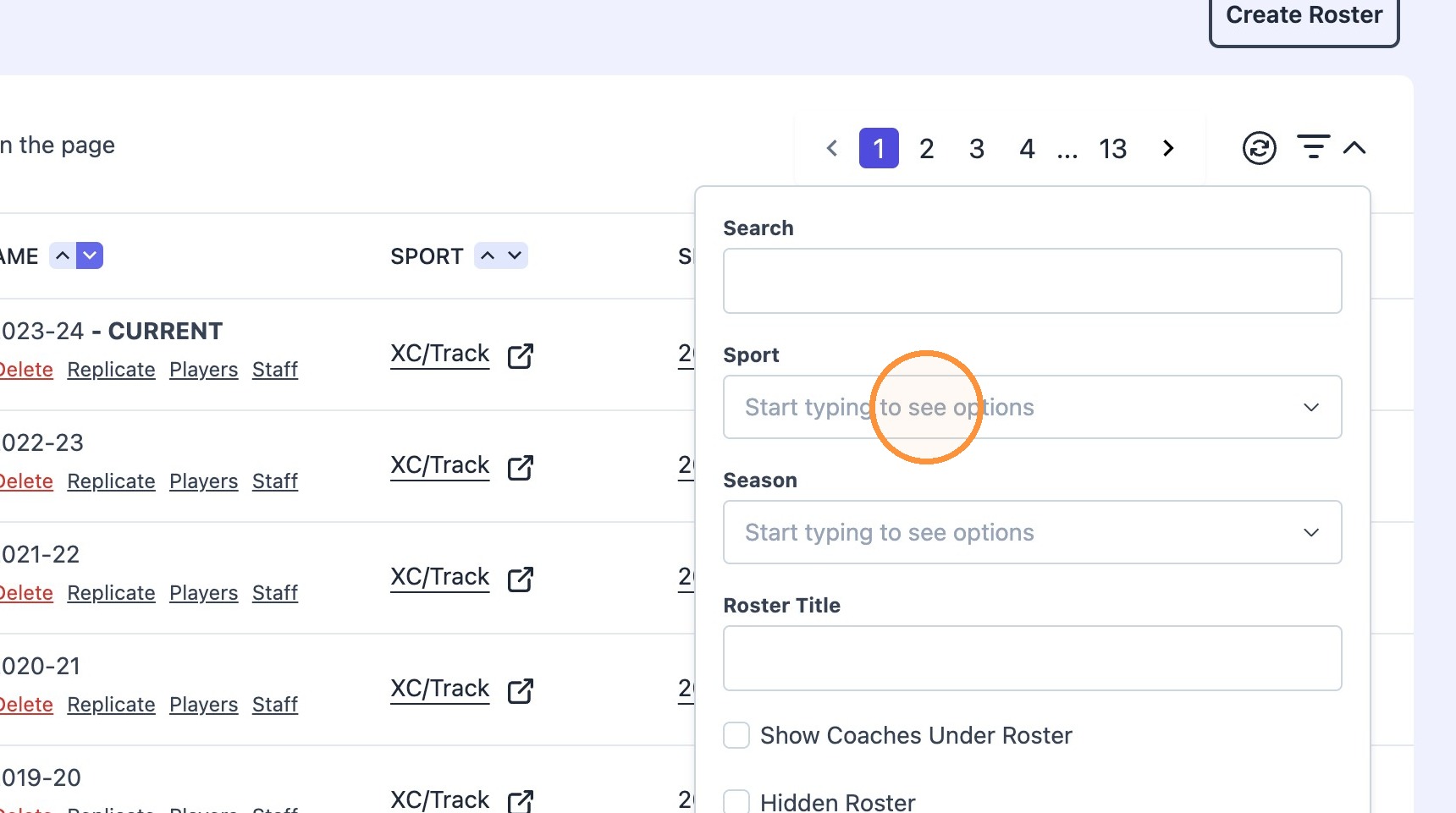
3. Filter by a "Sport" by using the dropdown field
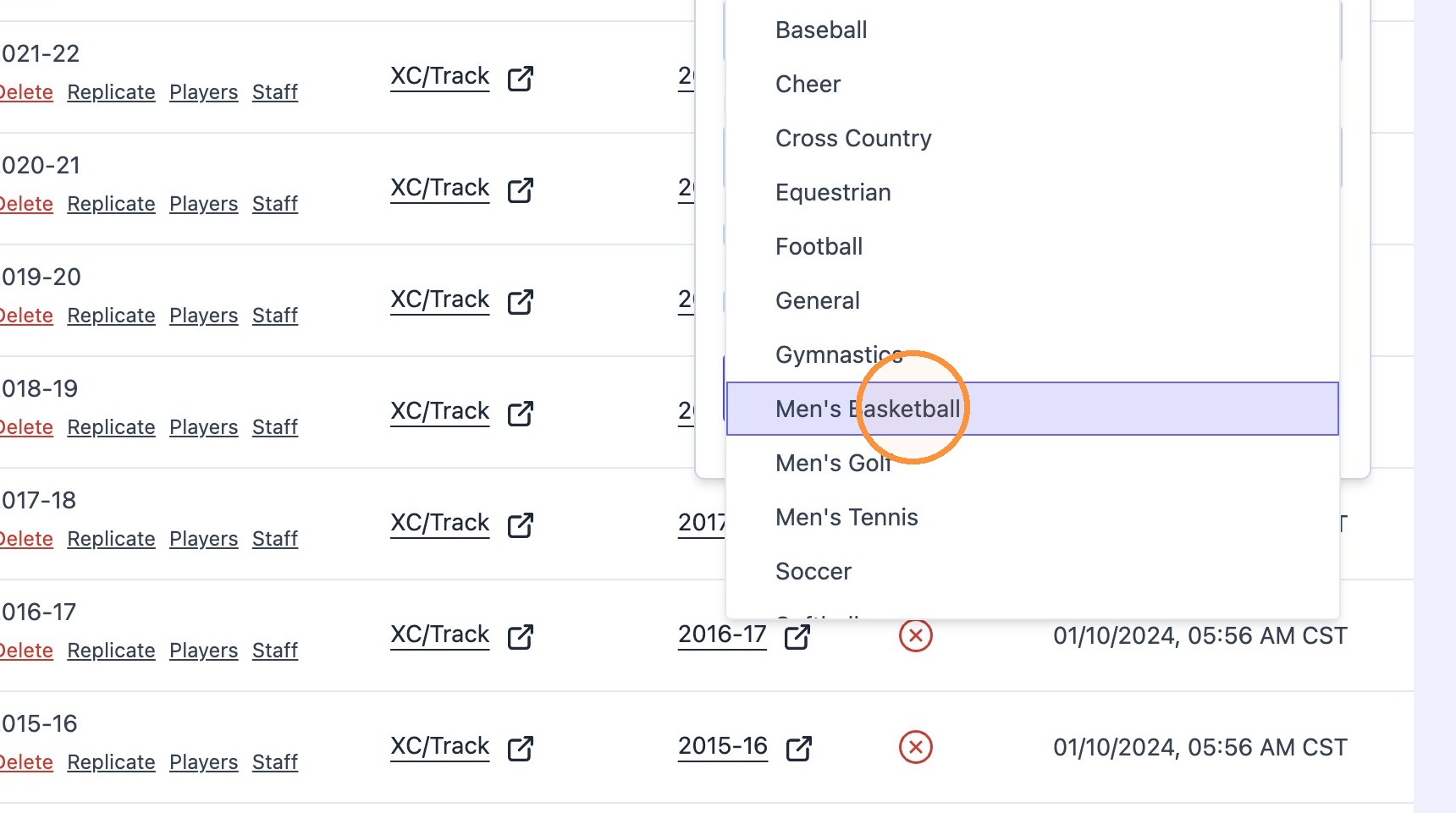
4. Pick the sport for the roster you wish to edit (ie - "Men's Basketball")
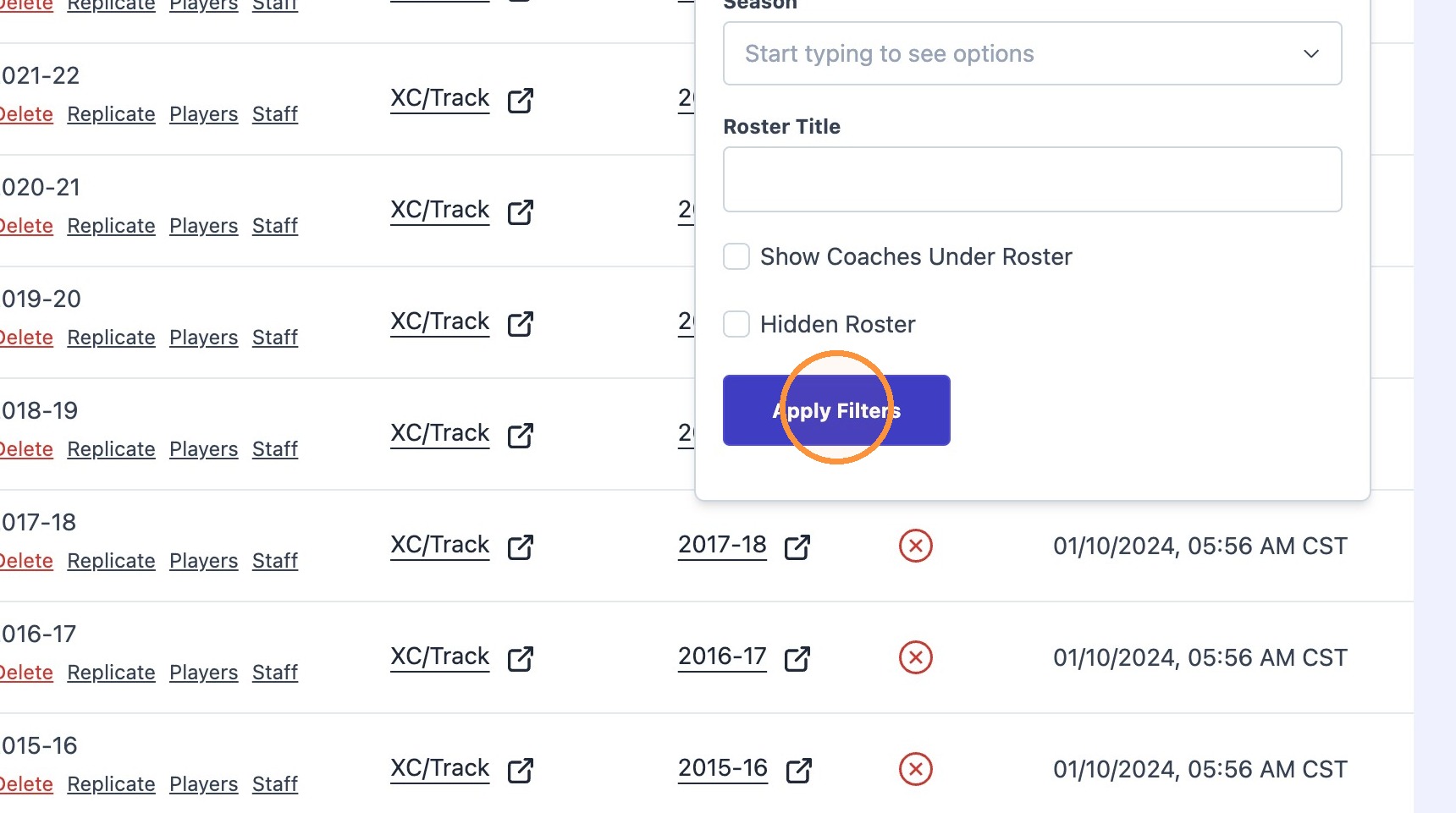
5. Click "Apply Filters" to update the Roster results
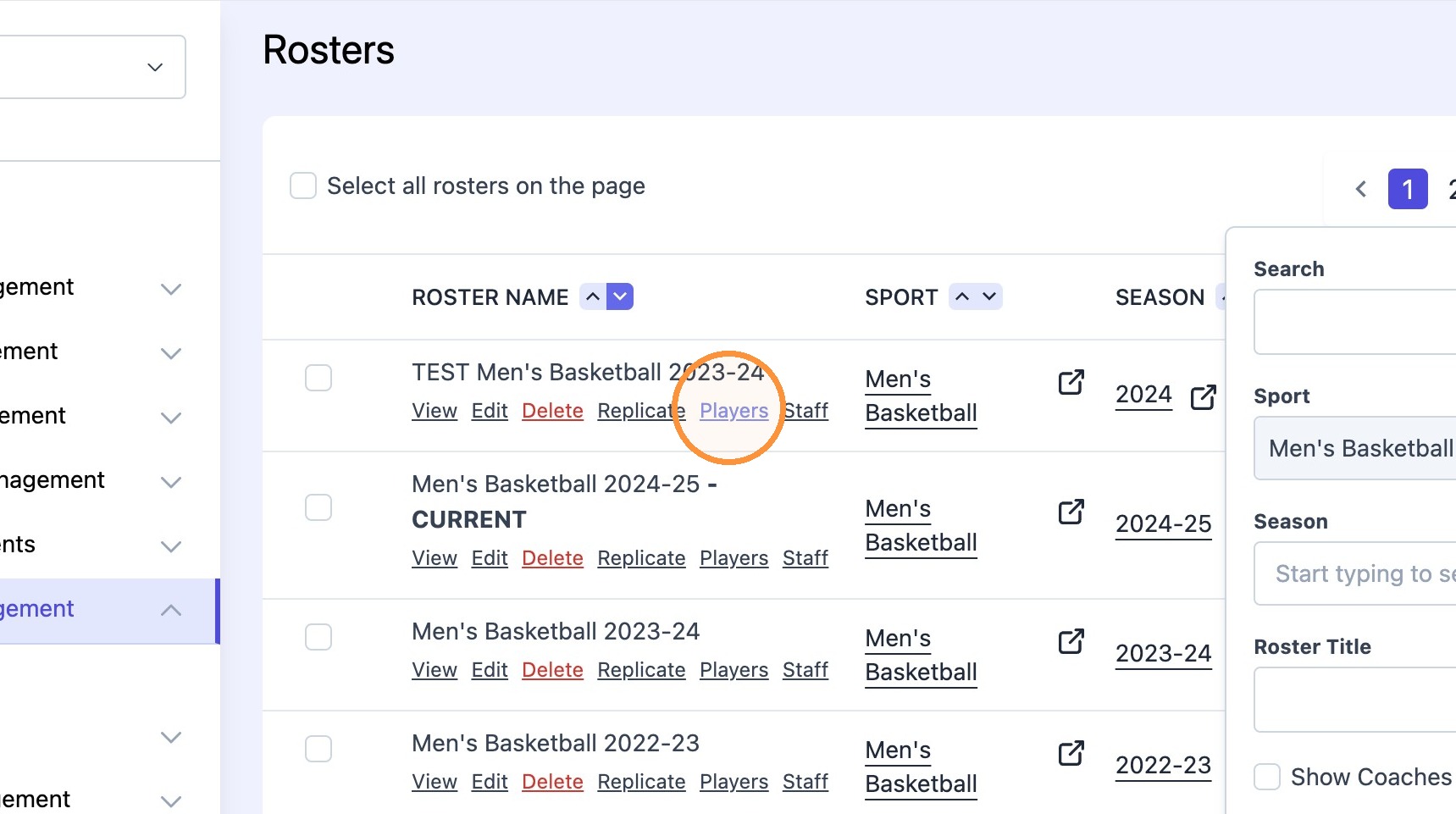
6. Click "Players" to
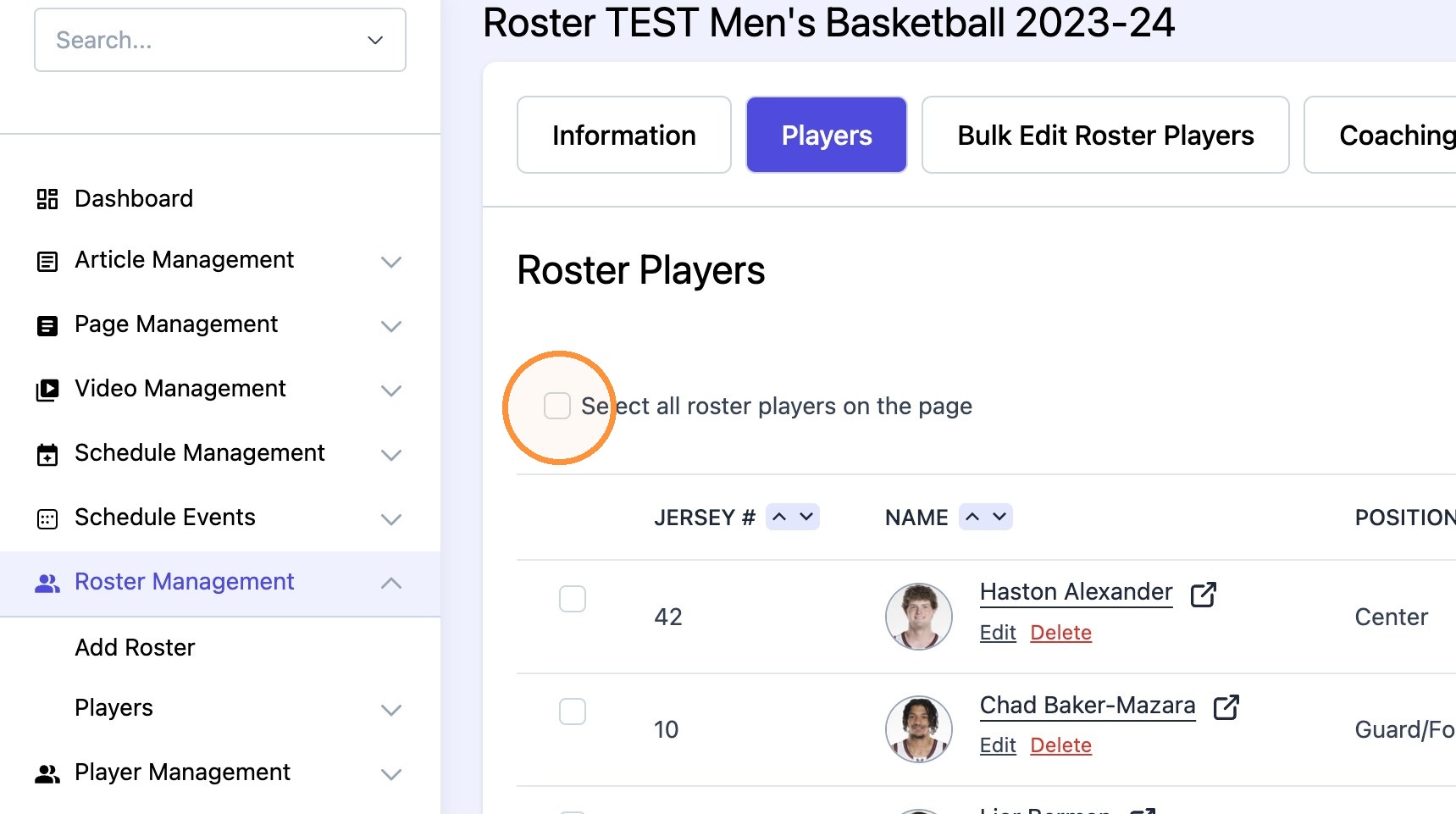
7. Check the box for 'Select all roster players on the page'
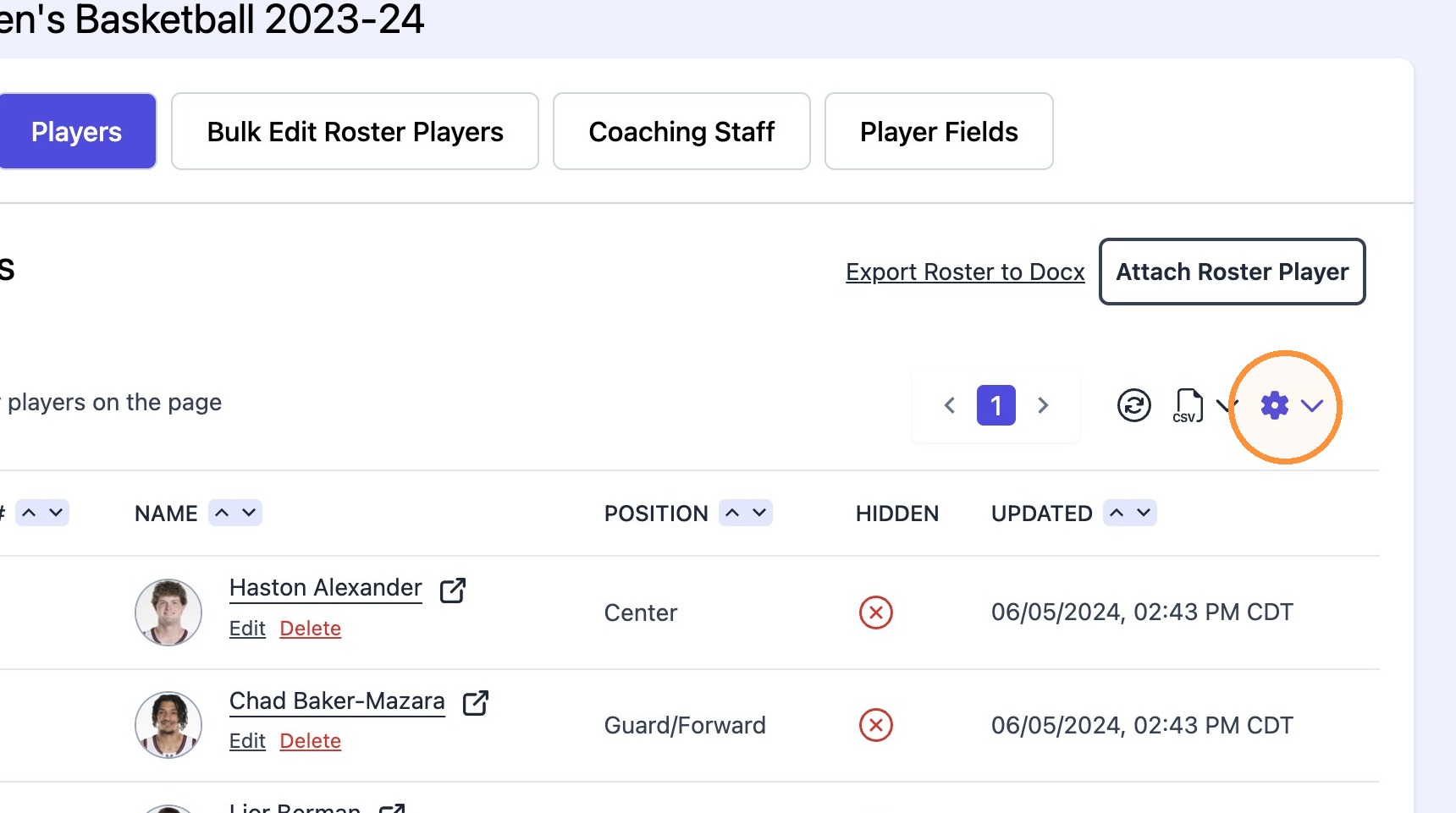
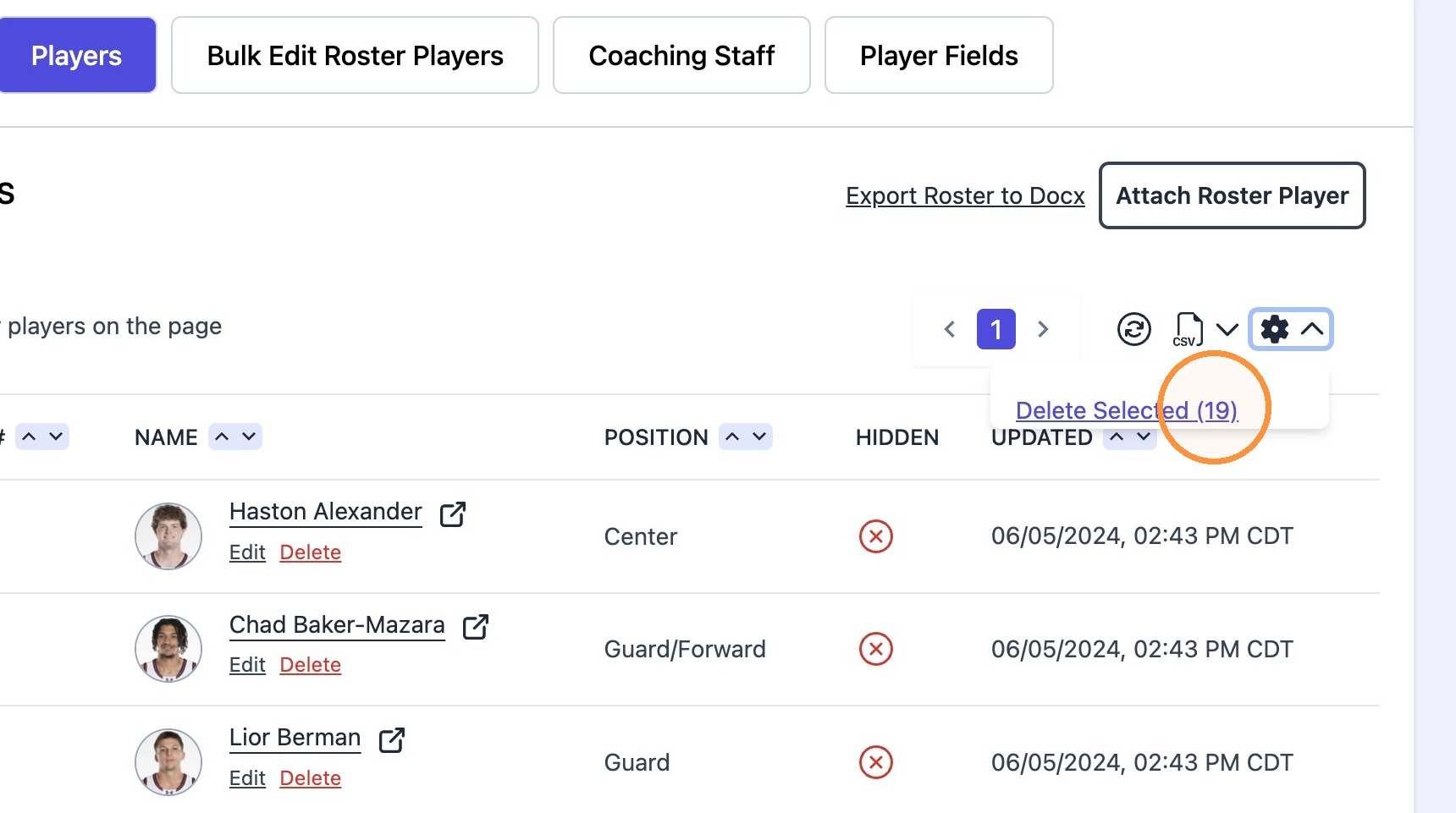
8. Select the 'Gear' icon to open the bulk settings
9. Click "Delete Selected (19)" to remove all players from the Roster
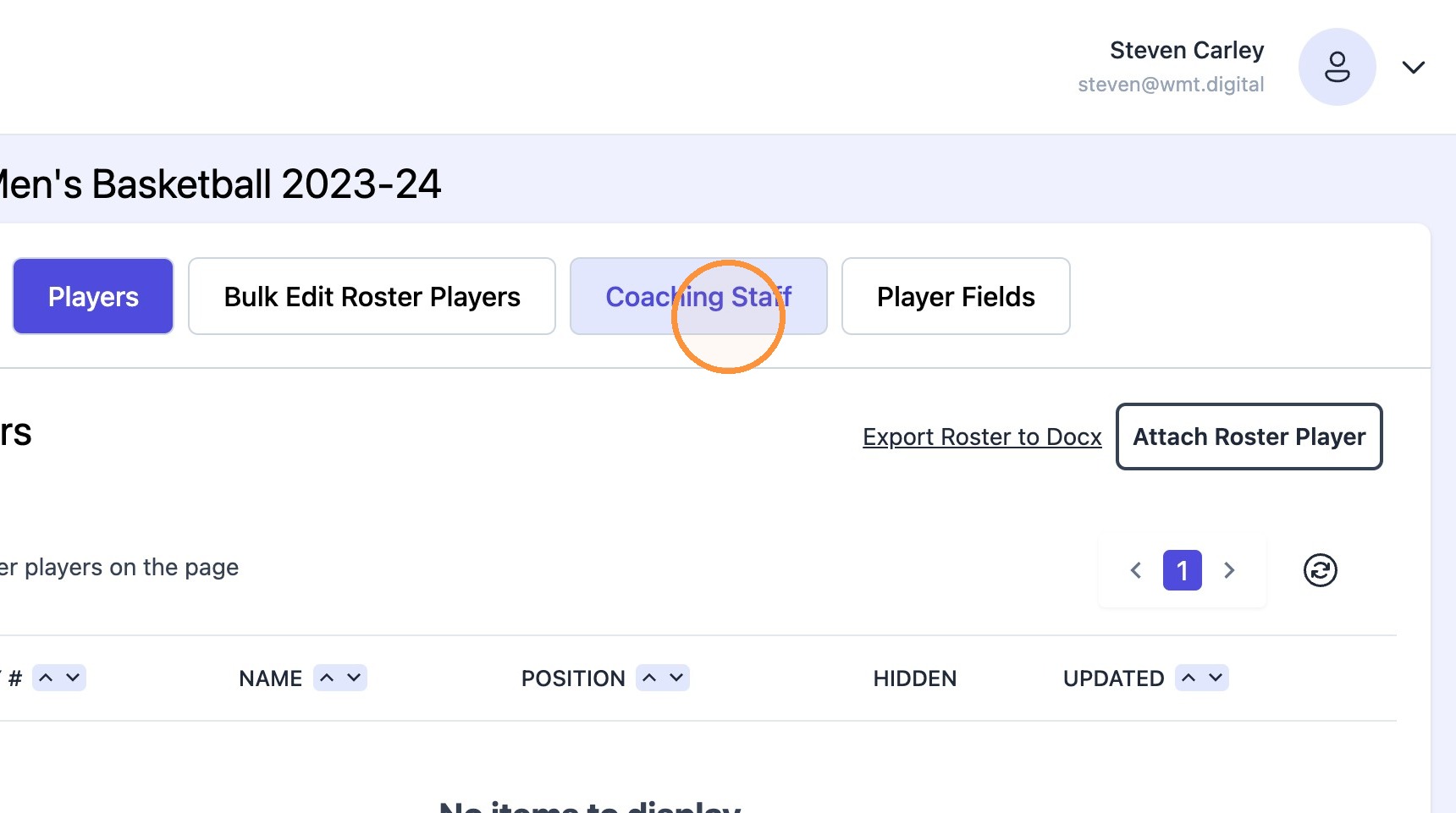
10. Navigate to "Coaching Staff" and remove the attached coaches/staff
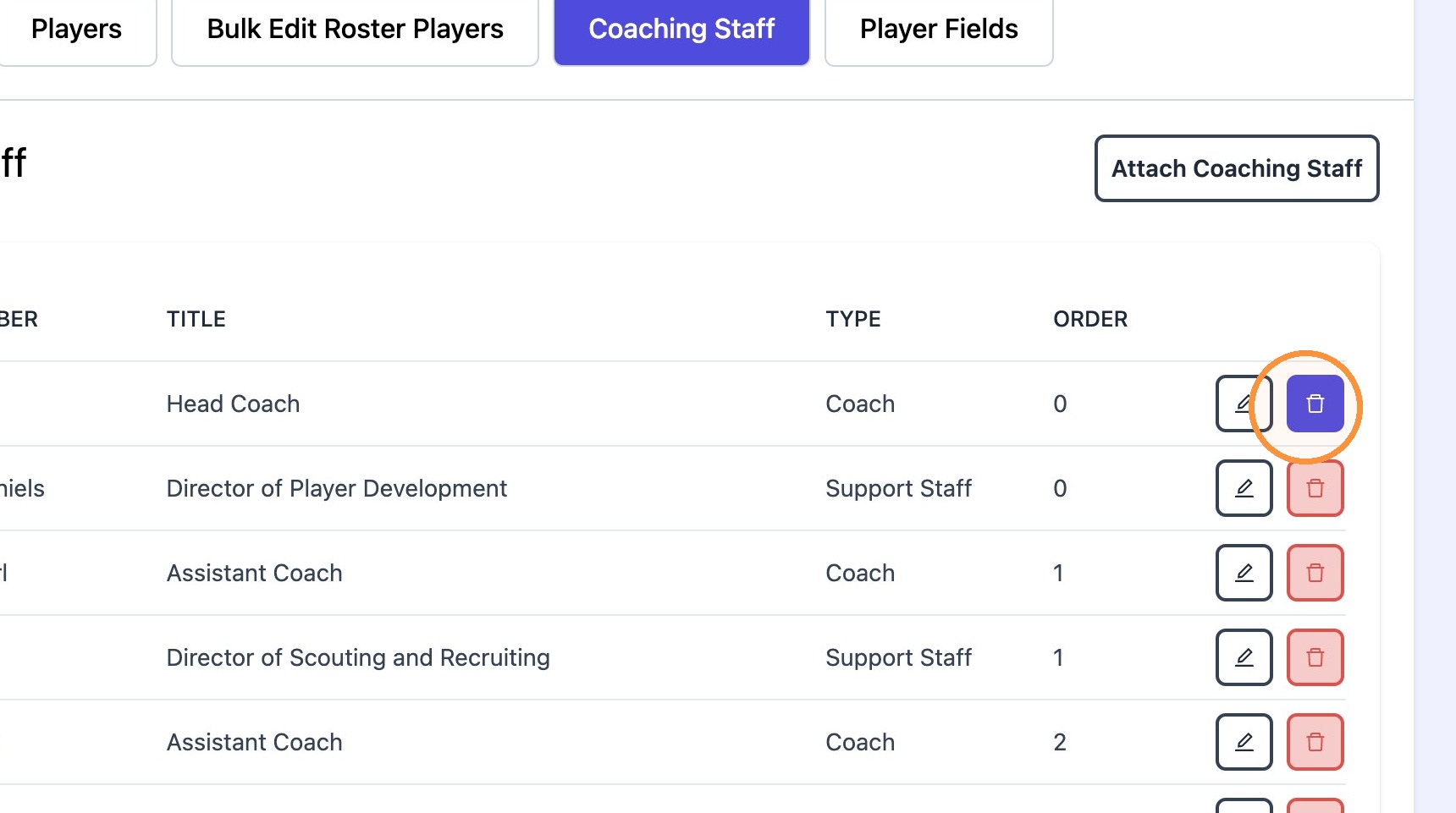
11. Select the 'Delete' icon on each coach and staff member that is tied to a roster
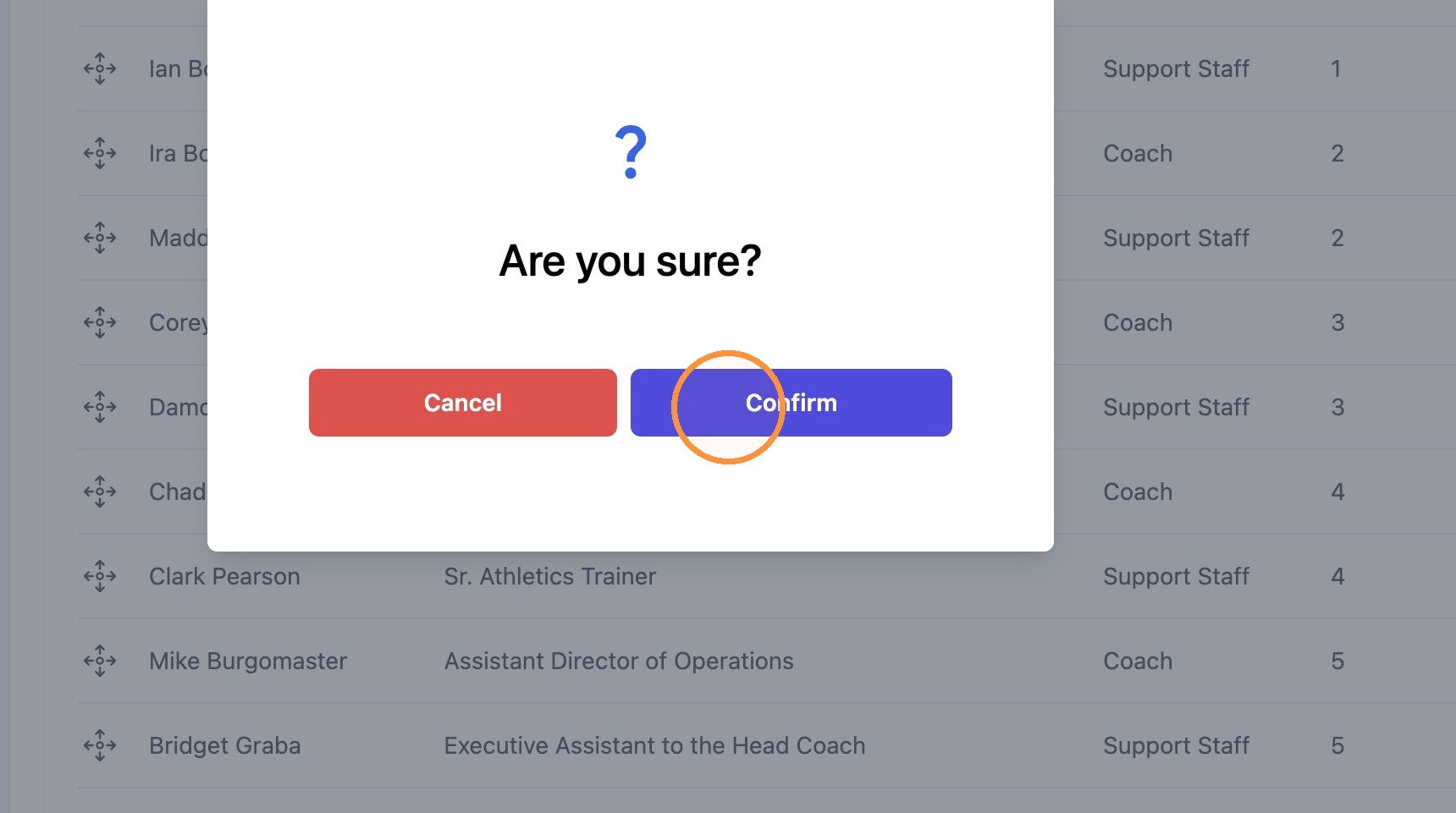
12. Click "Confirm" to delete (unattach) the coach from the roster
13. Click "Roster Management" to navigate back to the main roster screen
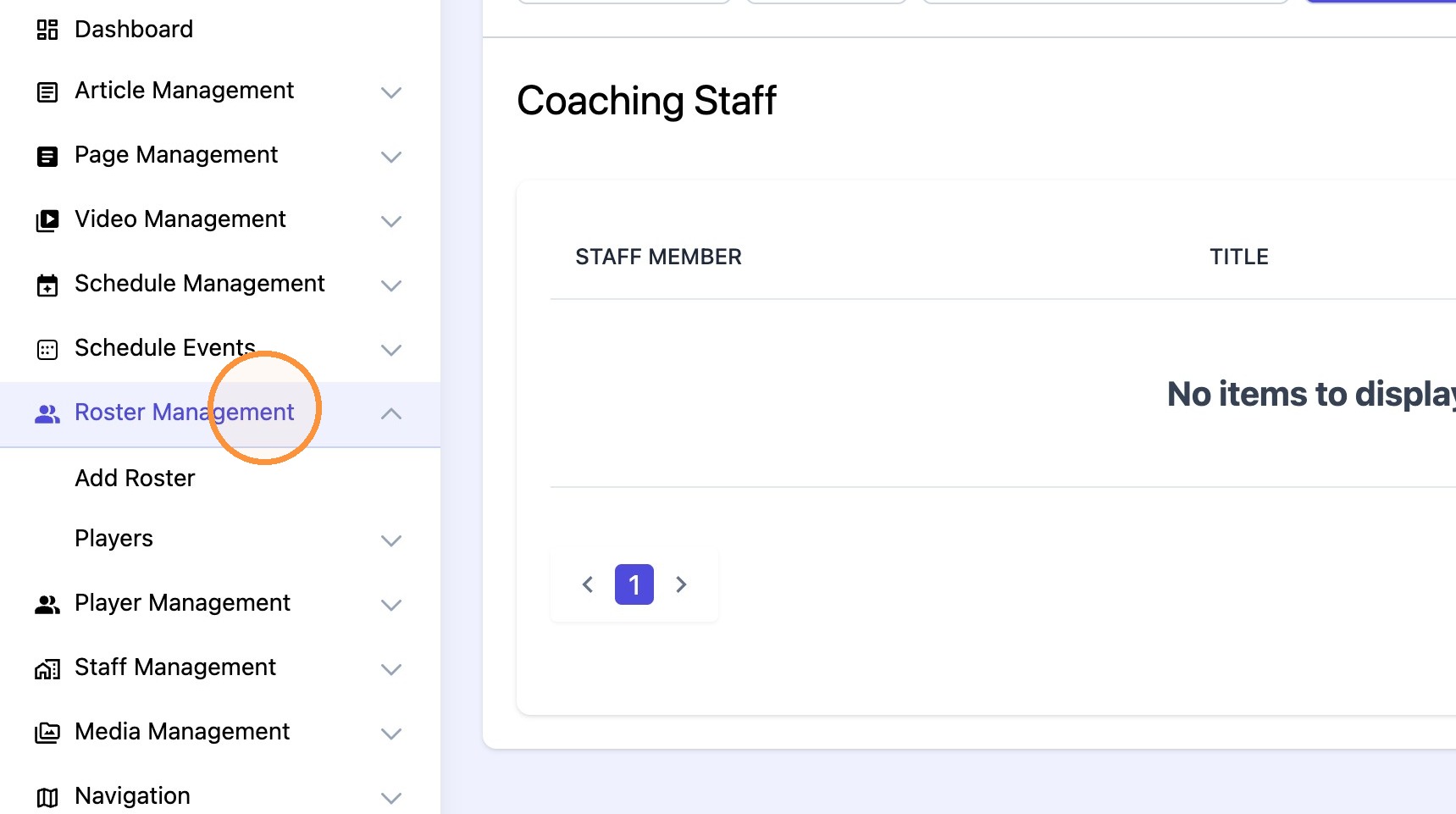
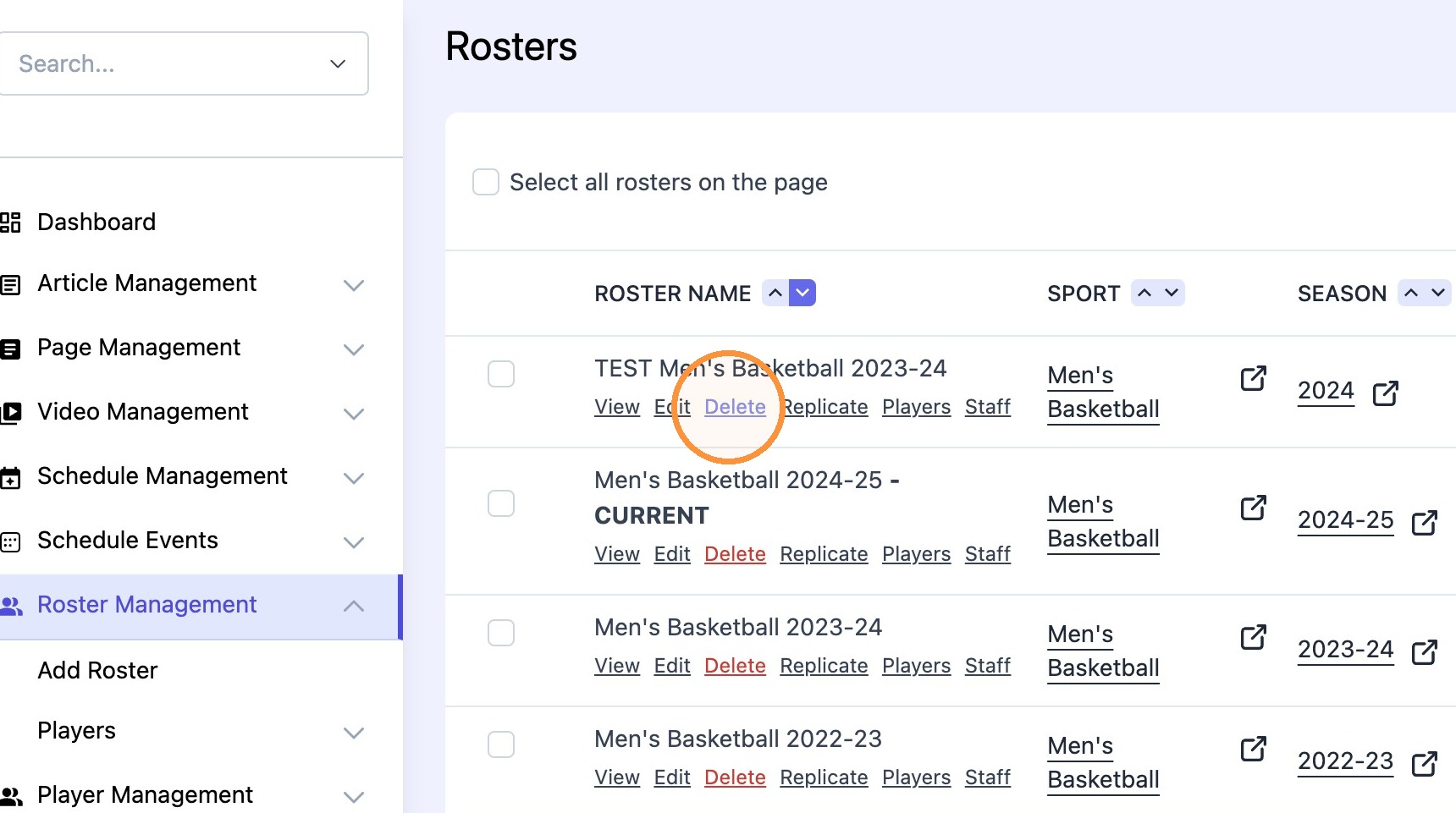
14. Select "Delete" to delete the whole Roster record from the CMS.
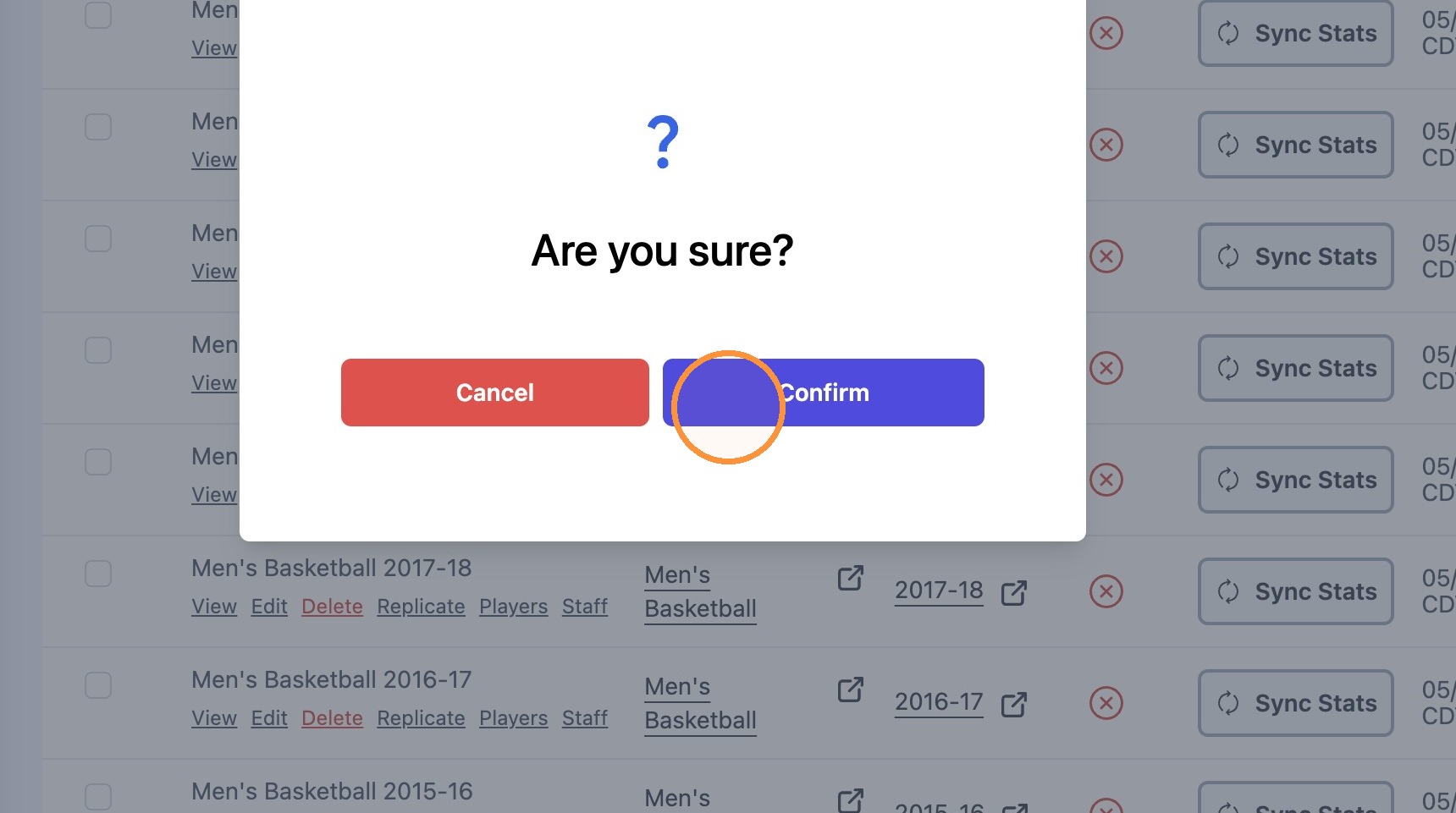
15. Click "Confirm" to delete the roster.
Tip: Note: No players, coaches or staff records can be linked to a roster before it can be deleted.