Roster Management - Rollover Roster Process
Last updated: September 20, 2026
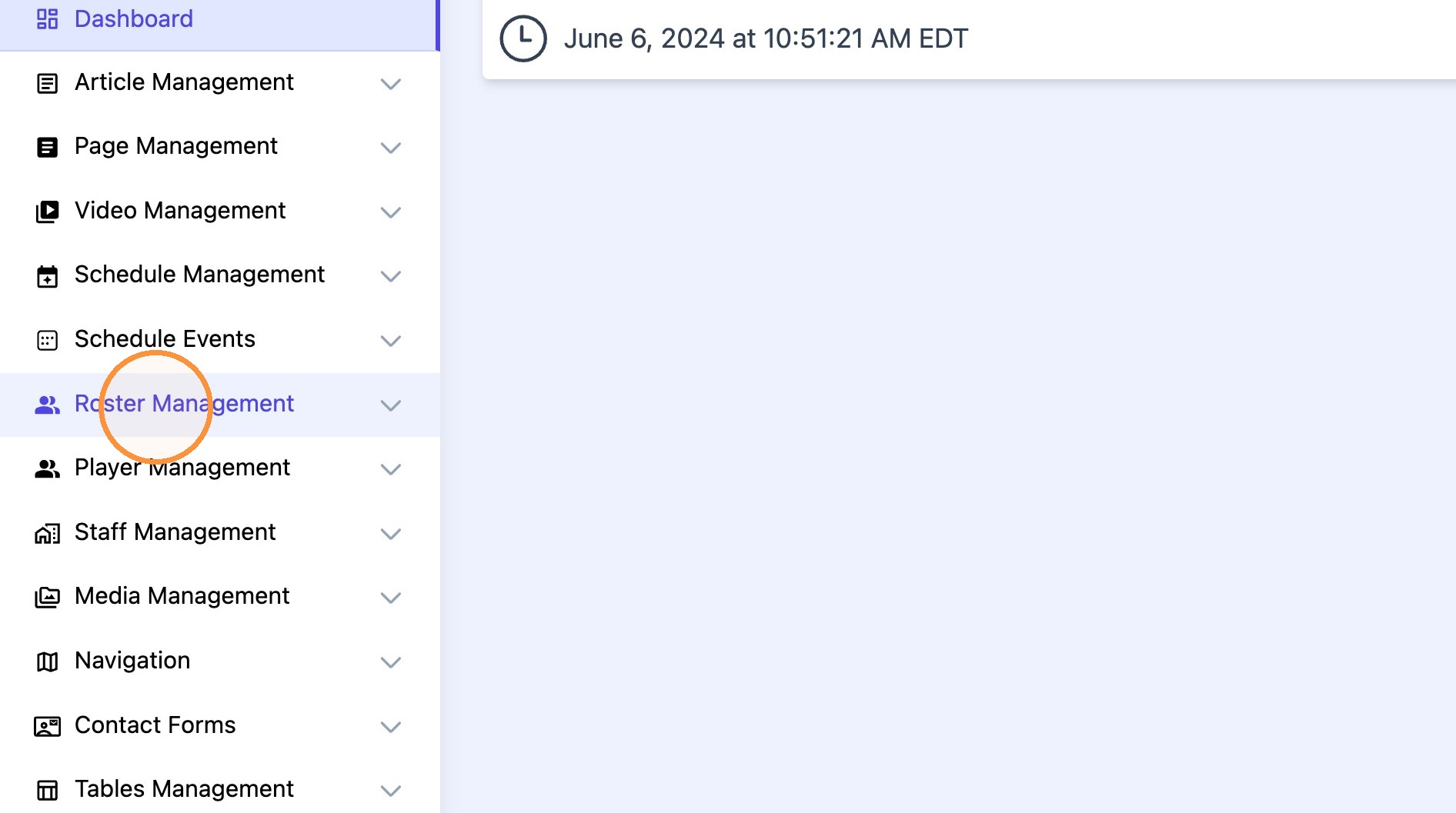
1. Click "Roster Management"
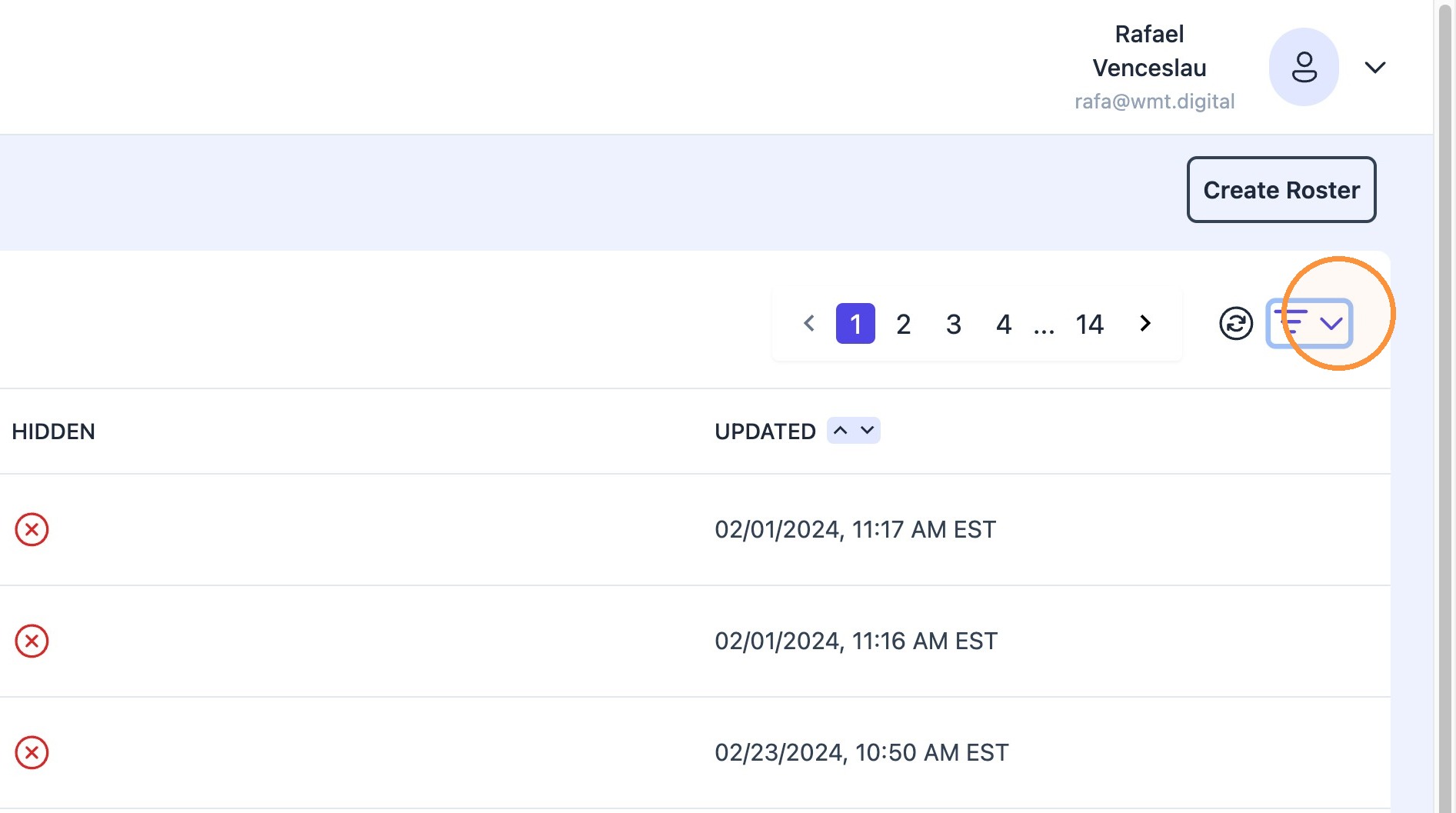
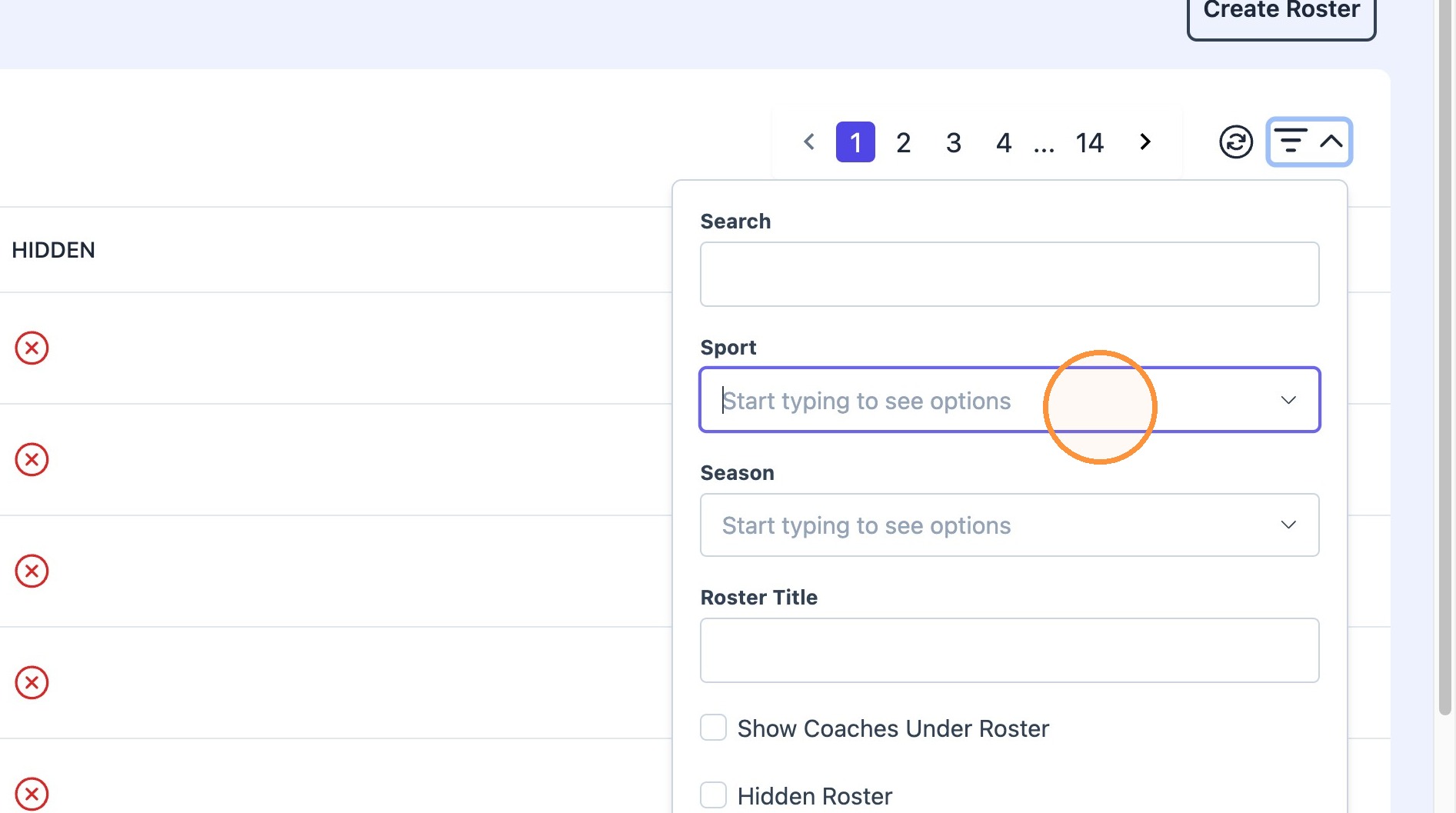
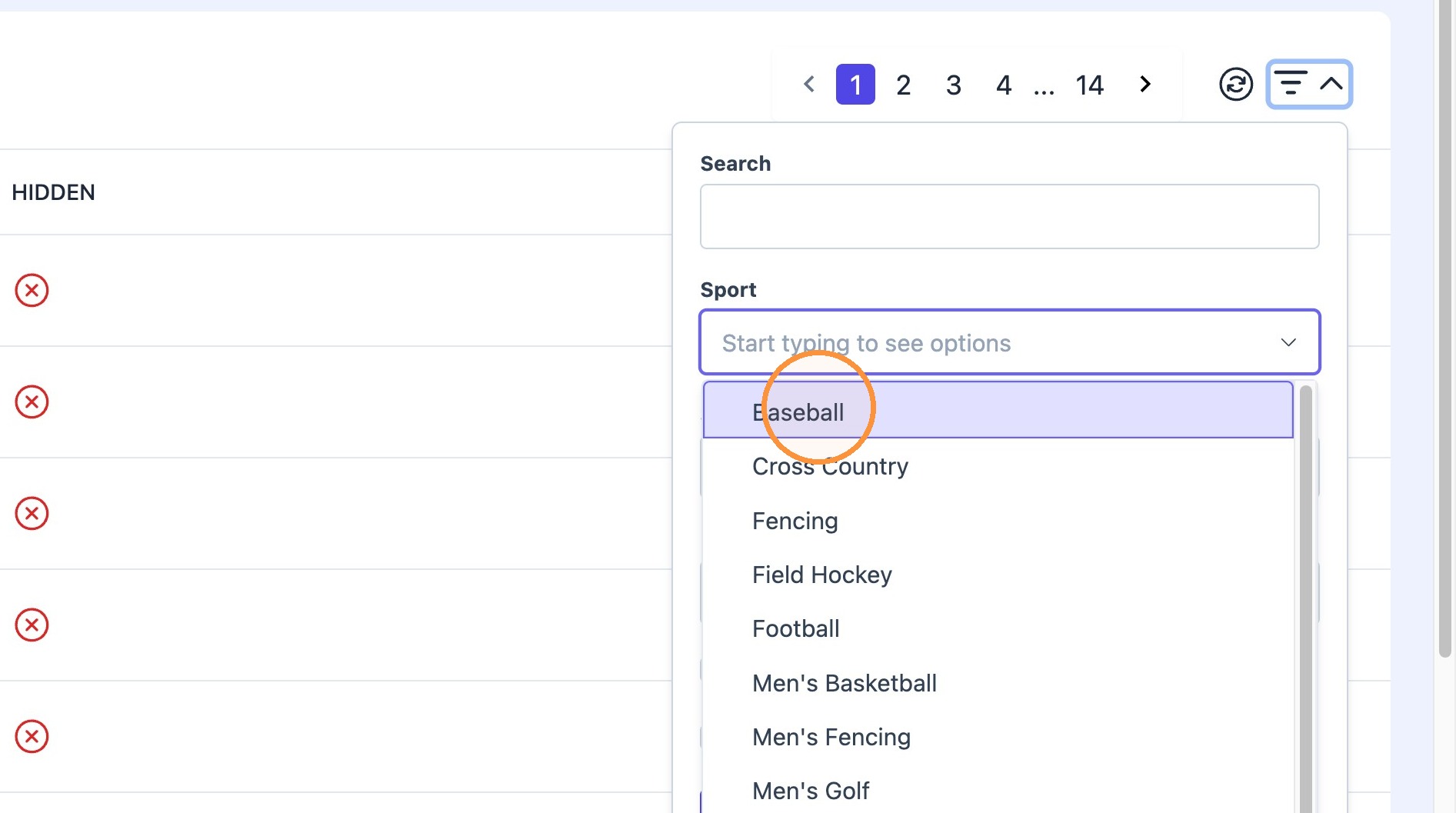
2. Click on filter dropdown.
Chose desired sport. using "sport" field and click "Apply Filters".
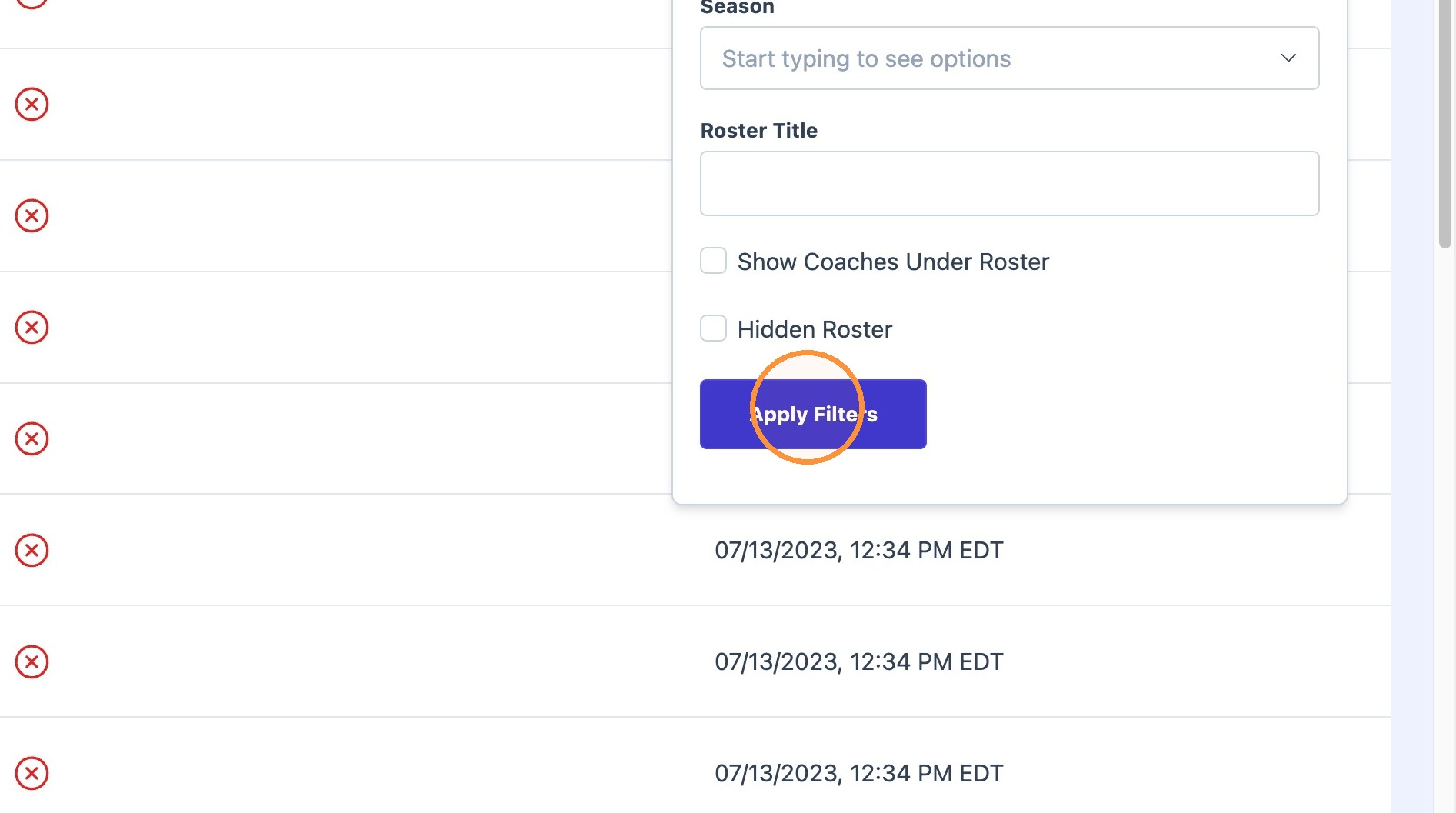
3. Click "Replicate" on the latest roster.

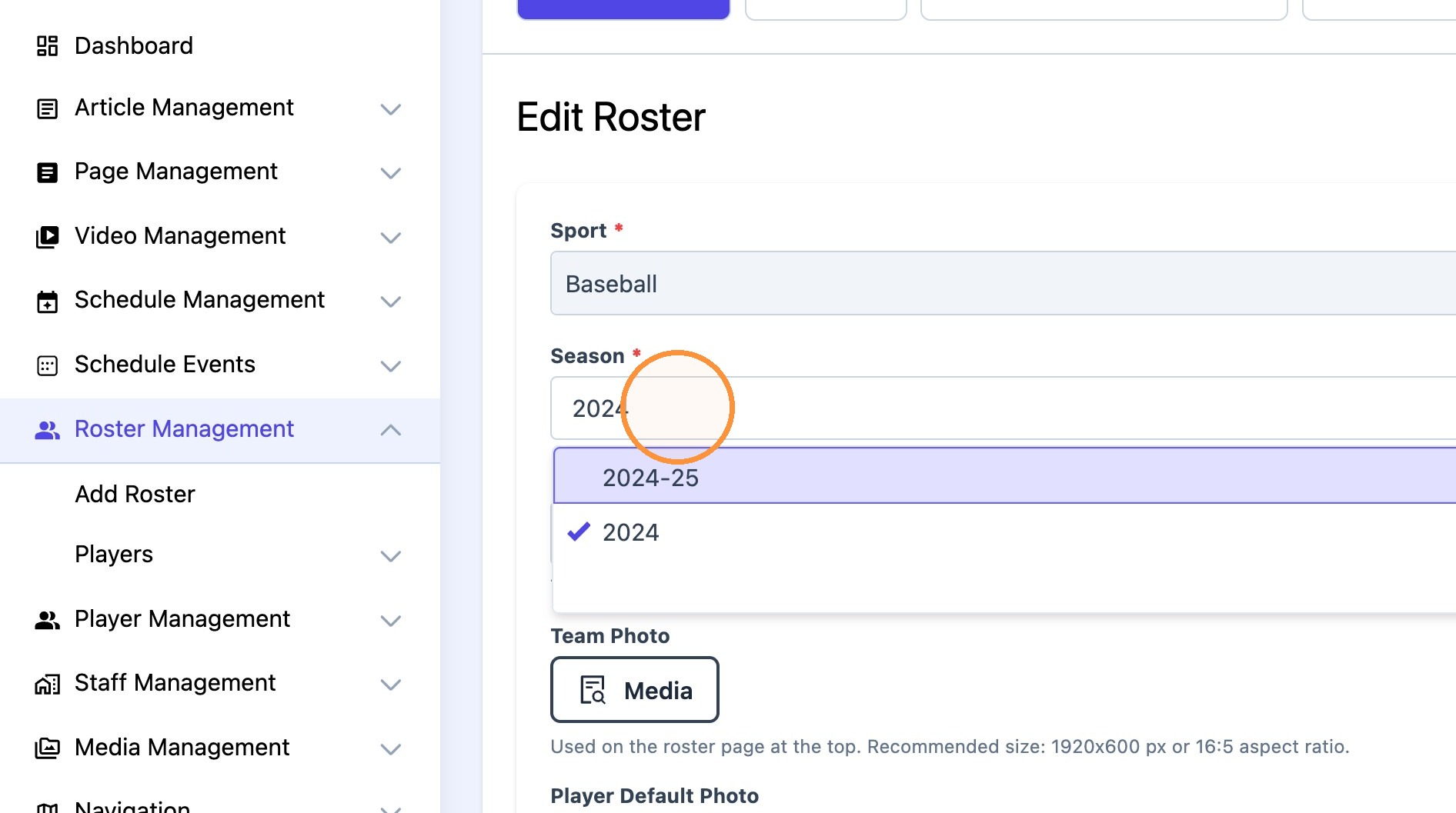
4. Once duplicated, change season by typing new year (ie, 2025 or 2024-25).
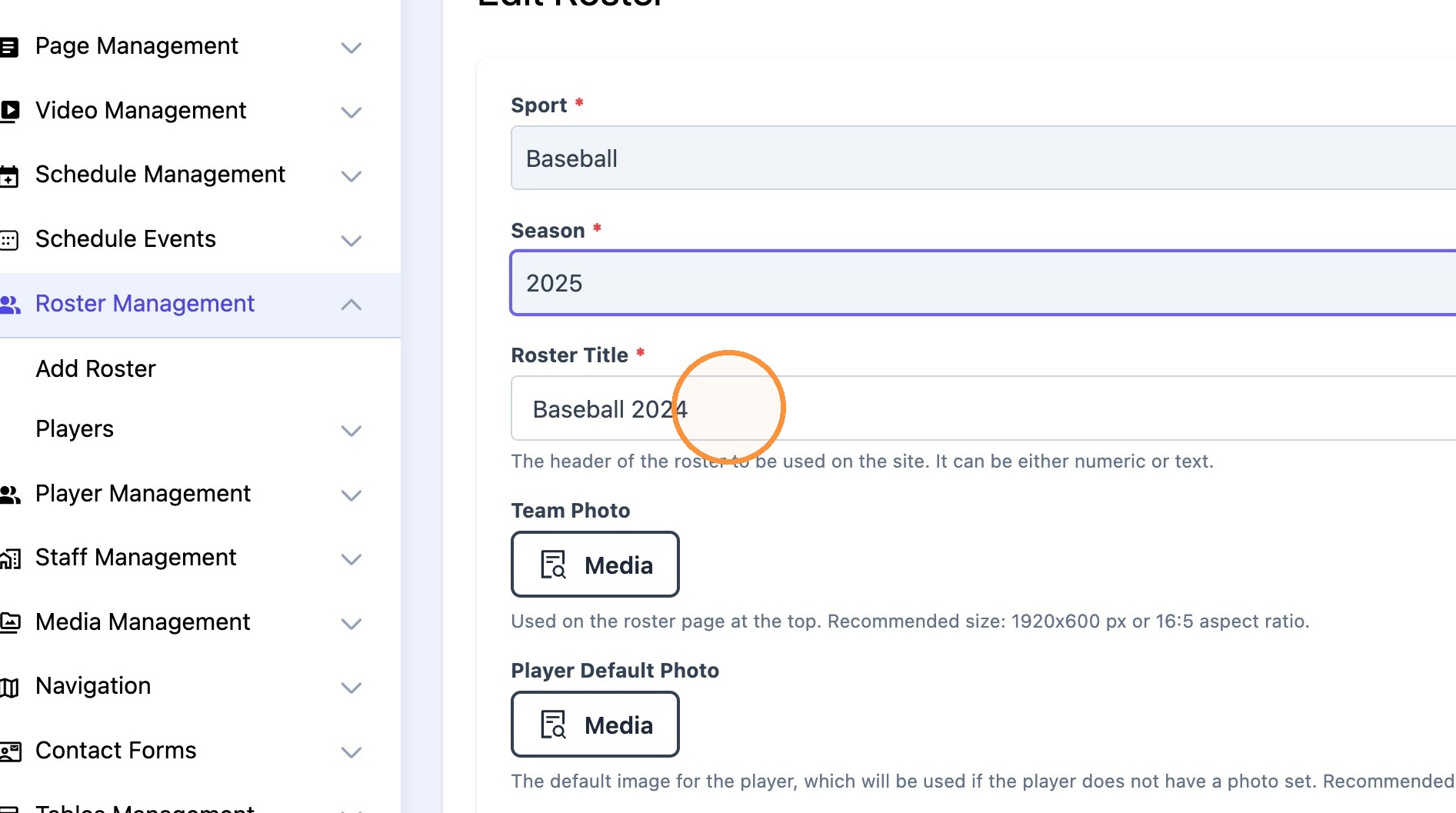
5. Click the "Roster Title*" field to adjust the roster name appropriately.
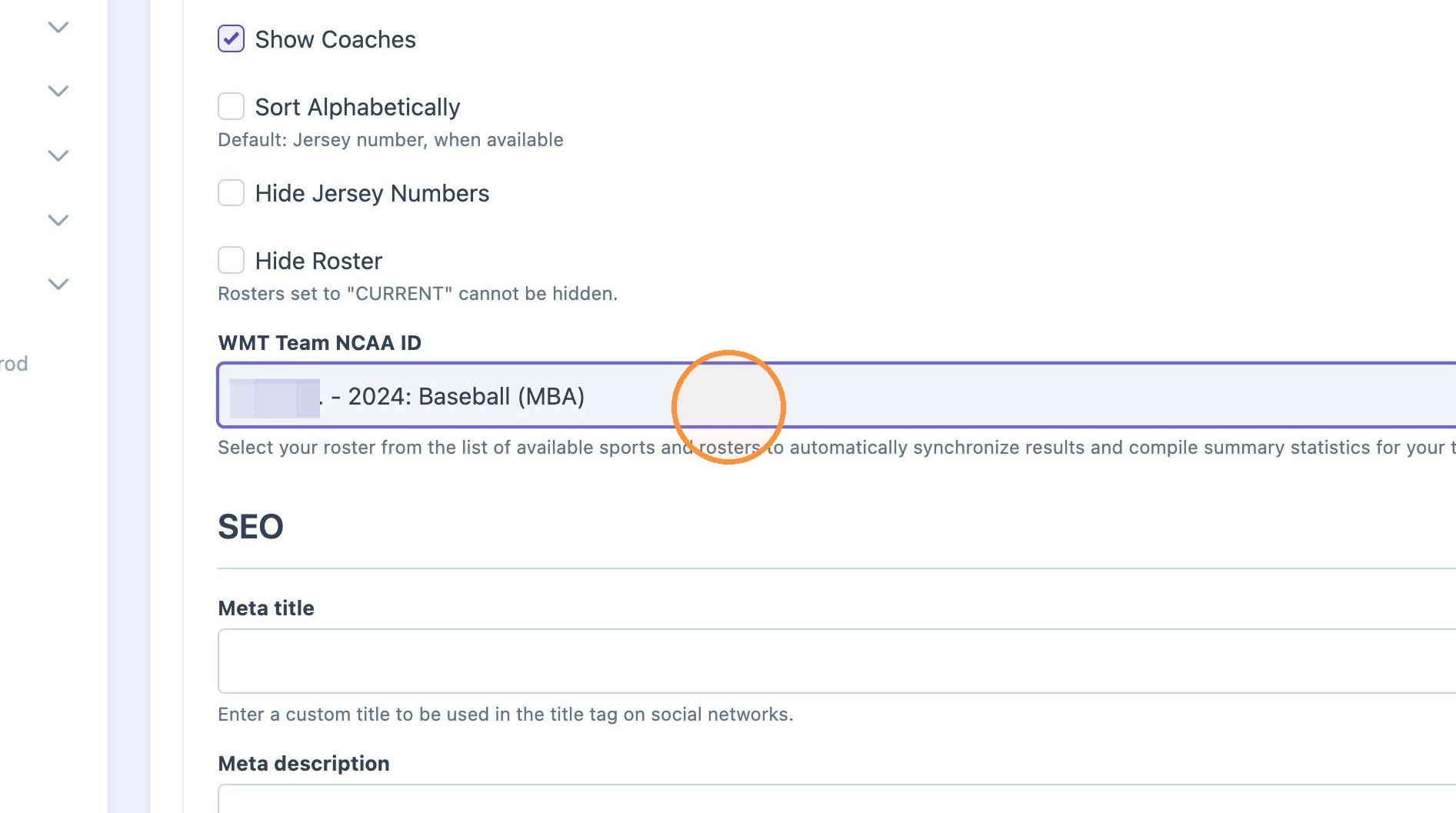
6. Scroll down to "WMT Team NCAA ID" to select the correct season for the interactive stats page.
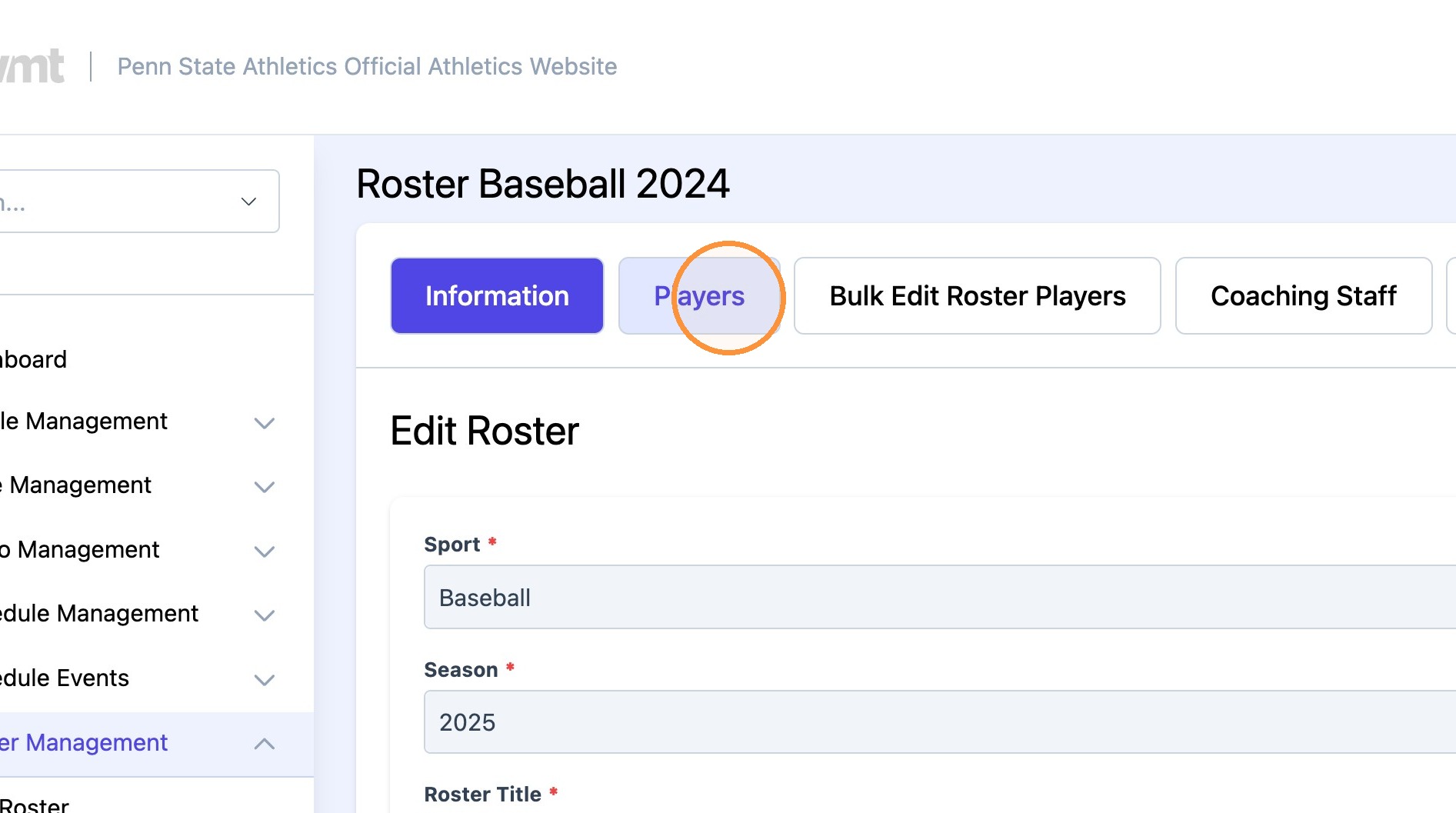
7. Click "Players" tab on top of page.
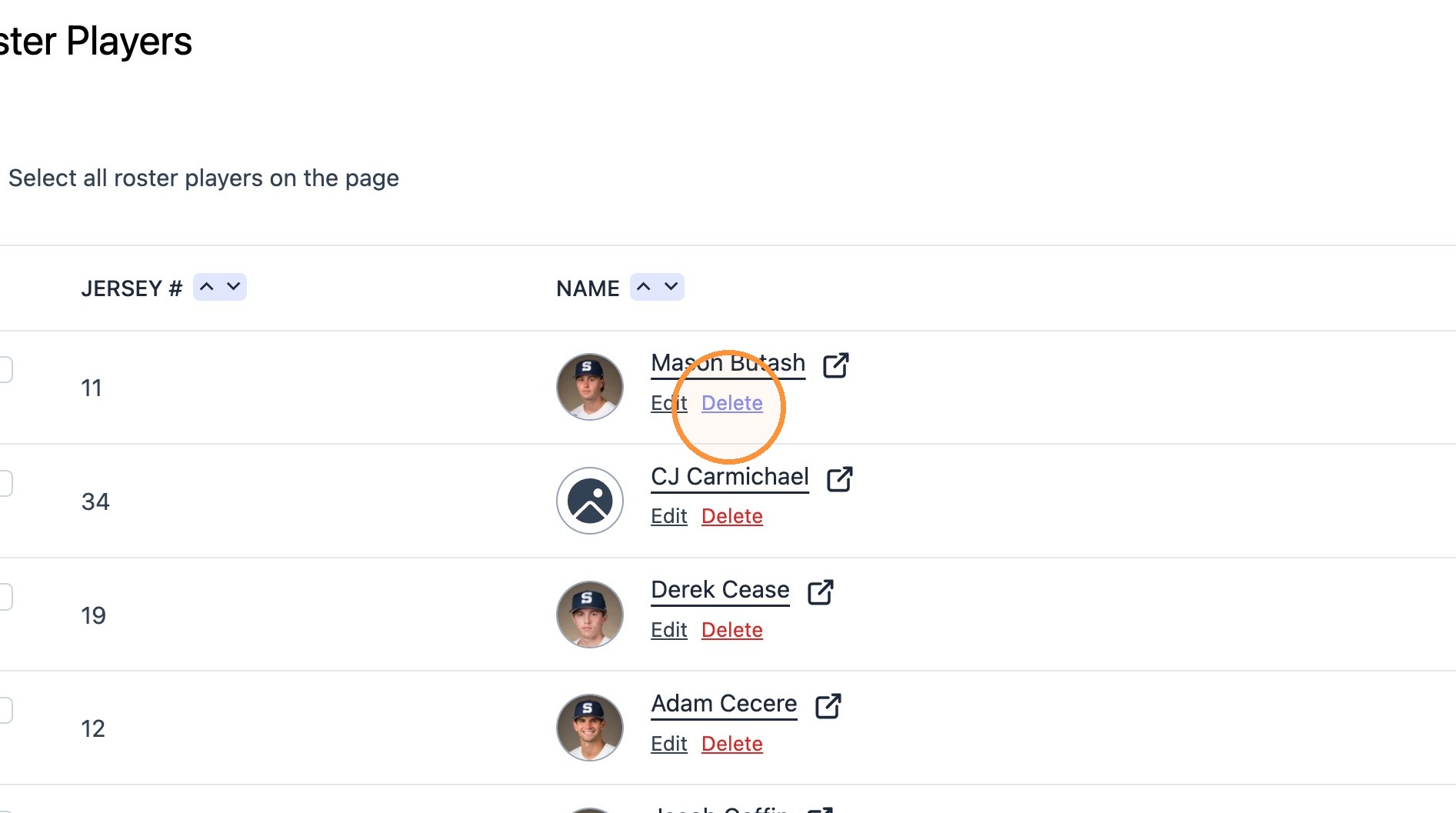
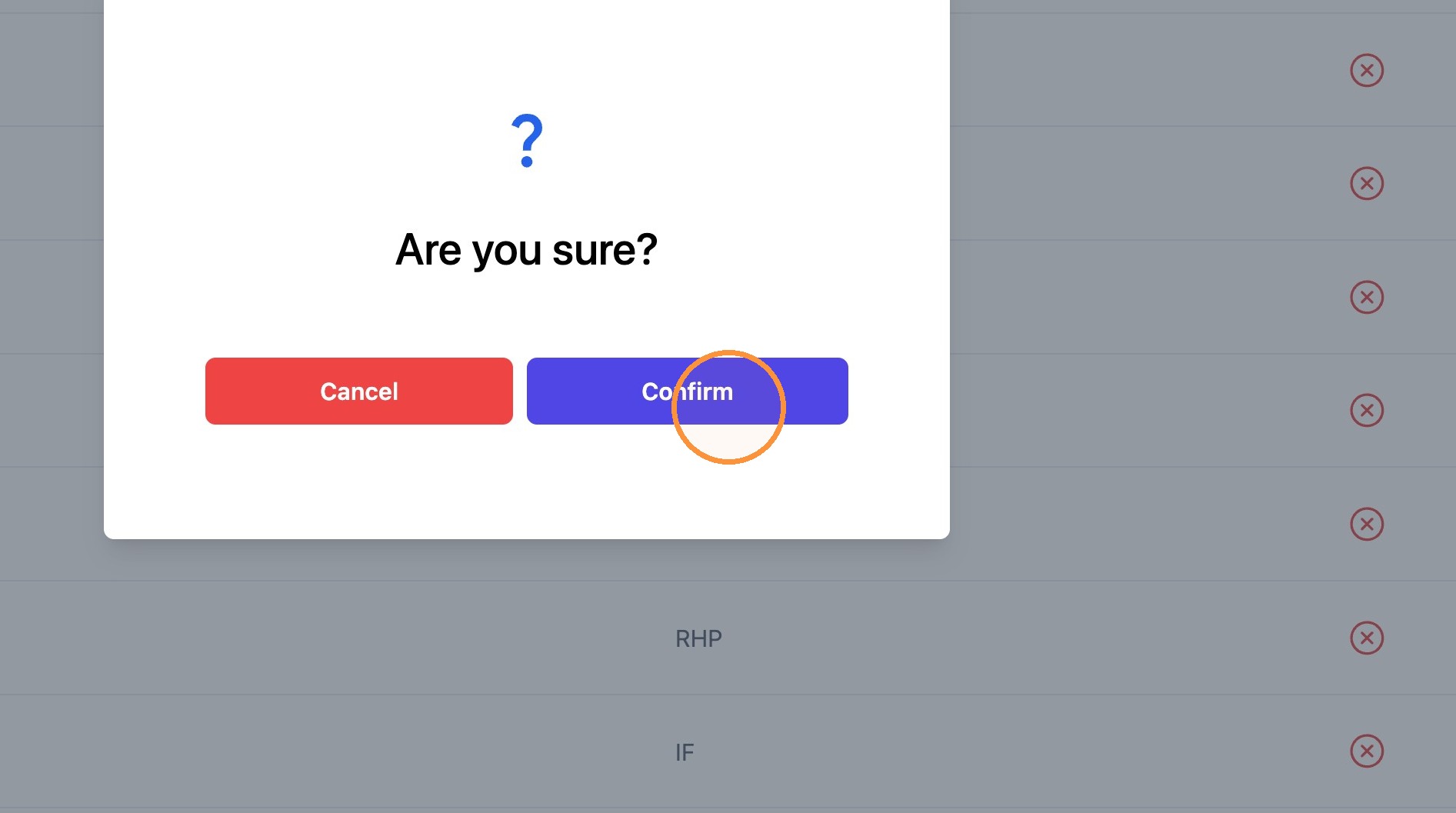
8. Delete any players that are not the new roster and click "Confirm".
9. To add new Athletes to roster, click "Attach Roster Player."

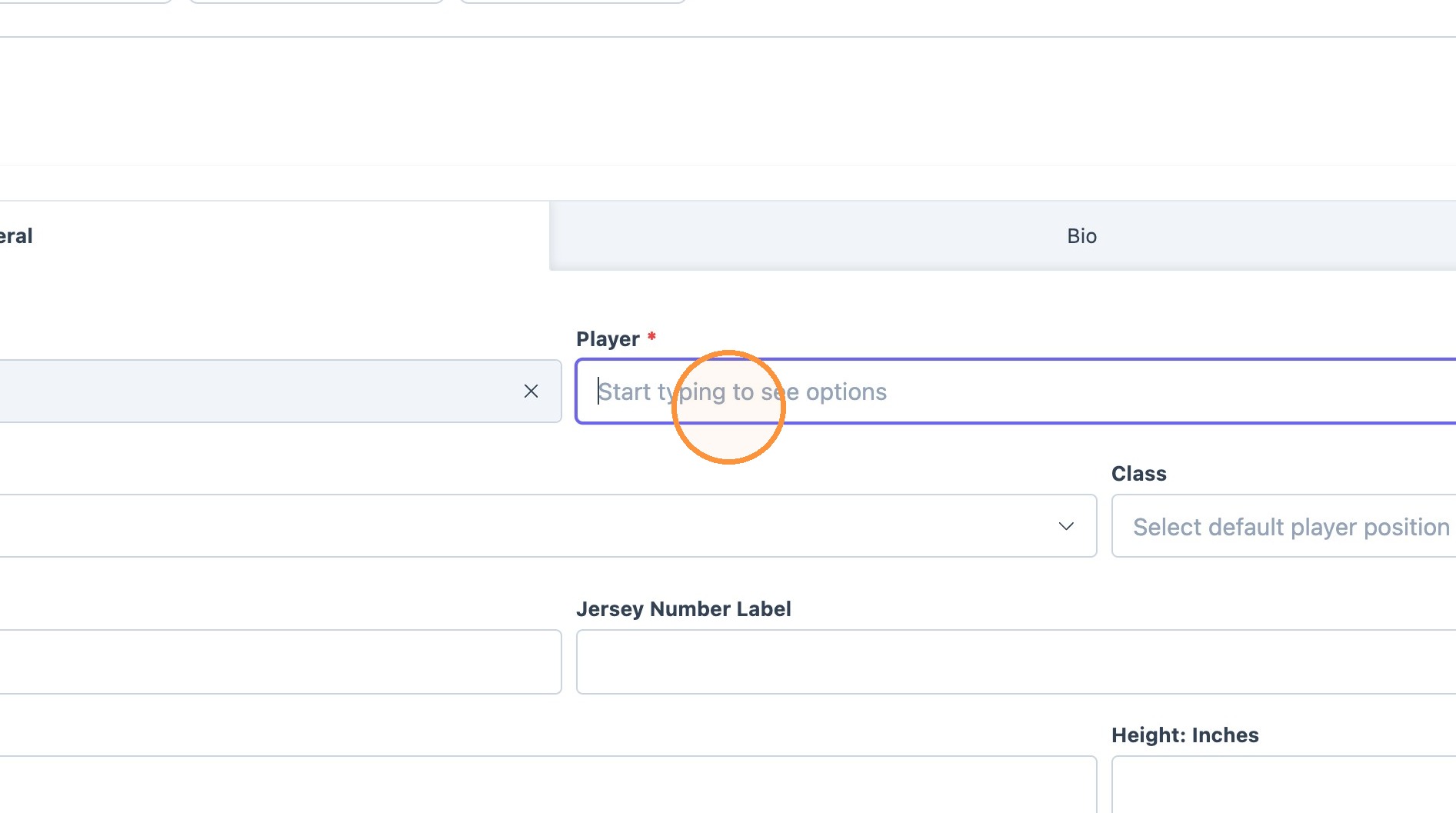
10. Click the "Player*" field and type Athlete's name
Select the desired athlete and customize roster field as necessary.

11. Click "Create & Add Another" if more players need to be added to roster, if not, click "Create".
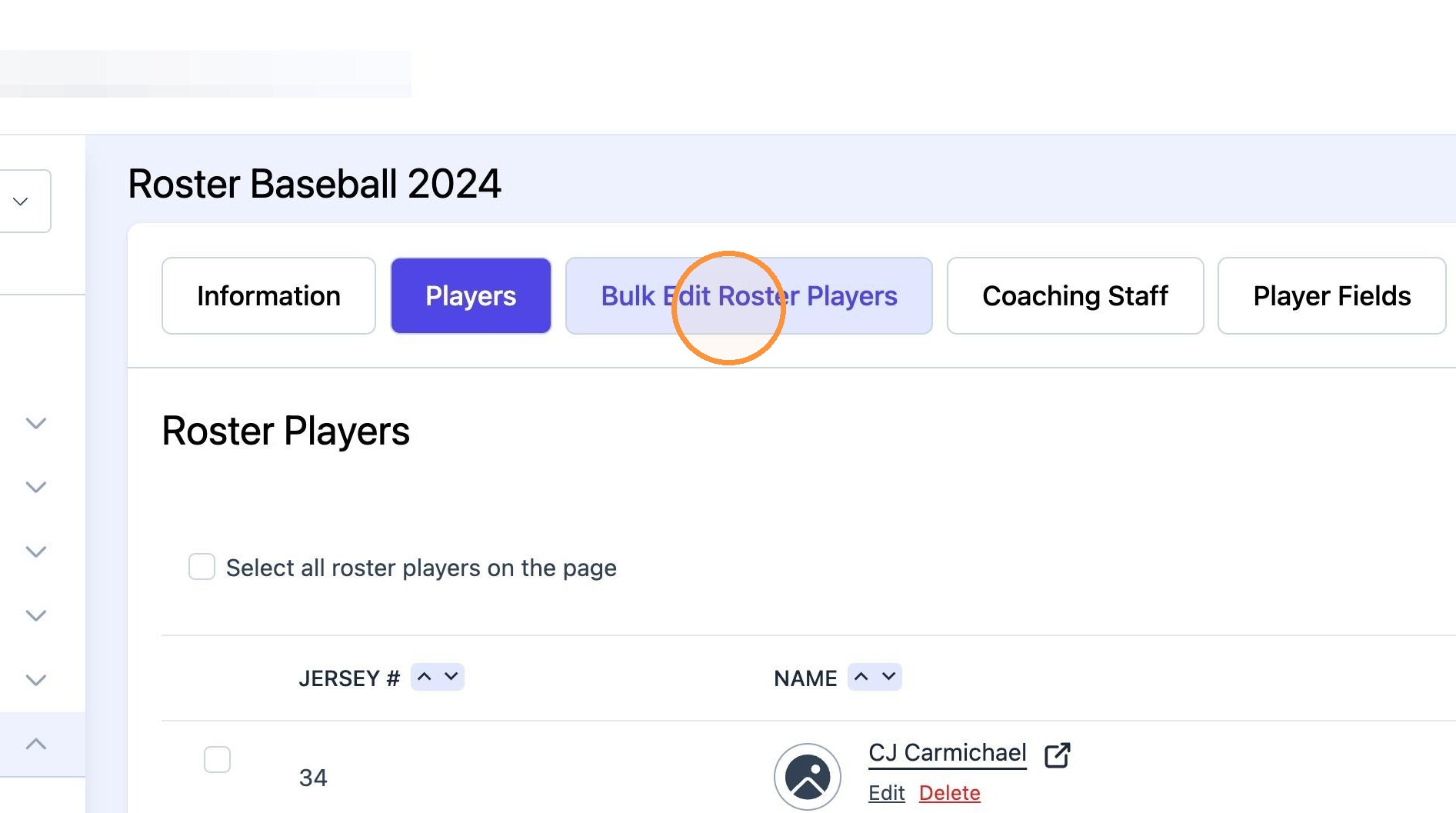
12. Click "Edit Roster Baseball 2024" to go back to "new" roster editing.

13. Click "Bulk Edit Roster Players" for Bulk editing.
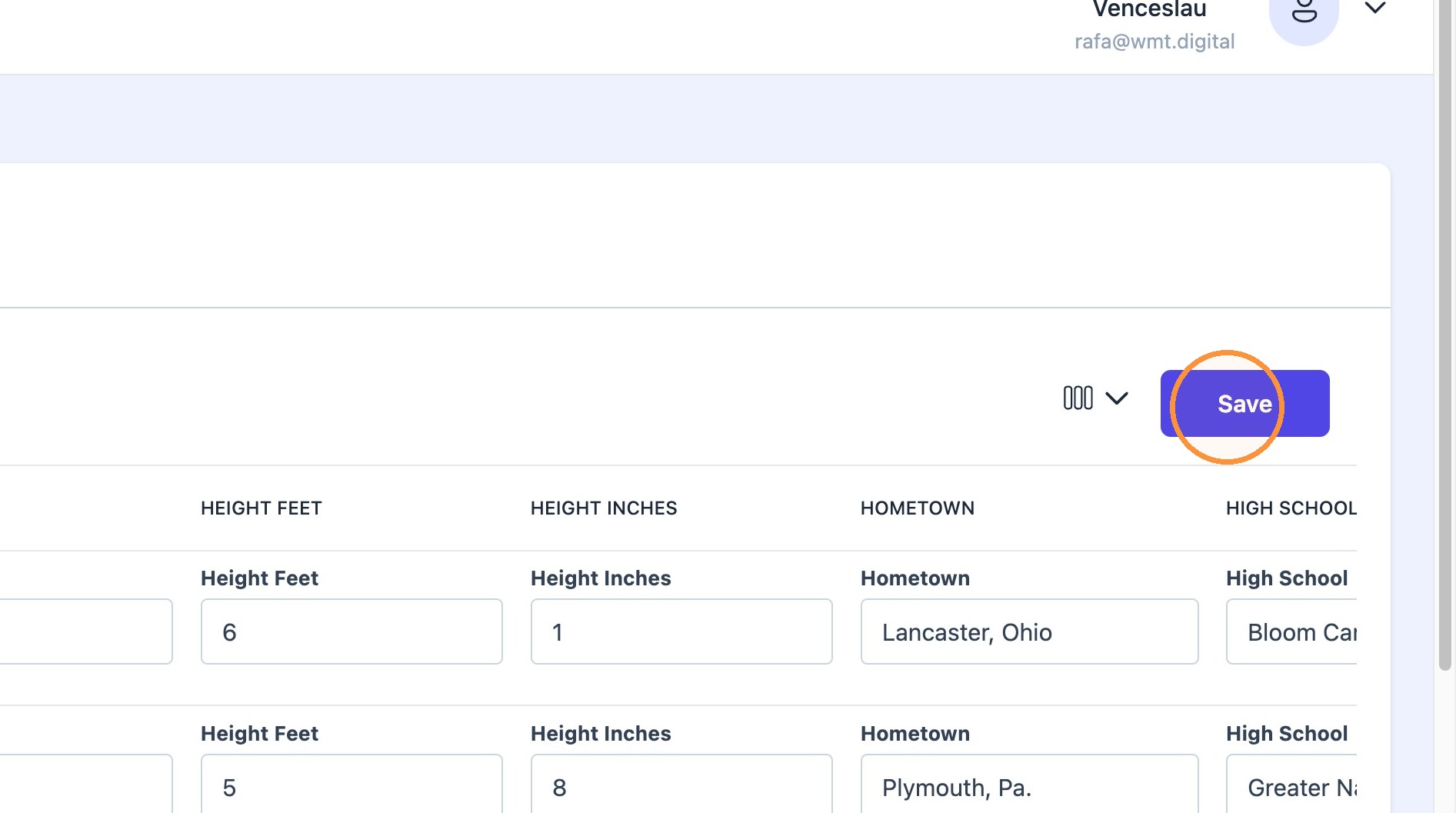
14. Change the desired "player fields" to be updated (ie, Class and weight).
Click "Save".

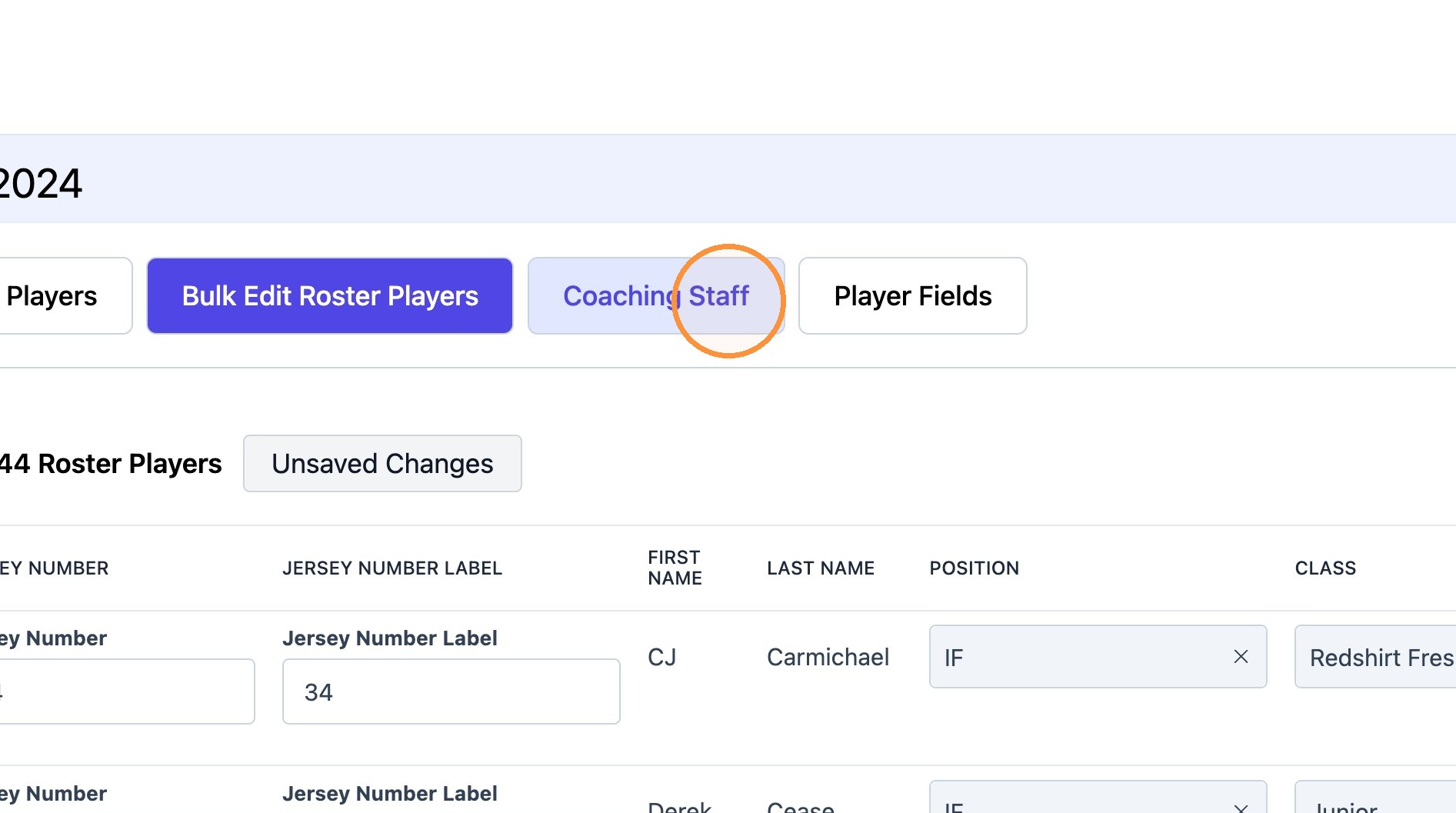
15. Click "Coaching Staff" tab if coaching staff needs to be updated. Similar process as adding/ deleting athletes.
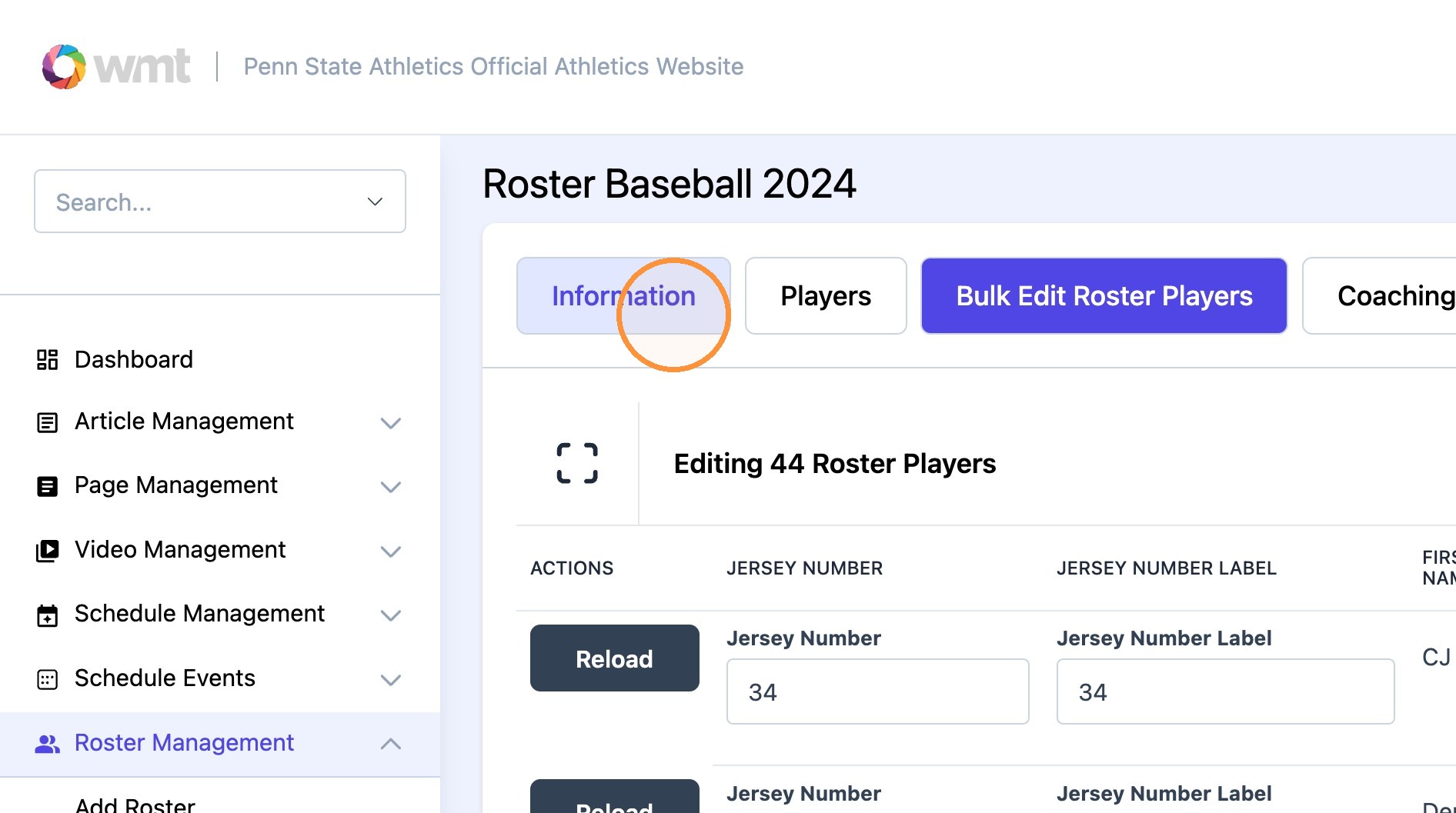
16. Go back to "Information" tab.
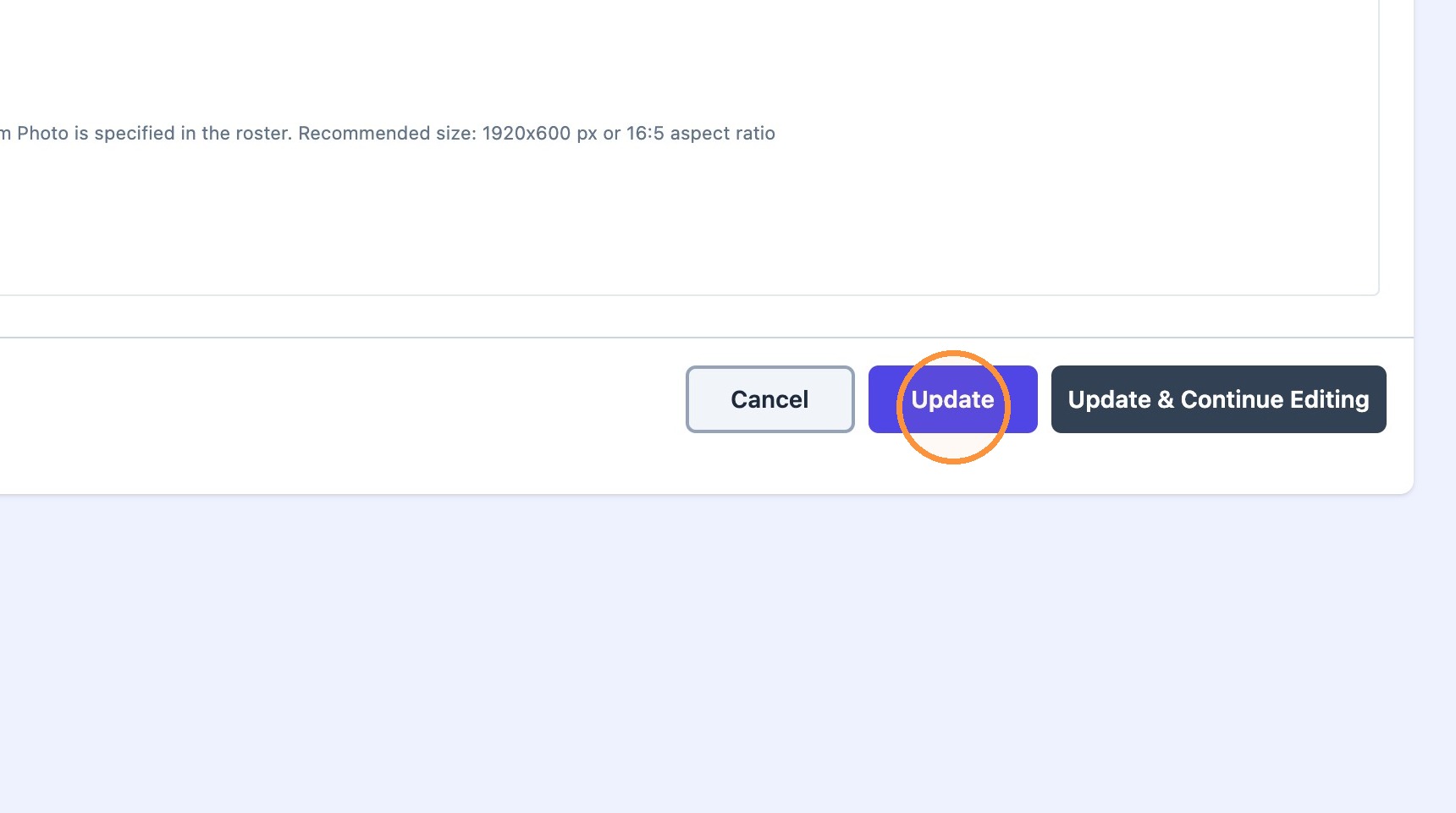
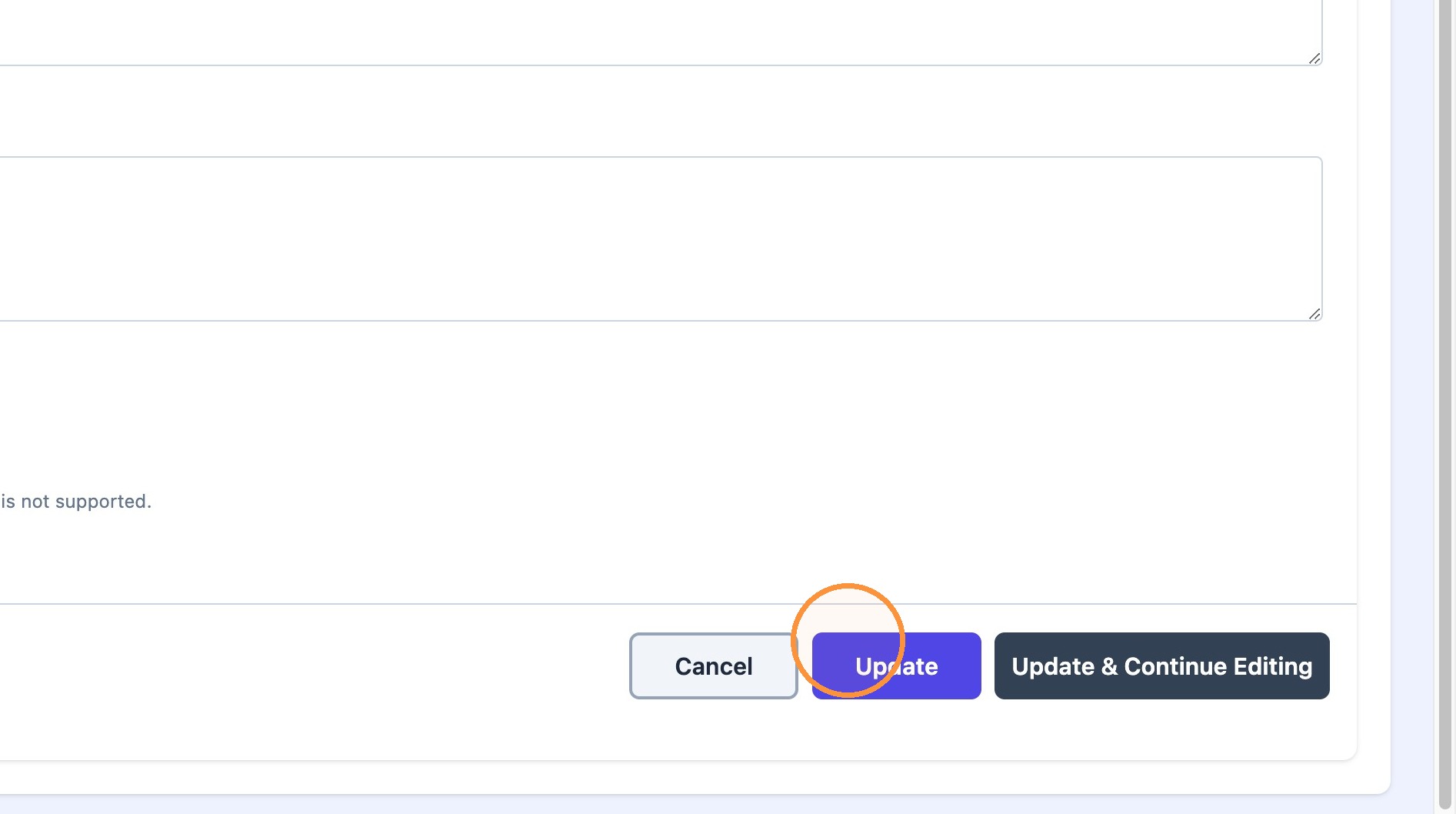
Scroll down and click "Update" to save all changes.
Tip: Note! To make new roster live show as current on the site, please follow the steps below.
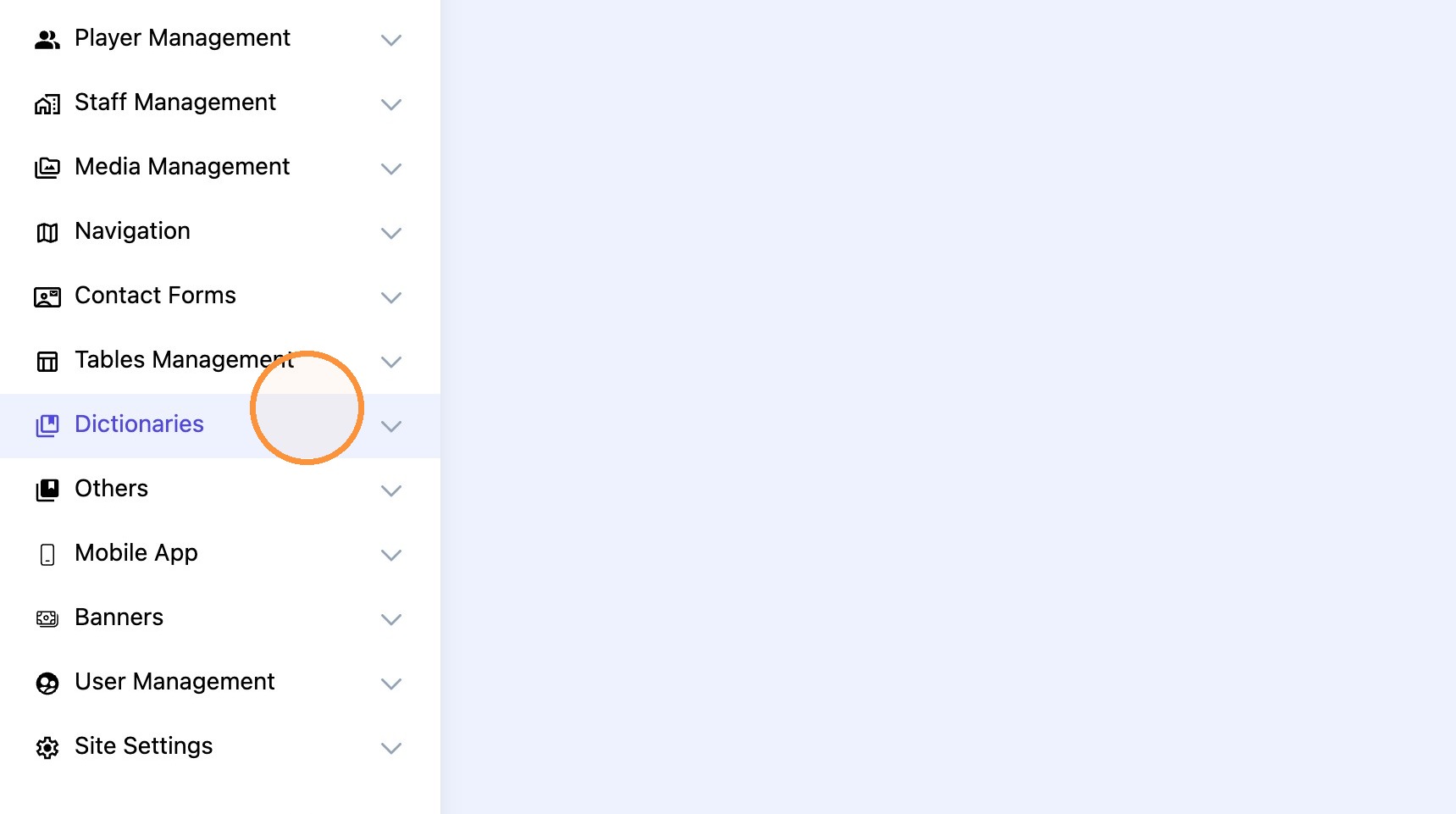
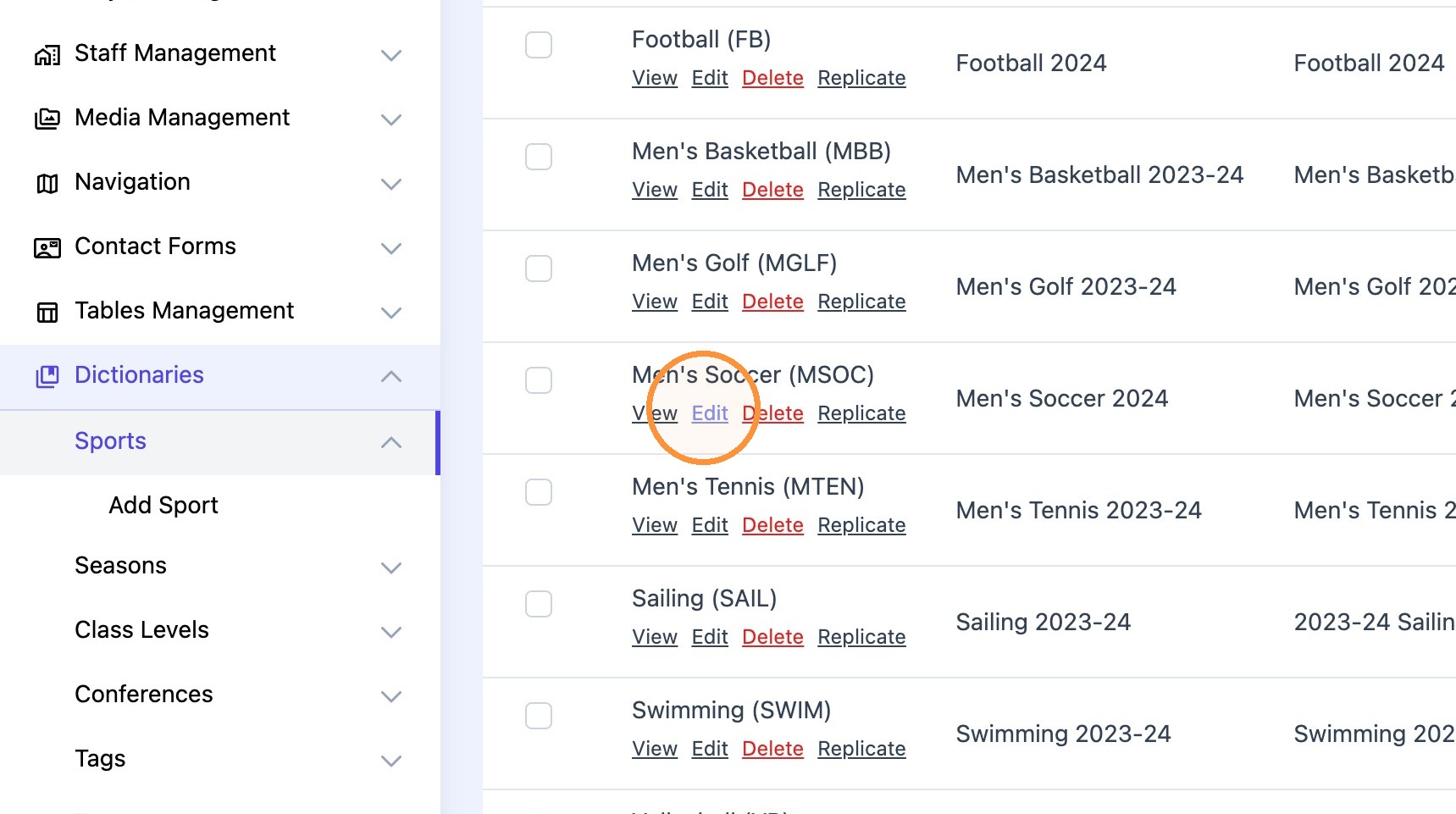
17. Navigate to the "Dictionaries -> Sports" menu and "edit" desired sport.
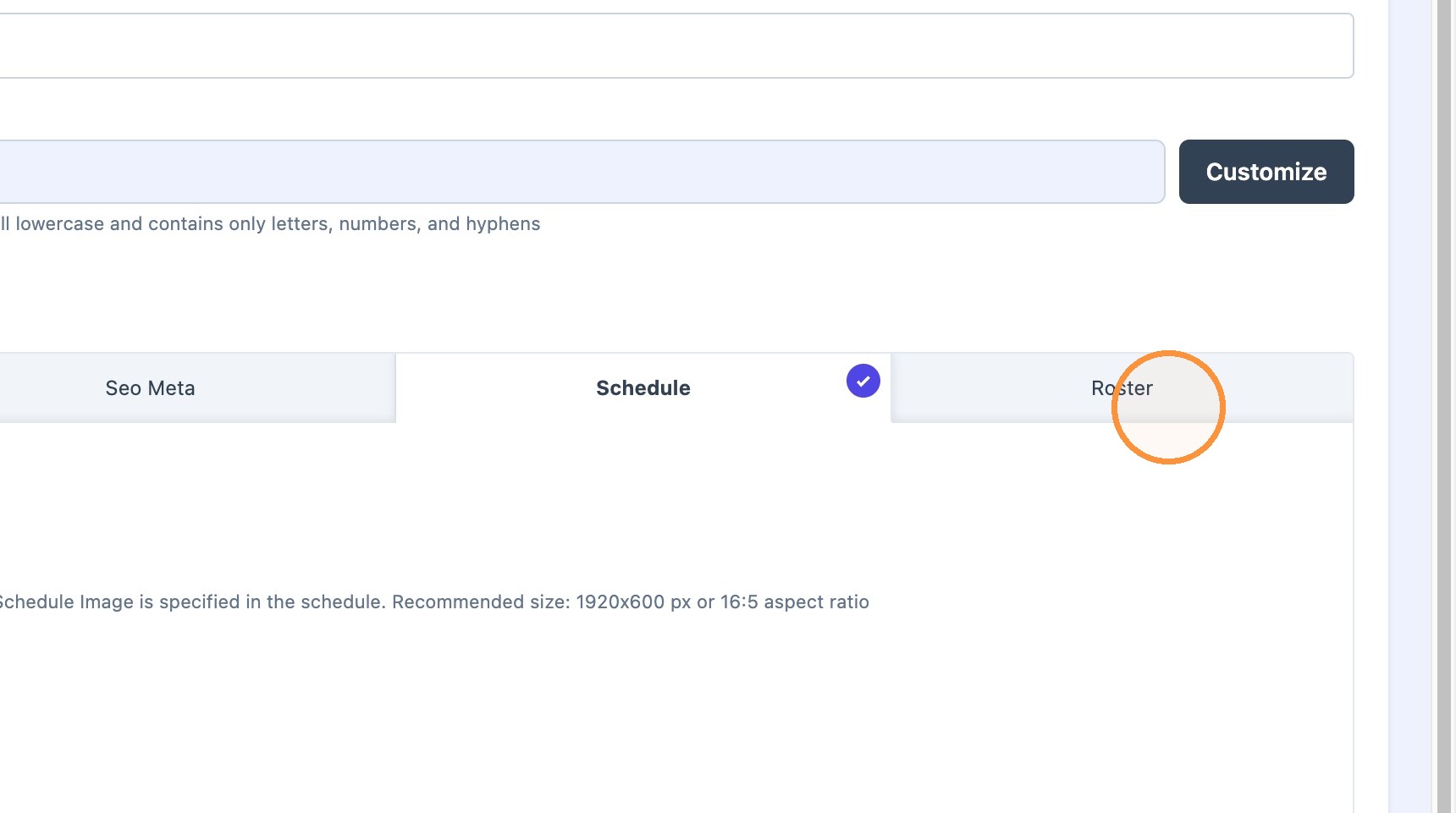
18. Go to the "Roster" tab.
19. Select the new roster from the dropdown list.
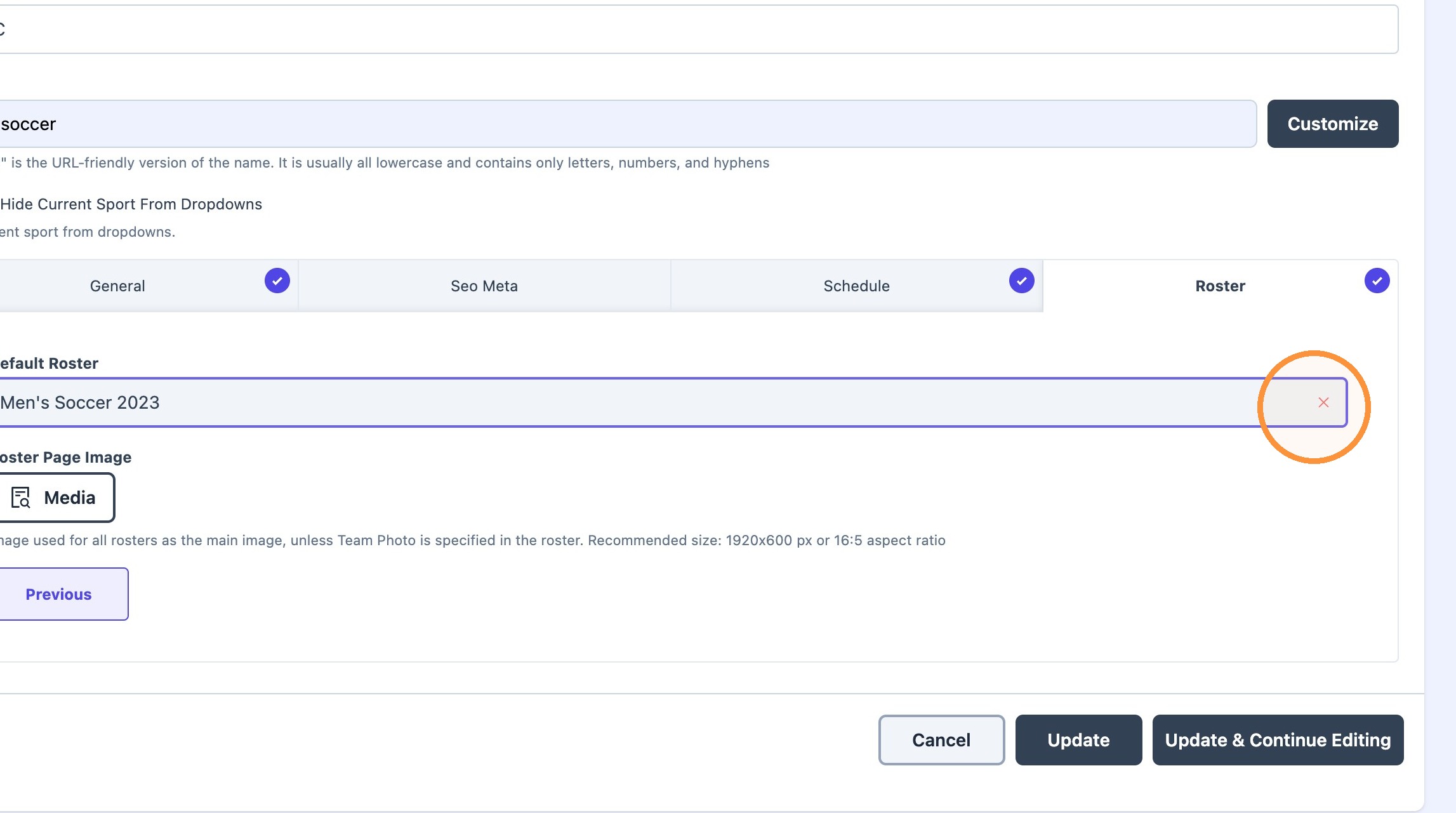
20. Click "Update"