Bulk Edit Game Result Text field on each Schedule Event
Last updated: September 20, 2026
Made by Finance WMT Digital with Scribe
1. Navigate to a sport schedule page
2. Each game has the score appearing as duplicated on the frontend
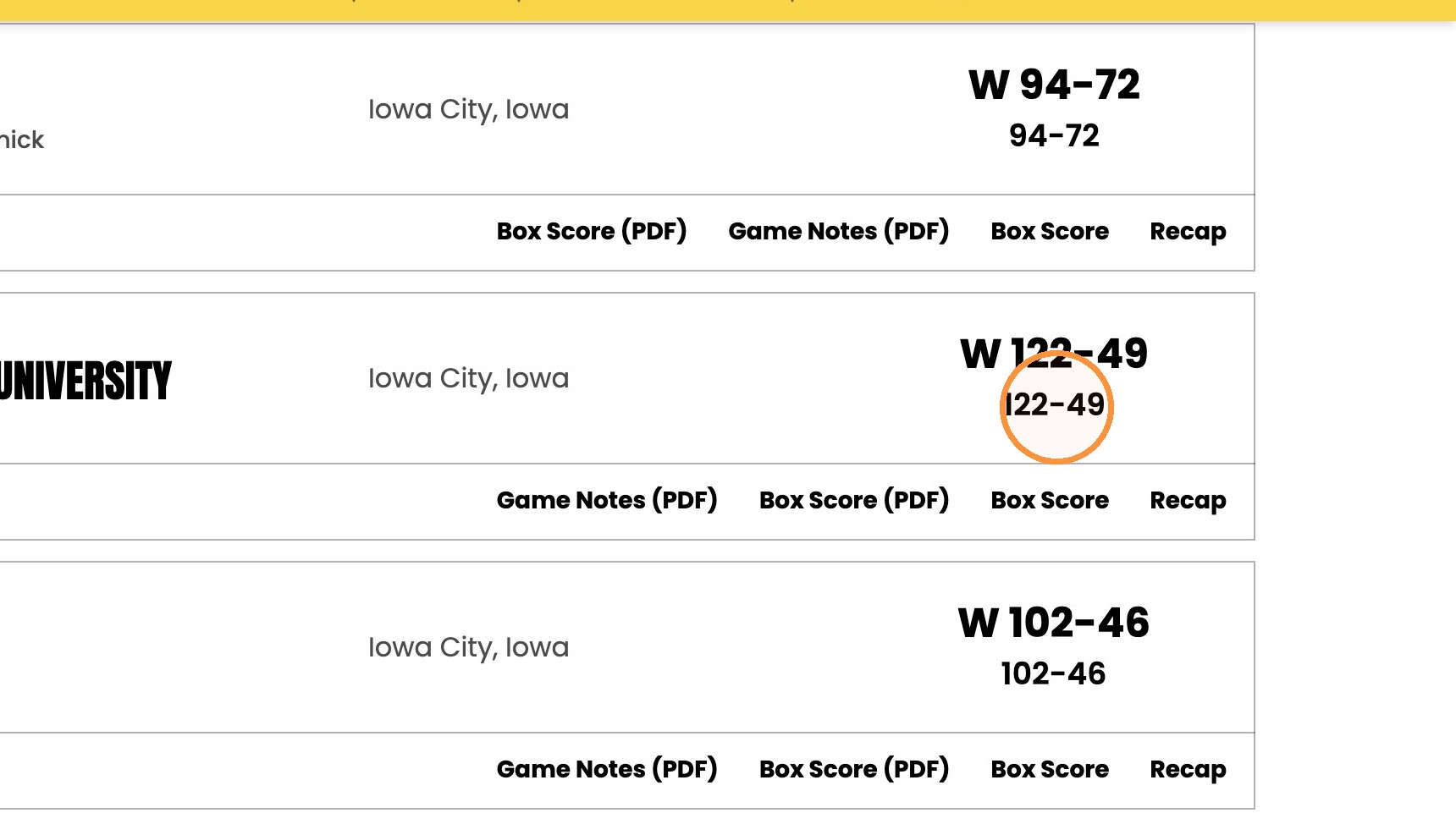
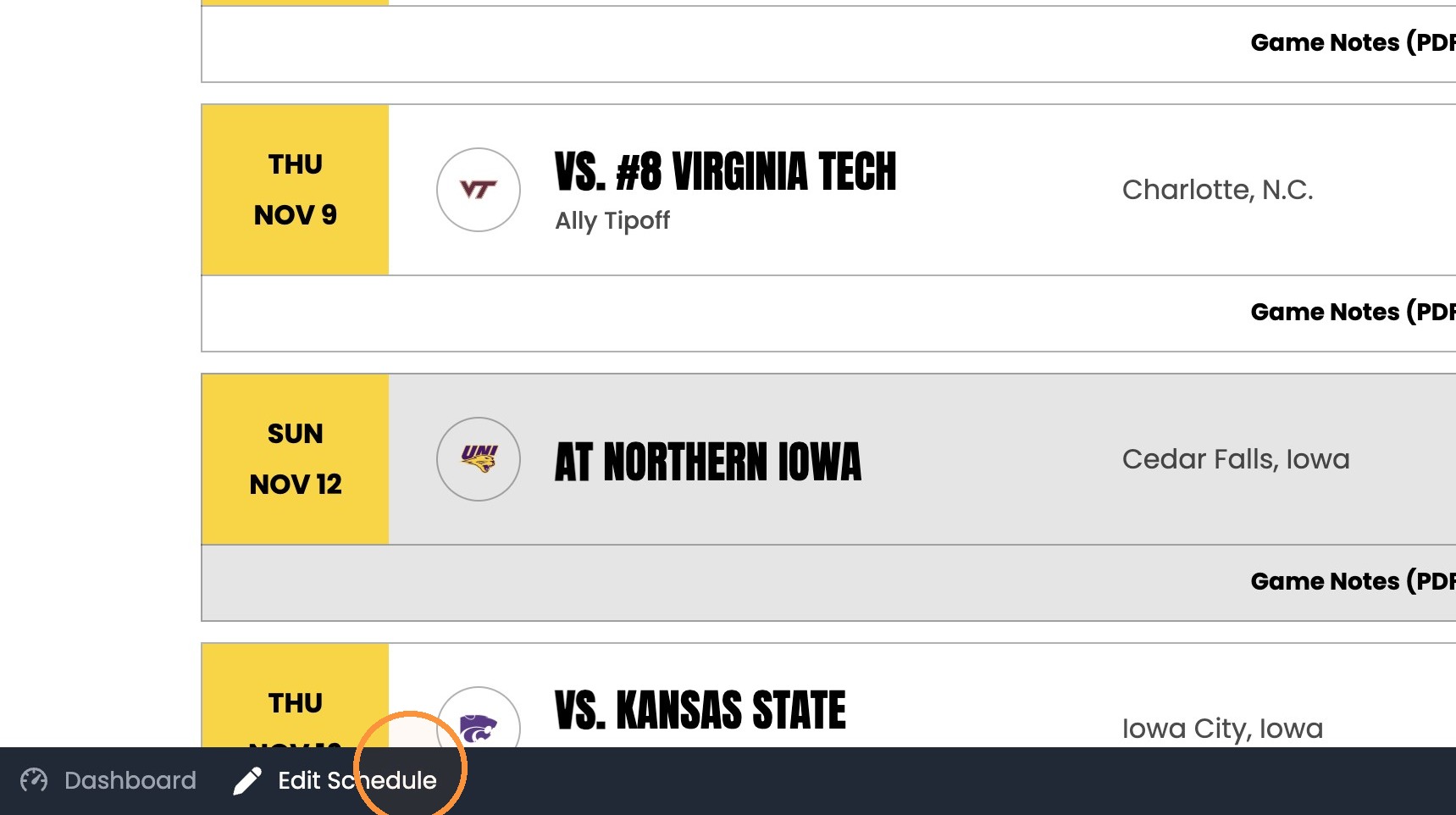
3. To edit this and remove the duplication, click "Edit Schedule"
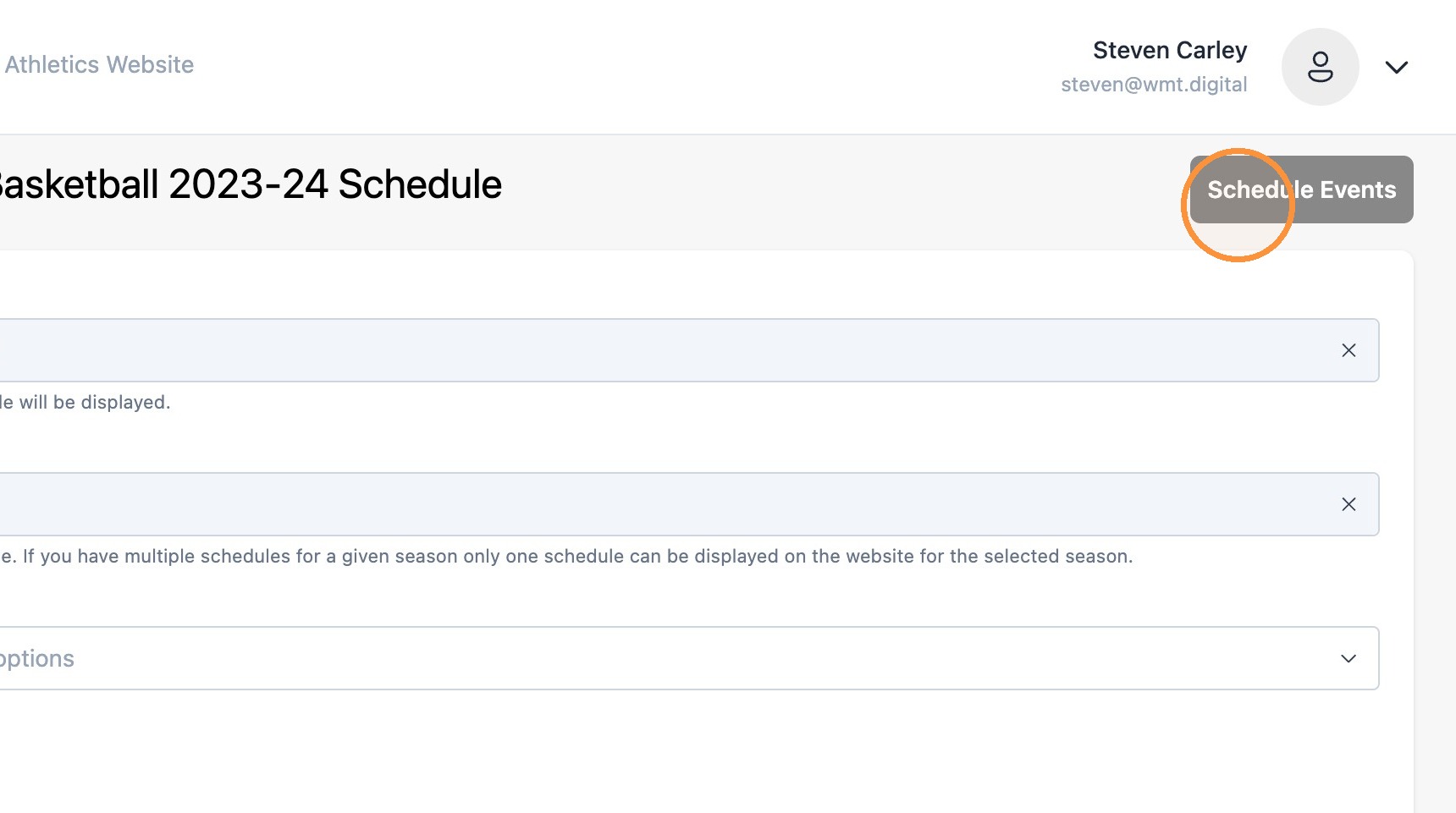
4. Select "Schedule Events" to view all events tied to the schedule
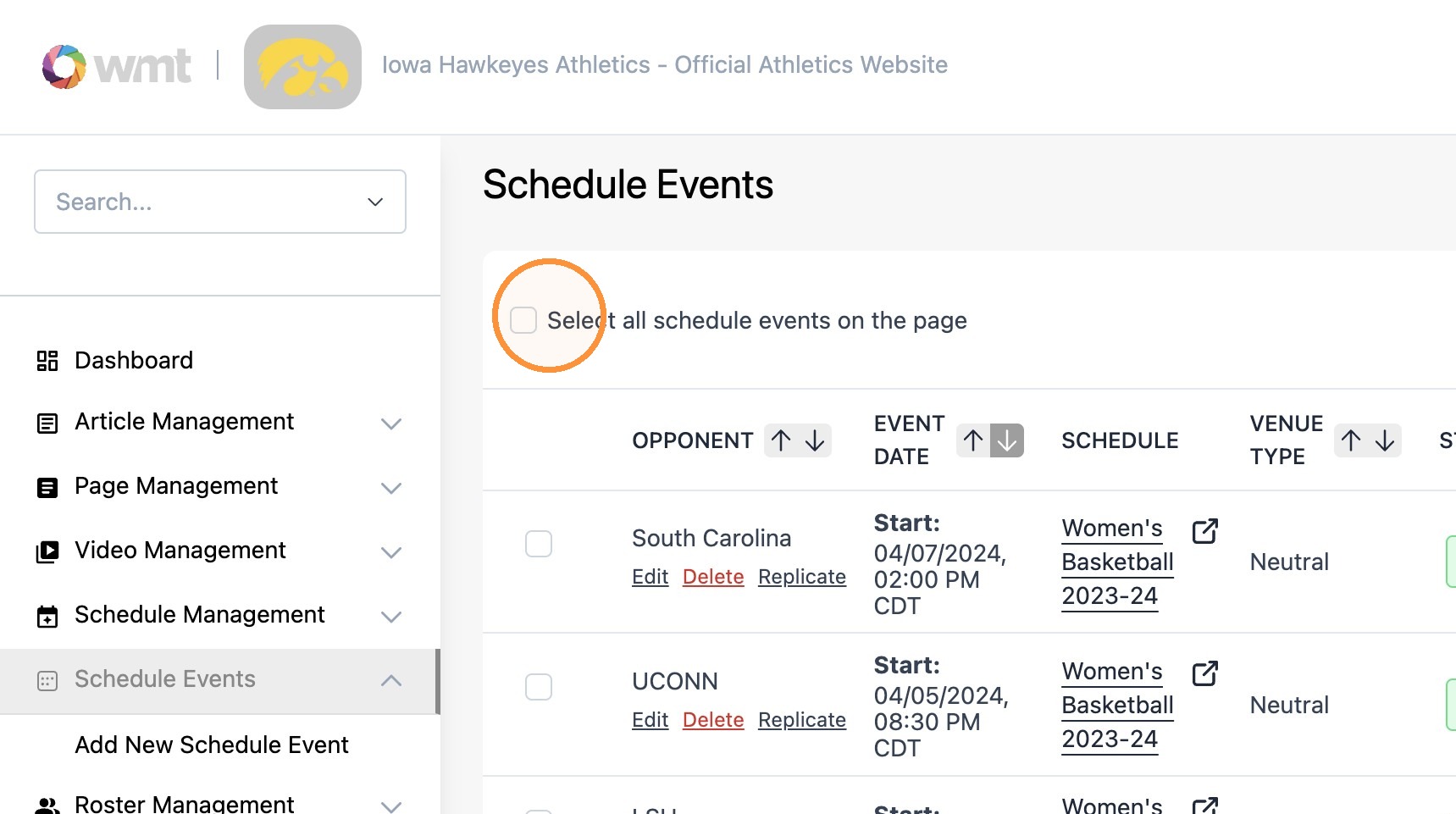
5. Click "Select all schedule events on the page"
6. Click the 'Edit' pencil icon to enable the Bulk Edit window
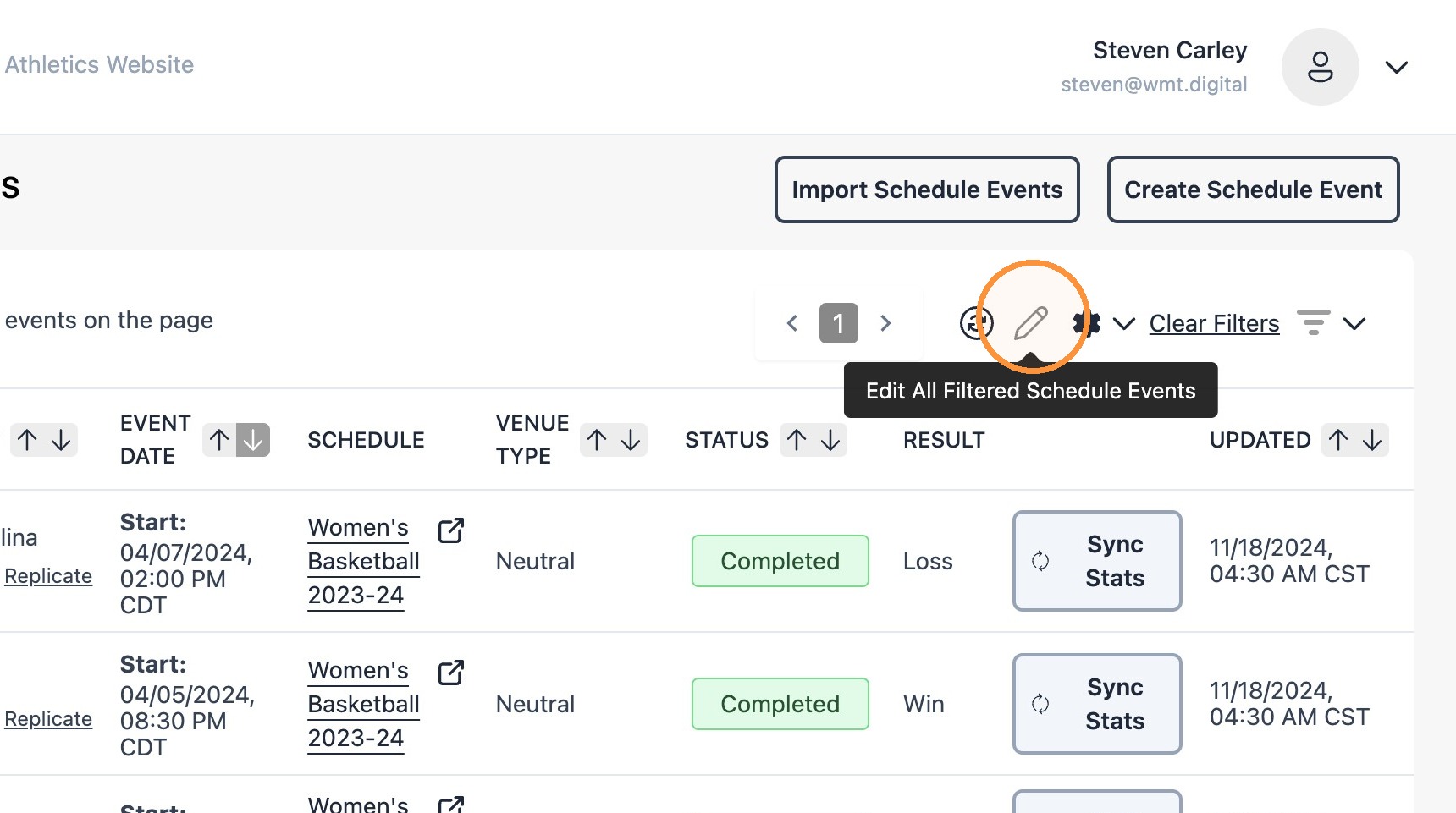
7. Review each game on a schedule. If the "Game result text" field is populate with a score only then click on the Game Result Text field and delete the contents.
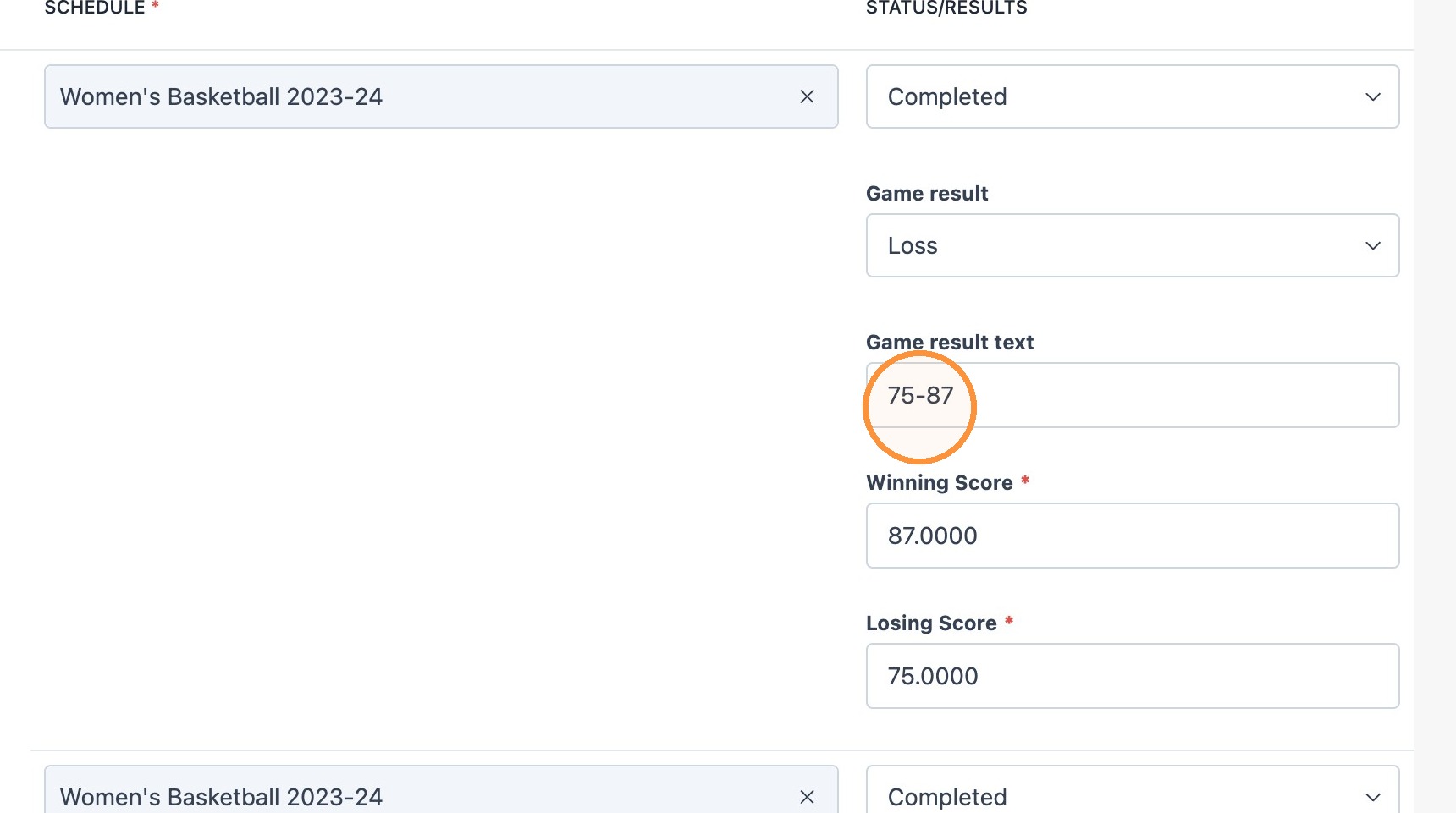
Tip: If the 'Game Result Text' field has extra text other than the score placed (ie - 10 innings, OT) please keep that text but remove the score
8. Check the "Winning Score" and "Losing Score" fields and verify that each are populated.
If not then type in the winning score and losing score of the game/match.
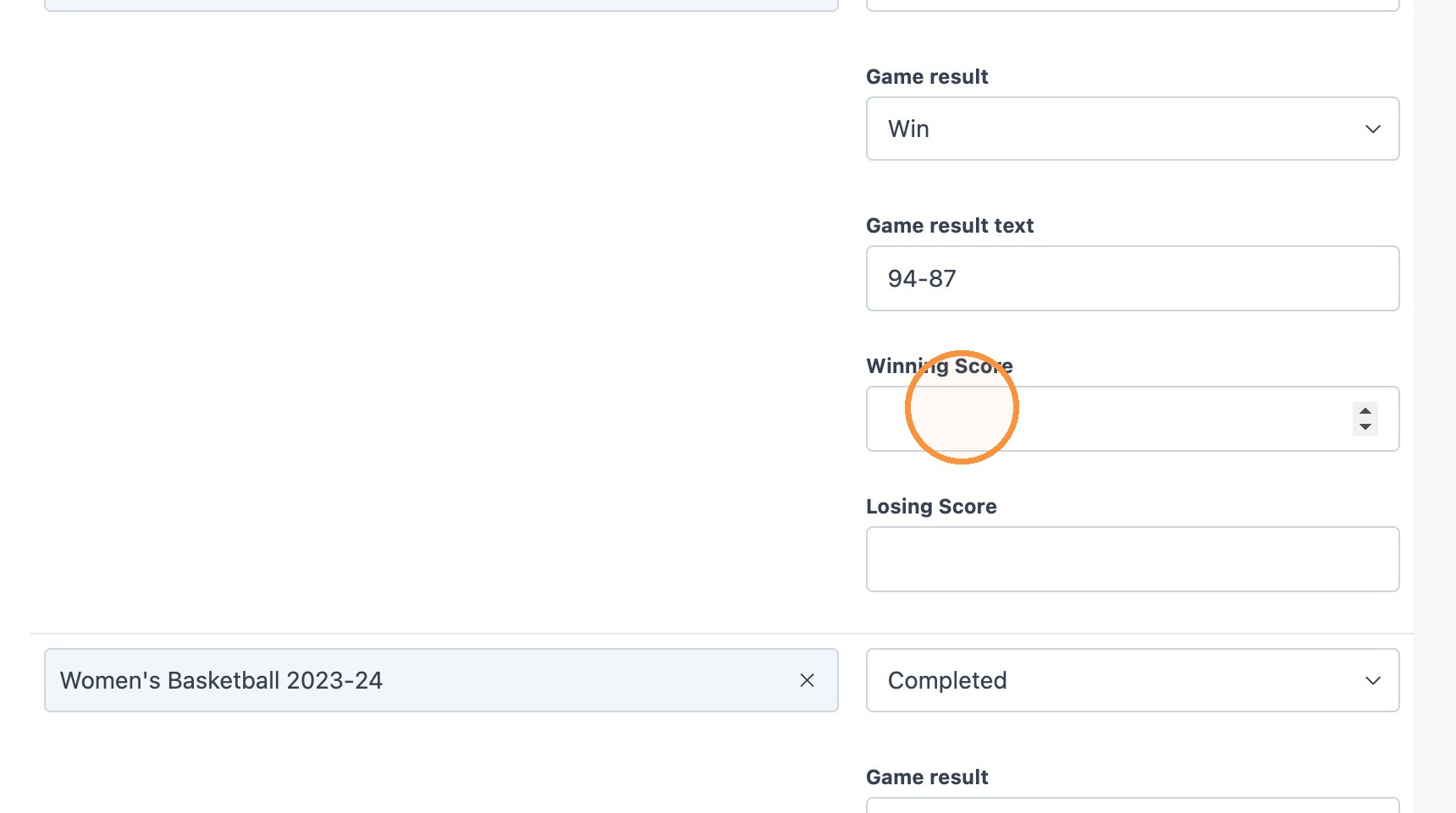
9. Double-click the "Game result text" field.
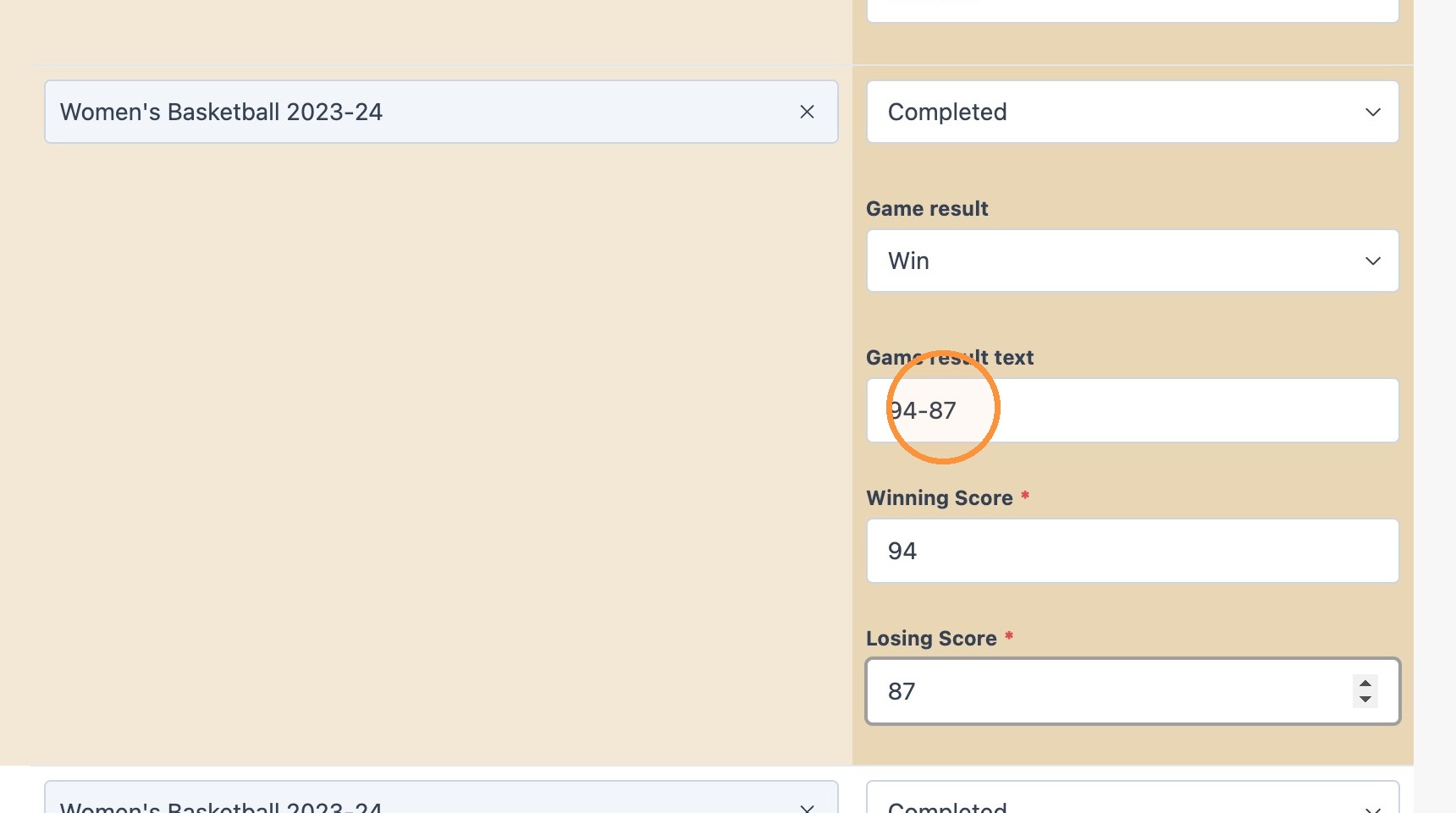
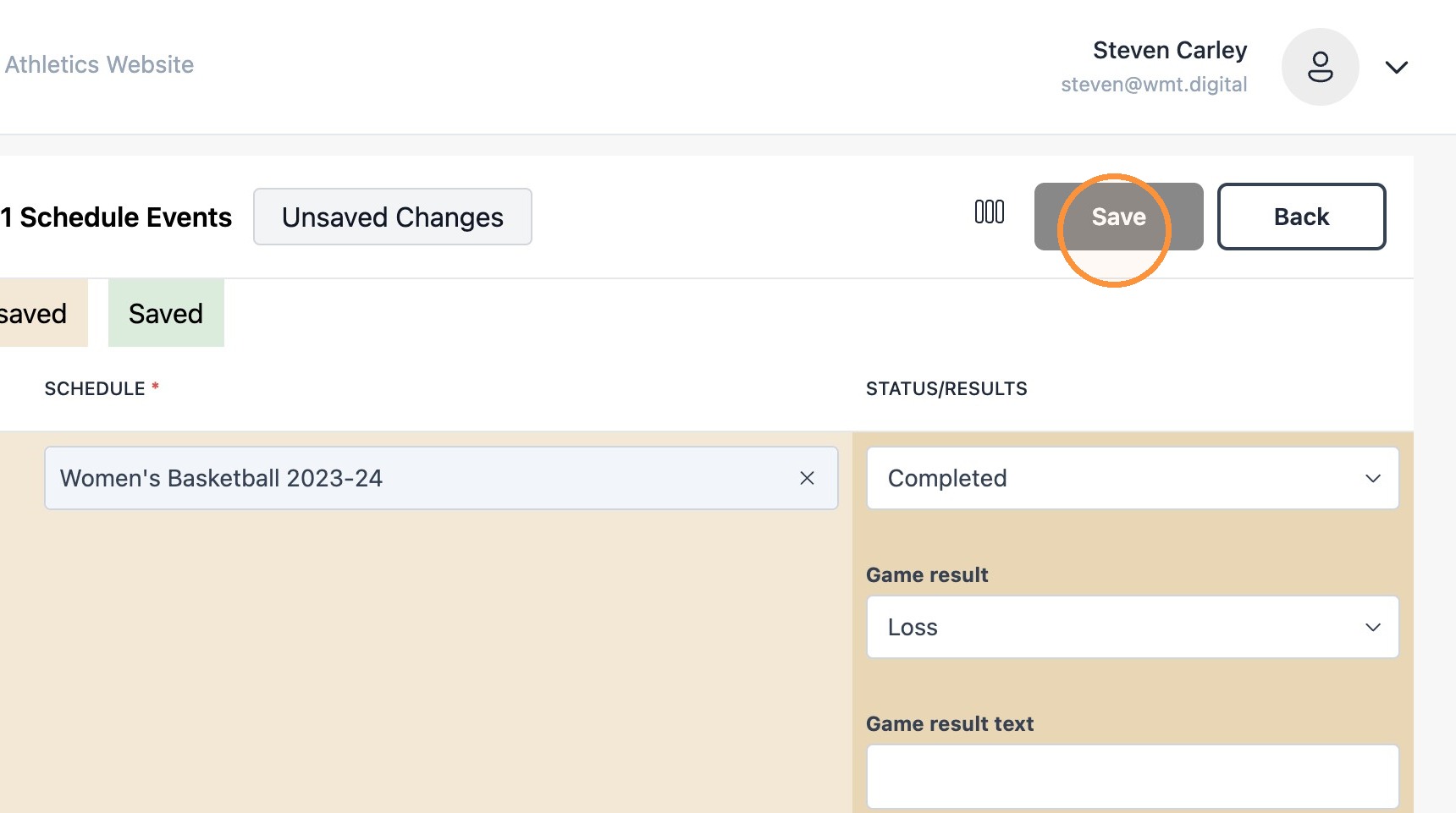
10. After all events on a season have been checked, scroll to the top and click "Save"
11. Navigate to a different sport schedule and check all events. Repeat the process as outlined.