Create a Push Notification with Image
Last updated: September 18, 2026
Made by Rafael Venceslau with Scribe
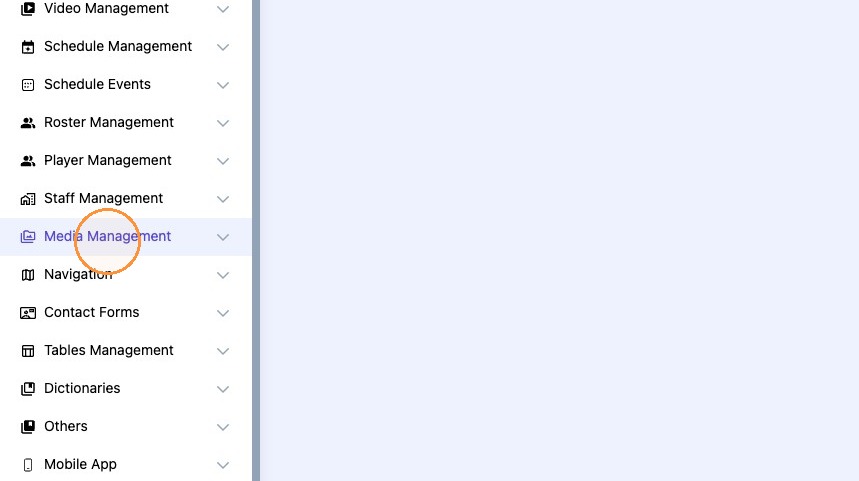
1. Click "Media Management"
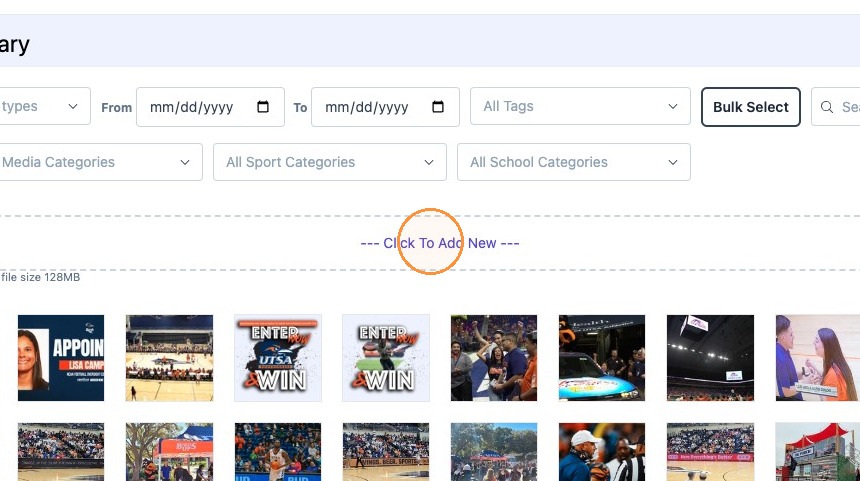
2. Add the image you would like the user to open the push notification to.
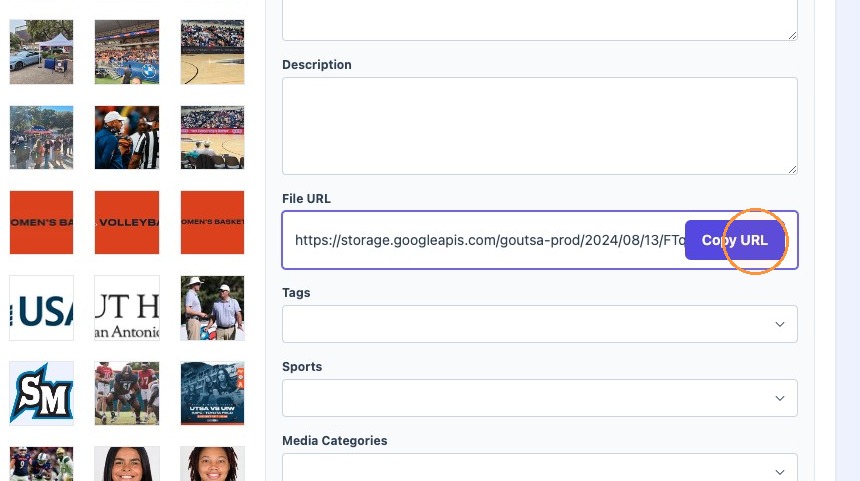
3. Click the image you would like to link to.
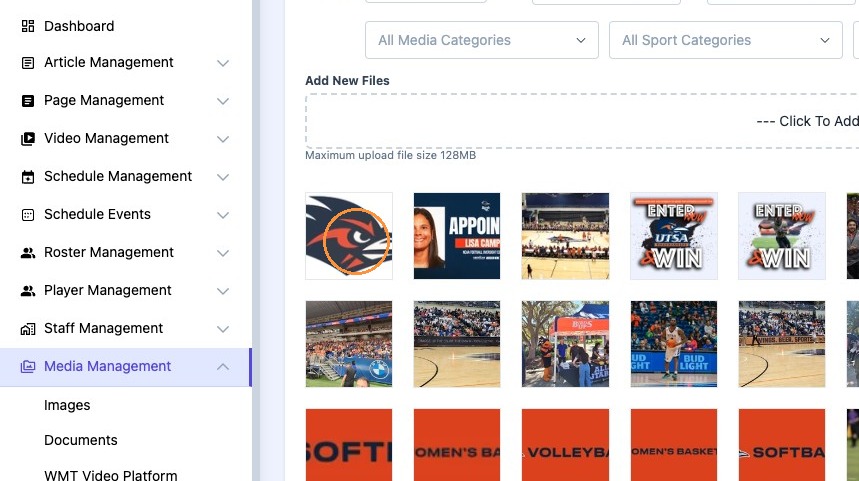
4. Click "Copy URL"
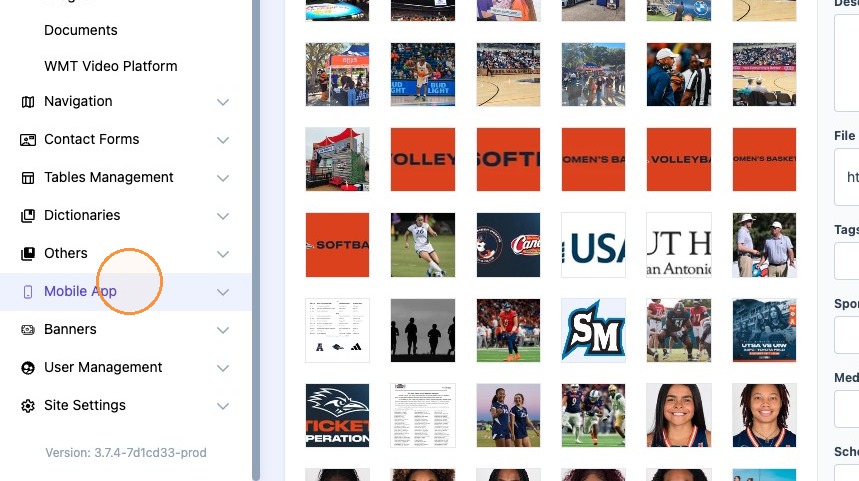
5. Click "Mobile App"
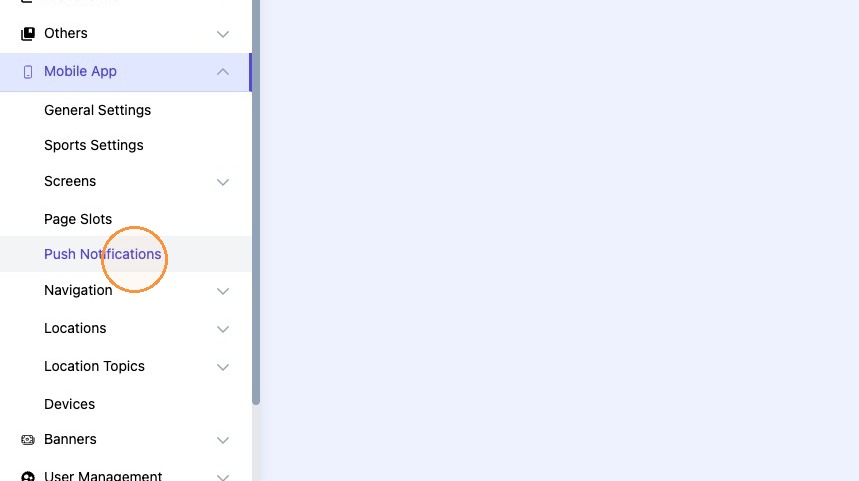
6. Click "Push Notifications"
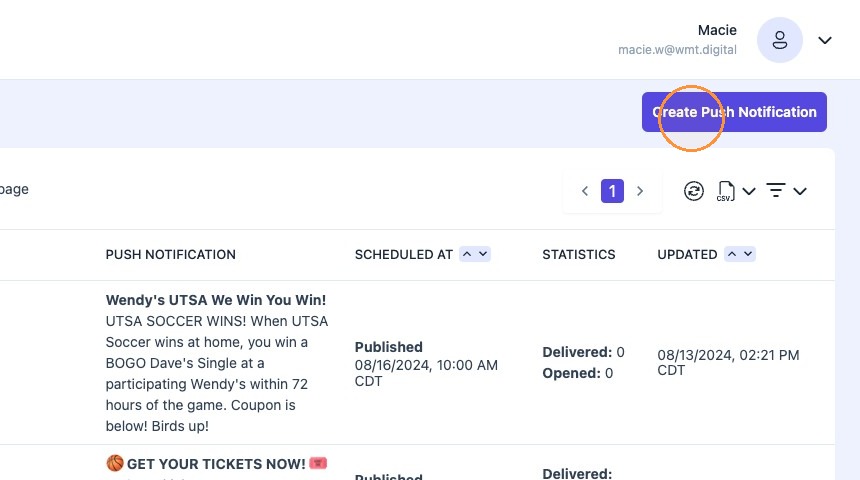
7. Click "Create Push Notification"
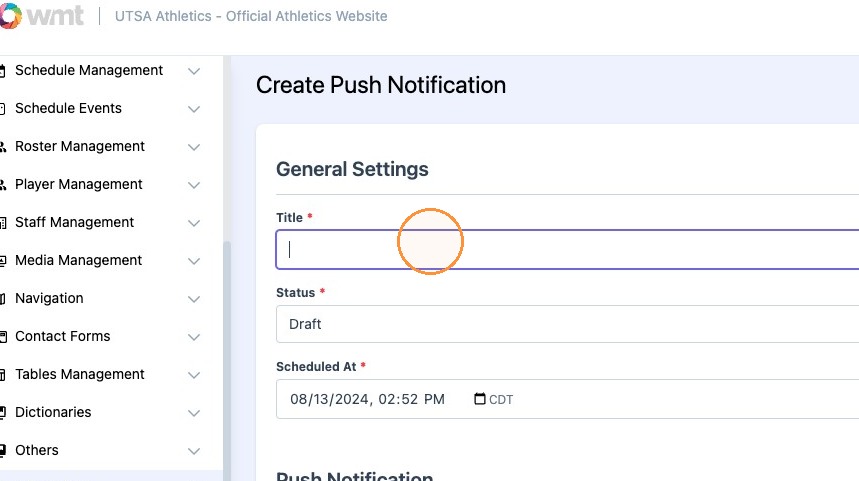
8. Click the "Title*" field. This is the title you will see in the CMS.
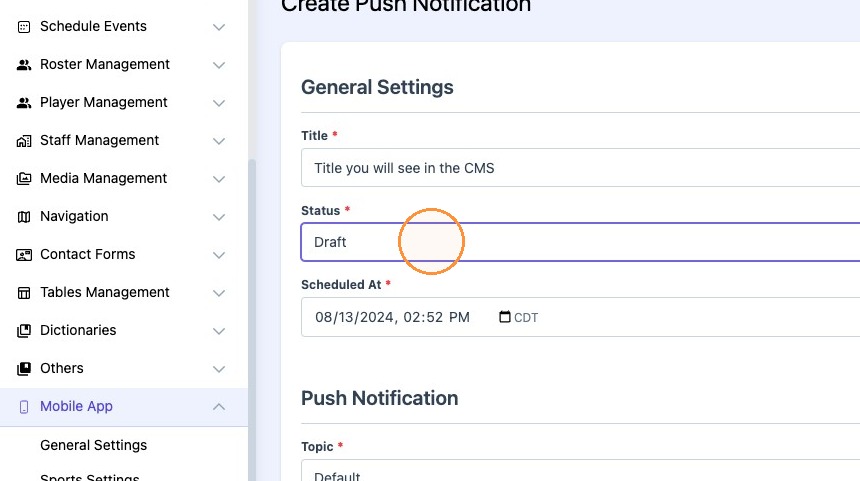
9. Click this dropdown and select published
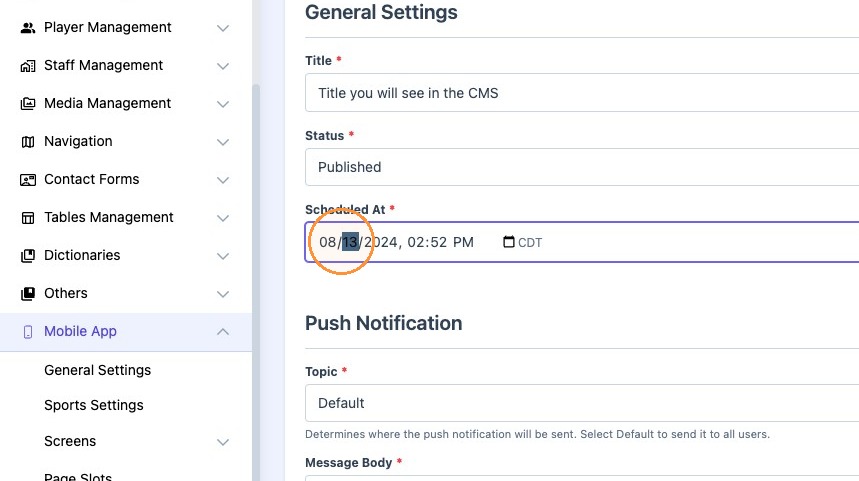
10. Click this date and time field and select the time you would like the push to go out.
11. Click "Topic" and pick which audience you would like to deliver this push to.
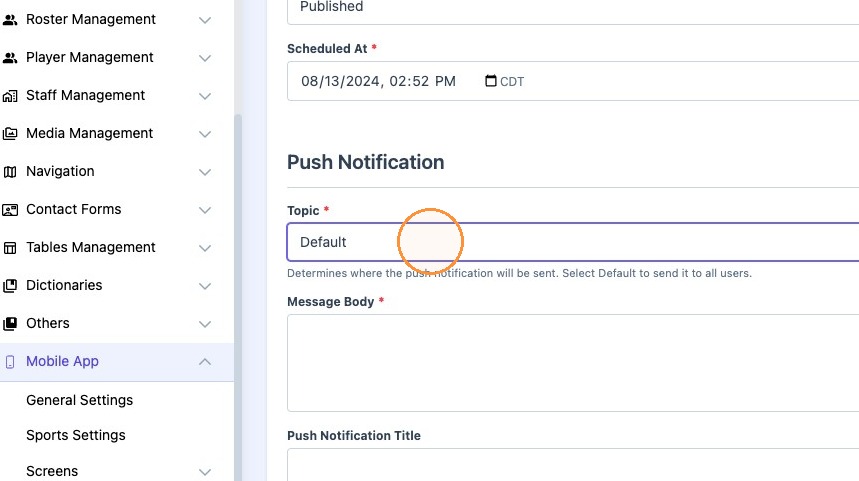
12. Click the desired audience.

13. Click the "Message Body*" field. Keep this to 135 characters or less.
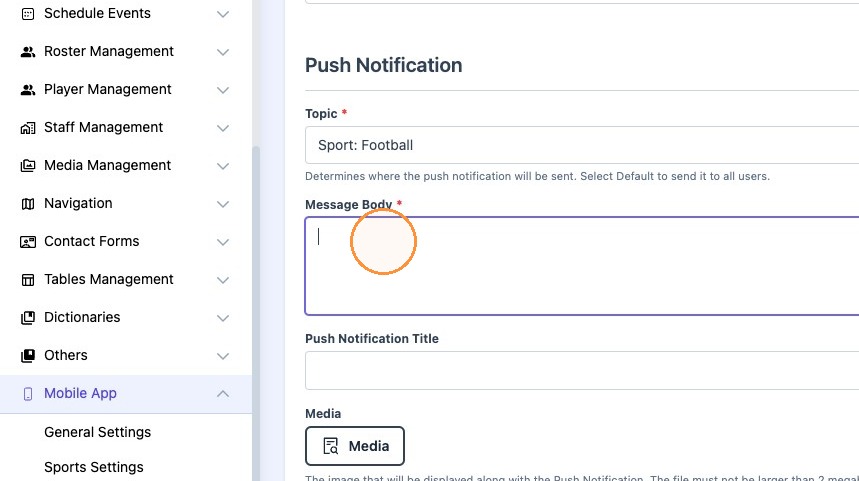
14. Click the "Push Notification Title" field and type in the desired Title.

15. Click "Media"
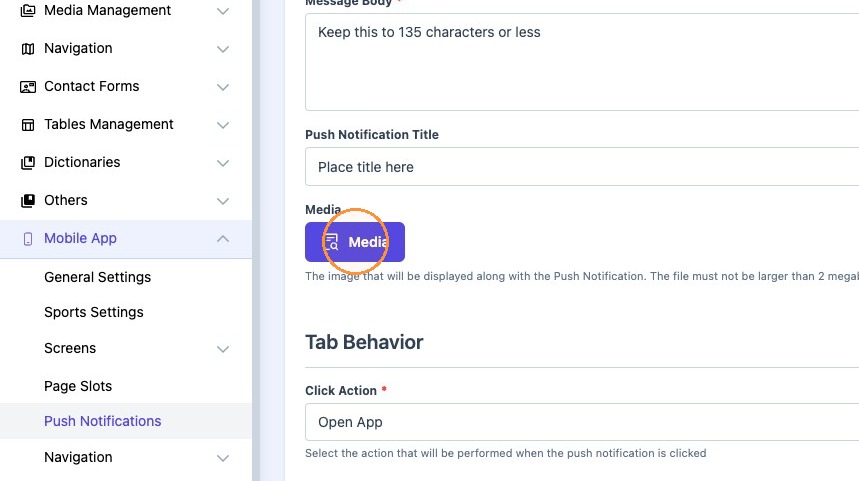
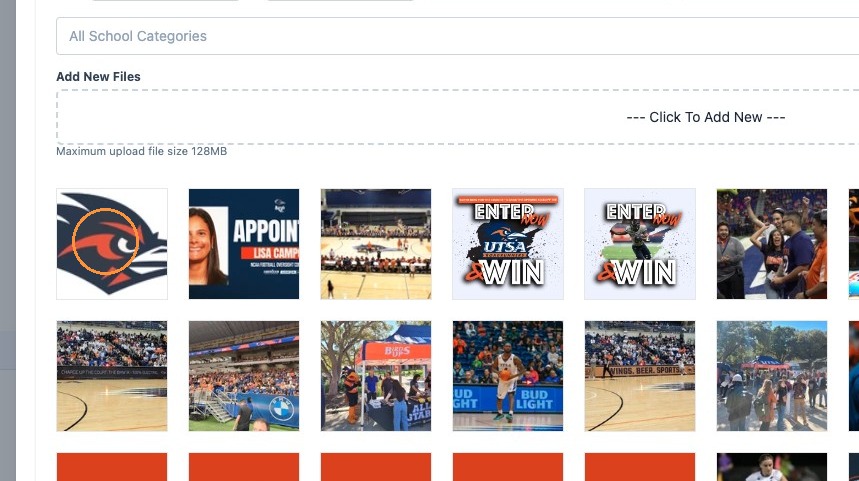
16. Select an image you would like to accompany the push. This does not have to be the image you are linking to.
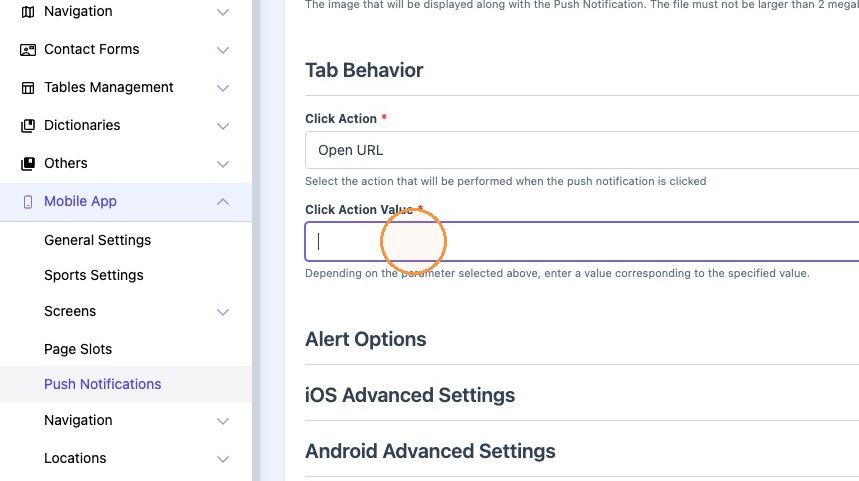
17. Click this dropdown and select Open URL.

18. Paste the image URL we copied earlier to this section.
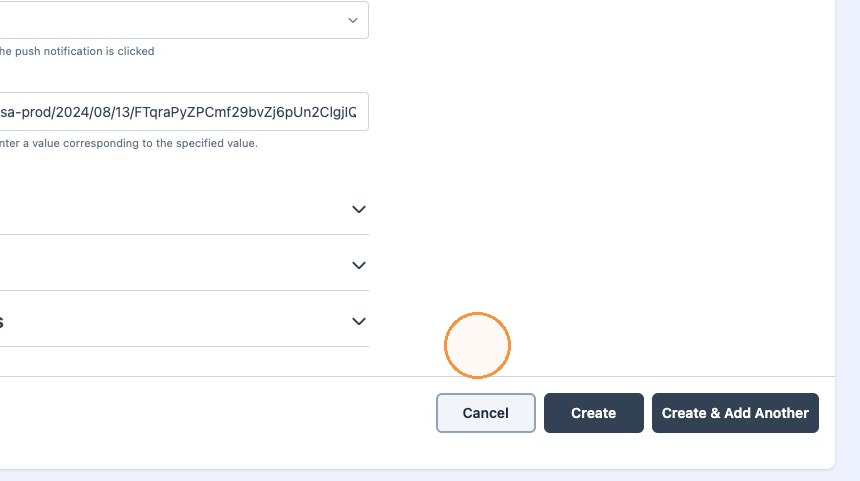
19. Select "Create"