Schedule Events - Bulk Import Feature
Last updated: September 20, 2026
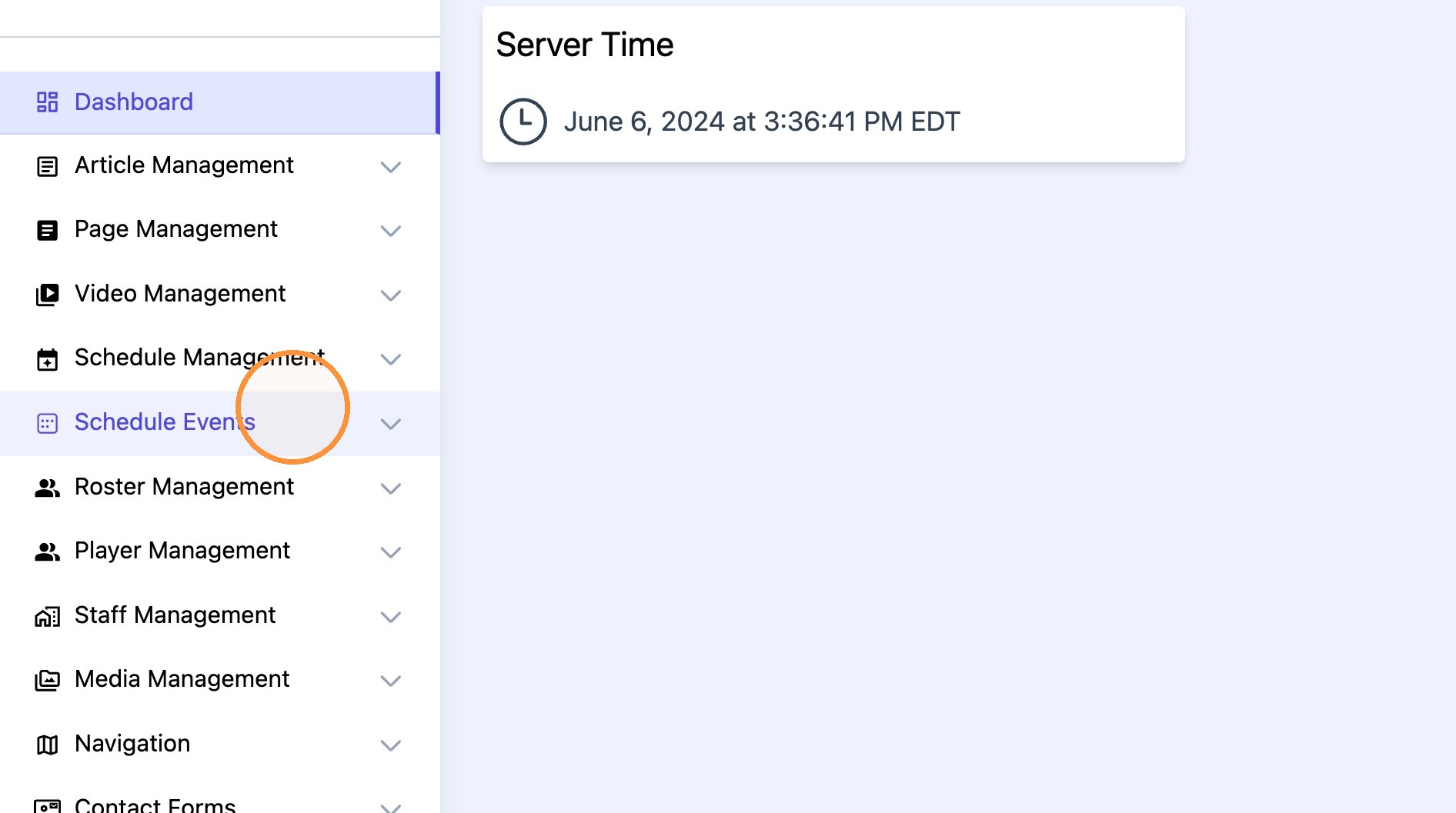
1. Click "Schedule Events"
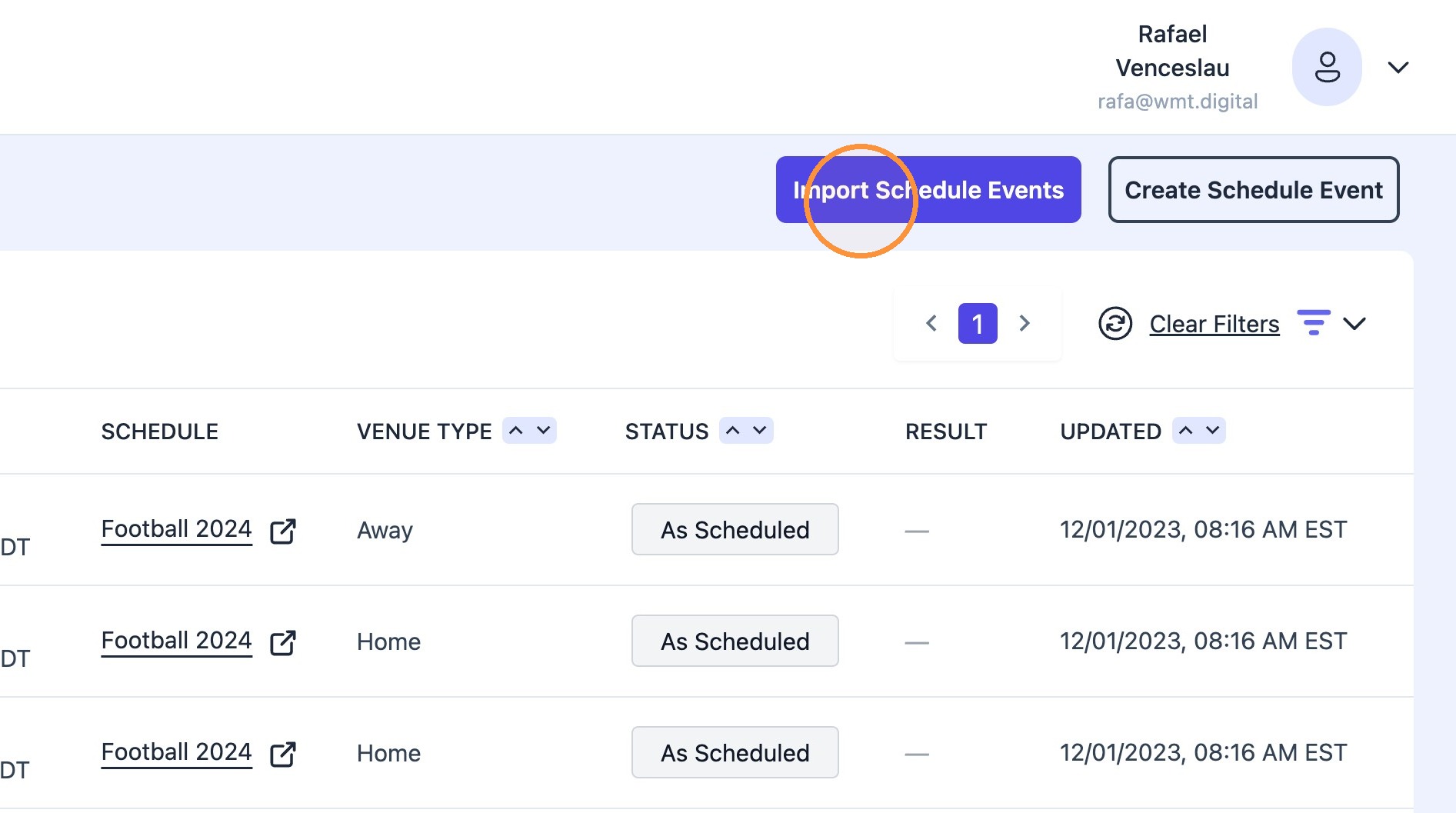
2. Click "Import Schedule Events"
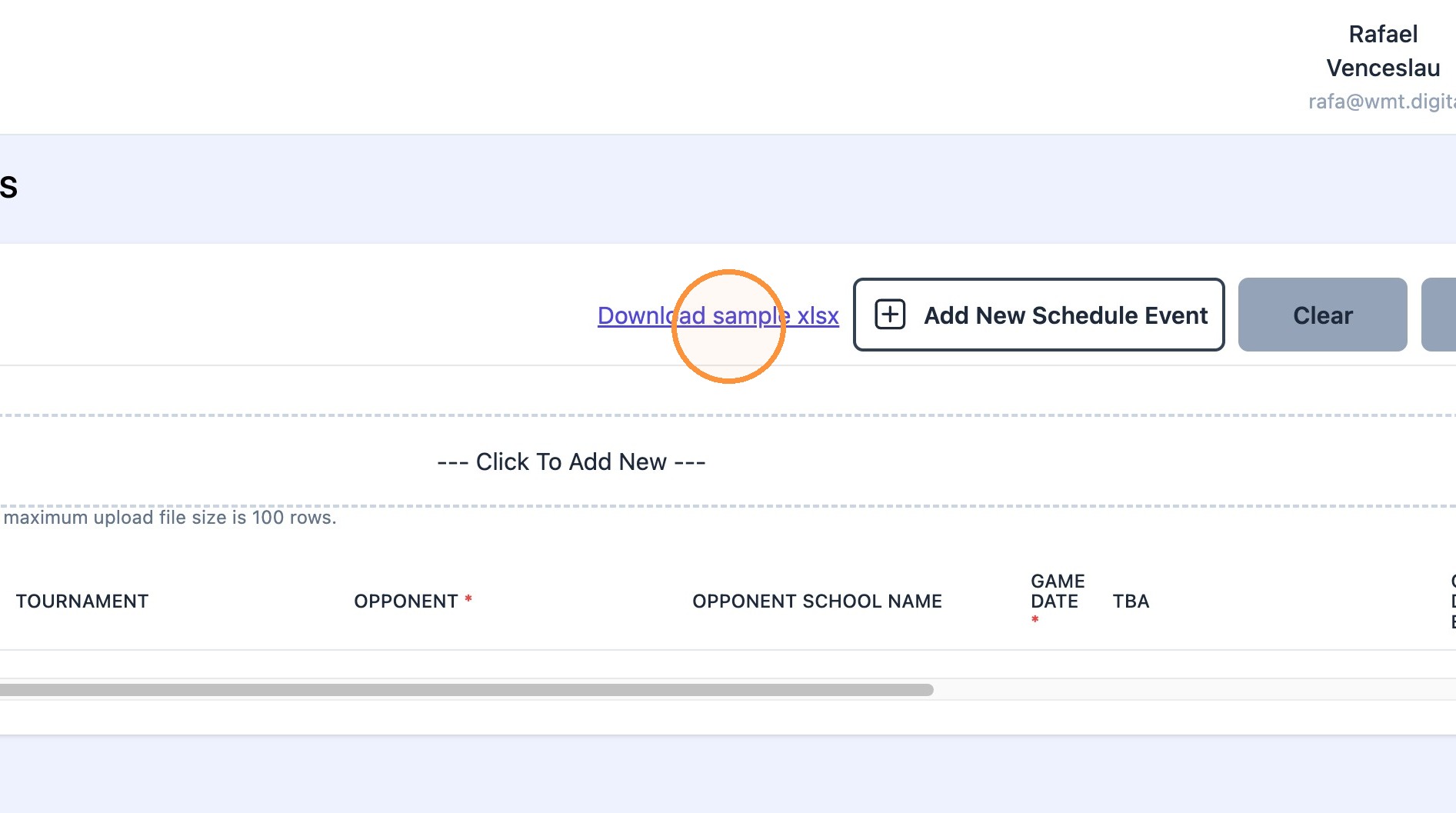
Tip: Tip! Download Sample file to ensure the correct information is added to the event import spreadsheet.
3. Click "Download sample xlsx"
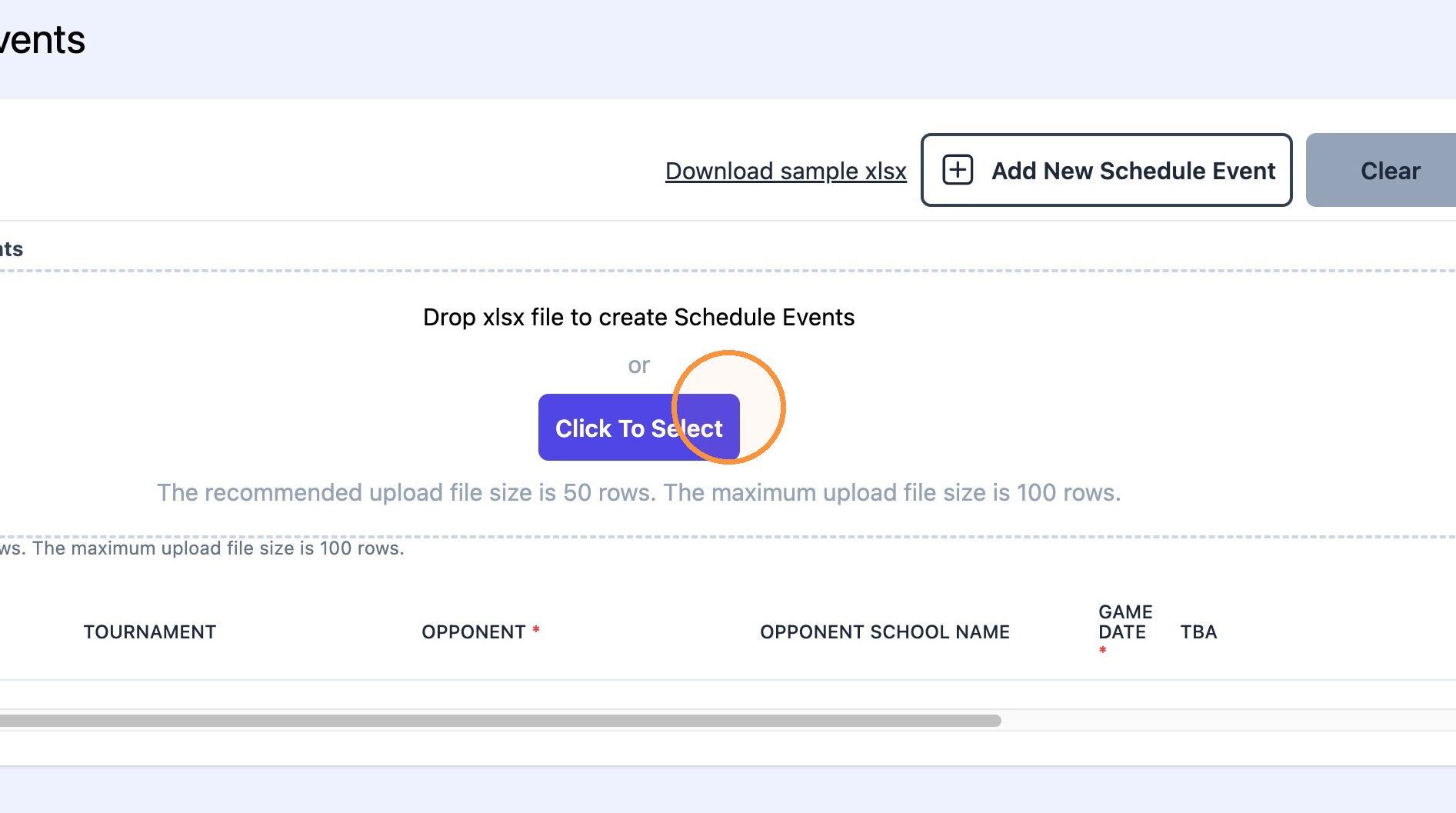
4. Once Event spreadsheet is done, click "Click To Select" to upload it to the CMS.
5. Once file is uploaded, click "Check"
and then "Save".


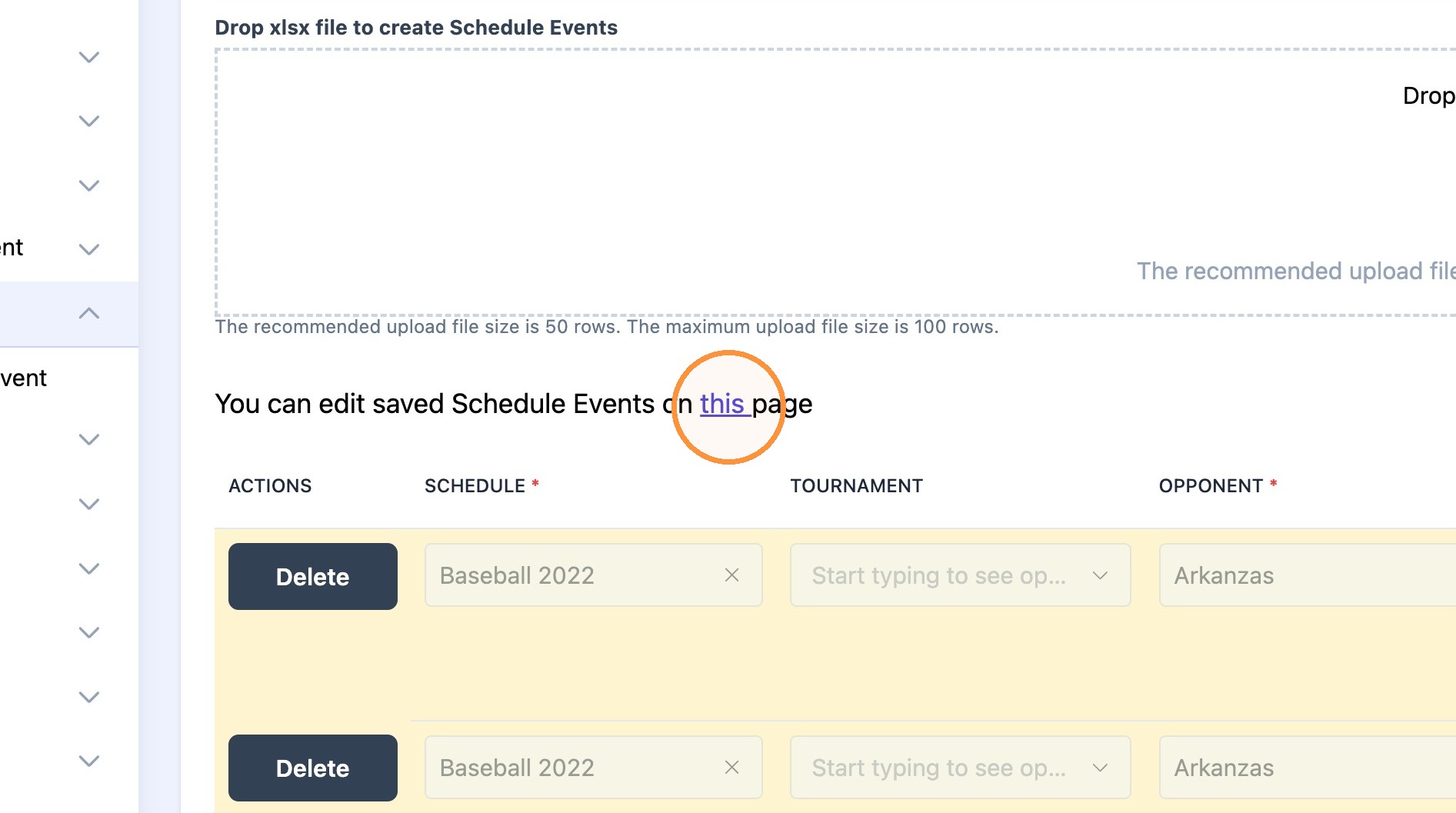
6. If extra event editing is needed, click "You can edit saved Schedule Events on this page" link.
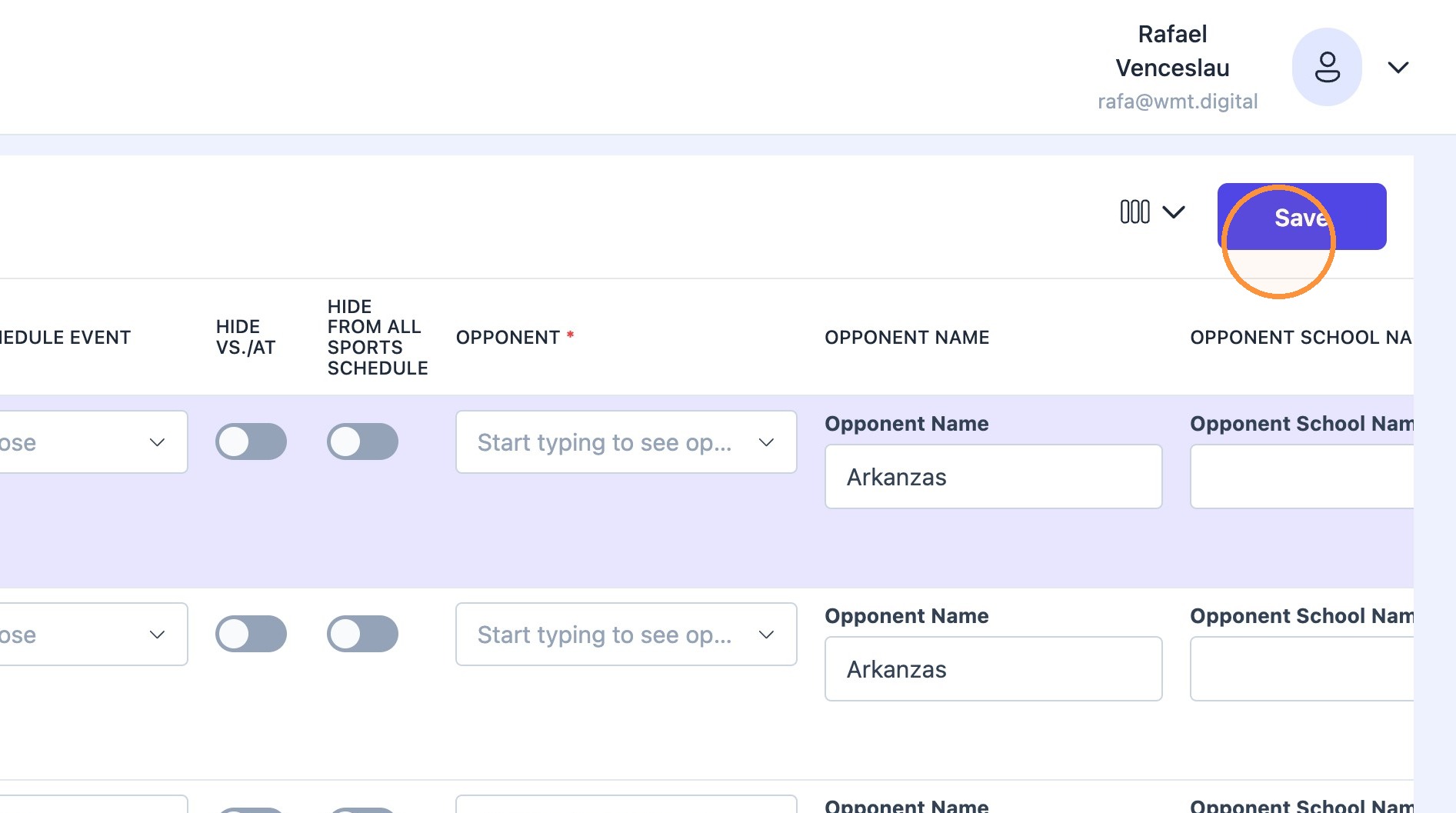
7. Once additional edits are made, click "Save".
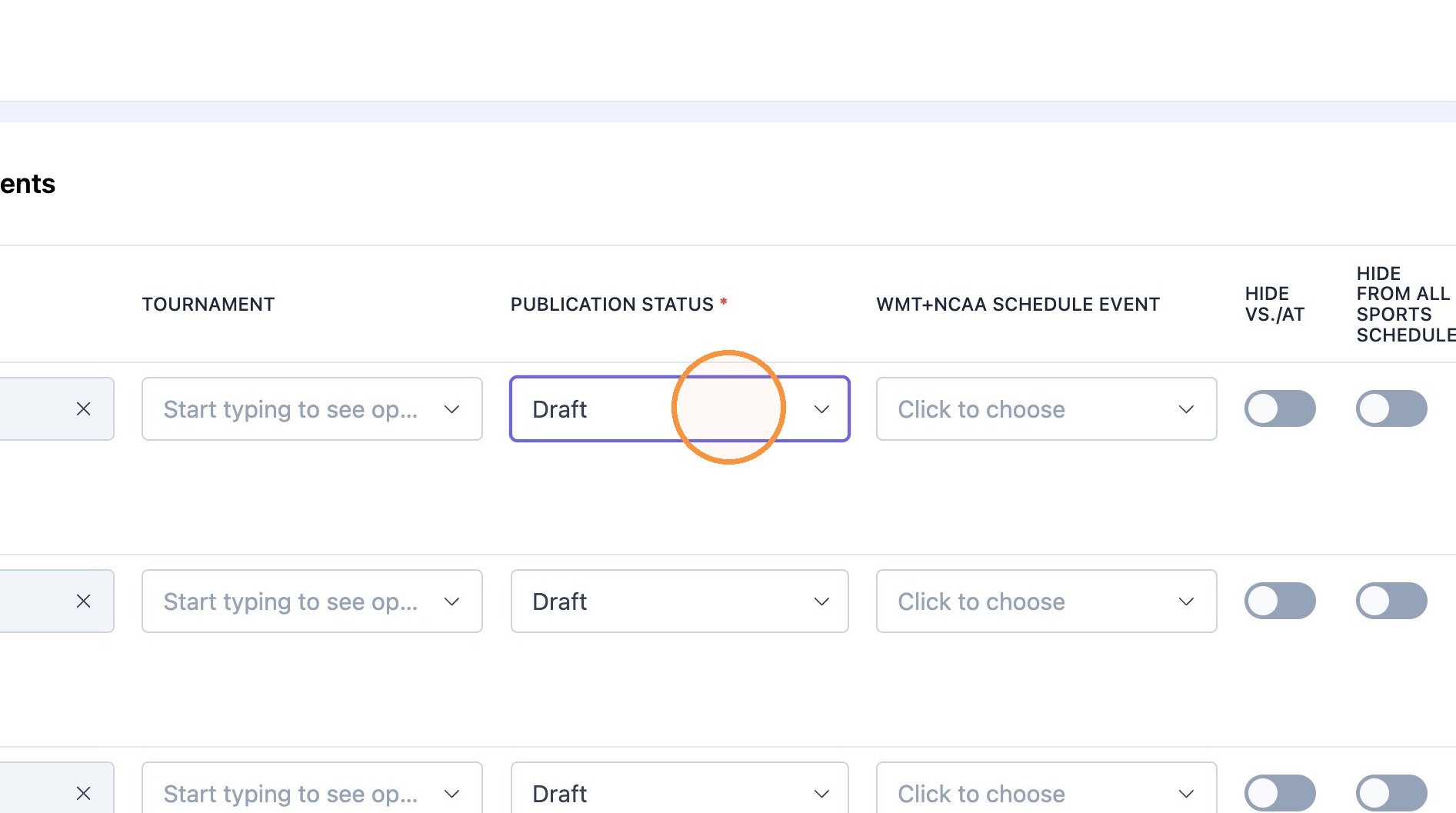
Tip: Tip! Events can be published to the site using last step.