Article Management - Create New Article
Last updated: September 18, 2026
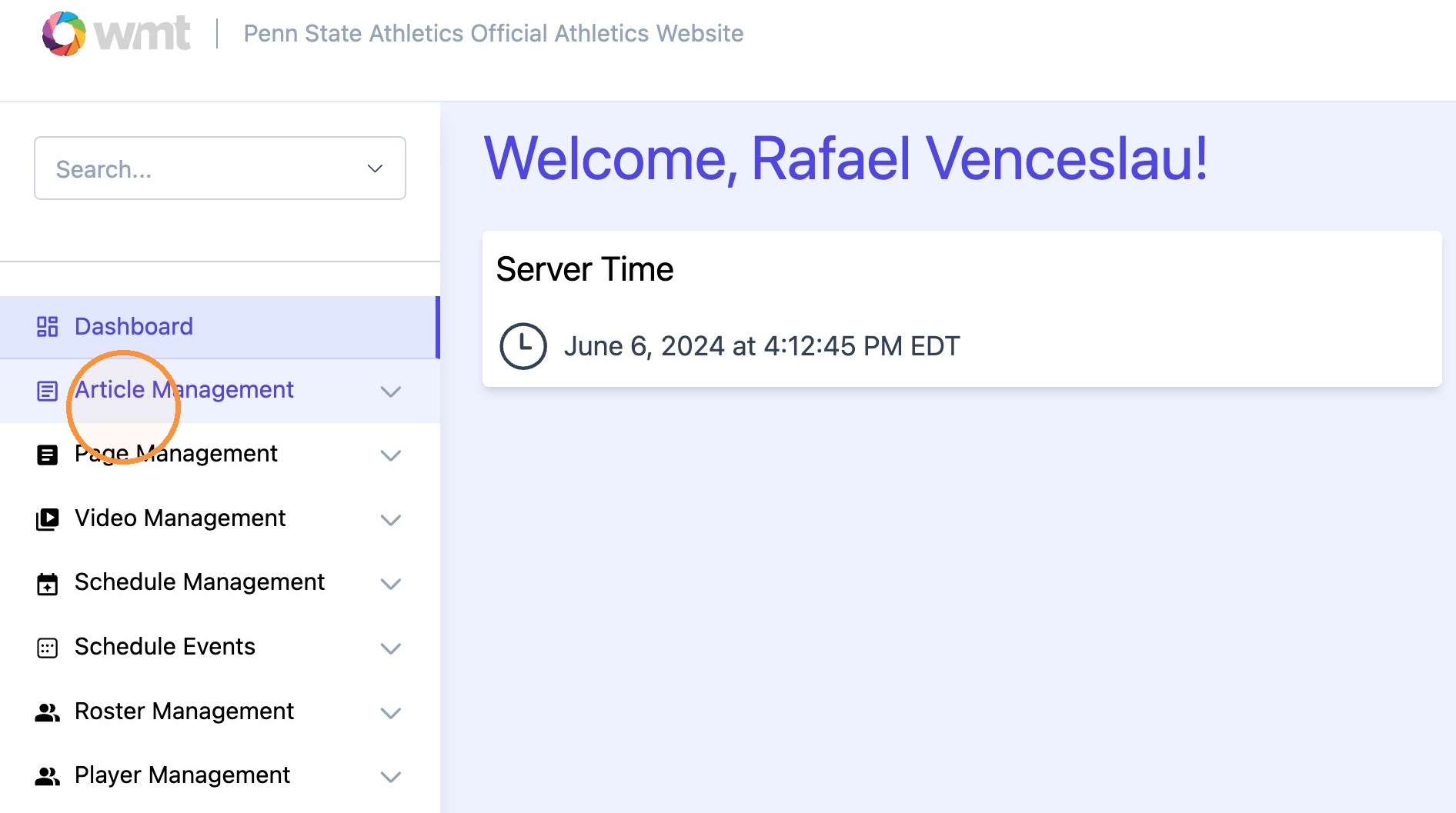
1. Click "Article Management"
Click "Create Article"

2. Type desired "Title" and "Short Description".
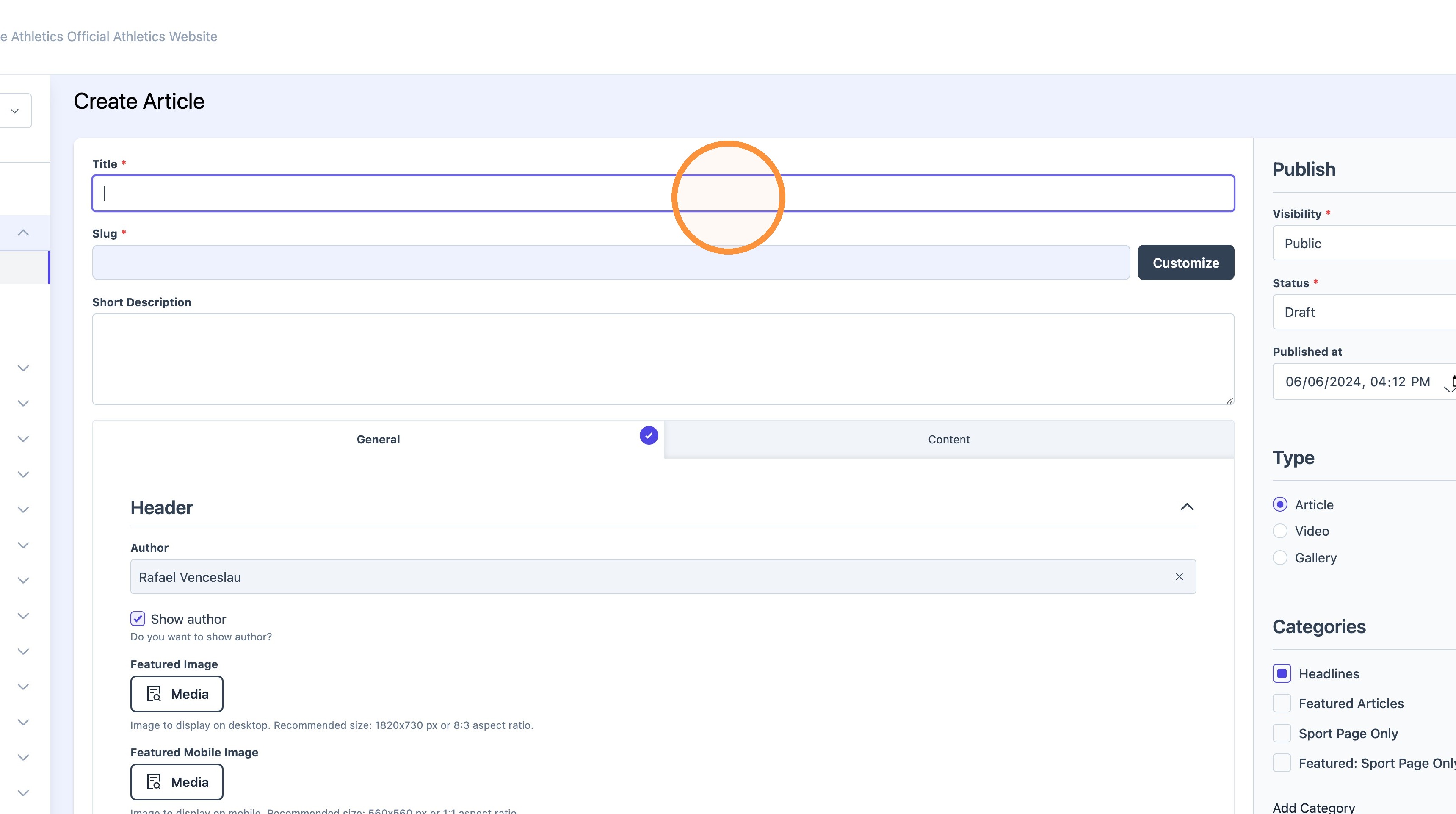

3. Choose desired featured article image

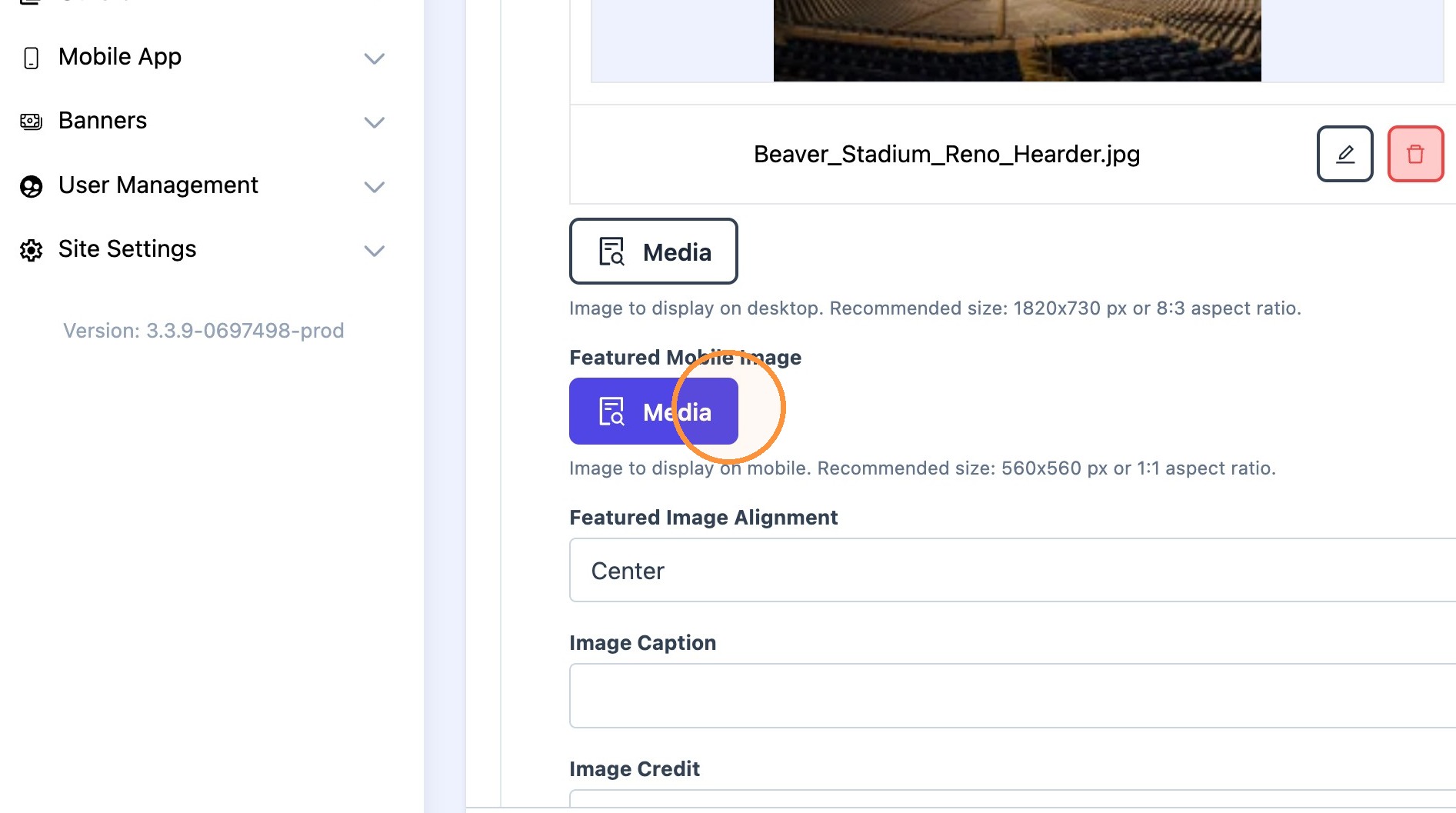
Tip: Tip! Use the "featured mobile image" to upload a 1:1 ratio image. This ensures the image will display properly on mobile devices.
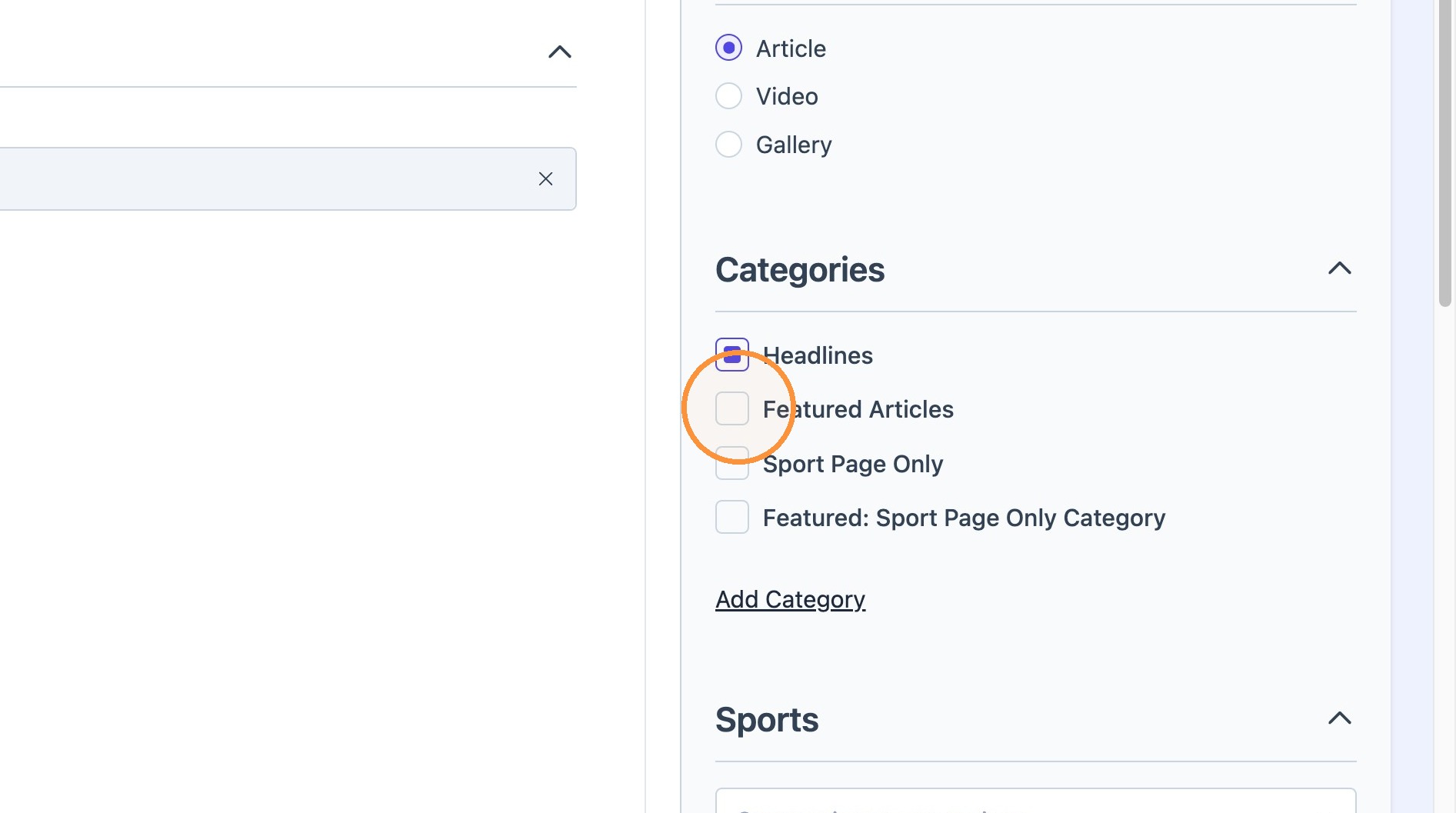
4. Select the desired categories. Category options would determine where the article would appear on the site.
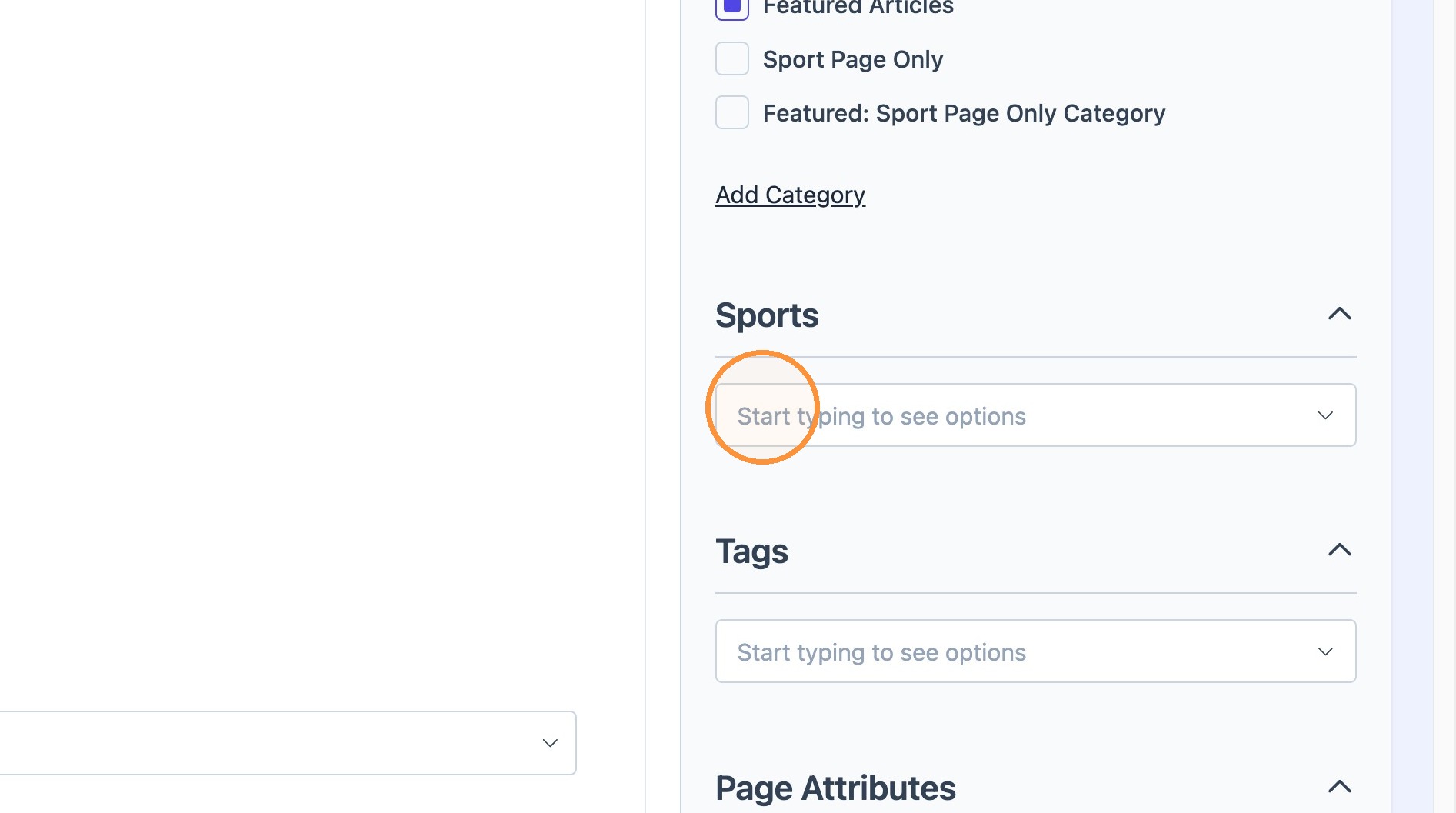
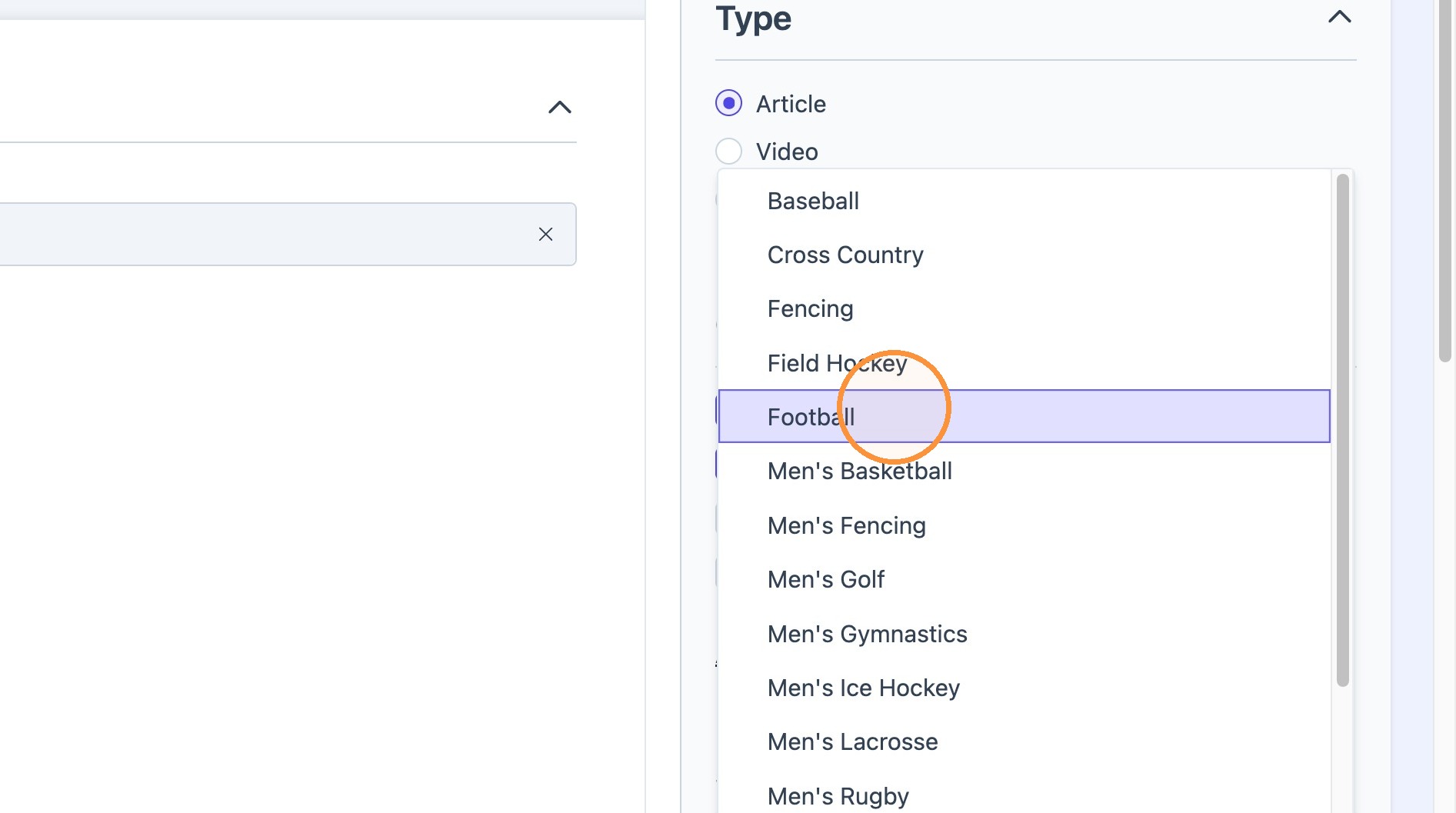
5. Select the related sports.
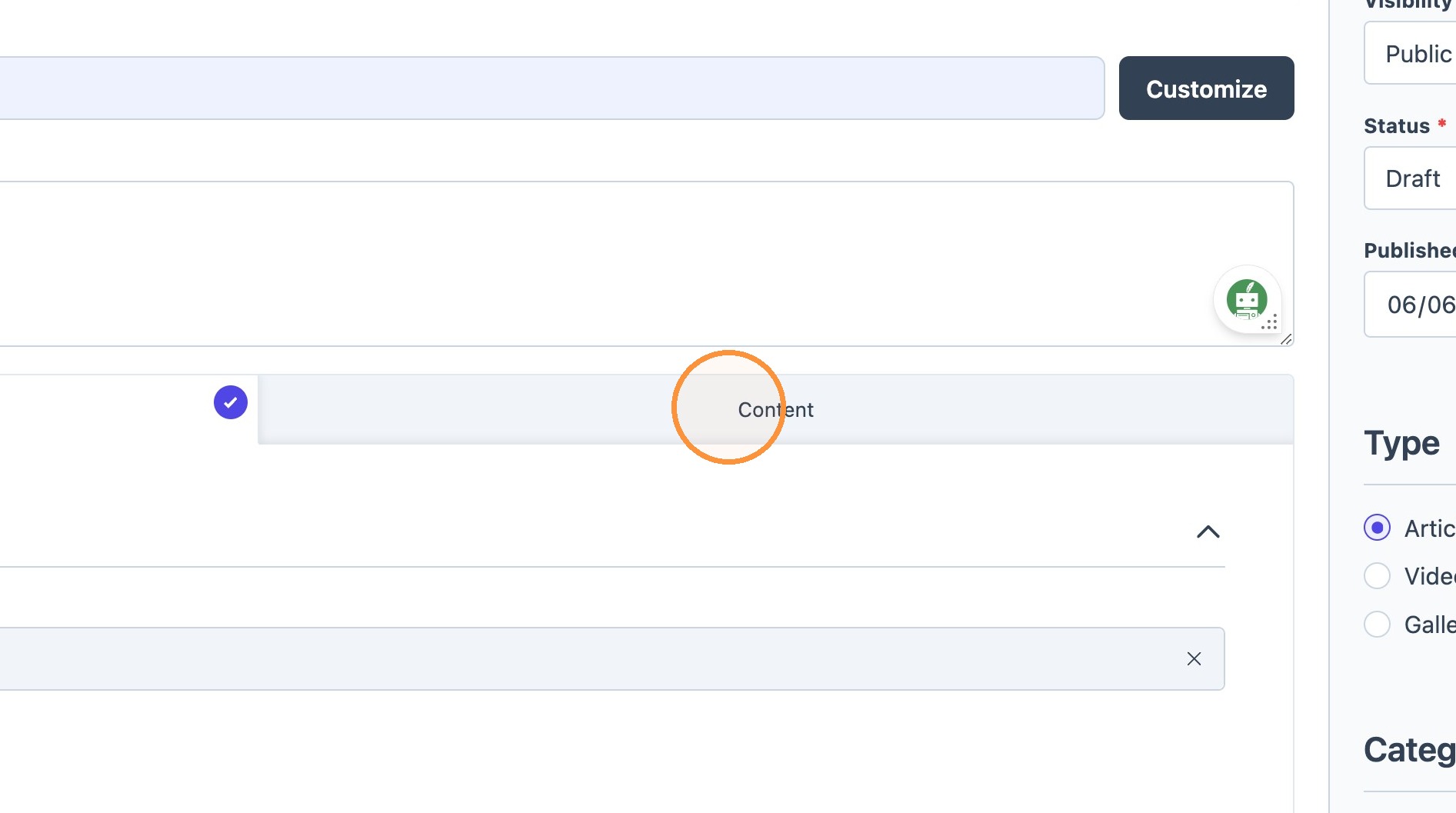
6. Click the "Content" tab to add content blocks to the new article.
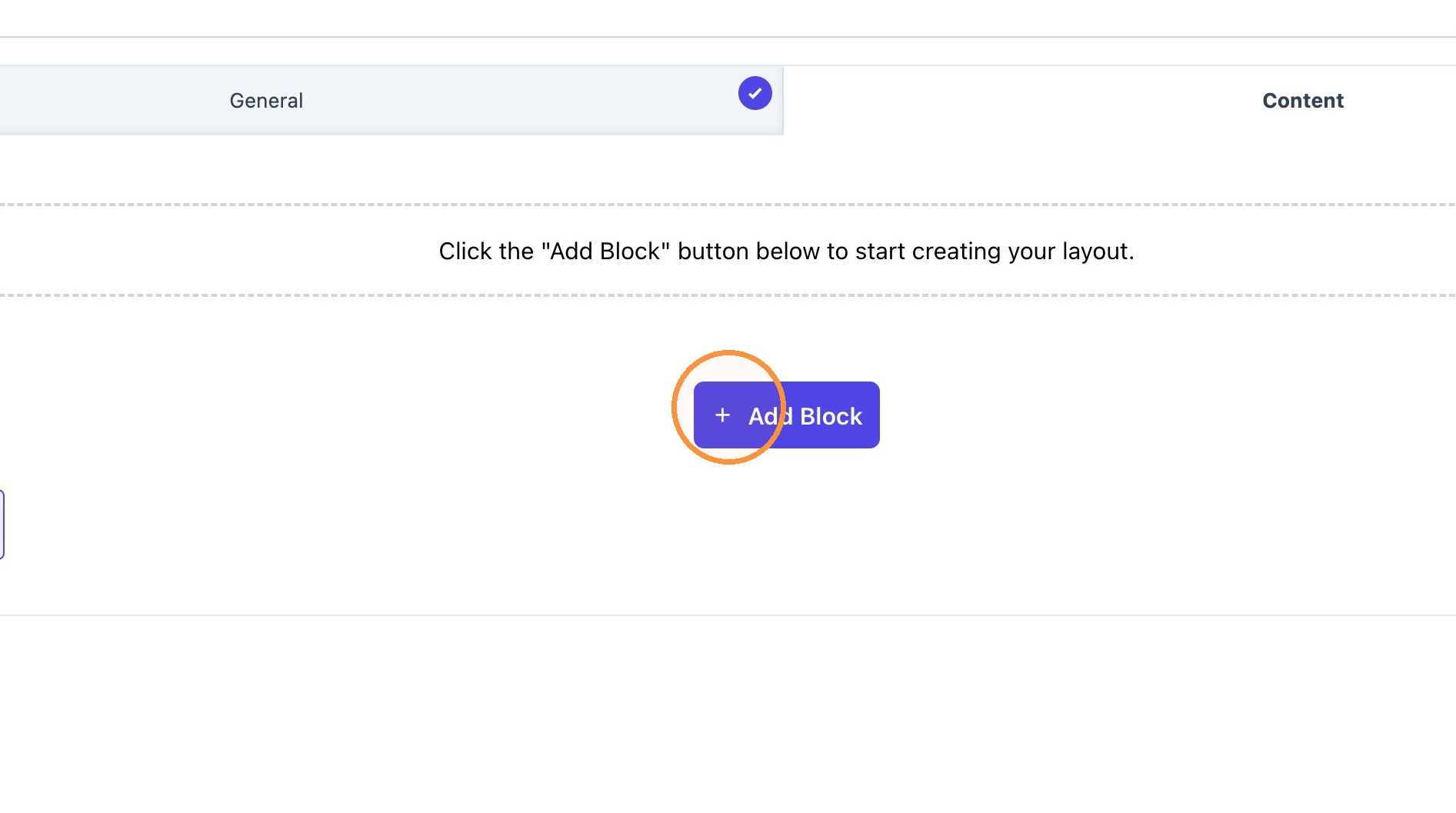
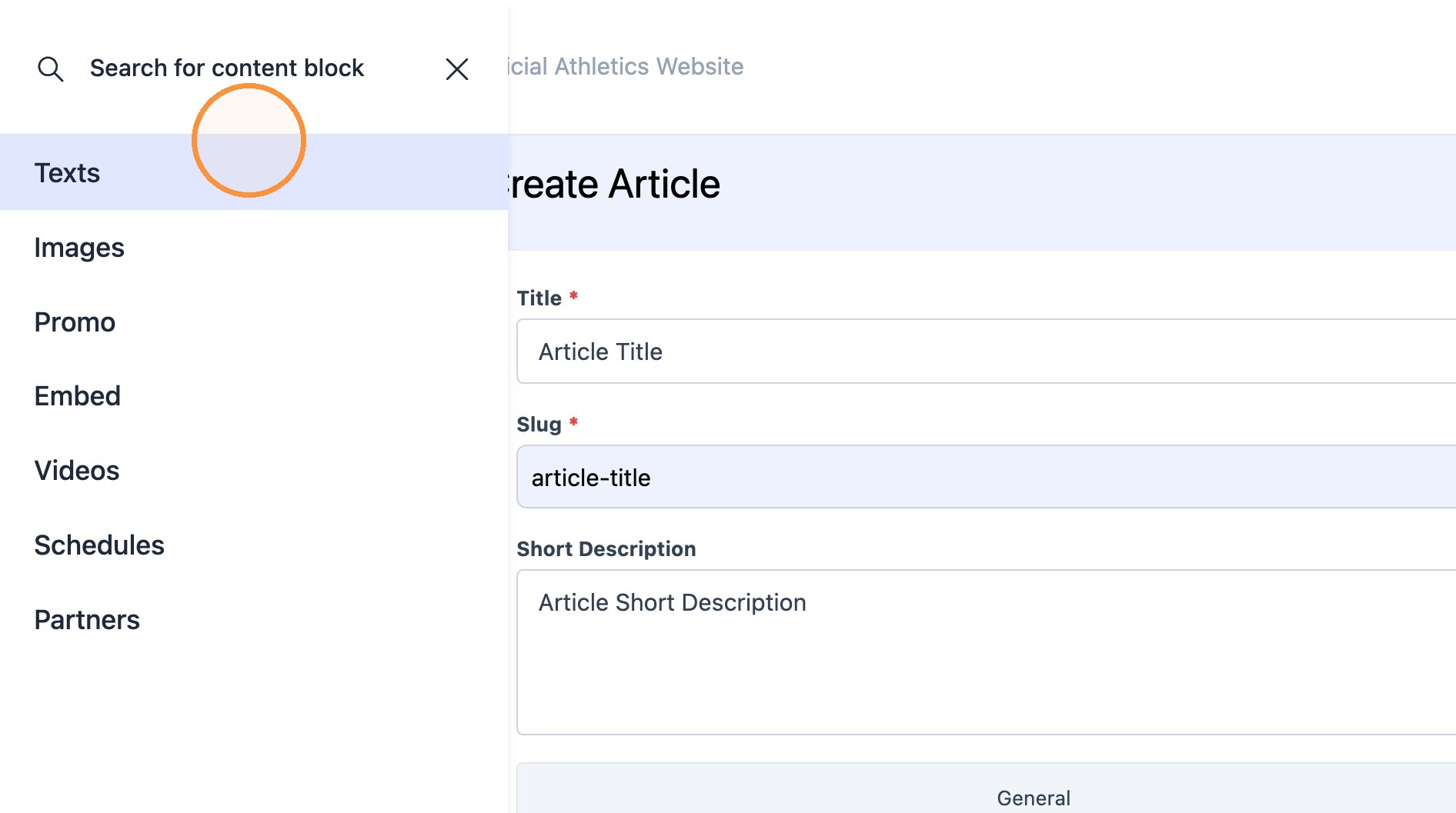
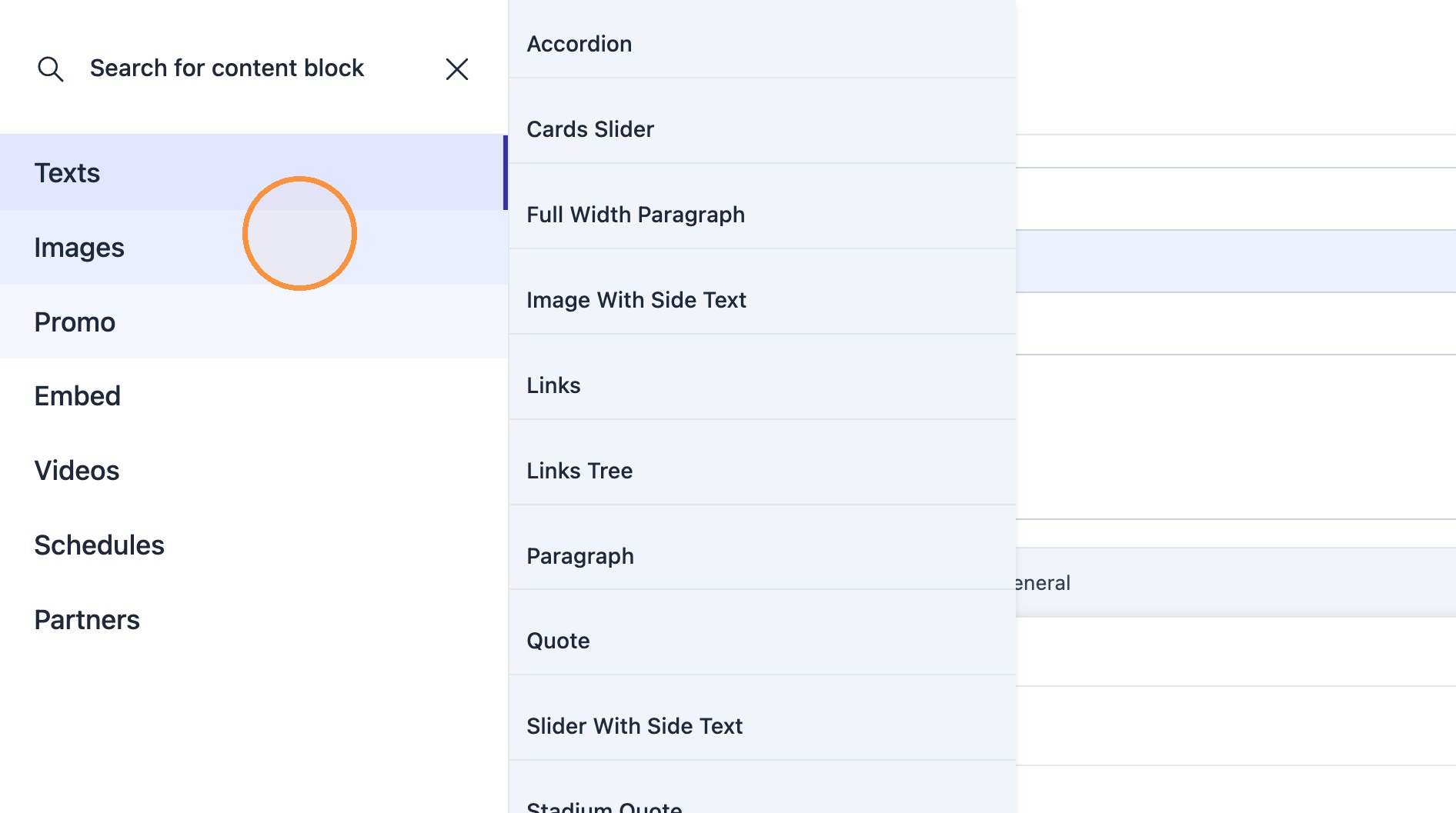
7. Select desired content blocks to start laying out article contents.
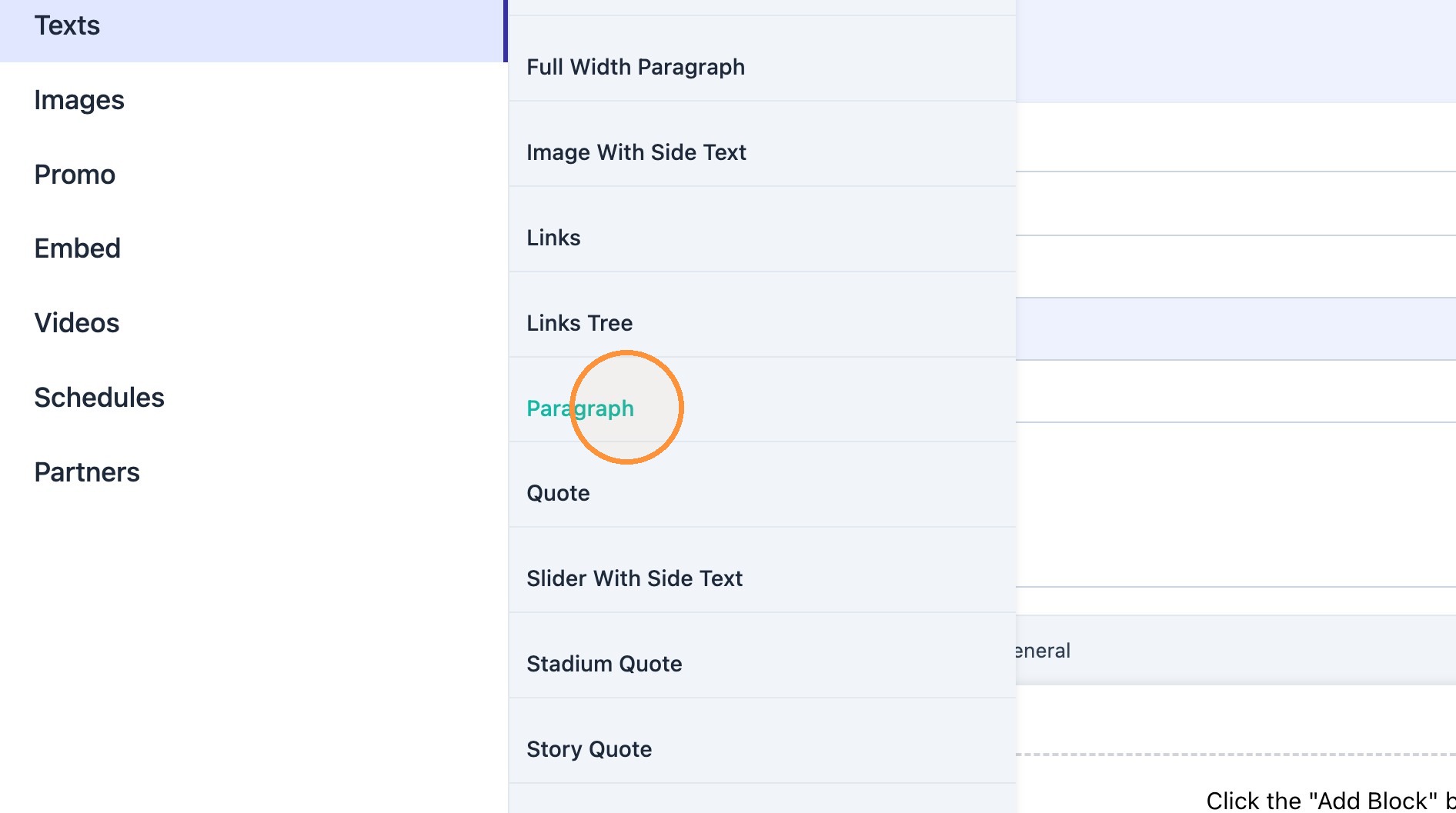
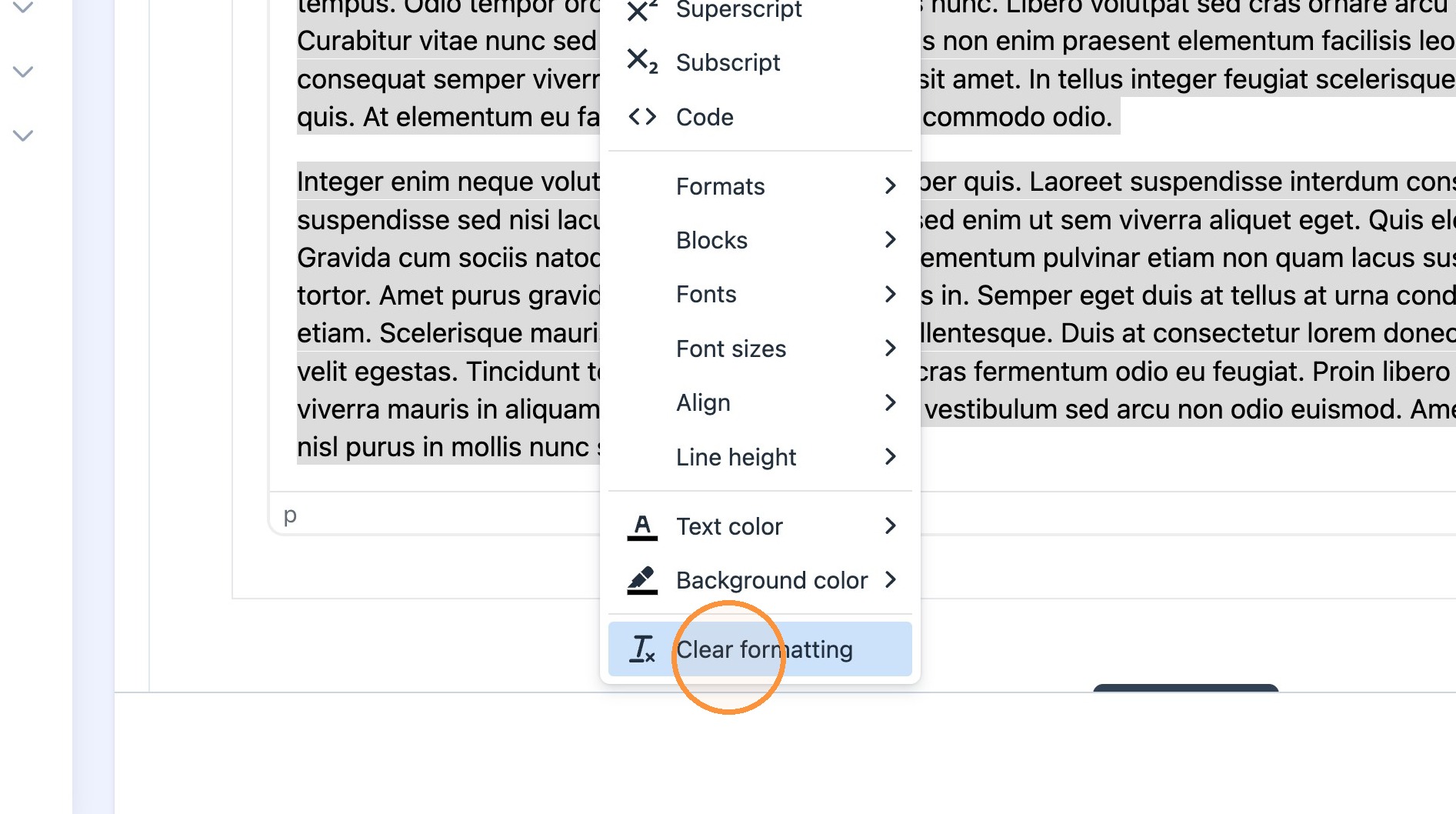
Tip: Tip! If text formatting is pasted from another platform and formatting does not look right, try the "Clear Formatting" step below.
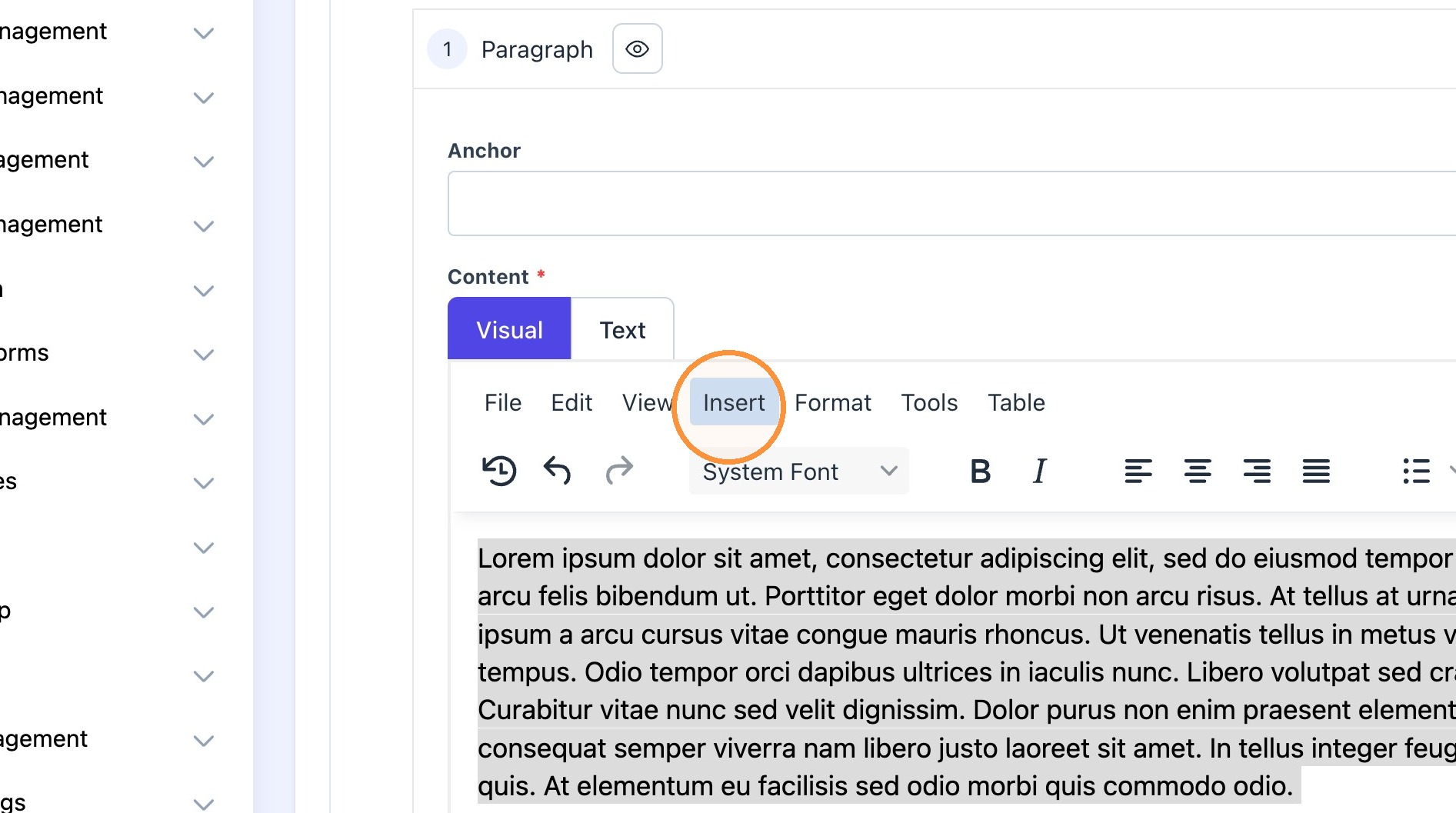
8. **If necessary: Click "Insert" and "Clear formatting."
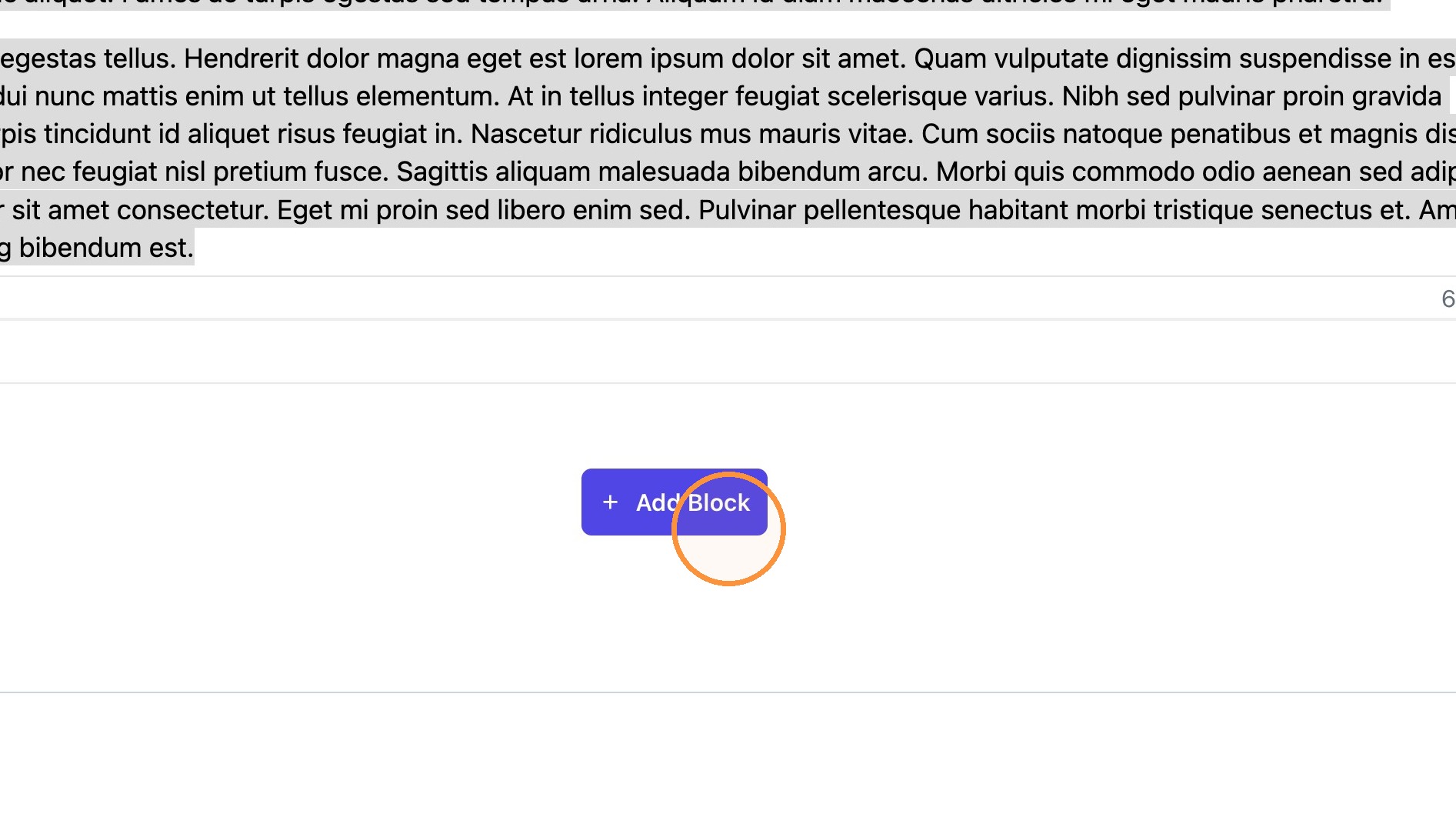
9. Click "Add Block" to add more content blocks (Images, promo banners, etc.)
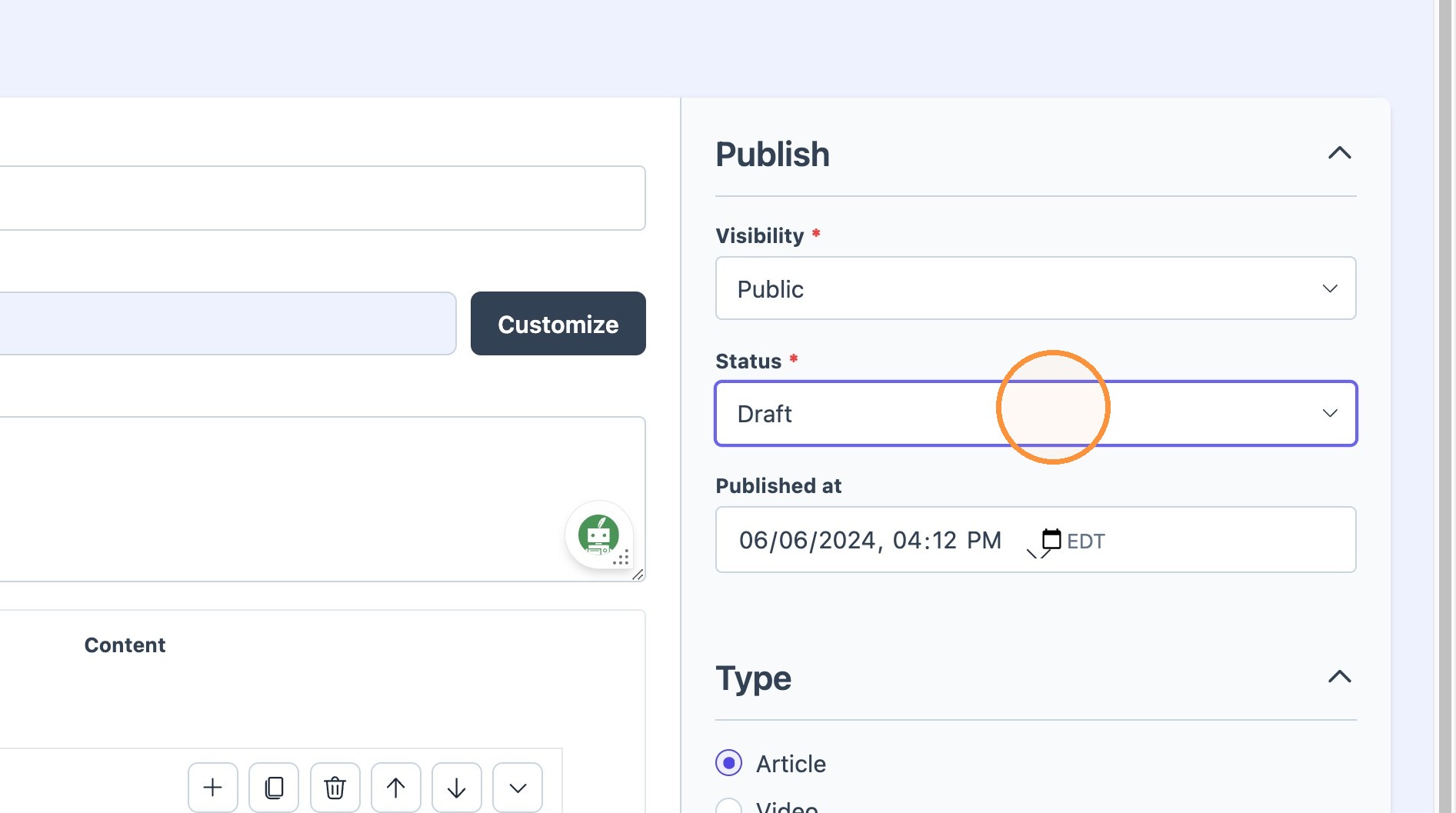
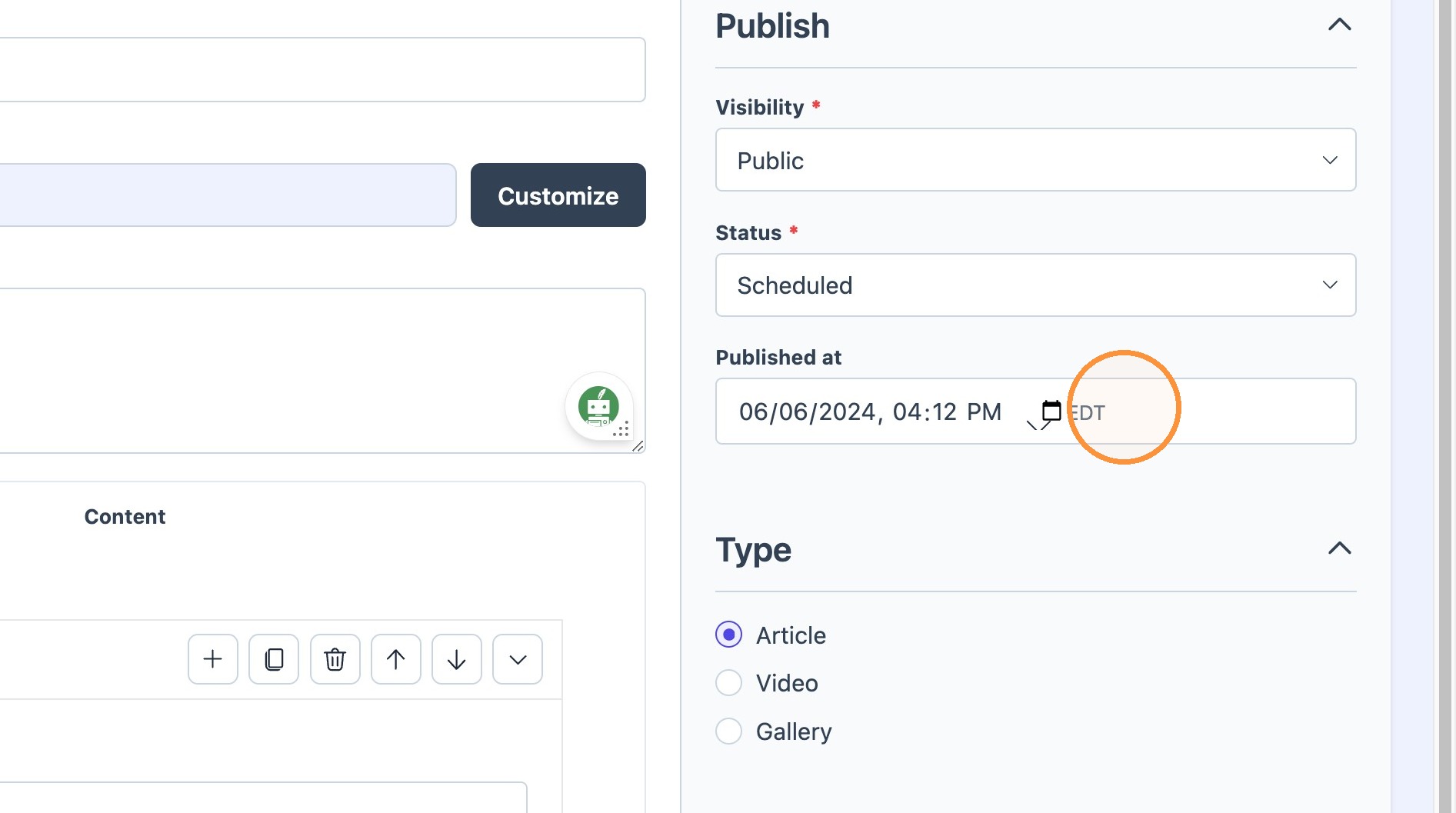
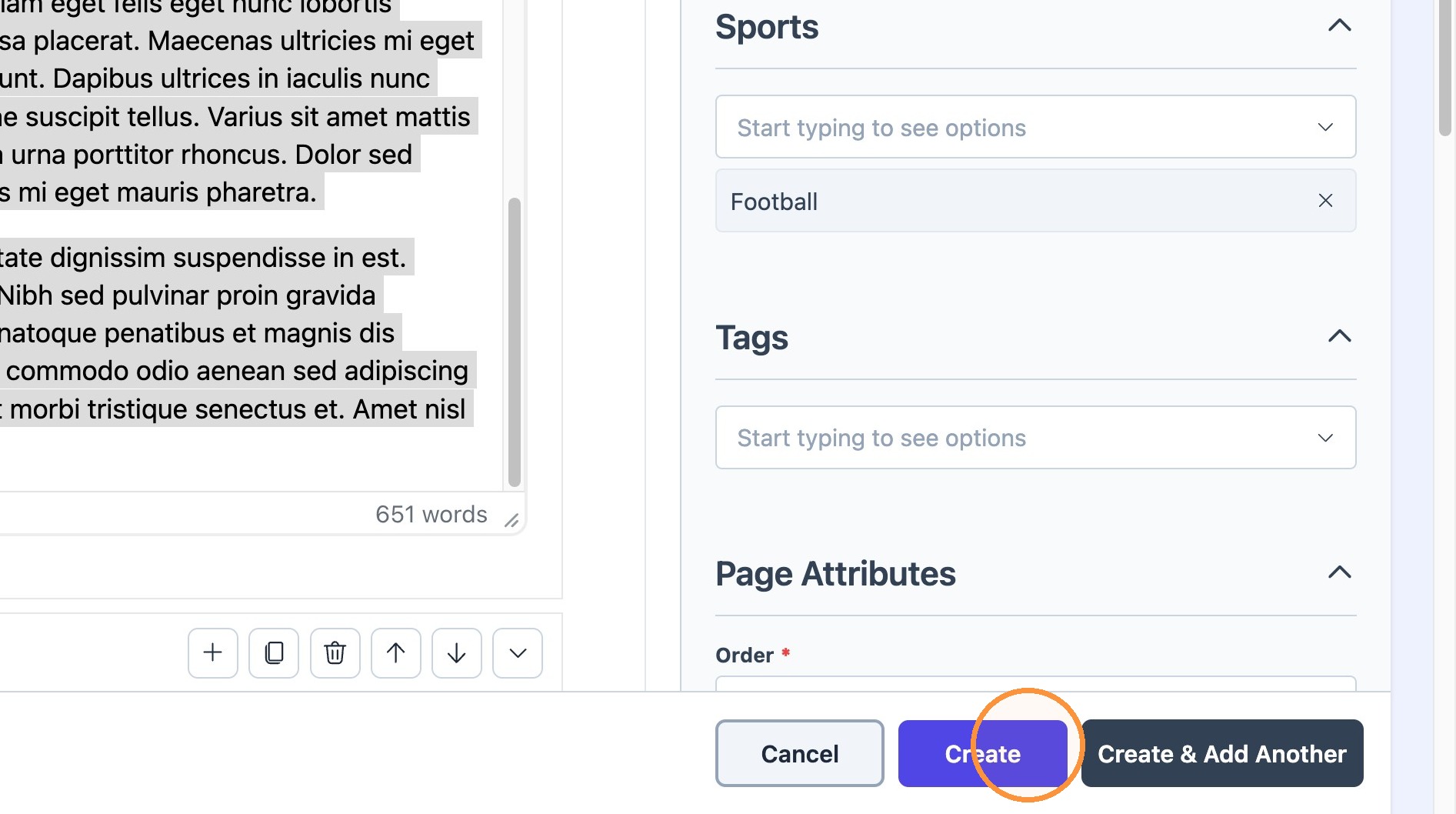
10. Ensure that the correct status and publishing times are correct before creating the new article.