Article Management: Create Live Stream Article
Last updated: September 17, 2026
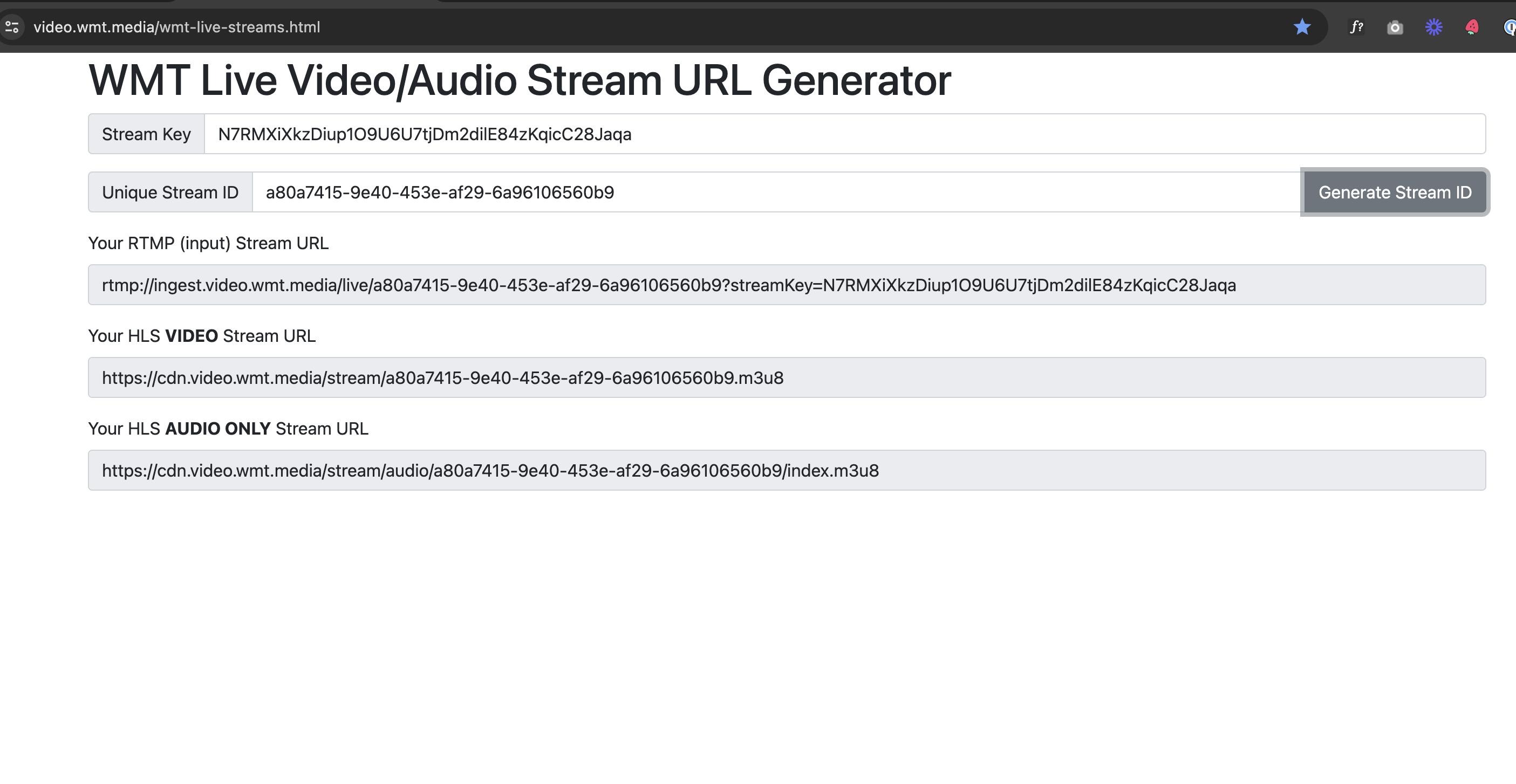
1. Go to https://video.wmt.media/wmt-live-streams.html to generate a new m3u8 live stream URL

2. Copy the Stream Key and paste it into the 'Stream Key' field
Stream Key = N7RMXiXkzDiup1O9U6U7tjDm2dilE84zKqicC28Jaqa
3. Select the 'Generate Stream ID' button to create a unique streaming URL
4. For the Stream URL, add everything from live and before, like what's highlighted below.
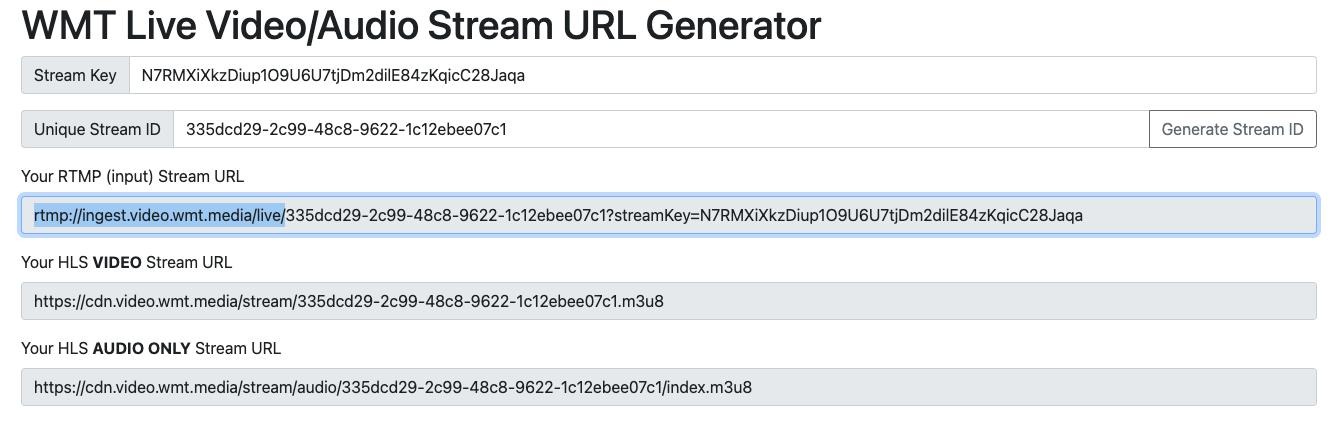
5. For the Stream Key, add everything AFTER live, like what's highlighted below.
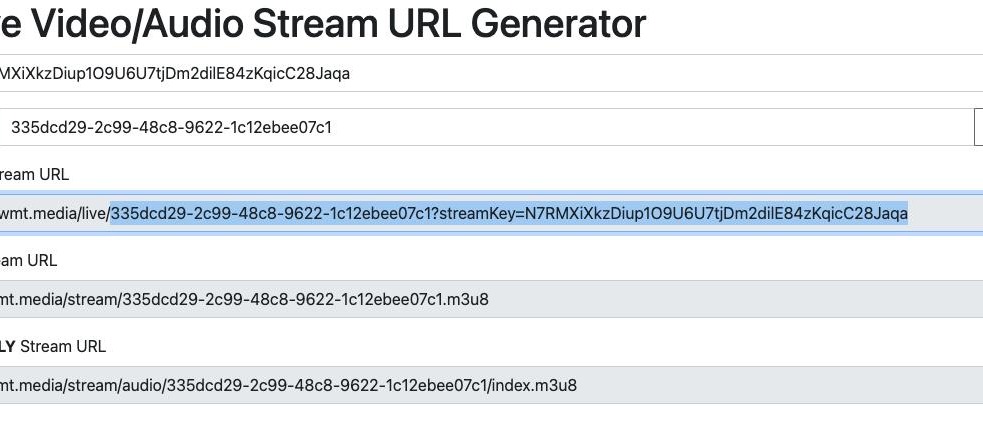
Tip: Use the 'HLS VIDEO Stream URL' in the CMS.
6. Go to the WMT CMS and click "Video Management"
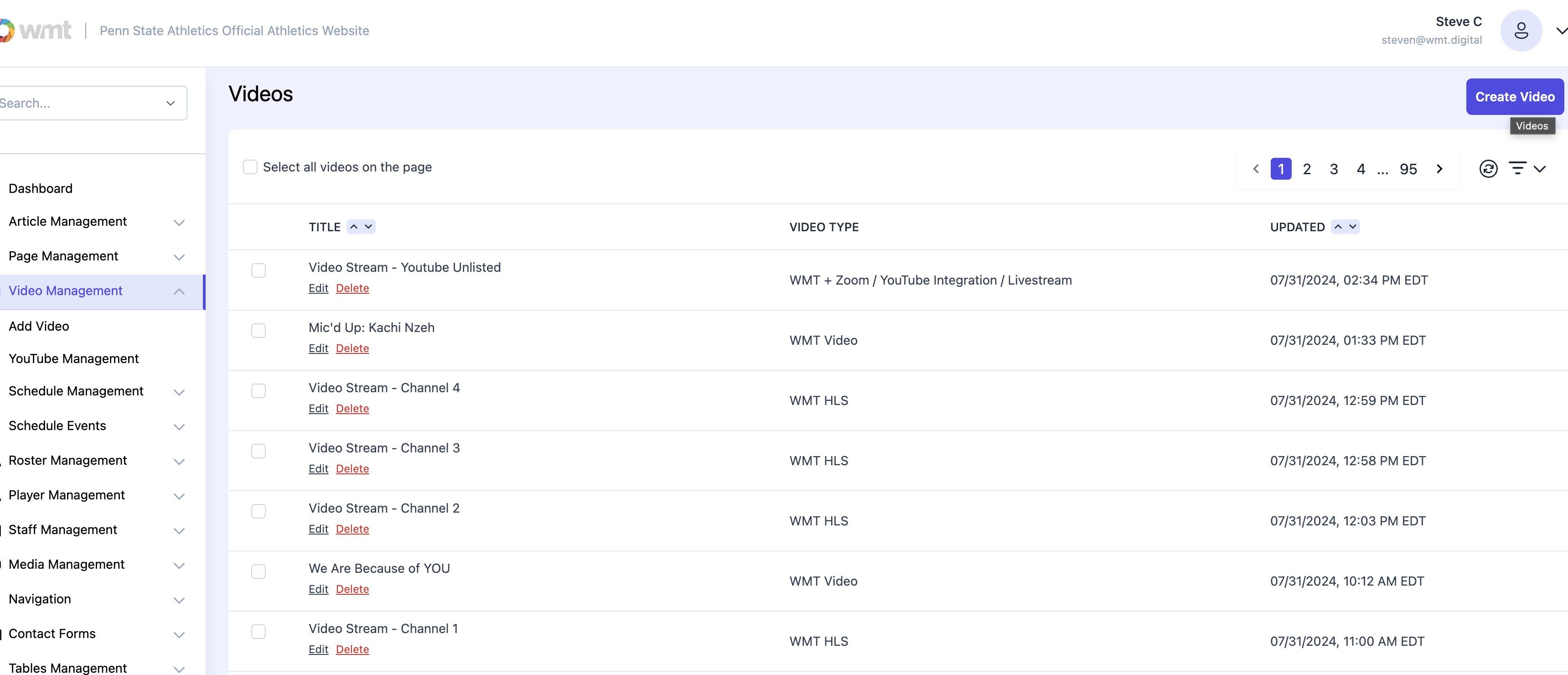
7. Select 'Create Video'
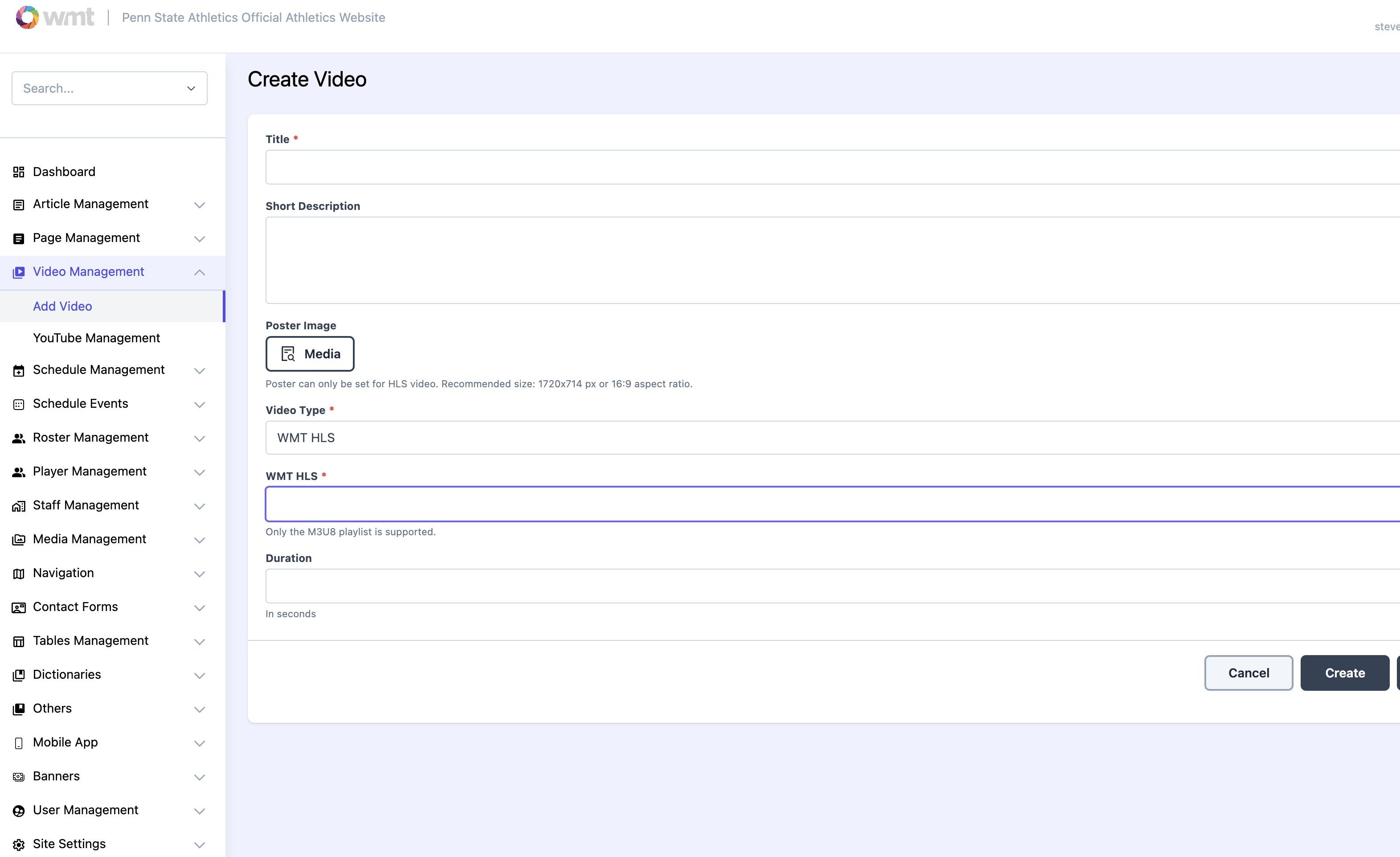
8. Fill out the following fields for your livestream:
Title
Poster Image (Thumbnail)
Video Type = WMT HLS
WMT HLS (Paste Your HLS VIDEO Stream m3u8 URL)
Click 'Create'
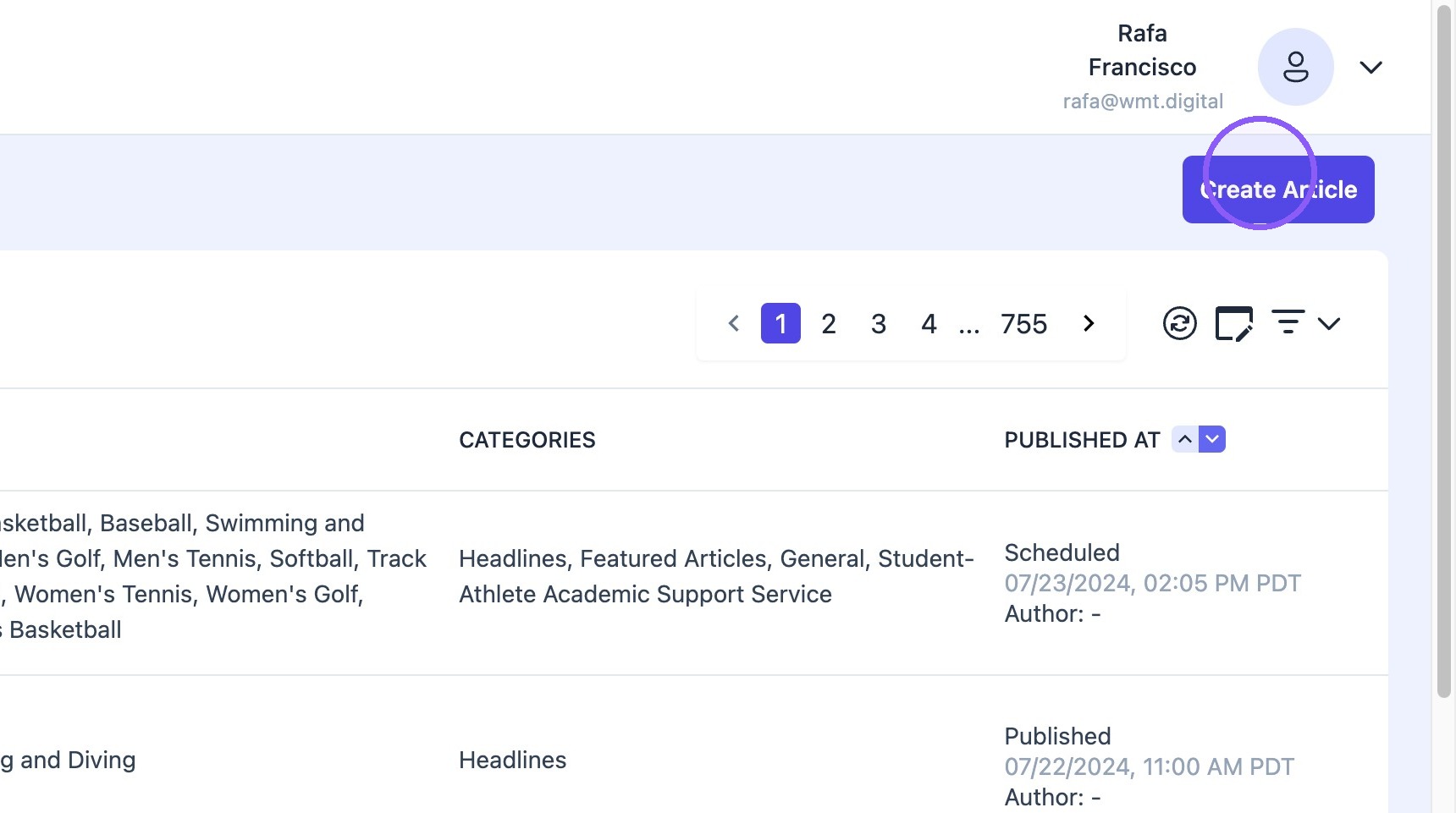
9. Go to and select "Article Management"

10. Click "Create Article"
11. Select "video" as the article type.

Tip: Note! The article type needs to be ‘Video’ so the article is archived within the ‘Videos’ section of the website and mobile app.
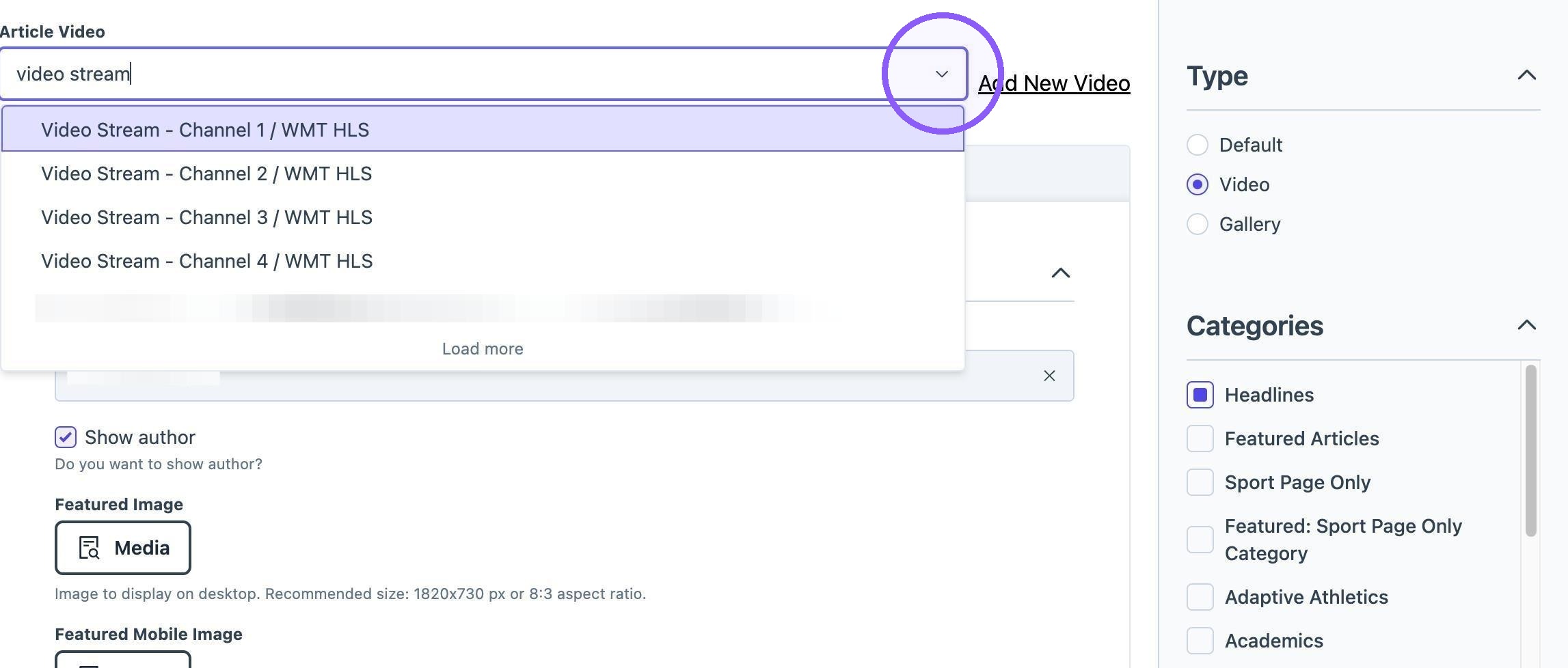
12. Choose the desired article video for the Stream using the "Article Video" dropdown.
Find the title of the video you just created in 'Video Management'
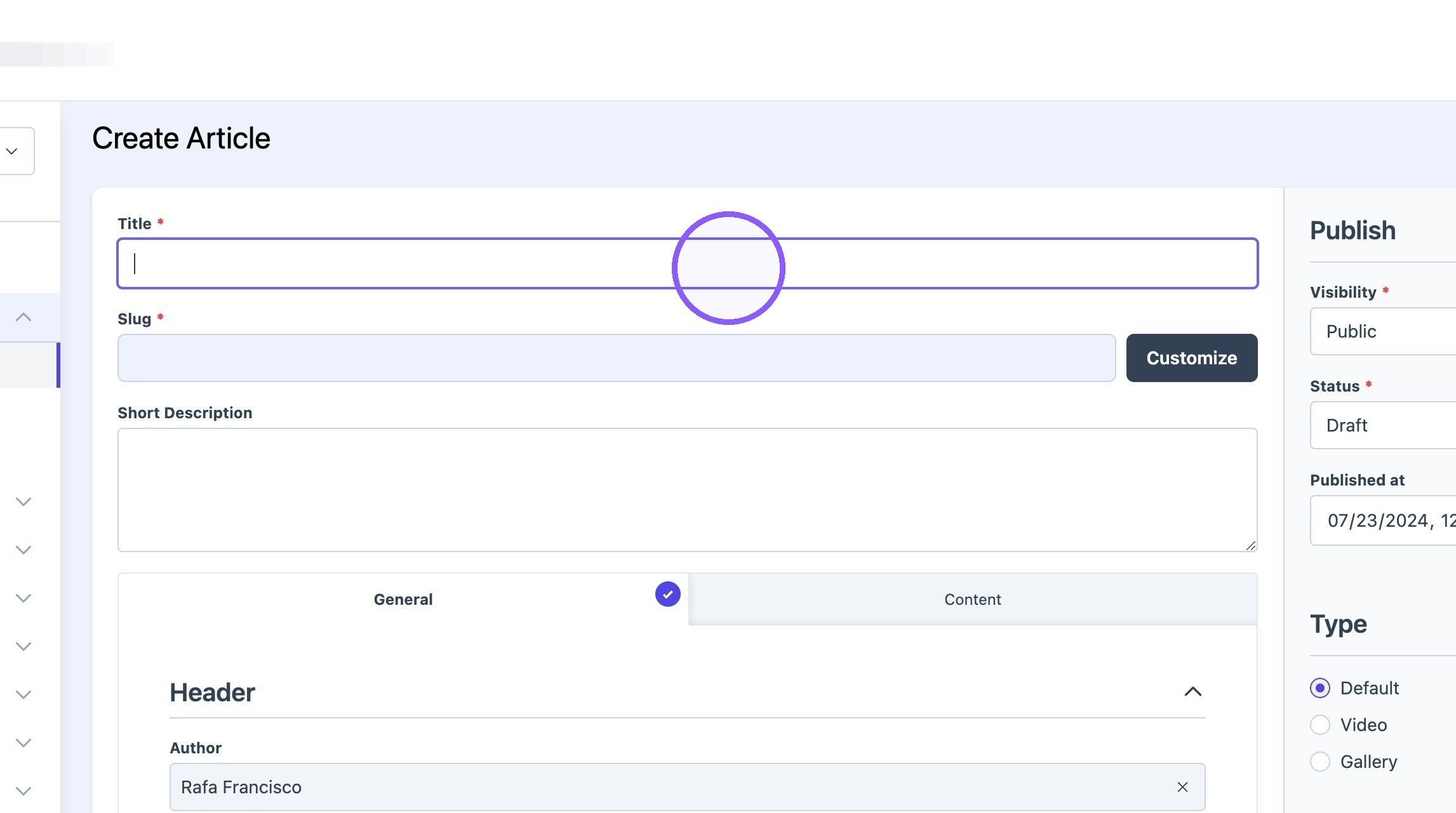
13. Type the desired live stream title under the "Title*" field.
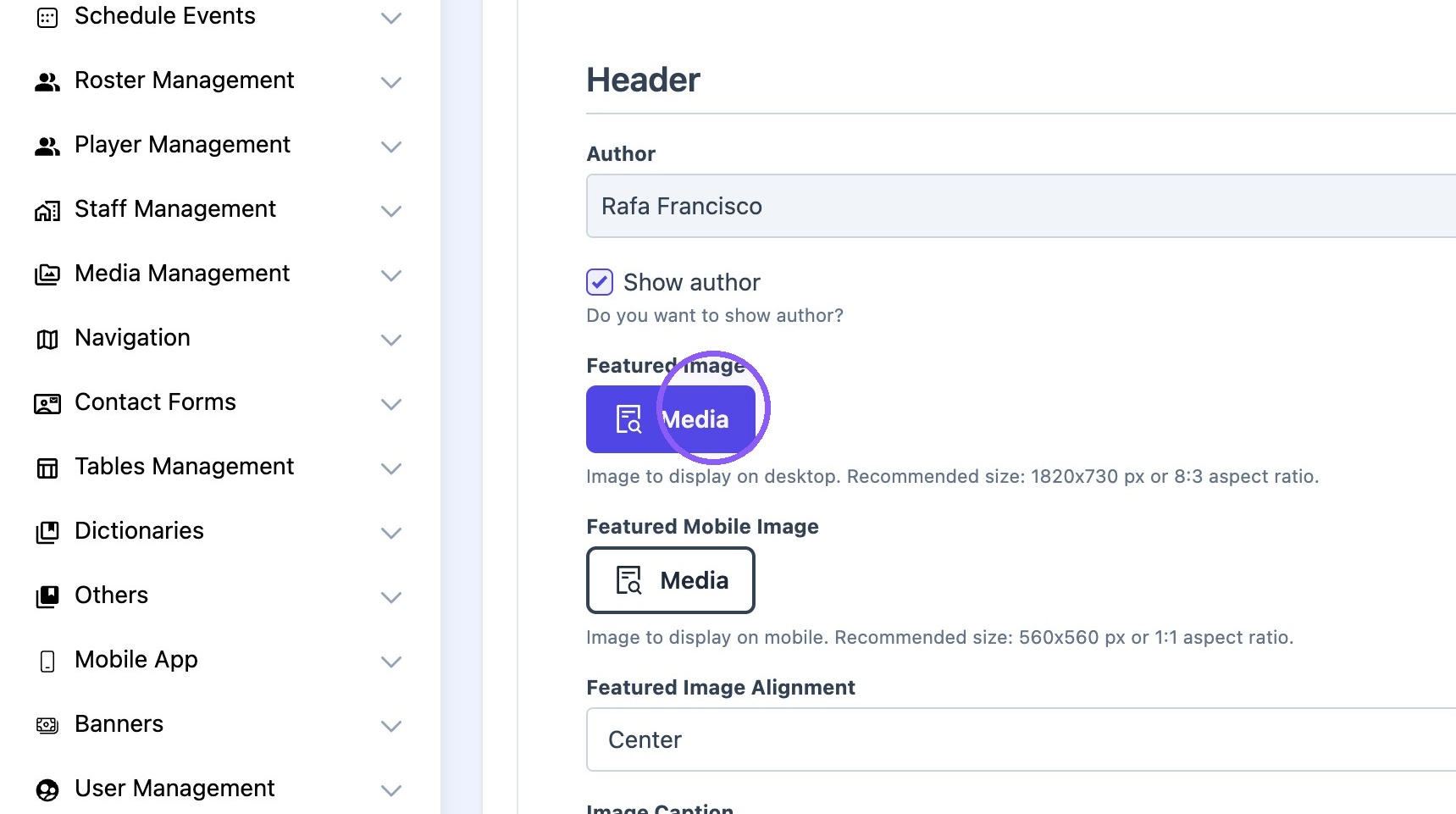
14. Click "Media" to select article featured image.
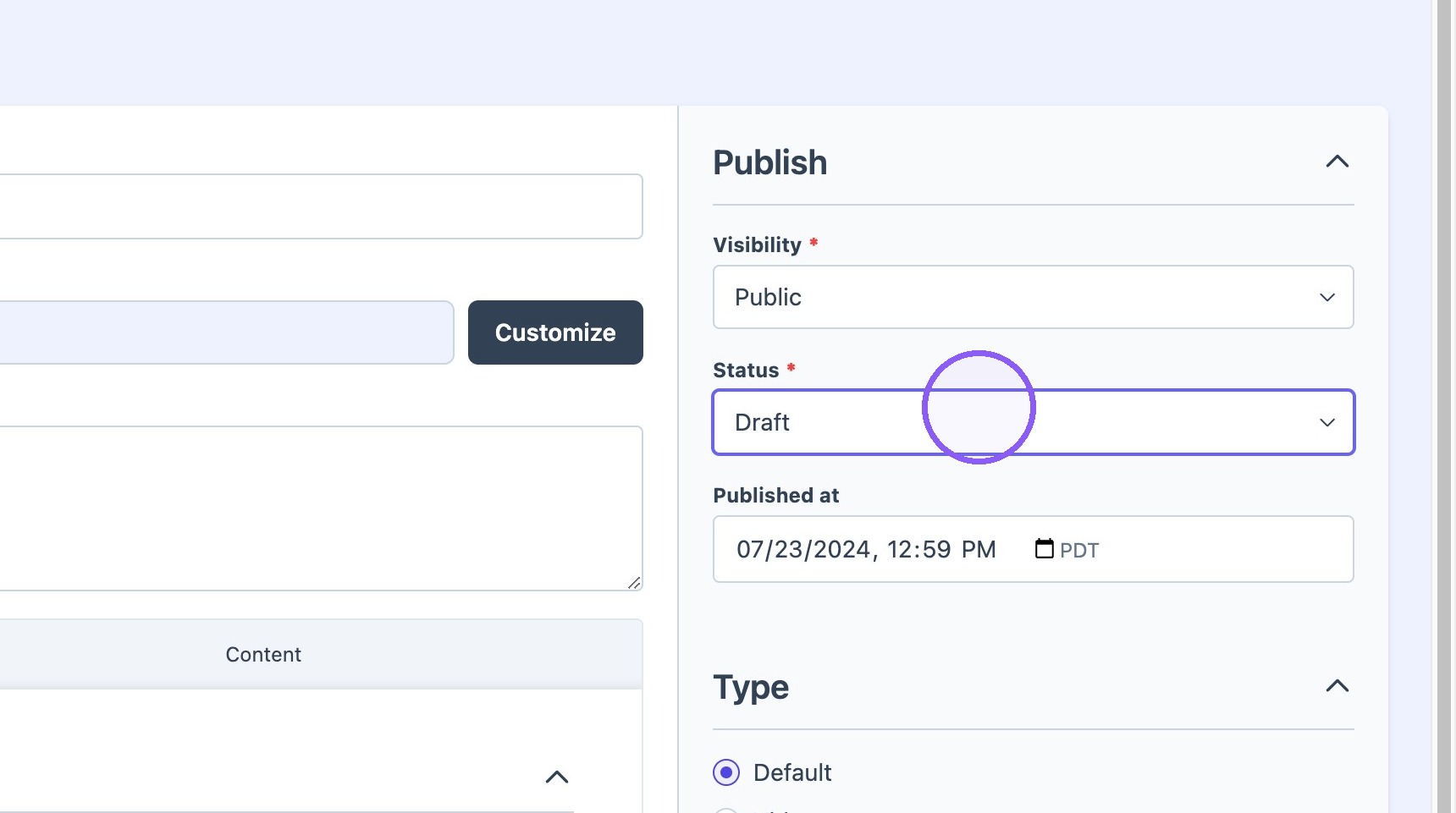
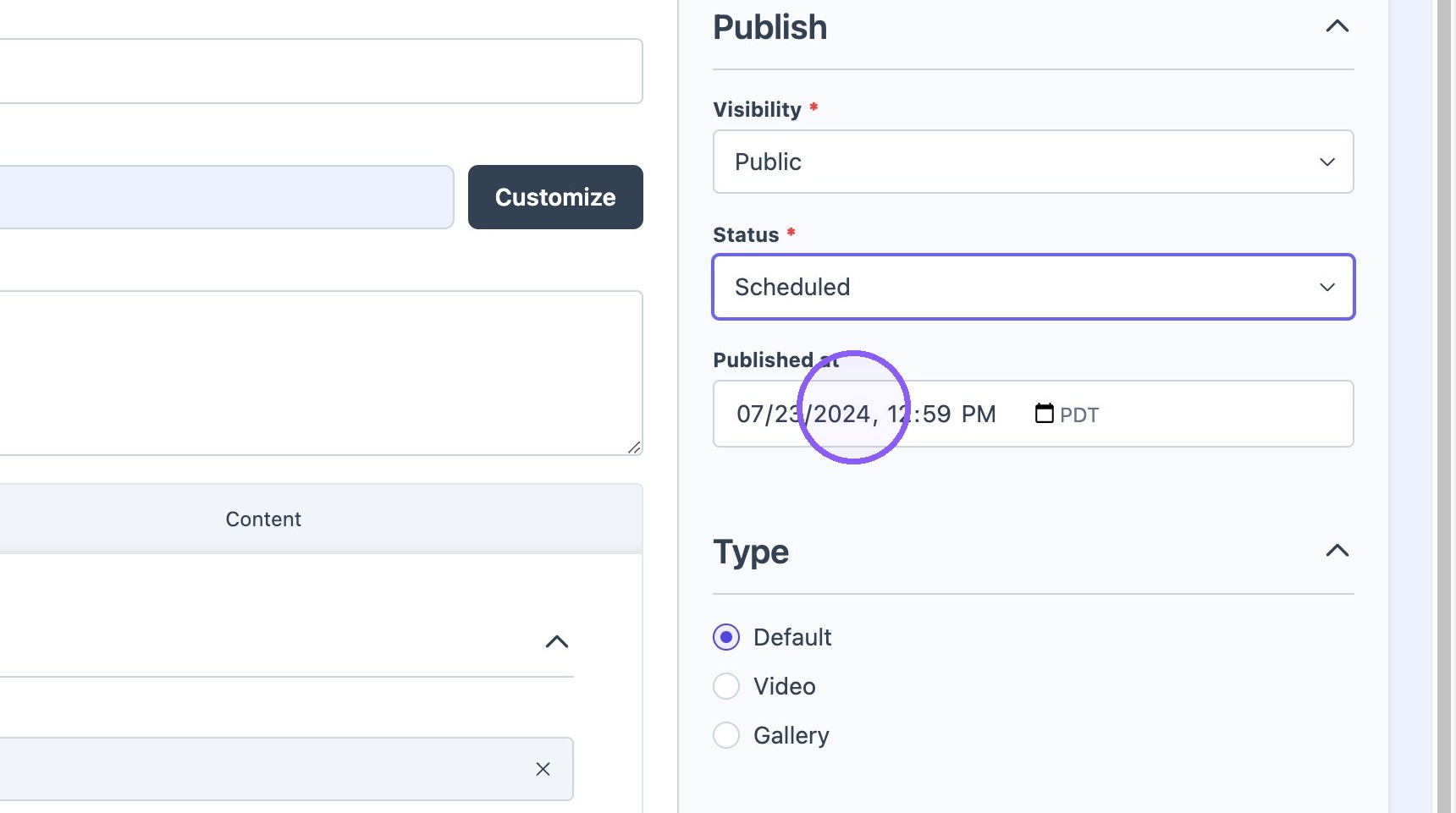
15. Set desired time for article to go live on the site.
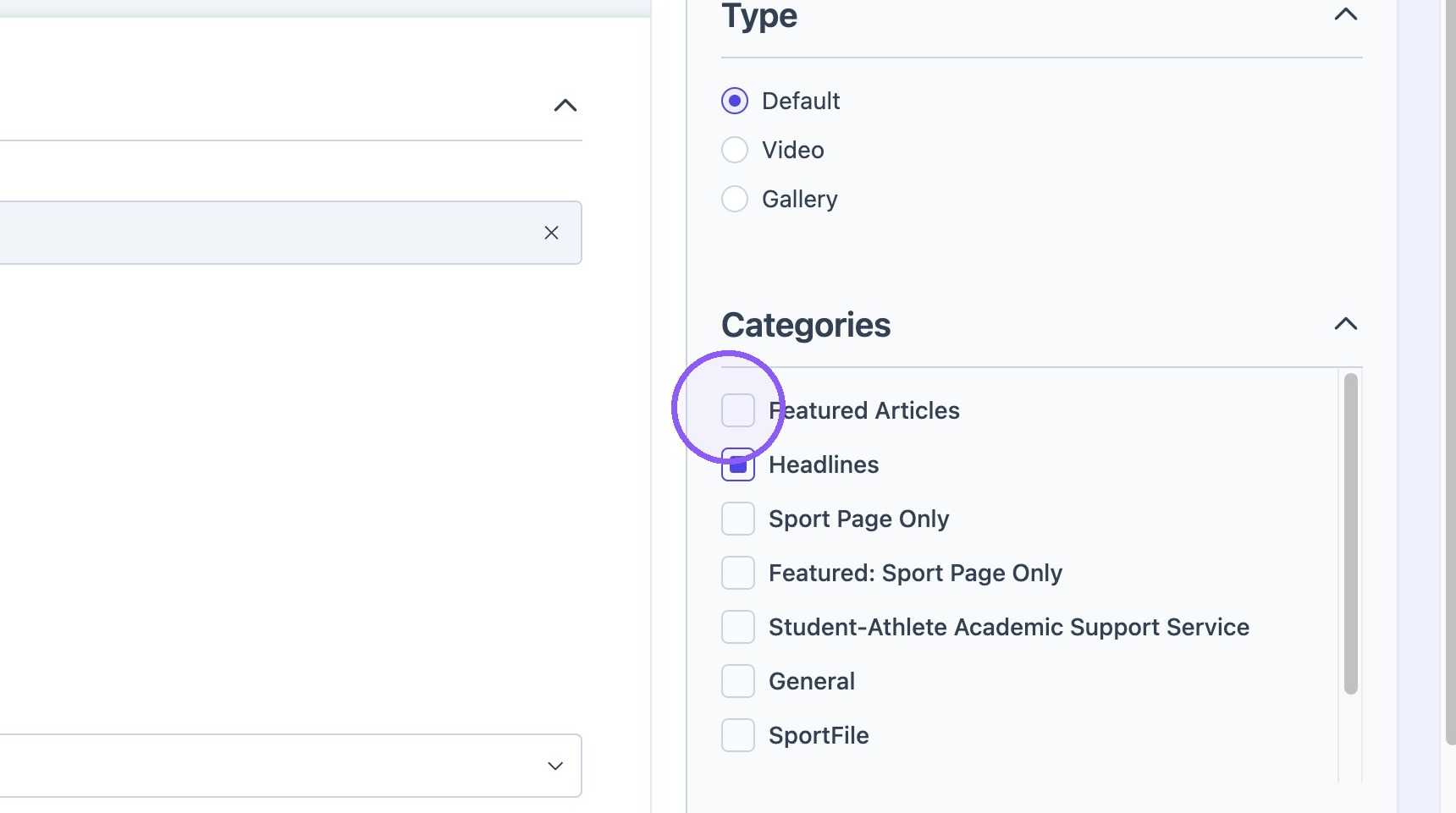
16. Select "Featured Articles" category to make stream populate on the featured articles block on the home page.
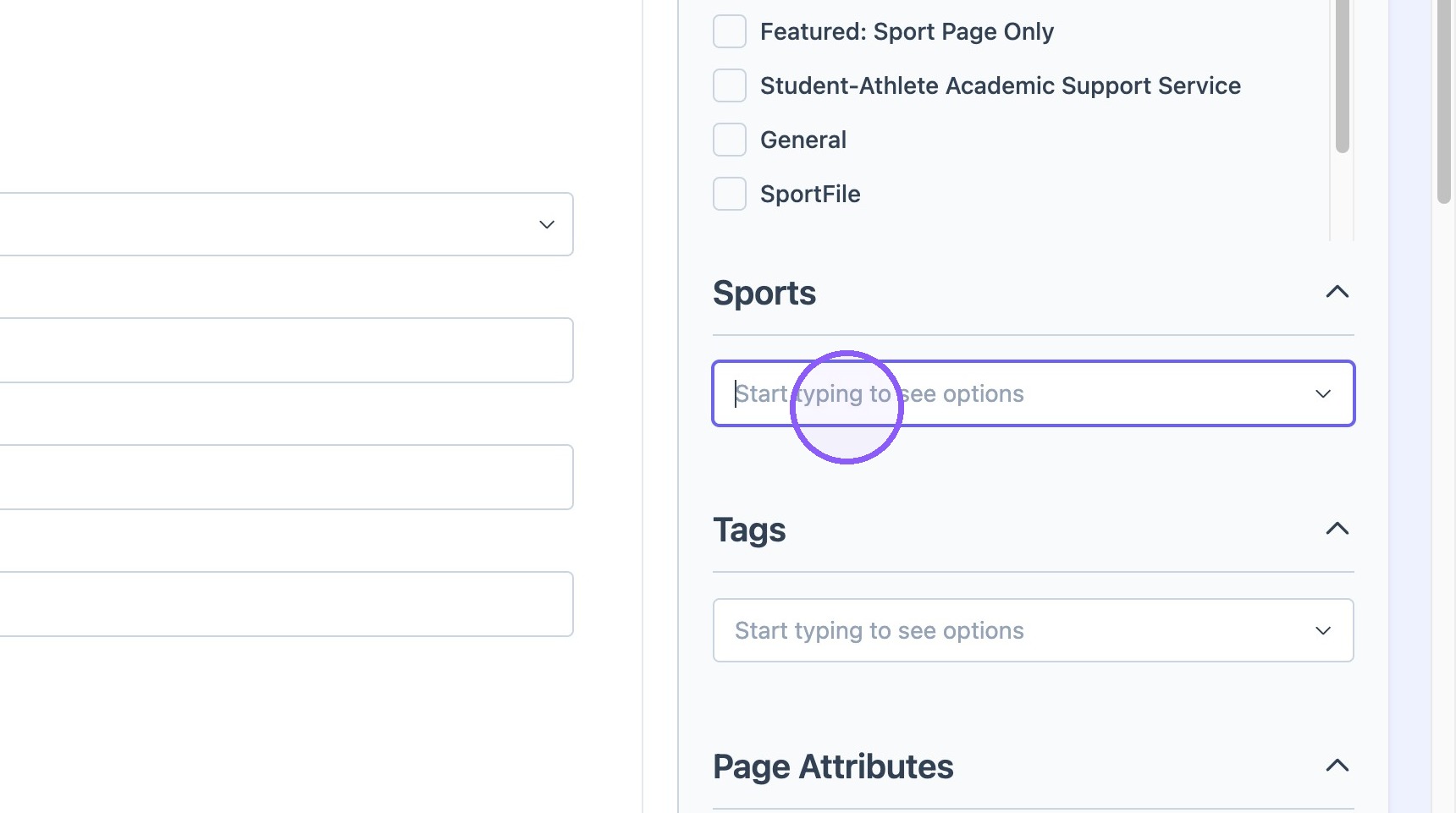
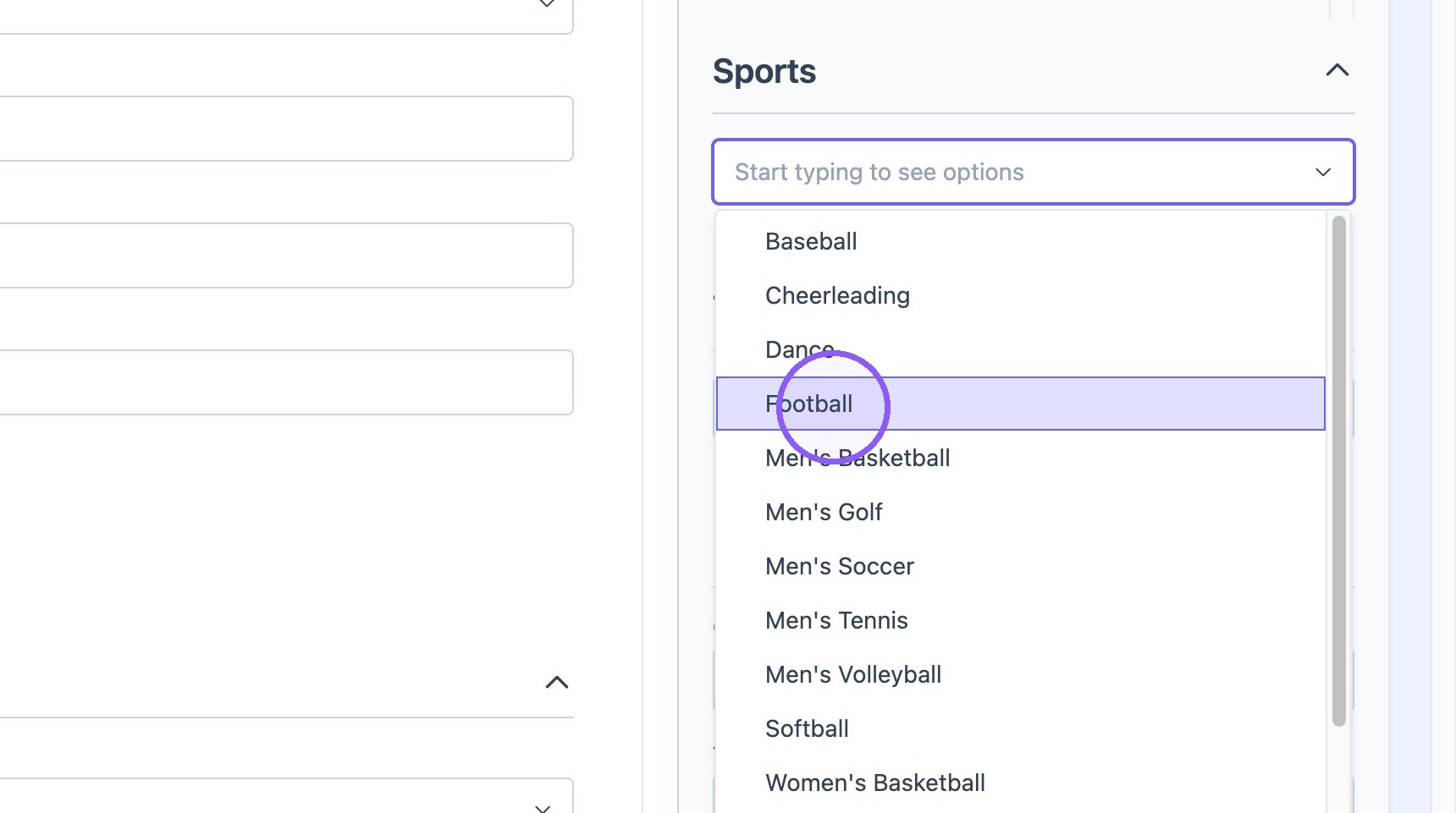
17. Select related sport.
18. Click "Create"